Participating Frequently
August 19, 2019
Answered

Need help inlaying one font into another

  • August 19, 2019
  • 6 replies
  • 1590 views

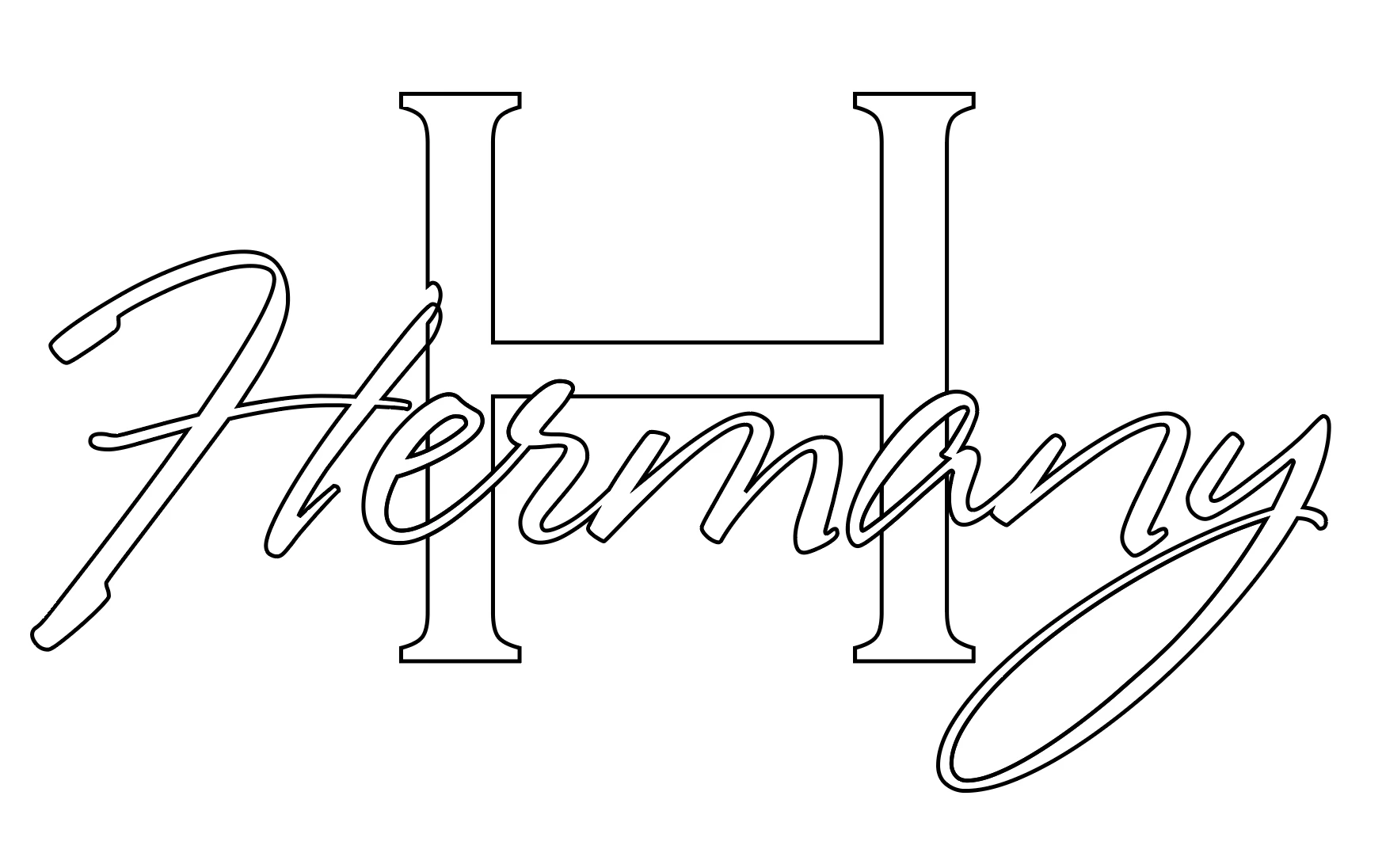
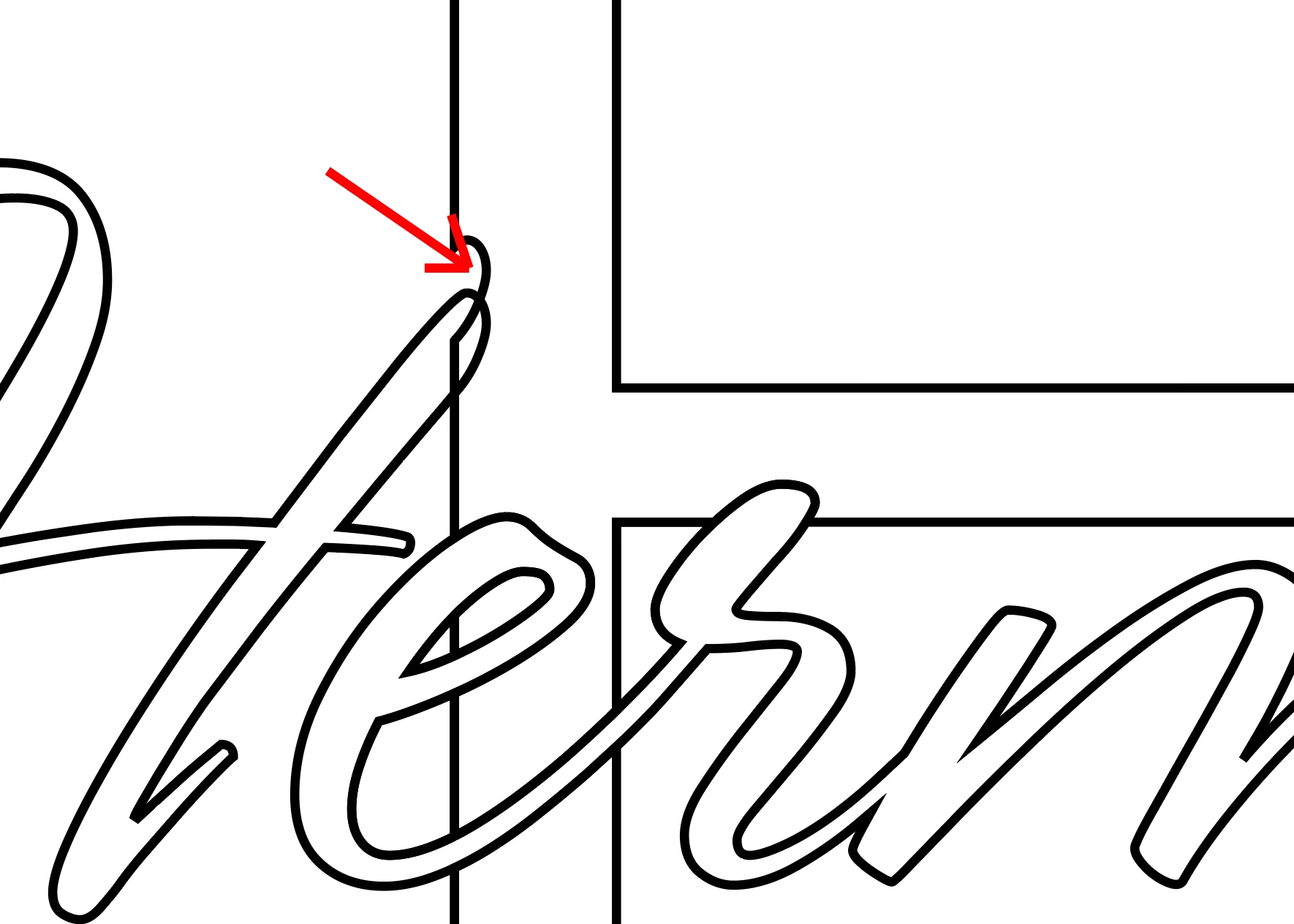
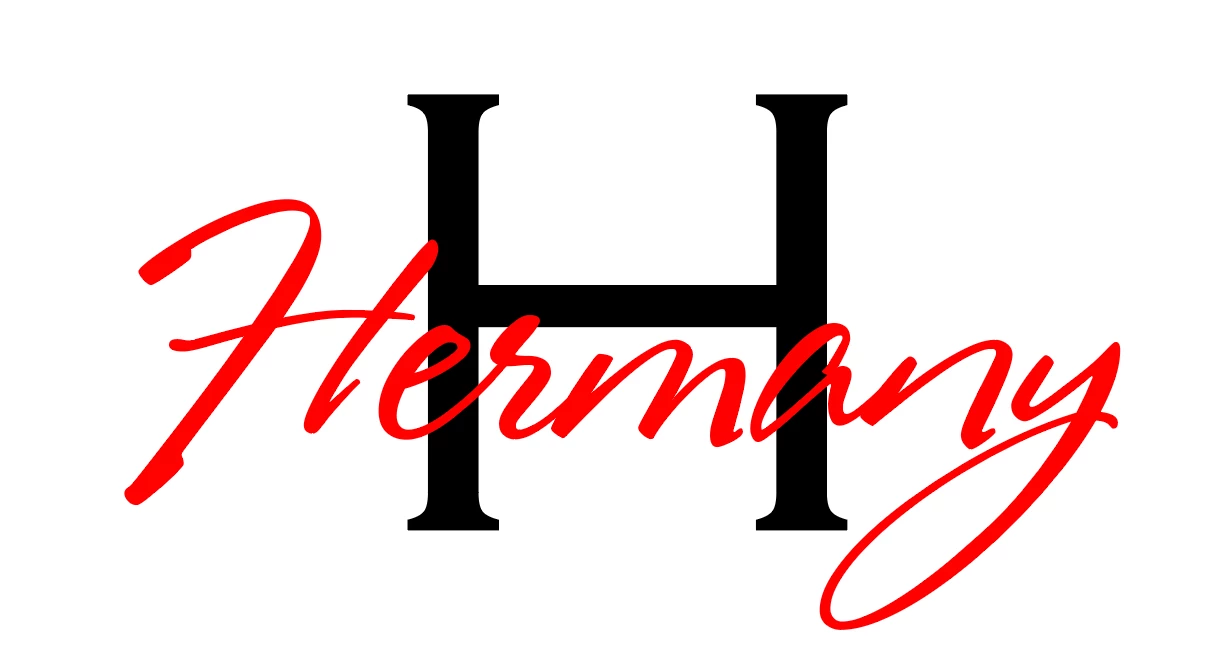
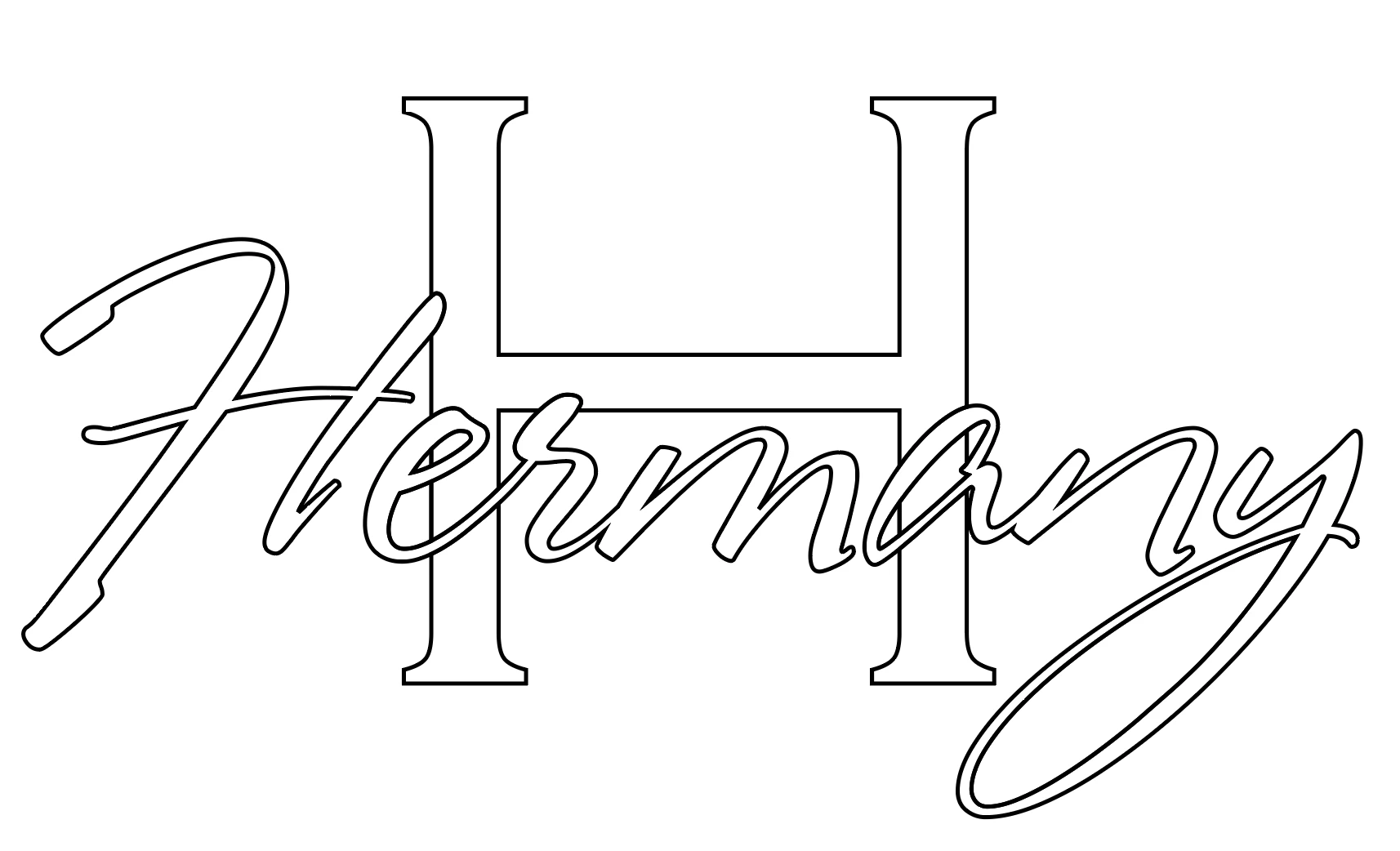
I am trying to inlay one font into another so i can laser cut it. I can create what appears to be what I'm trying to obtain by merging the two fonts together and then converting to stroke, however there is an extra stroke line under everywhere the fonts overlap. I am laser cutting the the final product so I cannot have two lines (one under the other) because then the laser will cut the same spot two times. The first image is what i want it to look like. The second image is what image looks like after i merge the two together and create strokes (that's how i want to send it to my laser cutter). The third image shows the duplicate stroke (the "H") underneath the top font ("Hermany"). I just selected the "H" and moved it down so I could show the stroke underneath it. The fourth image shows what i want to delete or avoid from the start. I apologize if it is hard to understand.
This topic has been closed for replies.
Correct answer Monika Gause

kphotopage  schrieb

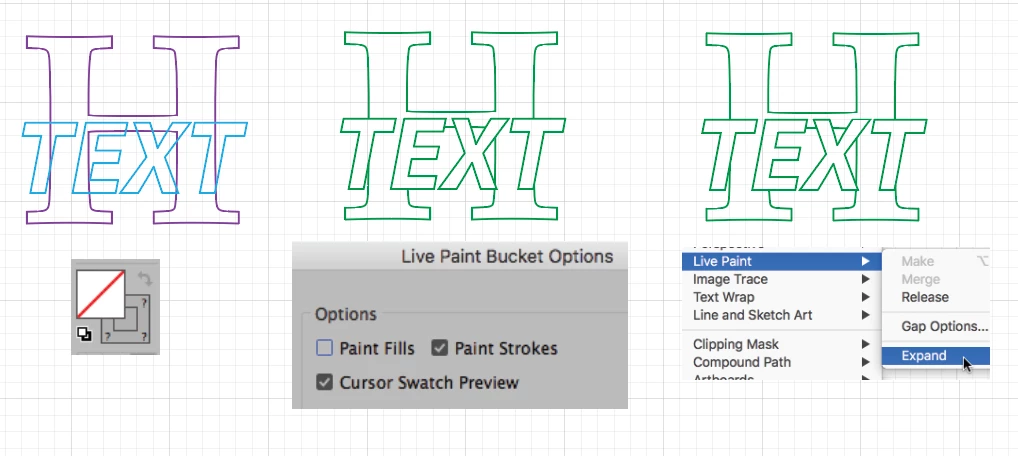
Here I Outlined Type. Stroked with no Fill.

Select, Live Paint Stokes

Expand Live Paint.

No overlap or duplicate of strokes.

K

This.

I would do it like this:

1. Outline text, fill with white

2. Make live paint group

3. Select fill of none and triple click any white fill to change all the white fills to none

4. Expand

6 replies

Inspiring
August 20, 2019

After you outline the text:

  1. Take the red type and ungroup it
  2. Take the red text then create a compound path: Object> Compound Path> Make (CTRL+8/CMD+8)
  3. Copy the red text: Edit> Copy (CTRL+C/CMD+C)
  4. Paste the red type in Front: Edit> Paste in Front (CTRL+F/CMD+F)
  5. While the copy of the red text is selected then also select the H
  6. Use the Pathfinder and Subtract the top object
  7. Now you have one copy of the red text and one copy of the H with the red text cut out.

Participating Frequently
August 20, 2019

The text can't be solid though. I have to have it as "no fill" with a stroke so I can cut it with my laser cutter.

kphotopage
Legend
August 20, 2019

Here I Outlined Type. Stroked with no Fill.

Select, Live Paint Stokes

Expand Live Paint.

No overlap or duplicate of strokes.

K

Monika Gause
Community Expert
Monika GauseCommunity ExpertCorrect answer
Community Expert
August 20, 2019

kphotopage  schrieb

Here I Outlined Type. Stroked with no Fill.

Select, Live Paint Stokes

Expand Live Paint.

No overlap or duplicate of strokes.

K

This.

I would do it like this:

1. Outline text, fill with white

2. Make live paint group

3. Select fill of none and triple click any white fill to change all the white fills to none

4. Expand

Participating Frequently
August 20, 2019

I think that might have worked!

Participating Frequently
August 19, 2019

Expanding on above responses, after applying Object>Path>Outline Stroke

1. Use the pathfinder>divide

2. Select overlapping objects>apply the shape-builder tool

If you need artwork for just a black-outline, repeat your steps above use pathfinder>outline.

Tutorial on Pathfinder: Search Results

Participating Frequently
August 19, 2019

Thanks! What do you do after you apply the shape builder tool? It looks like it just created a grid?

Anna Lander
Inspiring
August 19, 2019

What colors do you need finally? If 2 different like on your starting image, then 2 strokes are needed to cut letters from different film sheets, so it's all right.

If you plan to cut the whole lettering as a single shape, use Pathfinder in Add mode (first button in top line)

Participating Frequently
August 19, 2019

It will be cut out of one piece of plywood so I don't want to have repeat cuts. Perhaps these photos will help show you what I am trying to obtain. The F and Farrar are all from one piece of plywood and glued onto the circle.

Anna Lander
Inspiring
August 19, 2019

if you plan to cut it from 1 piece and color later, you can thy the follow workaround:
1. Convert texts to outlines

2. Unite "Red" text by Pathfinder > Unite

3. Copy the composition to Clipboard

4. Merge all elements by the same Unit button on Pathfinder panel

it's yout main outline.

5. Paste the Clipboard content in front (Ctrl/Cmd + F)

6. Use Pathfinder > Outlines

This operation will remove all fills and cut all lines in intersection points and create a group.

7. Using Isolated Mode, delete all unneeded lines

8. Now you have an outline and one-stroke internal lines.

I colored the lines differently to show the parts, but you certainly don't need to change colors, cutting mashine doesn't see them

ceyhun_akgun
Legend
August 19, 2019

I recommend using the Shape Builder tool. Easy to use and practical.

Select all objects, simply drag with the mouse.

Graphic Designer Educator / PrePress Consultant
Participating Frequently
August 19, 2019

I don't want to combine everything though. I feel like there has to be a way to merge two fonts together and only have the stroke lines for the "top" text.

Anna Lander
Inspiring
August 19, 2019

well, I see here 2 in-mass colored forms, each cutted separately and then glued together. Aren't they?

Mohammad.Harb
Community Expert
Community Expert
August 19, 2019

go to object -> path -> outline stroke

then use the pathfinder again, you can also use the shape builder tool.

Participating Frequently
August 19, 2019

What do you mean use pathfinder again?