zm96034777
Participating Frequently
September 13, 2025
Answered

A photo book with images only printed on Right side pages

  • September 13, 2025
  • 1 reply
  • 360 views

I have 51 images. I want to create a book (to publish) where the image prints only on the right side and the left facing side is blank. This means a total of 102 pages (not counting cover).

I want to include a text box below each photo.

I want the same layout for each of the 50 pages.

I want to create one centerfold image - the image printed across both left and right side pages. 


How do I create a template to place 51 images only on the right side?

How can I create a centerfold that breaks with this pattern?


Thank you. (P.S. Spent 2 days searching for this answer.)
Correct answer tonks_the_auror

I will try to help you. The secret sauce is Parent Pages.


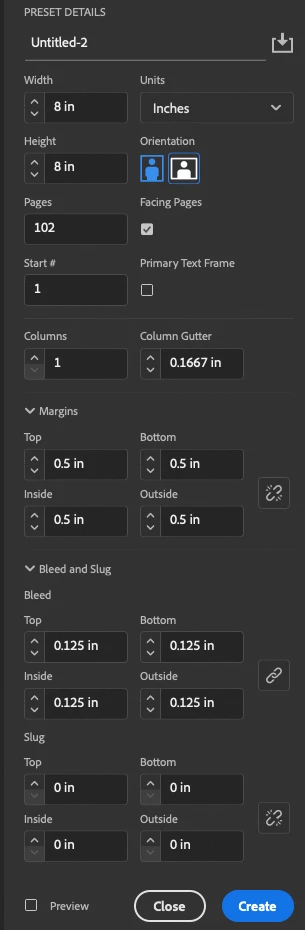
1. Create a new file with 102 pages, with Facing Pages checked


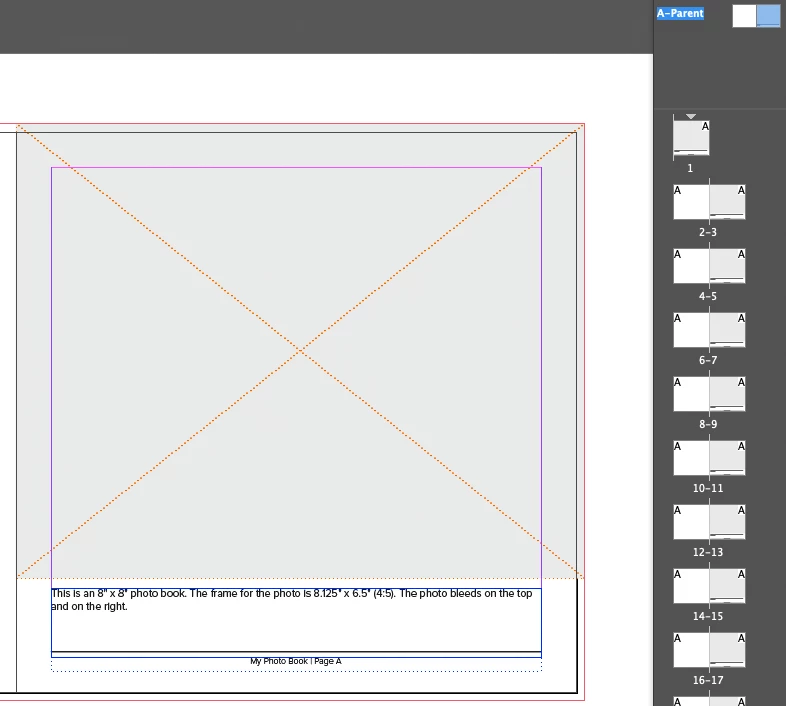
2. In the pages panel, select Parent Page A.  Double-click on the right parent page so it's the only one selected. Add your image frame, text box (with dummy text) and page number (if you want page numbers) to this page. All of the right-hand pages in your file will now have these elements.


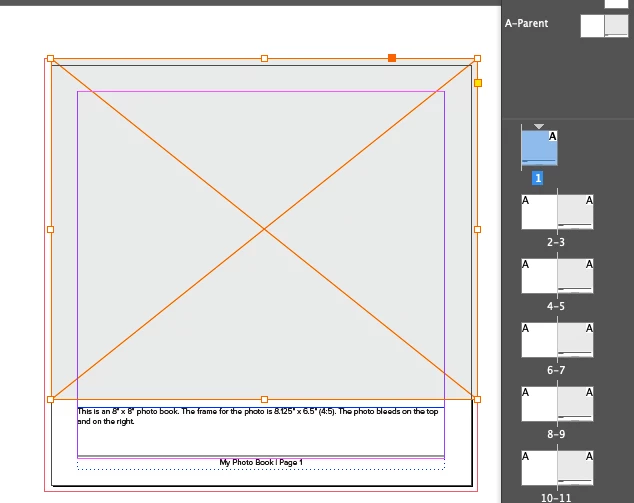
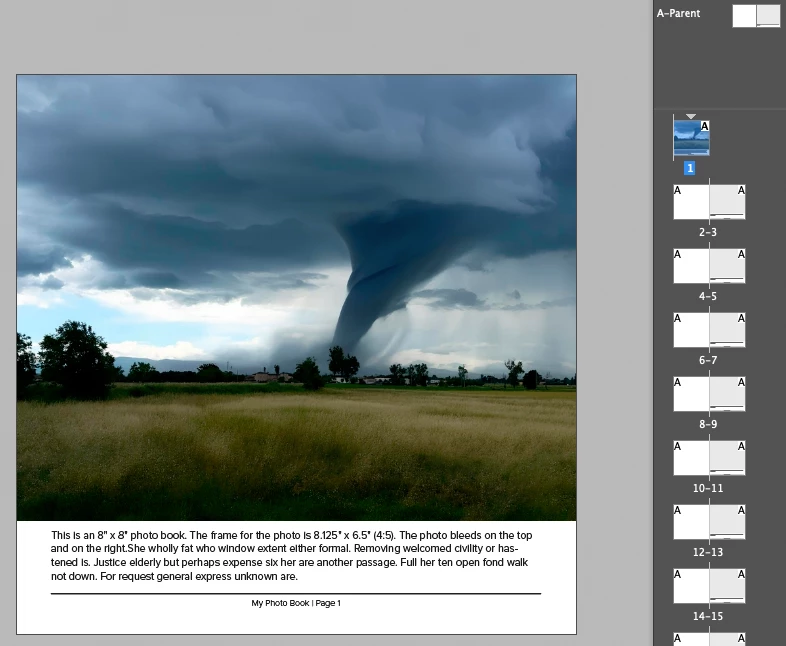
4. In the Pages Palette, choose page 1. To place a photo in the frame, Shift + Command/Control + Click to make the frame live on the page. Place your image.


5. To edit the text, same thing. Shift + Command/Control + Click to make the text frame live on the page, and edit the text.


6. To create the center spread, go to the page 52-53 spread in the pages palette. Shift + Command/Control + Click on the photo frame and the text frame to make them live on the page. If this is supposed to be a full page image with no text, just delete the text box and resize the image frame.


I really hope this helps!


1 reply

tonks_the_auror
Community Expert
tonks_the_aurorCommunity ExpertCorrect answer
Community Expert
September 14, 2025

I will try to help you. The secret sauce is Parent Pages.


1. Create a new file with 102 pages, with Facing Pages checked


2. In the pages panel, select Parent Page A.  Double-click on the right parent page so it's the only one selected. Add your image frame, text box (with dummy text) and page number (if you want page numbers) to this page. All of the right-hand pages in your file will now have these elements.


4. In the Pages Palette, choose page 1. To place a photo in the frame, Shift + Command/Control + Click to make the frame live on the page. Place your image.


5. To edit the text, same thing. Shift + Command/Control + Click to make the text frame live on the page, and edit the text.


6. To create the center spread, go to the page 52-53 spread in the pages palette. Shift + Command/Control + Click on the photo frame and the text frame to make them live on the page. If this is supposed to be a full page image with no text, just delete the text box and resize the image frame.


I really hope this helps!


zm96034777
Participating Frequently
September 19, 2025

Yes, this was incredibly helpful. Thank you. To clarify for future users, on a mac, you only need Shift+command (mac) to select the boxes. It took several tries before I could get the first image to place individually (it wanted to repeat across all the pages). But, it finally worked and placing a centerfold was easy!


You are a lifesaver. Much appreciated.