
Participant
January 6, 2023
Answered

A very basic find and replace question

  • January 6, 2023
  • 4 replies
  • 700 views

Hi, I have always wanted to do the following:

Find all text with a certain format and then add a special character in front of all instances of the formatted text.


For example:

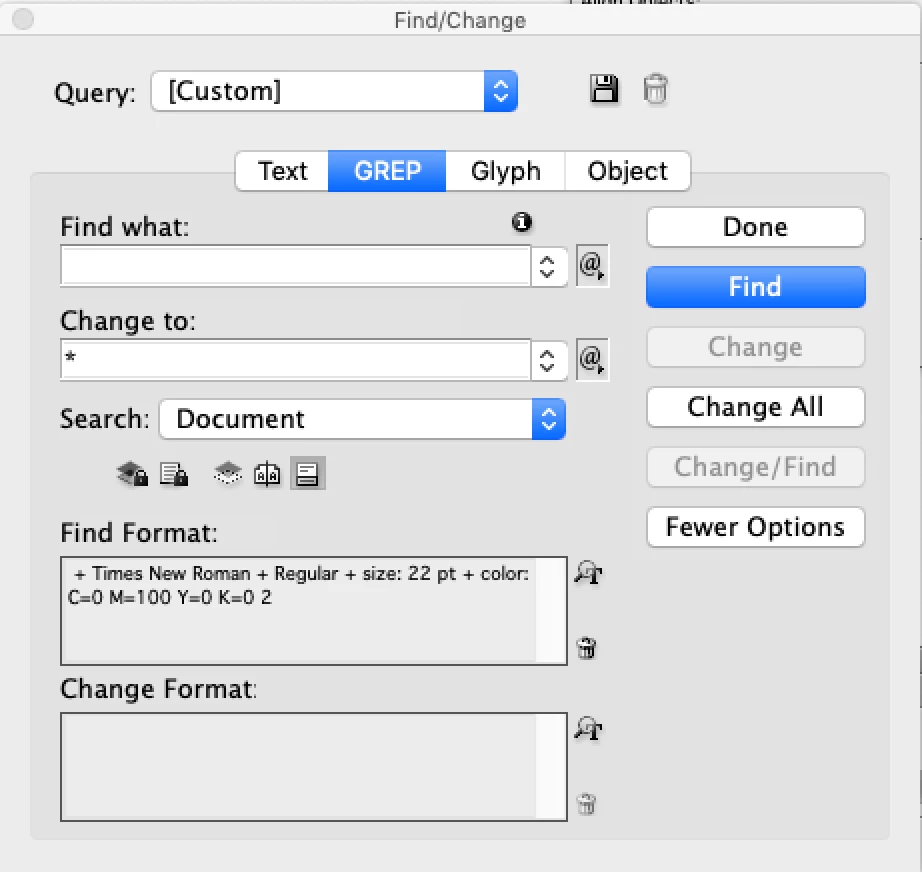
Find format: Times New Roman + Regular + size: 22 pt + color: C=0 M=100 Y=0 K=0

and then I want to add an asterisk in front of occurrence of this format in my document.


Can this be done with GREP?
 

This topic has been closed for replies.
Correct answer FRIdNGE

Basically:


Find: .+

Replace by: *$0


(^/)  The Jedi

4 replies

pixxxelschubser
Community Expert
Community Expert
January 6, 2023

@Chris22040923b75s 

Why not just activate the bullet and numbering function in your paragraph style sheet with the asterisk as a bullet?


Participant
January 6, 2023

Well, I just used an asterisk as a stand-in for any string of text I might want to do in the future.

Robert at ID-Tasker
Legend
January 6, 2023

@FRIdNGE is perfectly right 😉 BUT @Chris22040923b75s, you need to tell us more about the text you are looking for - only in front of a paragraph or every word or phrase ?


Participant
January 6, 2023

in front of a paragraph. But I could see putting it in front of a phrase being very useful as well.

Robert at ID-Tasker
Legend
January 6, 2023

Then @FRIdNGE's solution should work perfectly fine.


Barb Binder
Community Expert
Community Expert
January 6, 2023

Hi @Chris22040923b75s:


Note you need to enable GREP tab at the top of the dialog box. This won't work if you leave the default Text tab selected. 


~Barb

~Barb at Rocky Mountain Training
Participant
January 6, 2023

Yes, that's correct. excuse my poor screenshot etiquette. I did switch the tab when I tried "the Jedi's" method.

FRIdNGE
FRIdNGECorrect answer
January 6, 2023

Basically:


Find: .+

Replace by: *$0


(^/)  The Jedi

Participant
January 6, 2023

Thank you! this did work.