


- Home
- InDesign
- Discussions
- Re: Adding Highlight to script Or Grep Style?
- Re: Adding Highlight to script Or Grep Style?

Copy link to clipboard
Copied
Hi
Is it possible to Add a hightlight to a script? Basically what i want it to do is Highlight text and the tricky part is that the text changes sizes depending on the size of file we're working on. Say i want to automatically highlight this "FOR PROFESSIONAL USE ONLY" the way we do it now is Make a underline the like this in the underline options menu: Say my font size is 8, Leading 9.6 (These will always change).
Weight: = 9.6
Offset: = -8*.33
Color = Yellow
That is the way we do it now. Can it be scripted or Grep style even that will automatically do this for certain Lines of text only? And no matter the size of font calculate what it needs to so whether its 2pt, 10pt 100pt etc... it will Highlight the specified text correctly?
hopefully this is possible..
Thank you


 1 Correct answer

The below one is a better.
I removes a bug and also if no "what" is provided to the highlight function and there's no entry in the find what of the find text panel and some text is selected then that text will be highlighted.
An idea in the script is that a keyboard short cut can be applied for it and it will get it's info from the find text panel.
So for the meantime change the correct answer to this one 
...// Highlight function by Trevor
// http://creative-scripts.com
// Custom Scripts for Adobe InDes

 42
Replies
42
42
Replies
42

Copy link to clipboard
Copied
Hi Chris
What about applying a conditional text? That would be easy. Then you could just do a manual or scripted find change text to apply the condition.
Set the condition to print if desired.
This solution is going to depend on your workflow.

HTH
Trevor
Copy link to clipboard
Copied
I never even knew about Conditional Text. I'm going to try that today. Thanks for the Great tip
Copy link to clipboard
Copied
This actually works just like i'm wanting. I'm just going to need to try and put it in a script. Can this be handled with GREP somehow?
Copy link to clipboard
Copied
Hi
You don't need to grep just use.
var doc = app.activeDocument;
app.findTextPreferences = app.changeTextPreferences = null;
app.findTextPreferences.findWhat = 'FOR PROFESSIONAL USE ONLY';
// note the necessary [] around the condition(s)
app.changeTextPreferences.appliedConditions = [doc.conditions.itemByName('Highlight')]; // Change to correct name
doc.changeText();
Copy link to clipboard
Copied
This is perfect. Thank you so so so much.
Copy link to clipboard
Copied
I'm actually running into a problem here. It highlights a yellow Greenish color. WHen i do separations preview it comes out As just yellow but when i export to PDF it comes out 84% yellow and 4% cyan. Making of course a green color. Any idea how to keep it Pure Yellow?
Copy link to clipboard
Copied
That's one o the things I meant when I wrote "depends on your workflow"
The problem is that the conditional colors are rgb and not cmyk.
You need to set the conditions indicatorColor properties as best as you can.
Copy link to clipboard
Copied
is there anyway to convert them to CMYK that you know of? the code i'm using to indicate the color is
colorToHighlig = doc.conditions.add ({name:"Highlight",indicatorMethod:ConditionIndicatorMethod.USE_HIGHLIGHT, indicatorColor:UIColors.YELLOW}); |
When i tried Y=100 it of course does not work.
Copy link to clipboard
Copied
Create a cmyk swatch then convert it to rgb to get the rgn values
I think the need to be in an array of 3 values up to 255
Another way to do it is do a scripted find text and apply a yellow strikethrough line to the finds of the leading thickness in points of the characters
I can't post any code for that now but it's dead easy stuff and that way you won't get any cmyk problems
You could try the same idea with underline
Best of luck
Copy link to clipboard
Copied
I've added a custom Yellow C=0 M=0 Y=100 K=0 to my Colors In the Conditional Text that is in CMYK. Thought i was onto something but it showed up as more green  . Darn. I'll try the scripting here soon. Because this Would Be great if the Conditional Text would just work the way i want it to..

Copy link to clipboard
Copied
Chris,
Imho, it's a simple question for PitStop! 
Here, 2 samples of a "Yellow" condition converted to Cyan 50%!

As you can see, the "Yellow" color is: C6 M0 Y87 N0
In fact, not true, the real values are given by the PitStop Inspector: C5.8 M0 Y86.8 N0
Using PitStop, I just decide to convert the color: C5.8 M0 Y86.8 N0 to the color: C50 M0 Y0 N0 [for sample]
1 click!  [ I could save the action and play it for other pdf exported from ID using this "Yellow" condition! ]

Copy link to clipboard
Copied
The down side to this is that we would have to do this with all our PDF's which in our case is thousands a month.
Copy link to clipboard
Copied
Working on something now, will post it in a few minutes.
Copy link to clipboard
Copied
Hi Chris
Please mark this one as the 'Correct answer'
Read the annotations
I shall try do something with using strike through instead of underline so that one can have the text underlined also
// Highlight function by Trevor
// http://creative-scripts.com
// Custom Scripts for Adobe InDesign, Illustrator and a lot more
// Draft Version 1
// https://forums.adobe.com/message/8898663#8898663
function highlight(what, color) {
var range, s, doc;
doc = app.properties.activeDocument;
if (!doc) {
return 'No Active Document';
}
s = app.selection && app.selection[0];
range = (s && s.properties.underline !== undefined && s.characters.length) ? s : doc;
app.doScript(f, ScriptLanguage.JAVASCRIPT, undefined, UndoModes.ENTIRE_SCRIPT, 'Highlight Text');
function f() {
var doc, finds, find, l, leading, pointSize, currentChangeProps;
color = color || app.colors.itemByName('Yellow');
// Store current find change text settings
currentFindTextWhat = app.findTextPreferences.findWhat;
currentChangeProps = app.changeTextPreferences.properties;
// if no what is provided then the current entry in the find text panel will be used
if (what) { app.findTextPreferences.findWhat = what; }
app.changeTextPreferences.changeTo = '';
app.changeTextPreferences.underline = true;
app.changeTextPreferences.underlineColor = color;
finds = range.findText();
range.changeText();
l = finds.length;
while (l--) {
find = finds
; leading = find.leading;
pointSize = find.pointSize;
leading = pointSize * find.autoLeading / 100;
find.underlineWeight = leading + 'pt'; // This is presuming that font and leading size is set to points!
find.underlineOffset = (pointSize - leading) * 1.5; // The 1.5 might need tweaking but seems to work well
}
app.findTextPreferences.findWhat = currentFindTextWhat;
app.changeTextPreferences.properties = currentChangeProps;
}
}
/************************************************************************************************************************************
** If text is selected then the "highlighting" is only applied within the selected text **
** Otherwise the "highlighting" is applied within the whole document **
** One could change this to apply to what ever is selected in the Find text document if one wanted to **
** To highlight the word(s) in the find text panel just use highlight(); or highlight(undefined, app.activeDocument.swatches[5]); **
** One can use highlight('Foo'); to highlight "foo" and ignore what's in the find text panel **
** The formating / styles etc. for the find are taken from the find panel **
** If one provides a swatch as the second argument highlight(undefined, app.activeDocument.swatches[5]); that swatch will be used **
** otherwise yellow will be used **
************************************************************************************************************************************/
highlight();
Copy link to clipboard
Copied
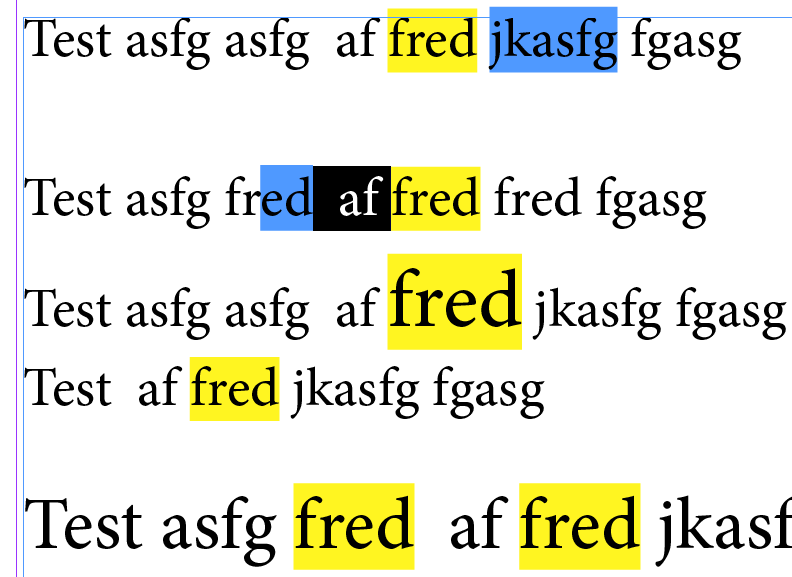
Doesn't look like the strike though option is good but the above solution looks like it works well.
Edit:
Just to explain the colors
Yellow is the highlighted color
Blue is a conditional text highlight
Black is selected text
The half blue fred was added after the script was run.
Copy link to clipboard
Copied
The below one is a better.
I removes a bug and also if no "what" is provided to the highlight function and there's no entry in the find what of the find text panel and some text is selected then that text will be highlighted.
An idea in the script is that a keyboard short cut can be applied for it and it will get it's info from the find text panel.
So for the meantime change the correct answer to this one 
// Highlight function by Trevor
// http://creative-scripts.com
// Custom Scripts for Adobe InDesign, Illustrator and a lot more
// Beta Version 1
// https://forums.adobe.com/message/8898663#8898663
function highlight(what, color) {
var range, s, doc;
doc = app.properties.activeDocument;
if (!doc) {
return 'No Active Document';
}
s = app.selection && app.selection[0];
range = (s && s.properties.underline !== undefined && s.characters.length) ? s : doc;
app.doScript(f, ScriptLanguage.JAVASCRIPT, undefined, UndoModes.ENTIRE_SCRIPT, 'Highlight Text');
function f() {
var finds, find, l, leading, pointSize, currentChangeProps;
color = color || app.activeDocument.colors.itemByName('Yellow');
// Store current find change text settings
currentFindTextWhat = app.findTextPreferences.findWhat;
currentChangeProps = app.changeTextPreferences.properties;
what = what || currentFindTextWhat;
if (what !== '') {
// if no what is provided then the current entry in the find text panel will be used
app.findTextPreferences.findWhat = what;
app.changeTextPreferences.changeTo = '';
app.changeTextPreferences.underline = true;
app.changeTextPreferences.underlineColor = color;
finds = range.findText();
range.changeText();
l = finds.length;
while (l--) {
find = finds
; leading = find.leading;
pointSize = find.pointSize;
leading = pointSize * find.autoLeading / 100;
find.underlineWeight = leading + 'pt'; // This is presuming that font and leading size is set to points!
find.underlineOffset = (pointSize - leading) * 1.5; // The 1.5 might need tweaking but seems to work well
}
app.findTextPreferences.findWhat = currentFindTextWhat;
app.changeTextPreferences.properties = currentChangeProps;
} else if (range !== app.activeDocument) {
leading = range.leading;
pointSize = range.pointSize;
leading = pointSize * range.autoLeading / 100;
range.underline = true;
range.underlineColor = color;
range.underlineWeight = leading + 'pt'; // This is presuming that font and leading size is set to points!
range.underlineOffset = (pointSize - leading) * 1.5; // The 1.5 might need tweaking but seems to work well
}
}
}
/***************************************************************************************************************************************
** If text is selected then the "highlighting" is only applied within the selected text **
** Otherwise the "highlighting" is applied within the whole document **
** One could change this to apply to what ever is selected in the Find text document if one wanted to **
** To highlight the word(s) in the find text panel just use highlight(); or highlight(undefined, app.activeDocument.swatches[5]); **
** One can use highlight('Foo'); to highlight "foo" and ignore what's in the find text panel **
** The formating / styles etc. for the find are taken from the find panel **
** If one provides a swatch as the second argument highlight(undefined, app.activeDocument.swatches[5]); that swatch will be used **
** otherwise yellow will be used **
** If one provides a swatch as the second argument highlight(undefined, app.activeDocument.swatches[5]); that swatch will be used **
** If text is selected and what argument is given and the find what in the find panel is empty then the selected text is highlighted **
**************************************************************************************************************************************/
highlight();
Copy link to clipboard
Copied
Hi Trevor,
Very smart and very cool!
Would it not be more interesting to play it with find/change-Grep and grep styles to keep the para styles pure?
It could be problematic if text already underlined!
Copy link to clipboard
Copied
My Friend this is awesome. Thank you so much. I'm just going to play around and see if i can get this to automatically highlight my text (For Professional Use)(For Professional use Not to be sold seperatlely.) etc. In my case as stated in the code i had to adjust the 1.5 a little but not too much. Below is what i'm trying to get it to Automatically Highlight My text.
currentFindTextWhat = app.findTextPreferences.findWhat = 'FOR PROFESSIONAL USE ONLY-NOT INTENDED FOR HOUSEHOLD USE.', 'POUR USAGE PROFESSIONNEL SEULEMENT - NON DESTINÉ À L’USAGE DOMESTIQUE.';
will i need to have several different app.findTextPreferences.findWhat= statements?
Copy link to clipboard
Copied
I've also tried this. It only does the First findWhat. So i think i might be on the right track since it kinda works?
var finds, find, l, leading, pointSize, currentChangeProps, currentChangeProps1, currentChangeProps2;
color = color || app.activeDocument.colors.itemByName('Yellow');
// Store current find change text settings
currentFindTextWhat = app.findTextPreferences.findWhat;
app.findTextPreferences.findWhat = 'POUR USAGE PROFESSIONNEL SEULEMENT - NON DESTINÉ À L’USAGE DOMESTIQUE.';
currentChangeProps = app.changeTextPreferences.properties;
app.findTextPreferences.findWhat = 'PARA USO PROFESIONAL SOLAMENTE: NO ESTÁ DISEÑADO PARA USO DOMÉSTICO.';
currentChangeProps1 = app.changeTextPreferences.properties;
app.findTextPreferences.findWhat = 'FOR PROFESSIONAL USE ONLY-NOT INTENDED FOR HOUSEHOLD USE.';
currentChangeProps2 = app.changeTextPreferences.properties;
what = what || currentFindTextWhat;
Copy link to clipboard
Copied
I'm confused, just include the function in your script and then do
highlight('fred');
highlight('Trevor');
highlight('Chris');
That will highlight whatever your want.
Did you read the annotations?
Copy link to clipboard
Copied
Sorry i miss read it. I see it now. Thank you.

Copy link to clipboard
Copied
Hi,
Its working fine to find the single word. Please guide me how to add more words/greps in this scripts.
Thanks in advance.
by
hasvi
Copy link to clipboard
Copied
See #20 above.
Remove line 71 and add your list of words.
highlight('fred');
highlight('Trevor');
highlight('Chris');
highlight('hasvi');
highlight('\\d+');
highlight('some phase here');
highlight('the', app.activeDocument.swatches[4]); \\ second optional field is the swatch defaults to yellow
Copy link to clipboard
Copied
Hi,
Thanks for your guideline, but I am getting error for below lines, please advice.
highlight('(\d+)-(\d+)'); //find the hyphen between the numbers
highlight('the' 'word', app.activeDocument.swatches[4]); // second optional field is the swatch defaults to yellow
Thanks again.
by
hasvi

-
- 1
- 2

Get ready! An upgraded Adobe Community experience is coming in January.
Learn more
 AdChoices