handjojot17224968
Inspiring
July 19, 2022
Answered

Adobe InDesign wrong Facing Pages in Print Booklet

  • July 19, 2022
  • 4 replies
  • 1739 views

Dear All,

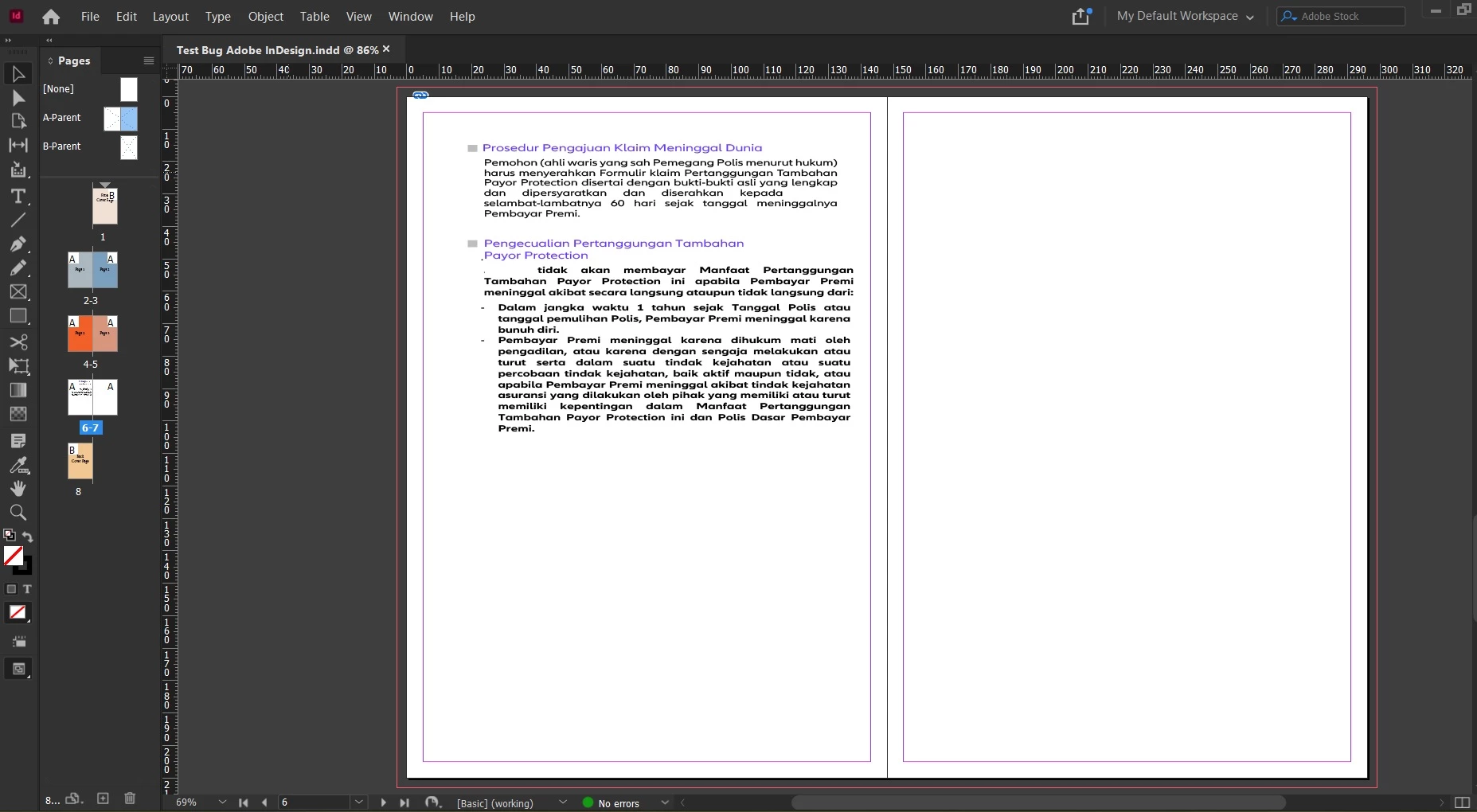
I'm a new user of Adobe InDesign. Yesterday I designed a product brochure that contains a total of 12 pages (including the cover page), unfortunately after print as a booklet for the facing page, the front & back cover (page 1 & 2) in separately pages not as facing pages, InDesign seems error during print as booklet due to the page 12 is an empty page. 

For analysis attached the sample that typical the same configure (due the client purpose I cannot send the design brochure, so I send this typical case sample).

Awaiting advice and solution.

Thank you for the kind attention.

Best regards,

Handjojo
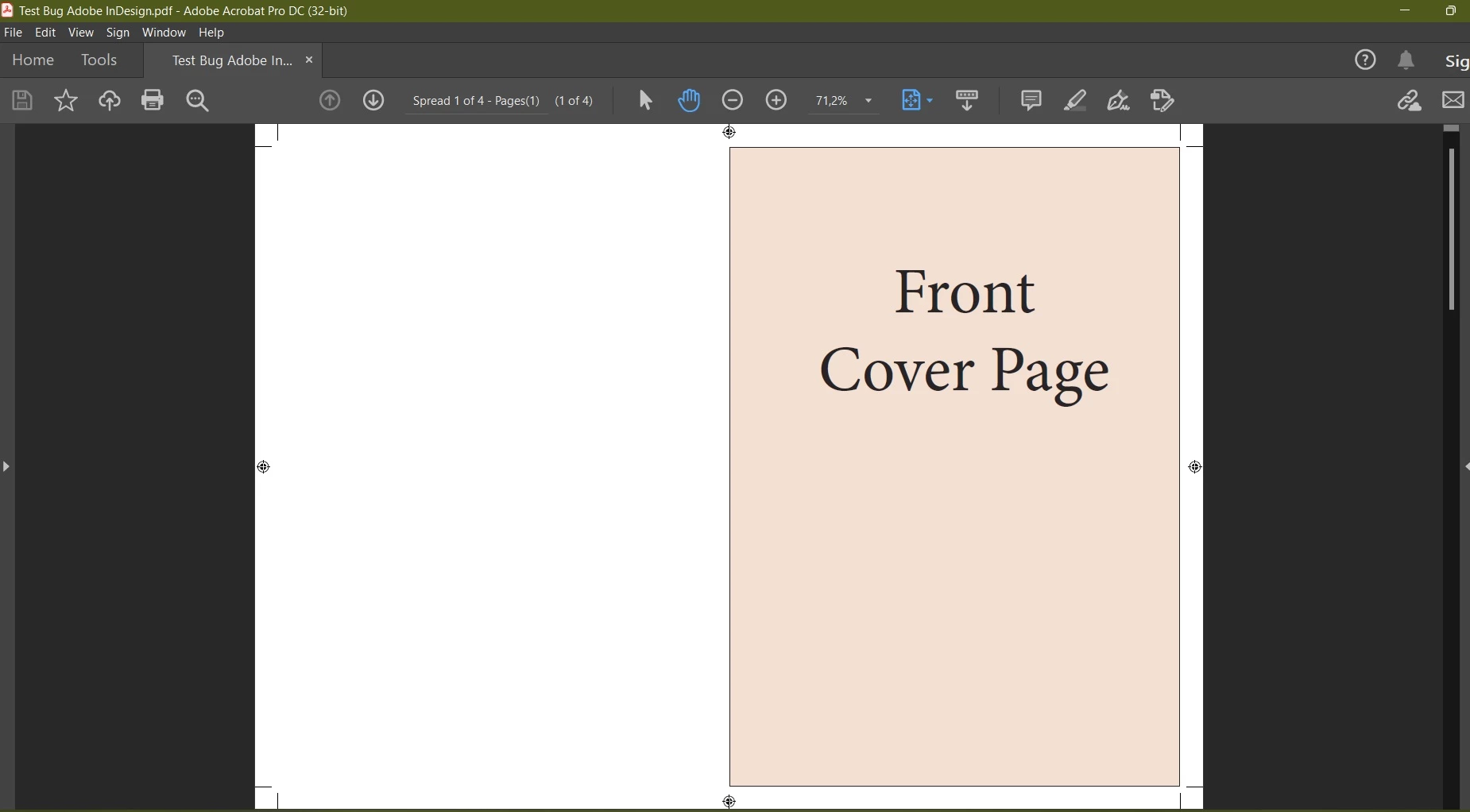
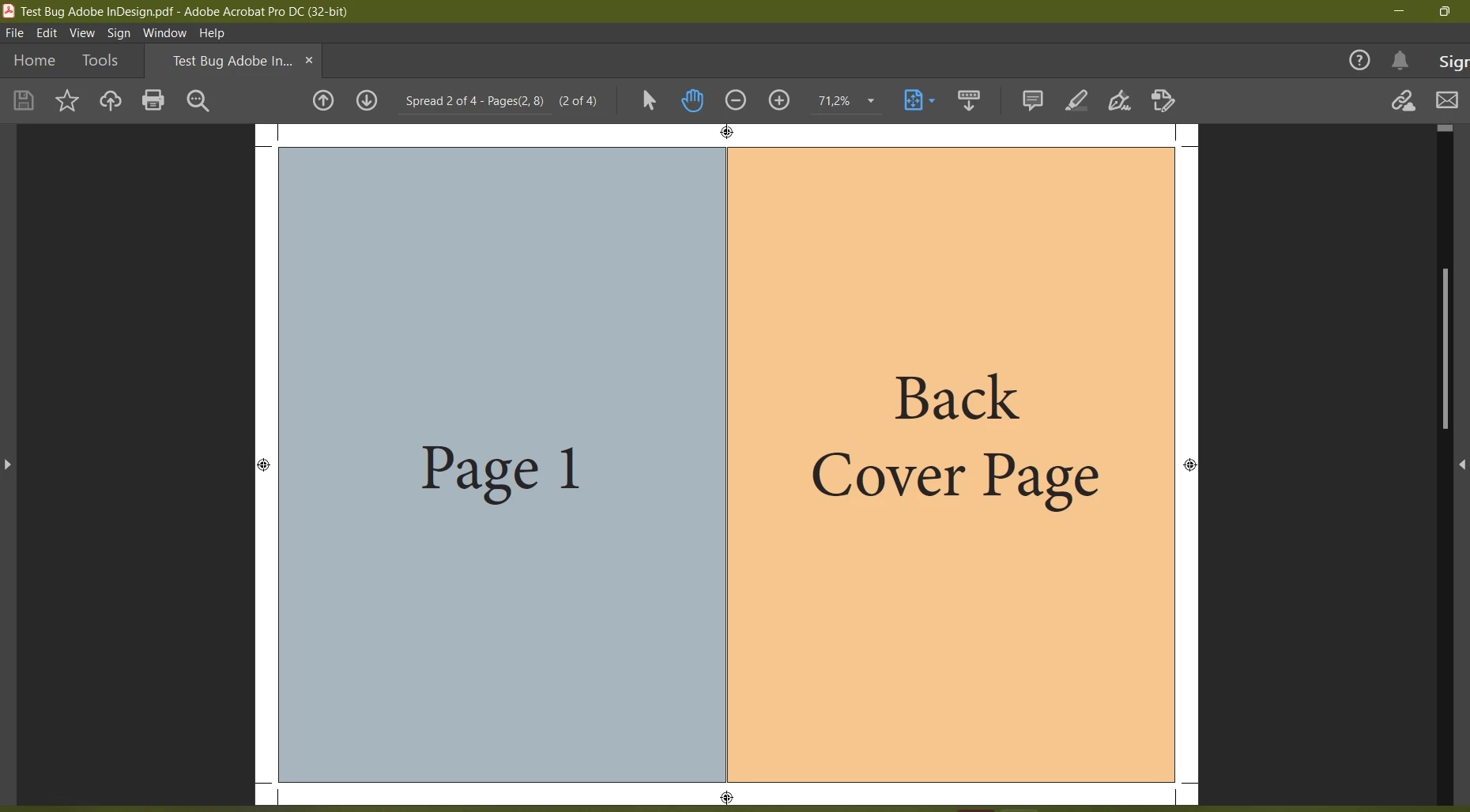
 

Sample desain: https://drive.google.com/drive/folders/1iR8H2_F8PvrEVZjG8zhONIhD8G2vFfz2?usp=sharing 

This topic has been closed for replies.
Correct answer handjojot17224968

Thanks for your valuable advice this is right I forgot to checked the Print Blank Pages in the Print Setting Setup/Dialog. Now is working well

4 replies

handjojot17224968
Inspiring
July 21, 2022

Dear All, 

Can anyone help me about this issue during print as a booklet ?

Please help me.

Thanks & B/regards,

Participant
July 21, 2022

 If any blank pages, make sure Print Blank Pages is checked both in the Print Booklet dialog and in the Print Settings dialog.

handjojot17224968
handjojot17224968AuthorCorrect answer
Inspiring
July 22, 2022

Thanks for your valuable advice this is right I forgot to checked the Print Blank Pages in the Print Setting Setup/Dialog. Now is working well

Brad @ Roaring Mouse
Community Expert
Community Expert
July 19, 2022

You missed one checkbox. Since you have a blank page, you need to do one extra step, and that is to click on Print Settings at the bottom of the Print Booklet dialog and check Print Blank pages. It will work right after that.

(My example is on a Mac, but there will be a similar setting in the Win version)

 (and yes, your numbering scheme is wonky, but that's not the issue here) 😉


Good luck.

handjojot17224968
Inspiring
July 19, 2022

Hello Brad,

Thanks for your advice, the Print Blank Pages already checked, unfortunately I should place the object with white paper color to place in page 6 & 7 in the sample attached design.

handjojot17224968
Inspiring
July 19, 2022

Sory I mean I should place the object with white paper color in page 7 (to avoid InDesign miss sort the page, and it is work 😉).

Willi Adelberger
Community Expert
Community Expert
July 19, 2022

But in your example: Page 1 technically IS the cover page. The order of the pages is correct, your numbering is wired. A page 1 is always a right page, never a left, except in RTL languages.

Willi Adelberger
Community Expert
Community Expert
July 19, 2022

Do you print the brochure at home or with a printer?

Imposition is not the task of the designer but for the printer. I recommend not to use the Print Booklet function in InDesign as it requires Postscript. In modrn days we should avoid postcript with InDesign, no EPS and no PDF via print. Personally I think the implementation of Print Booklet is not useful in InDesign. 

handjojot17224968
Inspiring
July 19, 2022

Dear Adlberger,

I frequently use to made a PDF via Print Booklet to easy sort the page via facing page, i'm trying to use another app and there's no problem to sorting the pages even though pages 7 contain blank pages.

Please see attached the sample for the investigation.

Thanks & B/regards,