
Participating Frequently
March 5, 2018
Answered

.ai files not showing up transparent in InDesign

  • March 5, 2018
  • 4 replies
  • 12340 views

I'm on a Mac computer. Since updating to 2018 CC, my Illustrator .ai files no longer appear transparent when imported into InDesign. The only work around I've found is to resave the .ai file as an .eps file.

Hundreds of my illustrations are .ai files and I would rather not have to go in and resave them all as .eps files.

Is there something I should do with preferences to fix this? PLEASE HELP!!

Thanks
This topic has been closed for replies.
Correct answer John Mensinger

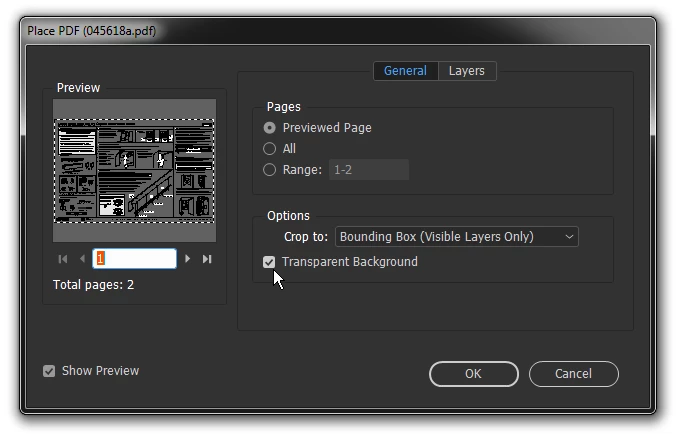
Check the Place Options dialog. Perhaps your "Transparent Background" switch is unticked...

4 replies

sixsides
Participating Frequently
March 24, 2021

ALTERNATIVELY If checking or unchecking "Transparent Background" does nothing for you and you've checked through all the details of the AI file and it doesn't appear any different than your other graphics that are working. Then simply make another copy of the file or save over it -- something must have goofed up in the saving process initially. I'm working on a Windows machine and this solved the issue for me.

KyleJonesTN
Participant
January 23, 2019

Similar issue, but I was able to resolve it by moving all the objects to a new layer. I was accidentally working on a guide/template layer in Illustrator. So you should be able to go into the top layer in Illustrator and un-check "Template" to do the same thing.

BobLevine
Community Expert
Community Expert
January 23, 2019

This is an old thread that has been answered correctly. Your response has nothing to do with this.

The transparent background is a sticky setting.

Participant
March 28, 2018

Thanks so much!

What I want to know is why this is even an option much less a default.

SMH.

You're a lifesaver!

BobLevine
Community Expert
Community Expert
March 28, 2018

It's not a matter of it being a default...it's a matter of it being sticky.

John Mensinger
Community Expert
John MensingerCommunity ExpertCorrect answer
Community Expert
March 5, 2018

Check the Place Options dialog. Perhaps your "Transparent Background" switch is unticked...

Participating Frequently
March 5, 2018

THANK YOU!! I've been looking around for that for AGES!!

You just made my week!