John_Allred
Inspiring
August 29, 2020
Answered

Align start of paragraph with end of previous paragraph / remove space between paragraphs

  • August 29, 2020
  • 5 replies
  • 1835 views

In another page layout program, now dead for many years, you could start a paragraph on the same line as the last line of the previous paragraph and have it align with only a space between them. Each paragraph has a different tag, as in:

@Address = 816 NE A St,

@9924917 = Anytown, AR
@Zip = 72777


The tag text above would not be present. The final text would become:

816 NE A St, Anytown, AR  72777


These words, although appearing on one line, would remain as three differently tagged paragraphs. They would simply be formatted so as to follow one another on the same line.


Can Indesign do this?
This topic has been closed for replies.
Correct answer Laubender

Hi Peter,

thank you for the hint. I'm just in a project where a conversion from Ventura Publisher to InDesign is done.

And of course, this issue came up.


But I have to disagree: Applied paragraph styles of paragraphs 2 and 3 will not be preserved.


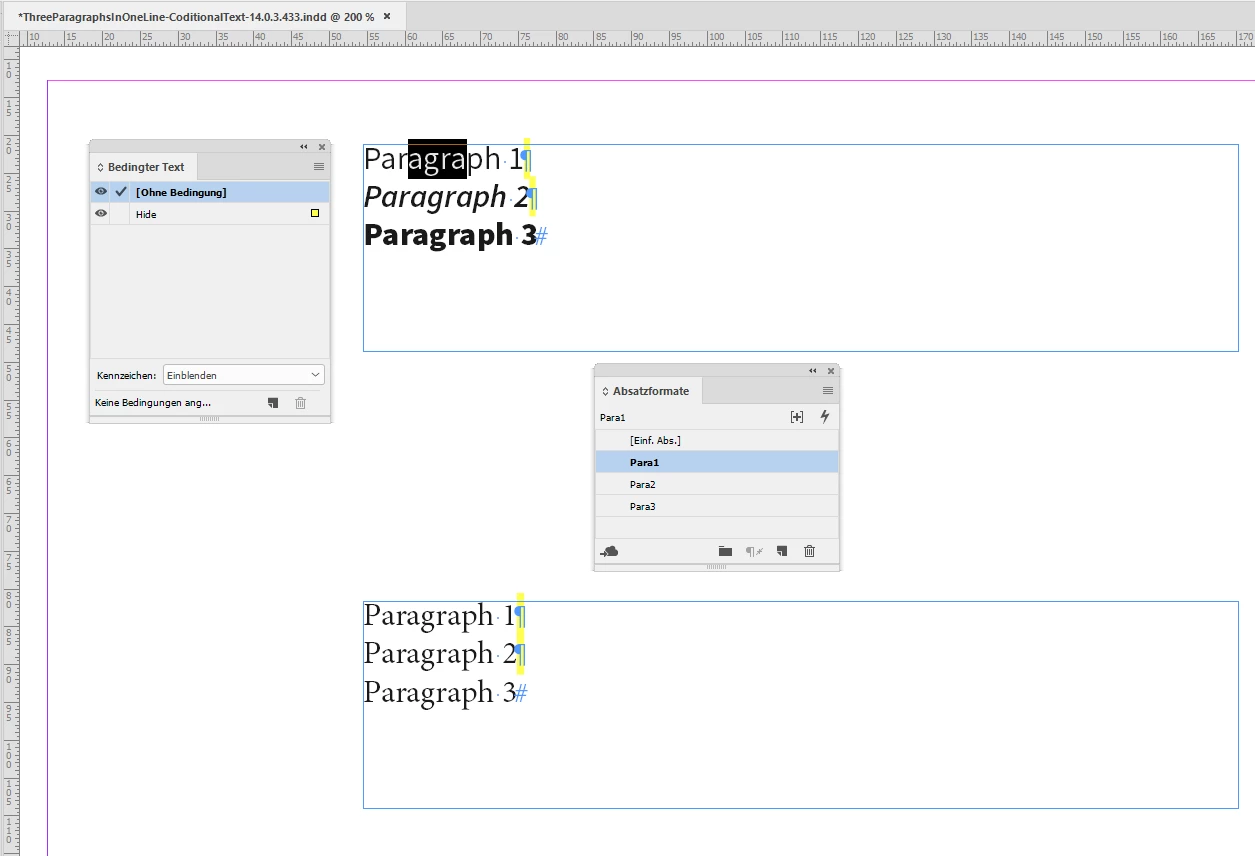
Did a test with conditional text where I marked the paragraph special character with a condition ( in yellow ) and set the condition to hide. Visually all is working well. Also with different paragraph styles. But InDesign will apply the formatting of the style of paragraph two and three as overrides to the applied style of paragraph one.


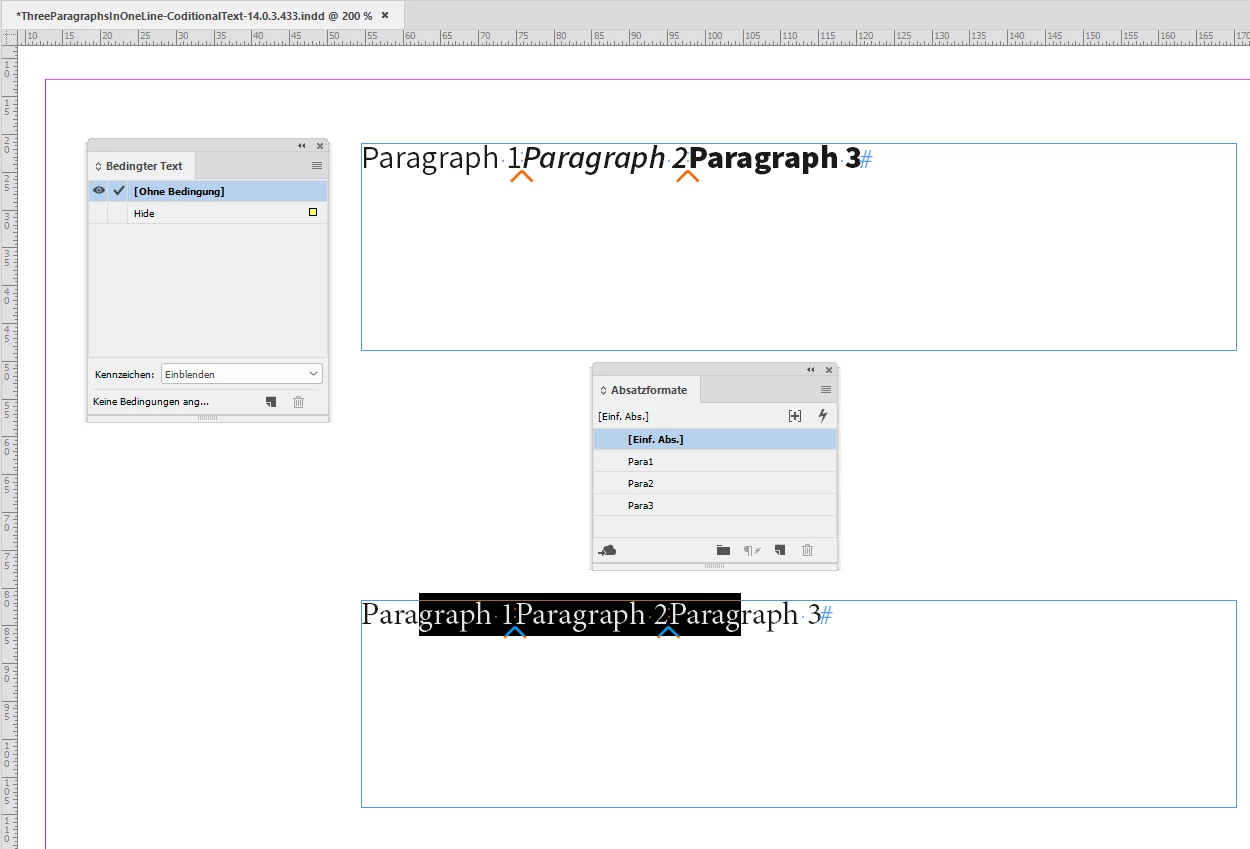
Before I set the condition to "hide" the three paragraphs of the text frame at top position have three different paragraph styles applied. The frame below only one paragraph style to all paragraphs:


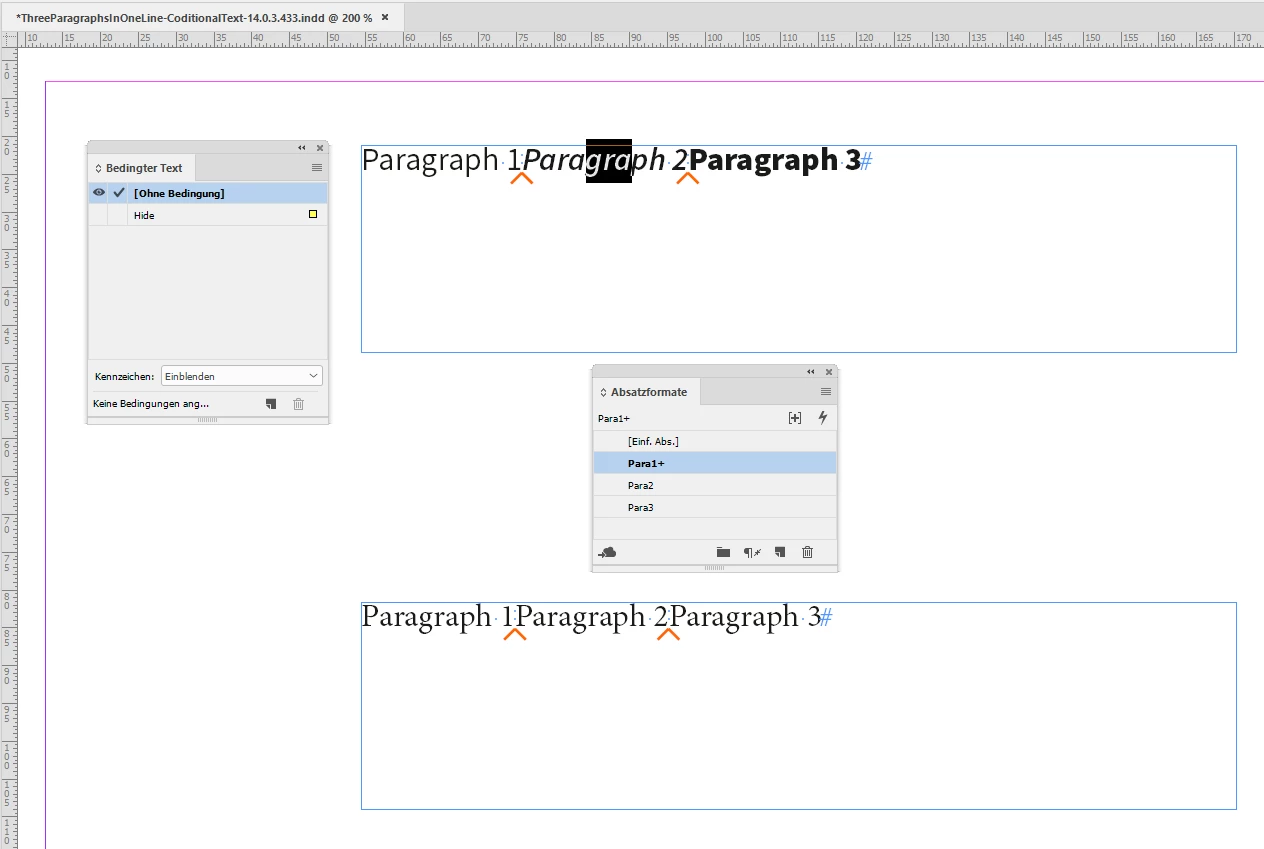
Now I set the condition "hide". Optically all is going well:


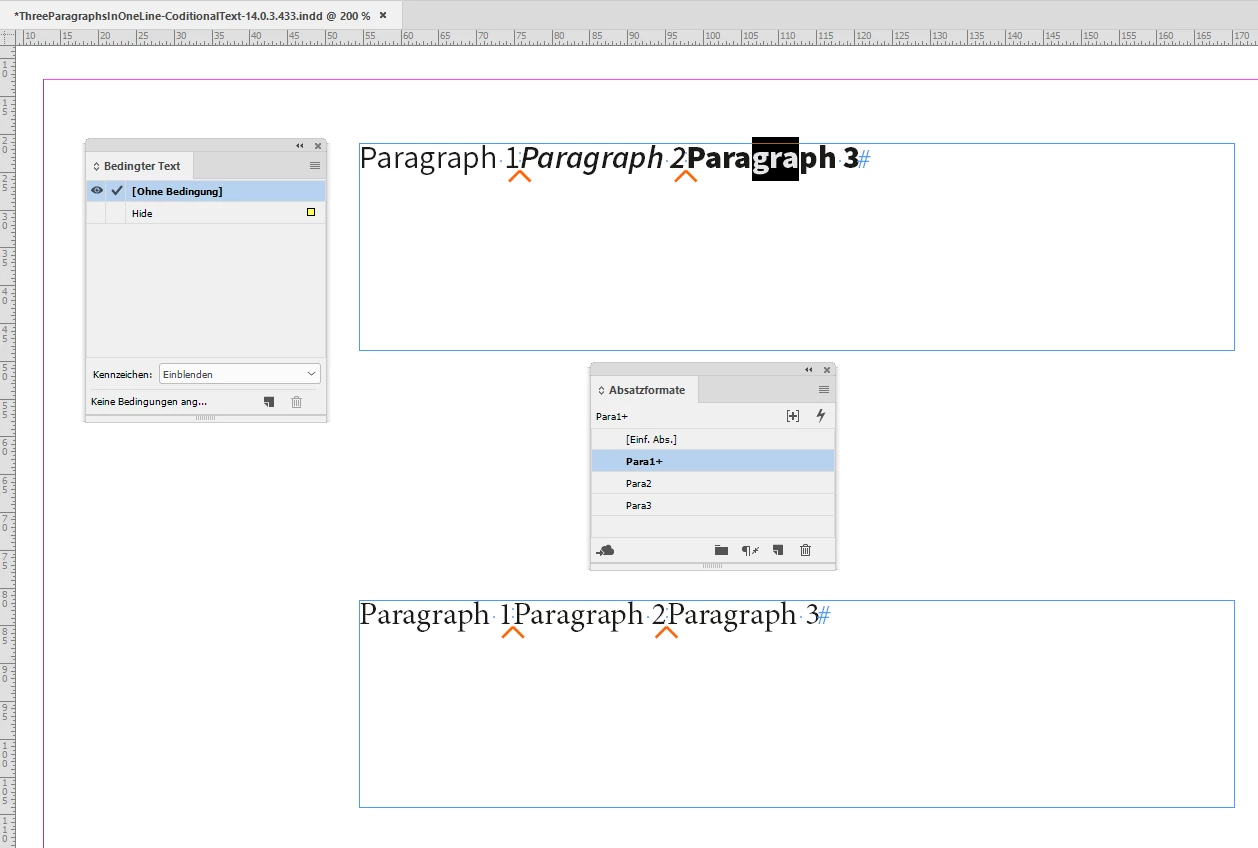
But when I inspect the text I can clearly see that all text in the frame on top is now with "Para1" and some overrides:


And the overrides will not go away if I reset the condition to "visible":


Regards,
Uwe Laubender

( ACP )

5 replies

Community Expert
August 29, 2020

Hi John,

I applied the condition to one single character of the first and second paragraph only:

The "carriage return" ( paragraph mark ).


You may have missed the yellow color bar with the condition I created.

The yellow bar is perhaps barely visible in my screenshots. Should have marked the condition with a bar in Magenta perhaps…


Regards,
Uwe Laubender

( ACP )

Community Expert
August 29, 2020

Peter Kahrel said: "How strange, over here the overrides do go away (2020, Win 10)"


Peter,

my test was with the German InDesign CC 2019 on Windows 10.

I repeated that test with the current InDesign 15.1.2.226 also on Windows 10.

Had the same results. This time I enabled feature Style Override Highlighting.


Step 1: Condition applied ( yellow marker )


Step 2: Condition set to "Hide". Overrides are showing up. This is as expected, I think:


Condition set to "Visible" again.

Important: I did no undo.

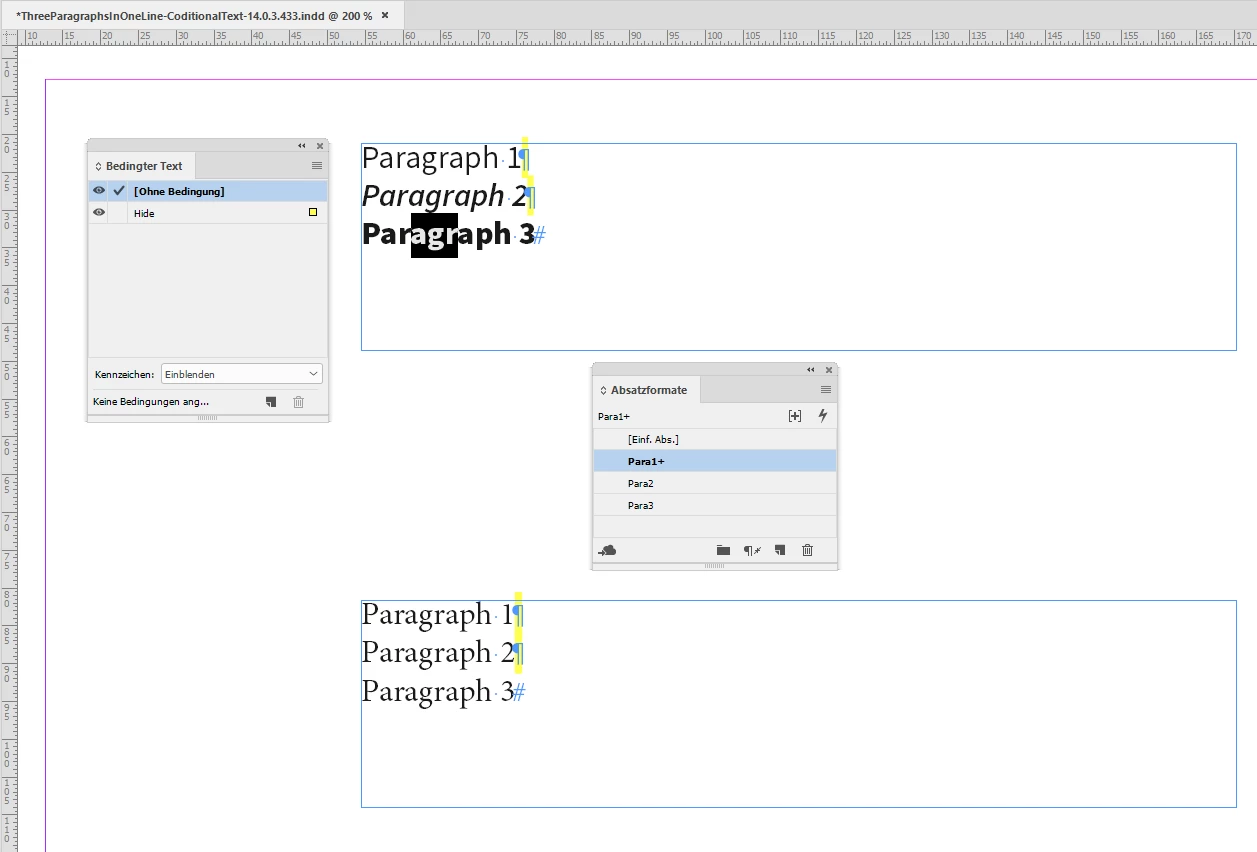
Overrides are still visible:

Applied paragraph style for all the three paragraphs is "Para1":


Regards,
Uwe Laubender

( ACP )

LaubenderCommunity ExpertCorrect answer
Community Expert
August 29, 2020

Hi Peter,

thank you for the hint. I'm just in a project where a conversion from Ventura Publisher to InDesign is done.

And of course, this issue came up.


But I have to disagree: Applied paragraph styles of paragraphs 2 and 3 will not be preserved.


Did a test with conditional text where I marked the paragraph special character with a condition ( in yellow ) and set the condition to hide. Visually all is working well. Also with different paragraph styles. But InDesign will apply the formatting of the style of paragraph two and three as overrides to the applied style of paragraph one.


Before I set the condition to "hide" the three paragraphs of the text frame at top position have three different paragraph styles applied. The frame below only one paragraph style to all paragraphs:


Now I set the condition "hide". Optically all is going well:


But when I inspect the text I can clearly see that all text in the frame on top is now with "Para1" and some overrides:


And the overrides will not go away if I reset the condition to "visible":


Regards,
Uwe Laubender

( ACP )

Peter Kahrel
Community Expert
Community Expert
August 29, 2020

Hi Uwe. 

> And the overrides will not go away if I reset the condition to "visible":

How strange, over here the overrides do go away (2020, Win 10)

P.

Peter Kahrel
Community Expert
Community Expert
August 29, 2020

You can do this with conditional texr. Create a condition and apply it to the tags "@City = " and "@Zip  = " and their preceding paragraph marks. And apply the condition to "@Address = ".


You can apply the condion with a Grep replacement:


Find what: \r?@(Address|City|Zip) = 

Change to format: the condition

To hide the labels and place the paragraphs on one line, set the condition to hide. The Conditional Text panel is in Windows > Type and Text).

FRIdNGE
August 29, 2020

Hi Peter,

Not truly sure the para styles 2 and 3 could be preserved!

A simplistic way to keep them would be to modifiy their left indent and leading by script.

Best,

(^/)  The Jedi

Peter Kahrel
Community Expert
Community Expert
August 29, 2020

Paragraph styles weren't mentioned. But anyway, they are preserved.

MW Design
Inspiring
August 29, 2020

No, neither ID nor any other layout software can do what VP did in this regard.


Mike

Scott Falkner
Community Expert
Community Expert
August 29, 2020

<mark margolis>Ventura.</mark margolis>