Inspiring
December 7, 2017
Answered

Alternate glyphs not working

  • December 7, 2017
  • 4 replies
  • 18490 views

Hi guys,

at work, we use a CC for Teams subscription. I have a bug that none of the others have and has remained throughout the installation of a newer version of InDesign and trashing the prefs.

If I type a new text I cannot select alternate glyphs; there is no on-context menu and if I manually select another version of the glyph it will just show the standard. If I use a file with text made by a colleague it works normally. We use macOS Sierra 10.12.6 with the latest version of InDesign.

Anyone know what's happening? I haven't been able to find it on this forum, nor by googling it. I'm hoping it's a simple setting I'm overlooking

Thanks!

    This topic has been closed for replies.
    Correct answer Tiekerz

    Thanks everyone for your help. It isn't on World ready, and it's turned on in advanced, but your suggestions made me think and the solution was too easy

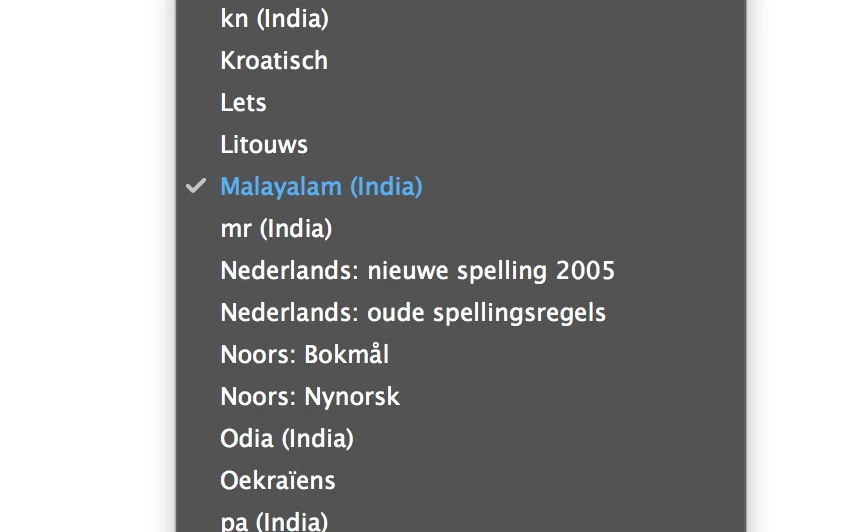
    I checked language settings and discovered my standard language switched to Malayalam (granted, that is weird). I reset it and everything works fine.

    I'll post how to change it in case someone else stumbles upon this thread with the same problem: open InDesign (but not a document) and go to your language settings (command T), set it to your preferred language (dutch in my case) and you're done.

    Cheers!

    4 replies

    Participant
    March 14, 2022

    I was having a similar problem in Photoshop, unable to select basic glyphs for a font. I finally realized that 'Stylistic Alternates' was turned on in the character menu. When I turned it off, I was able to select glyphs as usual. Hopefully this helps someone waste less time on this than I did.

    Participant
    March 14, 2022


    Here's where you can turn off 'Stylistic Alternates'

    Participant
    June 24, 2020

    Not sure if anyone is still having problems with this issue, but here is a possible solution. I am using CC 2020 and it would not let me use certain glyphs in photoshop. I removed the OTF font file type and installed the TTF of the font I want. I restarted photoshop and it works now. Before some of the glyphs did not work, now all of them work. Not sure what the difference is between the fonts but it worked. Hope it helps! 

    Participant
    January 31, 2022

    Thank you SO much! I couldnt work out what was happening but this has solved it. PDF with the font told me to use the OTF but TTF works perfectly. Must be a bug somewhere.

    Steve Werner
    Community Expert
    Community Expert
    December 7, 2017

    It also needs to be turned on in Advanced Type Preferences:

    amaarora
    Inspiring
    December 7, 2017

    Hi,

    Can you check the paragraph panel menu and let us know the composer? If it is Adobe world ready, then you wont see the blue underline below the glyph that on hover shows the alternative glyphs...

    -Aman

    Participating Frequently
    December 7, 2017

    Th ecomposer is on Adobe world ready, but it used to work fine untill the CC 2018 update last month.

    it always was on Adobe world ready

    amaarora
    Inspiring
    December 7, 2017

    Hi,

    It should not have worked after CC 2017.0 release of InDesign.

    Can you please check that again?

    You can still apply the alternative via character panel or the glyph panel.

    -Aman