Participant
December 6, 2024
Answered

Anchor table to text, not to page

  • December 6, 2024
  • 2 replies
  • 992 views

Good day! I'm editing my book in indesign using primary frames and a seperate layer for pictures and (many) tables with text and/or figures. The text flows as it should over about 300 pages. However, I find that when I add text in a low numbered page, all tables after that page stay at the same location on a page, while loosing the text it belongs to. I can't seem to find how I should anchor my tables (I have a lot of them) to the text they belong to.

If you can help me, please keep in mind that I have almost 4 weeks of experience using Indesign, so it is still very shaky. And my Indesign version is in Dutch, so I hope I translated the tems (textframe, primary frame) correctly...

Thanks for any help you can offer. Meanwhile, I am getting more and more adept at moving tables to the place in the text where they belong.

King regards,

Leo
This topic has been closed for replies.
Correct answer Barb Binder

Thank you, Robert. Actually, looking at Barb's video again and trying things out in practive with my kind of frame-spanning table, I found I can actually anchor it too to the text it belongs to. Things only need adjustment when extra text before it causes the table to jump to the next page. It then somehow 'forgets' that the other text is supposed to wrap around the table. Anyway, thank you all for taking the time and effort.

Kind regards,

Leo

|| Privacy and Data Protection based on the GDPR (Van Haren)||

Version 1 available, updated version expected April 2025.

|| Privacy en Gegevensbescherming op basis van de AVG || expected launch by X-mas 2024


Hi @Leo1948:


We are always seeking the balance  between getting the results we need and being efficient about getting there.


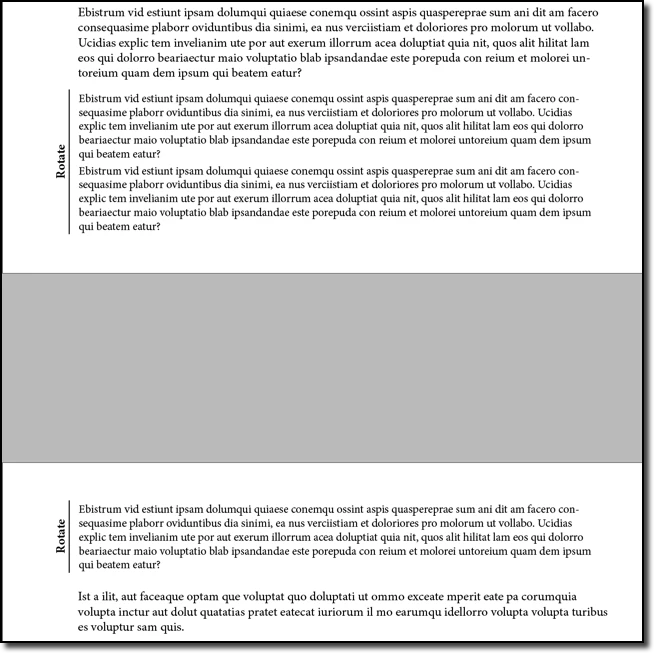
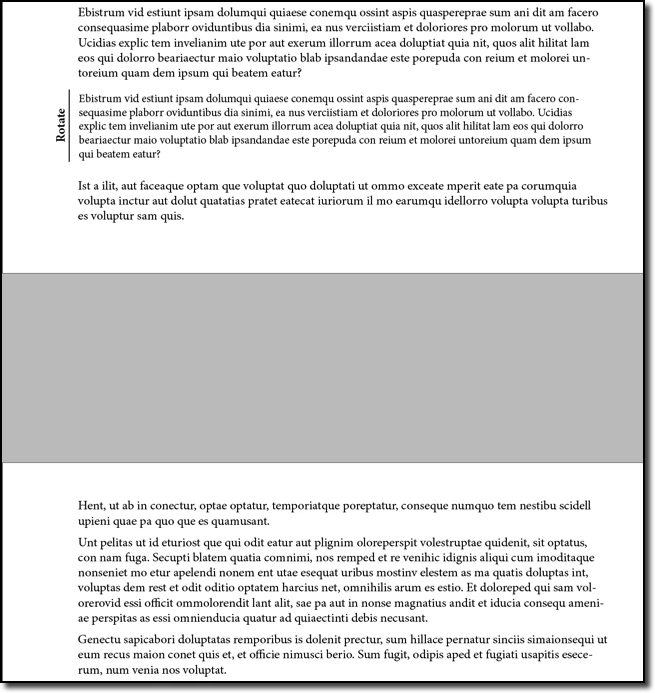
A one page table would be pretty easy to add as an embedded table that flows with the text. See image directly below.


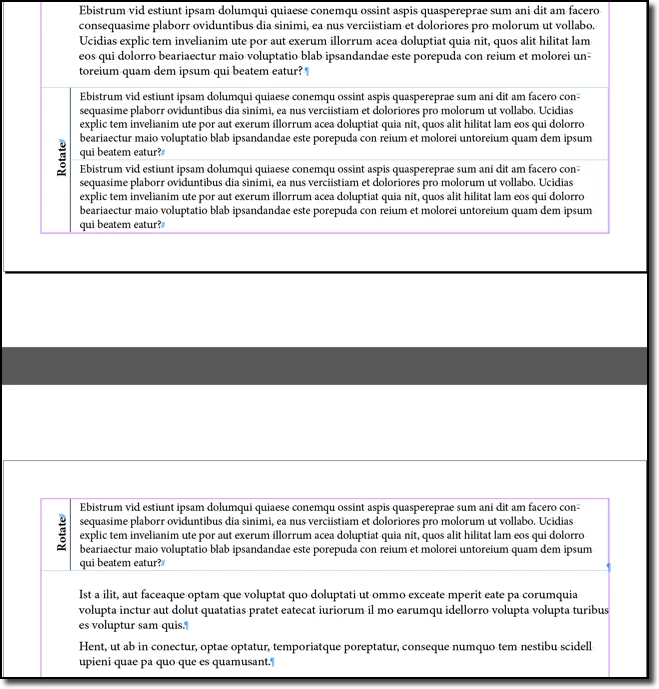
A table that spans additional pages will require additional effort on your part, whether you use an anchored frame or embedded table. Rows cannot break across pages InDesign, so we need rows for each break location.


This last image shows how I set this up: I decreased the left margin in the document and increased the left indent for all paragraphs, except the table paragraph. This gives you the look you need and lets the table flow. However, you will need to mess with merging/unmerging the rotated text during the initial layout and again after edits.


~Barb

2 replies

Barb Binder
Community Expert
Community Expert
December 6, 2024

Hi Leo:


What I consider the "normal" way to add a table is to click an insertion point in a story, press Enter/Return to add a new paragraph ¶ and then add the table at the insertion point. This way, it flows automatically with the edits. And it's quick.


What I have seen multiple times by people who don't understand how to do this, is they choose Create Table without an insertion point, and then they have to create a standalone frame. If they don't anchor the frame and add text wrap, it will not flow with the edits. 


Add text wrap and anchor:

~Barb


~Barb at Rocky Mountain Training
James Gifford—NitroPress
Legend
December 6, 2024

they choose Create Table without an insertion point, and then they have to create a standalone frame


Excellent point, except that it's not completely obvious you're creating that separate frame. I'd wager that what might be at play here.


The only counter point is that if you do create a free-floating table in a frame, you do have to drag it into place (clue!) and it does not displace/wrap other text unless you set text wrap for the frame that way (another clue!), so it should be evident at some point.

Leo1948Author
Participant
December 7, 2024

Thank you so much for your crystal clear answers (including the awesome video, Barb!). "Just text, but in a box". I suddenly inderstood what happened, and James hit the proverbial nail. Let me show you what I try to do:

 The book is about European personal data protection law, where the EU member states can add national legislation (a bit like state law added to US federal law, I guess). Hence the warning in the margin, which means: "this section is only valid in Belgium". What you (don't) see is a one-row-two- column table, with only the cell border between the two cells visible.  I created that table just as Barb showed, only I dragged it from right to left and till outside the parent frame. It is text, I now understand, so Indesign tries to help me prevent the text going outside the parent frame and creates a separate text frame for me, effectively removing the text in the table from the flow. 

Conclusion:  I probably should not have used a table to create this effect, but another way to anchor the warning to the pertaining text. Any suggestions?

Kind regards, Leo

James Gifford—NitroPress
Legend
December 6, 2024

Tables are simply text  — text in a box, but just text. Unlike images and text boxes, they should just flow with their position in the text, subject to some limitations about splitting across pages and the like. Images (graphic frames) and text boxes (text frames) must be specifically anchored to preceding text if you want them to move with text changes, especially for e-book export. But tables  — they are just like a text paragraph and should move in step with their surrounding text.


You didn't put them in separate text boxes, did you?