keithconover
Inspiring
January 16, 2019
Answered

Anchor text boxes to location on page?

  • January 16, 2019
  • 1 reply
  • 612 views

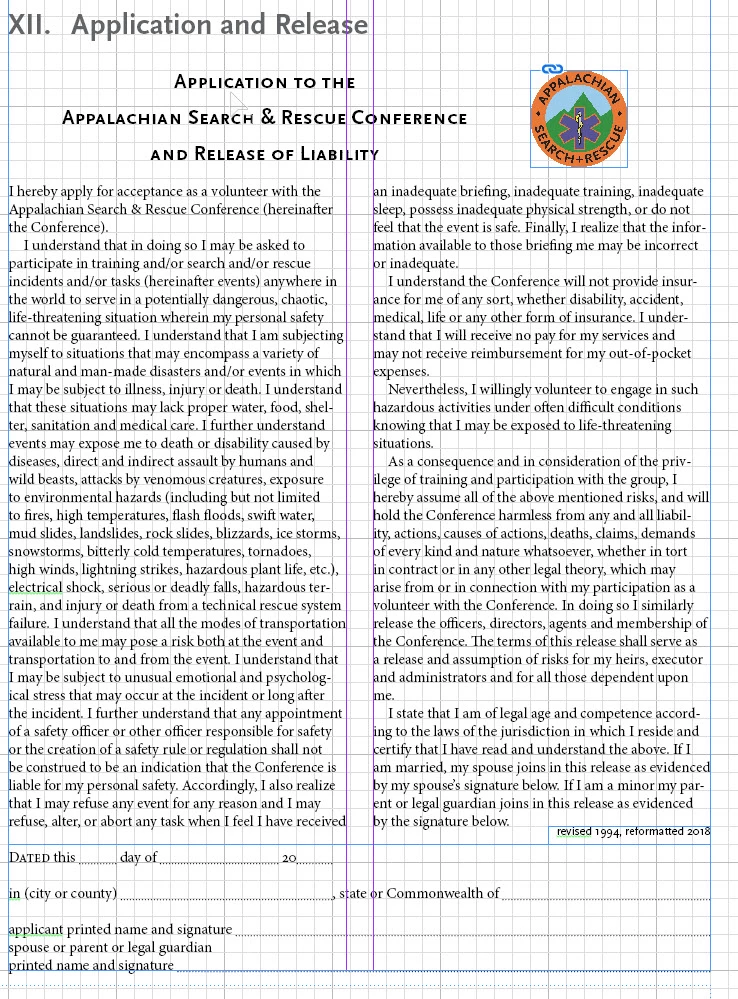
I am dealing with an administrative manual that has a number of sections. One of the sections, pictured below, has a couple of text boxes and a single graphic that needs to stay in the same place on the page, even if I add in a new section above. I've been checking and manually moving the graphic and the two boxes as needed, but hoping InDesign has a better way. Thought about using anchored objects but from what I've read online this seems unlikely to do what I want, without some deeper understanding of anchored objects than I currently have.

Thanks for any thoughts on a better way to do this.

    This topic has been closed for replies.
    Correct answer Eugene Tyson

    For starterds - everything should be in one text frame, and one text frame per page.

    Drag this node anywhere into the text

    272436975_ScreenShot2018-09-06at11_27_24.png.a1d484558a1288ff556409085390d1a4.png

    Anchored objects are given this icon:

    1475753849_ScreenShot2018-09-06at11_29_12.png.6bb08415920467135c4b5fe72cc5a706.png

    Holding down Alt when double clicking the icon opens up the Dialog box (CTRL on PC)

    521089822_ScreenShot2018-09-06at11_30_02.png.a1b5f6e9e9e9c21cd30b453443361123.png

    You can then set the way it reacts within the text using a lot of controls.

    For instance - in a book with a side column for margins you can always have the image flow with the text and appear in the margin on the outside.

    Making a few tweaks to this

    842278052_ScreenShot2018-09-06at11_34_54.png.b25b4a03e8208d1d6eccc14ef4813a0b.png

    You can then make this an Object Style

    466539101_ScreenShot2018-09-06at11_43_11.png.61f51a91d0013e3b25b779efd88947d2.png

    Now the image will flow and appear on the correct side of the page.

    In the below layout using those settings the important shapes are on the foredge all the time.

    Normally, if you reflow the pages, and this was to become a verso, then the circle would be at the spine! Which is not the layout required.

    For example, if I wanted the text to flow back to the previous page, and the triangle to be on the left hand side, the anchored object settings allow this.

    730930054_ScreenShot2018-09-06at11_37_13.thumb.png.c4fdb7f9b246e375c9392755ad621e5a.png

    This gives very powerful layout options to ensure that the objects are always on the foredge and the text is always at the spine.

    1841396629_ScreenShot2018-09-06at11_37_42.png.9a3c40de3034c1d4b0a348056511c55f.png

    IF the settings were incorrect this would happen - and if you were to reflow 900 pages of text and have to manually move each item, it would be a pita.

    405783399_ScreenShot2018-09-06at11_40_58.png.3f48efa769edce100a25dfcb5a1752c8.png

    You can also insert an achored object via the contextual menu when in the text frame with the insertion point active.

    534715682_ScreenShot2018-09-06at11_41_57.png.6441af02d7c2d2d003c2098925eb6f3b.png

    Gives you a dialog for the new object - and you can select the object style - height width etc.

    555000559_ScreenShot2018-09-06at11_43_57.png.46d87d89db9e9eecb484a8e7848ff2d2.png

    Which inserts the frame which you can place an image into.

    1 reply

    Eugene TysonCommunity ExpertCorrect answer
    Community Expert
    January 17, 2019

    For starterds - everything should be in one text frame, and one text frame per page.

    Drag this node anywhere into the text

    272436975_ScreenShot2018-09-06at11_27_24.png.a1d484558a1288ff556409085390d1a4.png

    Anchored objects are given this icon:

    1475753849_ScreenShot2018-09-06at11_29_12.png.6bb08415920467135c4b5fe72cc5a706.png

    Holding down Alt when double clicking the icon opens up the Dialog box (CTRL on PC)

    521089822_ScreenShot2018-09-06at11_30_02.png.a1b5f6e9e9e9c21cd30b453443361123.png

    You can then set the way it reacts within the text using a lot of controls.

    For instance - in a book with a side column for margins you can always have the image flow with the text and appear in the margin on the outside.

    Making a few tweaks to this

    842278052_ScreenShot2018-09-06at11_34_54.png.b25b4a03e8208d1d6eccc14ef4813a0b.png

    You can then make this an Object Style

    466539101_ScreenShot2018-09-06at11_43_11.png.61f51a91d0013e3b25b779efd88947d2.png

    Now the image will flow and appear on the correct side of the page.

    In the below layout using those settings the important shapes are on the foredge all the time.

    Normally, if you reflow the pages, and this was to become a verso, then the circle would be at the spine! Which is not the layout required.

    For example, if I wanted the text to flow back to the previous page, and the triangle to be on the left hand side, the anchored object settings allow this.

    730930054_ScreenShot2018-09-06at11_37_13.thumb.png.c4fdb7f9b246e375c9392755ad621e5a.png

    This gives very powerful layout options to ensure that the objects are always on the foredge and the text is always at the spine.

    1841396629_ScreenShot2018-09-06at11_37_42.png.9a3c40de3034c1d4b0a348056511c55f.png

    IF the settings were incorrect this would happen - and if you were to reflow 900 pages of text and have to manually move each item, it would be a pita.

    405783399_ScreenShot2018-09-06at11_40_58.png.3f48efa769edce100a25dfcb5a1752c8.png

    You can also insert an achored object via the contextual menu when in the text frame with the insertion point active.

    534715682_ScreenShot2018-09-06at11_41_57.png.6441af02d7c2d2d003c2098925eb6f3b.png

    Gives you a dialog for the new object - and you can select the object style - height width etc.

    555000559_ScreenShot2018-09-06at11_43_57.png.46d87d89db9e9eecb484a8e7848ff2d2.png

    Which inserts the frame which you can place an image into.

    keithconover
    Inspiring
    January 17, 2019

    Thank you for this great tutorial which is so much more helpful than the Adobe help. I will take days or maybe a couple of weeks to digest this, play around with it, and then post another reply. I think that this information will be very helpful in other projects of mine as well.

    Again, thanks!

    Update: what it did for this particular case is to  made a new text frame off the the side on the pasteboard, slightly less tall but just as wide as the page's main text frame. I then cut the text of the release, but not the heading, and pastee the text into the new text frame. I then moved the logo and the text frames at the bottom off the page and into the new text frame. I then Grouped all of those items, cut and pasted into the text frame, grabbed the solid blue box along the top of this Grouped object, and dragged up to the end of the "XII. Application and Release" heading line to anchor it in place. Seems to work fine. Seems trivially simple in hindsight but not before.