Participant
December 10, 2021
Question

Arabic and English text gets rearranged - please help!

  • December 10, 2021
  • 5 replies
  • 11094 views

Hello!
I will try to keep it short and clear. I installed the ME InDesign. I need to copy paste an Arabic text from Word into the InDesign file. This text contains both arabic and roman script, sometimes in the same sentence.

for example:

 

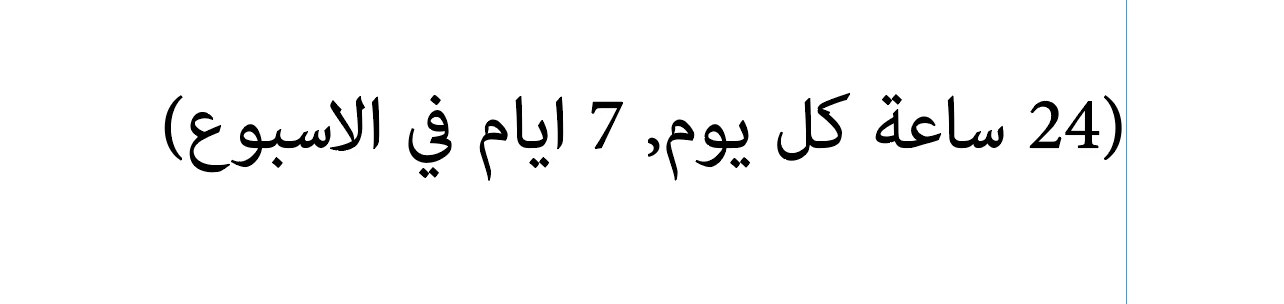
this is the text in the Word file


this is the InDesign text that I copy pasted


Clearly the order gets mixed up. Now, I have read through every single article possible that is related to this topic, and I have tried all the answers posted there - meaning I do have the following turned on: align right, RTL paragraph direction, character direction: default, digits: arabic, typeface adobe: arabic, character style/language: arabic


I want to note that when I am copying a completely arabic paragraph, it gets pasted perfectly!

Moreover, when I am selecting the mixed script sentence in Word, by dragging the cursos over the sentence to select, if I slow it down, I can see it being selected sporadically until it all gets blue - by that I mean this:


 

I start selecting RTL - I select the "7)" first but then it  skips as shown in the 2nd image


Someone please help me fix this, it is incredibly annoying... even if I copy past word by word, number by number it somehow switches directions, starts typing from another point, etc... like its going crazy

Thank you in advance!

5 replies

Known Participant
July 1, 2022

I'm ready to tear my hair out with this.  2 examples attached.
Top is screenshot of the Word doc.
Bottom is screenshot of how it comes into Indd, whether pasted, placed, or even put into Text and Remove All Formatting before pasting.  I can't place the English words where I need them to go.
How can Word do this correctly but InDesign cannot?
Help!!


Zaid Al Hilali
Community Expert
Community Expert
July 2, 2022

I typed part of your text for testing purposes and all came alright in my InDesign (ME version) with the following settings:

Text frame set to Right-to-Left

Digits (numbers) set to Arabic

Composer set to Adobe World-Ready Paragraph Composer

Paragraph Direction is set to Right-to-Left

Here is what I got:

Note, I typed the text in InDesign, I didn't copy/paste or place it since I don't have the source file.

I suggest that you delete all Latin text from the source file ie. Word document, then copy/paste the Arabic text into InDesign, then simply type the Latin text in InDesign, I do suspect InDesign is misreading the dashes – and parenthesis ( ) coming from Arabic Word document.

Joel Cherney
Community Expert
Community Expert
July 2, 2022

Zaid is correct again here, and is describing something that had me tearing my hair out, for years, until I figured it out.


Some glyphs are treated by InDesign as inherently LTR (like Latin script) and others as inherently RTL (like Arabic script). Others that appear in both contexts, like parentheses and hyphens, are inherently bidirectional, and are awarded directionality based on the surrounding characters. This system doesn't match Word's system, at all. This creates real problems when attempting to e.g. add parenthetical part numbers that have embedded hyphens. Or to have trilingual parenthetical statements in English, Japanese, and Arabic.Additionally, sometimes Word (or maybe the Windows clipboard?) has in the past added Unicode control characters for things like directionality overrides. Just to make things more interesting, right?


So, in your shoes, I would set up InDesign to use logical character selection (not visual) and then use the keyboard to select the entire part number, and then choose Left-to-Right Character Direction, and then overtly mark the spaces around the part number as Right-to-Left Character Direction. This is one of the real hair-pulling things for me; spaces themselves inherit their directionality from their surrounding glyphs. I'll try to post an illustrative video later, but it'd probably work better if you (or Zaid?) posted some text for me to work with, as I don't read Arabic and couldn't even estimate how long it'd take me to hunt-and-peck my way through rekeying even one of the sentences you're working with.


Joel Cherney
Community Expert
Community Expert
December 19, 2021

Everyone posting in your thread is right, but Zaid is right-est, I think:


the best way to get Arabic from MS. Word is by placing it not copy/paste.


That's a command in the File menu, without which you will be using all kinds of crazy workarounds. My own preferred crazy workarounds is to place the Word document, and then use RTL and LTR markers and overrides to force the text to render the way I think it ought to render. There are markers and overrides in Type -> Insert Special ME Character -> Unicode Markers. Sometimes I also have to mark individual spaces as RTL character direction (that's in the flyout menu on the Charater panel) especially when numerals and parentheses and such are involved. 


But really, I think that many of your frustrations are coming from attempts to copy & paste bidirectional text. Don't trust the Clipboard!

Zaid Al Hilali
Community Expert
Community Expert
December 19, 2021

The experience you described is what we have been suffering with it for decades to the extent it became a normal issue for us. Microsoft had localized (Arabized) their Office applications differently to how Adobe did it, add to this Windows OS, and Mac both have again different methods of dealing with Right to Left Languages. That's why we try to minimize the differences in a workflow by trying to work on specific platform Win/Mac and keep the workflow from a single developer such as InCopy for writers and authors, along with InDesign for the rest of designers and page layout staff.

I'm not saying at all that you and us should consider these issues as normal, but I'm saying that we adapted to such behaviours and have developed some workarounds of our own.


In your example you're dealing with short text. If you know Arabic, I advice you of typing the sentence all over in InDesign. Otherwise, the best way to get Arabic from MS. Word is by placing it not copy/paste.

Diane Burns
Inspiring
December 12, 2021

I don't know if this will help in addition to Willi's reply, but here are some scripts that let you change direction for just 1-2 characters at time. https://www.dropbox.com/sh/dzvkg4iv1vsg6tq/AAC_FlxT4qr55lwNrA0QKd5da?dl=0

Let me know if you have trouble retrieving the files. 


Diane Burns
Inspiring
December 12, 2021

Sorry, meant to add how to install scripts: https://redokun.com/resources/install-an-indesign-script

And I was wondering, would there be any different result overall if you Place the file (File > Place) vs. Copy/Paste from Word? Copy/Paste is, in general, not the best approach. Though it may be necessary in some cases. 

Willi Adelberger
Community Expert
Community Expert
December 10, 2021

Mixed paragraphs with RTL and LTR text are problematic.  Only one language direction can be allowed to have a line break. You cannot have line breaks with both languages. Asign to one language a no break property. So these texts must be so short to fit in a line. If that is not possible, breakt it up into several paragraphs.


Noa5EE6Author
Participant
December 12, 2021

Oh I see... well, thank you for answering!