
joshuah68297286
Participant
April 16, 2019
Question

Auto-Size vector shaped text box

  • April 16, 2019
  • 2 replies
  • 898 views

Hello all,

I am trying to make speach bubbles for a document that would auto-size according to the length of the text entered in them.

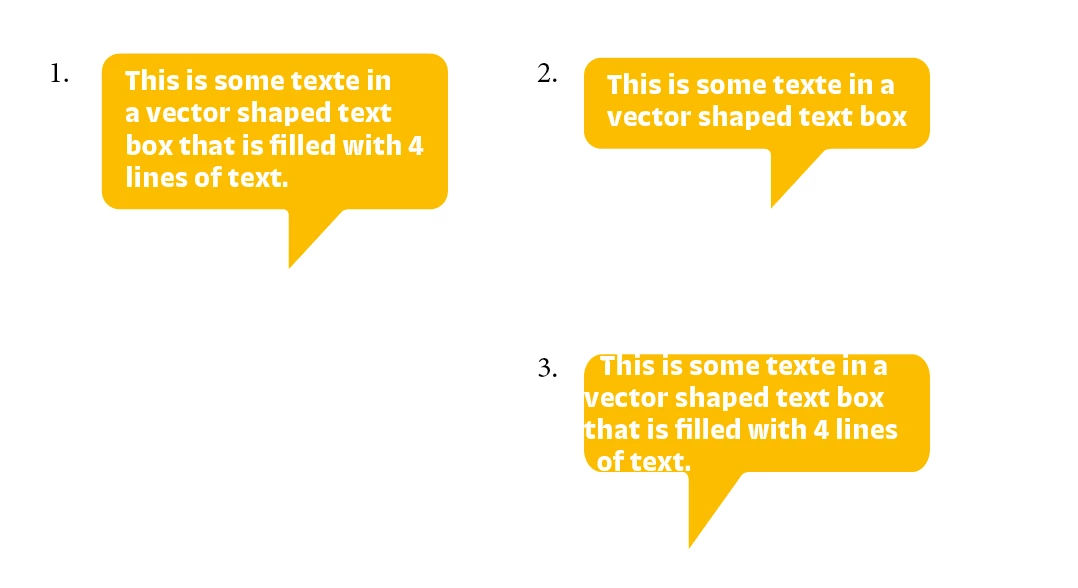
Below is a screen shot of what I would like to achive :

1 & 2, made manually, this is the effect I want to achieve.
3. Making the bubble vector shape into a text box, giving it an Auto-Size height only for it to adjust. 2 problems : I can't get it to have inner margins as I want, and the more I enter text the more the shape looses it's original shape by being stretched vertically.

Any ideas on how to achieve this?

Thank in advance.
Joshua
    This topic has been closed for replies.

    2 replies

    Scott Falkner
    Community Expert
    Community Expert
    April 16, 2019

    I've done this. You need two object styles.

    1. Speech bubble. Auto sized for height to contain content. Include colour, corner shape and size, and text inset.
    2. Pointer. Draw the pointer only, including the curved corners. Copy it, then paste it into the text as an anchored object. Go to Anchored Object Options and chose Custom for position then make the X and Y positions relative to the text frame and adjust position as needed. Zoom in and make sure Preview is on.


    Once you make both of those object styles you can apply them and, best of all, globally adjust them.

    Legend
    April 16, 2019

    I was able to achieve this by having the text box be a separate object from the arrow. They are grouped, and the text-box autosize is set to expand upward.

    Steve Werner
    Community Expert
    Community Expert
    April 16, 2019

    And in addition to what SJRiegel suggested, you can set the inside space between the text and the speech bubble shape with Object > Text Frame Options > General > Inset Spacing