Inspiring
January 18, 2018
Answered

automatically relinking Shutterstock fpos to hires images

  • January 18, 2018
  • 3 replies
  • 1972 views

I work on a large book project that uses Shuttestock images almost exclusively.

I end up requesting an fpo image with a name like --

stock-photo-happy-student-listening-a-video-tutorial-on-line-with-a-laptop-sitting-in-a-bar-terrace-716924281.jpg

and get back a hires image called --

shutterstock_716924281.jpg

There are probably 100 per chapter and almost a thousand per book. I end up re-linking them manually. The fpos and the hires sort in lists that do not run parallel – that is, one list is alphabetical and one list is numerical. The only thing in common is the image number followed by a .jpg extension.

Is there a way to automatically relink the fpo images to the hires image?

    This topic has been closed for replies.
    Correct answer rob day

    Here is a sample AppleScript. You should carefully test this and make sure you have a backup of the project before using. The script strips the descriptive text and replaces it with shutterstock_ and relinks to the files. It assumes all of the shutterstock numbers are 9 digits and have a .jpg extension.

    set prefx to "shutterstock_"

    tell application "Adobe InDesign CC 2018"

        tell active document

            repeat with lnk in every link

                try

                    set fPath to file path of lnk as alias

                    tell application "Finder"

                        --get the name and folder of the placed file

                        set the n to the name of fPath

                        set f to container of fPath as string


                        --replaces the descriptive name before the 9 digit item number + .jpg with shutterstock_

                        set nn to prefx & characters -13 thru (count of characters of n) of n as string


                        --rename the file and get its new path

                        set the name of fPath to the nn

                        set nPath to f & nn as alias

                    end tell

                    relink lnk to nPath

                end try

            end repeat

        end tell

    end tell

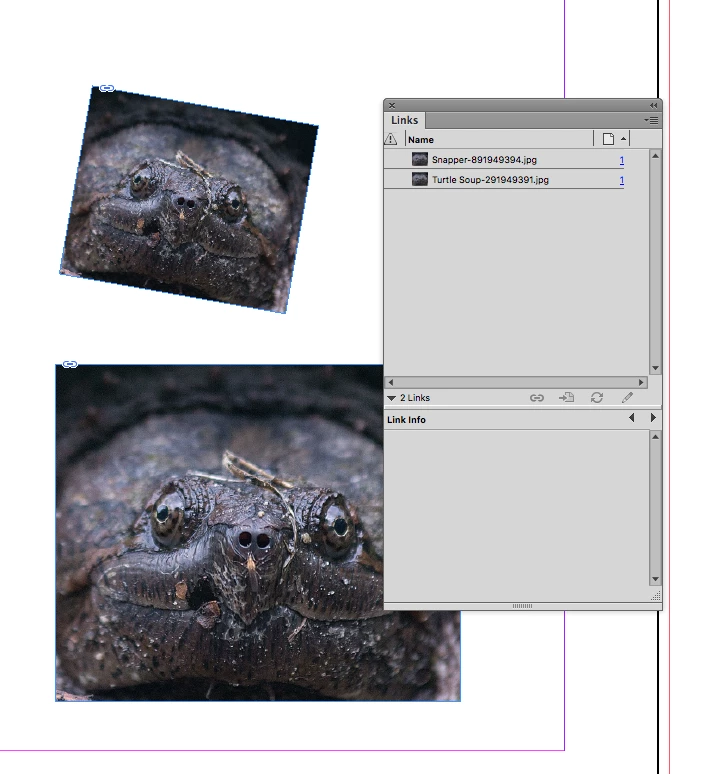
    A simple 2 link example:

    3 replies

    rob day
    Community Expert
    rob dayCommunity ExpertCorrect answer
    Community Expert
    January 19, 2018

    Here is a sample AppleScript. You should carefully test this and make sure you have a backup of the project before using. The script strips the descriptive text and replaces it with shutterstock_ and relinks to the files. It assumes all of the shutterstock numbers are 9 digits and have a .jpg extension.

    set prefx to "shutterstock_"

    tell application "Adobe InDesign CC 2018"

        tell active document

            repeat with lnk in every link

                try

                    set fPath to file path of lnk as alias

                    tell application "Finder"

                        --get the name and folder of the placed file

                        set the n to the name of fPath

                        set f to container of fPath as string


                        --replaces the descriptive name before the 9 digit item number + .jpg with shutterstock_

                        set nn to prefx & characters -13 thru (count of characters of n) of n as string


                        --rename the file and get its new path

                        set the name of fPath to the nn

                        set nPath to f & nn as alias

                    end tell

                    relink lnk to nPath

                end try

            end repeat

        end tell

    end tell

    A simple 2 link example:

    coopjackAuthor
    Inspiring
    January 24, 2018

    This is great, thank you. It does indeed do exactly as you show, but I am still relinking the images individually. InDesign does not "see" the other images to relink like it should, within the hires folder.

    Here's what I am doing -- Since all the images are "missing," they should all relink when I tell it where to find one image. Yes, I do have the "Search for Missing Links in this Folder" option selected.

    Any thoughts?

    rob day
    Community Expert
    Community Expert
    January 24, 2018

    Instead of relinking from the Links panel try replacing the renamed low res FPO files with the hi res files, which should now have matching names. If you do that the links should show as Modified and it would just be a matter of updating. Make sure you have a backup.

    For the update to work the hi res and FPO images will have to have the same output dimensions.

    If I move or copy the file in the HIRES folder into the FPO folder I get a prompt because of the identical names:

    Stephen Marsh
    Community Expert
    Community Expert
    January 18, 2018

    A brute force approach…

    1) Save the .INDD file as .IDML

    2) Rename the .IDML as .ZIP

    3) Decompress the .ZIP

    4) Use a regular expression capable text editor to mass edit the metadata.xml and the spreads.xml file to update the links and save

    5) Delete the original .ZIP, then re-ZIP the previously extracted folder

    6) Rename the .ZIP file as .IDML

    7) Open the .IDML file back into InDesign, ensure all is good and re-save as .INDD (backup the original .INDD just in case)

    This is just conjecture, I have not tested!

    EDIT: I just tested and InDesign does not like the edited IDML file, so scratch that idea!

    Community Expert
    January 26, 2018

    Stephen_A_Marsh  wrote

    EDIT: I just tested and InDesign does not like the edited IDML file, so scratch that idea!

    Hi Stephen,

    how exactly did you edit the IDML ?


    Are you on Mac OS X? If yes you'd need special tools to zip a unzipped IDML.

    Or you would use tools like the old and deprecated Springy app that can look into zip files and connect to a text editor like Text Wrangler or Ultra Edit or TextEdit with a Edit With >  functionality for XML files to change contents and write the edits directly back to the IDML file.

    On WIndows it should be easier…

    Regards,
    Uwe

    Stephen Marsh
    Community Expert
    Community Expert
    January 27, 2018

    Yes, I first tried in OS X using TextWrangler and native .zip compression. I was flying by the seat of my pants and did not know that special tools would be required.

    I then tried in Win 10 VM via Parallels, with similar results – however I would need to do it again to ensure that nothing was messed up from the Mac side.

    Can you please post links or expand the required tools and methods to successfully edit .IDML files Uwe?

    Stephen Marsh
    Community Expert
    Community Expert
    January 18, 2018

    Not much help now, but in future you could plan for this by:

    1) Store the low-res and hi-res in separate folders

    2) Download the low res images and use Adobe Bridge to Batch Rename so that the file only contains the unique number sequence at the end (string substitution with regular expression, further info can be provided if required). You could prefix shutterstock_ in front if you like so that they will exactly match the hi-res names, or rename the hi-res to match the low-res.

    3) Use the Link panel to “relink to folder” to relink all images of the same name to a different folder (from the low-res folder to the hi-res folder).

    You can then change the low-res folder name or move/delete the low-res folder to see if you have missed re-linking any images, or run a preflight for low effective resolution etc.

    I’ll have a look around my script collection to see if I have something that may help, otherwise the InDesign scripting sub-forum may be able to help.

    Stephen Marsh
    Community Expert
    Community Expert
    January 18, 2018

    OK, this old script topic is close, however it will need modification by somebody with InDesign JavaScript knowledge:

    relink images with different names

    var

      sourceFolder = Folder.selectDialog("Show me a source folder"),

      mLinks = app.activeDocument.links.everyItem().getElements(),

      cLink, cFile;

    while ( cLink = mLinks.pop() ) {

      if (cLink.status == LinkStatus.NORMAL) continue;

      cFile = File(sourceFolder + "/" + cLink.name.replace(/.{2}\./,"HR.") );

      if ( !cFile.exists ) continue;

      cLink.relink(cFile);

      }

    This script is finding links with the exact same filetype and name, except that the new name has HR when the original had LR.

    In your case, all we need to do is match the unique numerical code.

    The regex in line 8 would need to look for something like:

    cFile = File(sourceFolder + "/" + cLink.name.search(/\d+/) );

    or perhaps:

    cFile = File(sourceFolder + "/" + cLink.str.match(/\d+/) ); 

    …however it is of course not that simple (I know some regex, but not scripting).

    * Are your FPO and Hi-Res images stored in different folders, or are they both in the same folder?

    * Are the Hi-Res always in JPG format as the low res JPG (could some hi-res potentially be edited and resaved as say TIFF or PSD)?

    P.S. Another similar script can be found here: JavaScripting InDesign: Replacing Links