Inspiring
April 29, 2022
Answered

Best practice for RGB and grayscale images for digital and print?

  • April 29, 2022
  • 6 replies
  • 5025 views

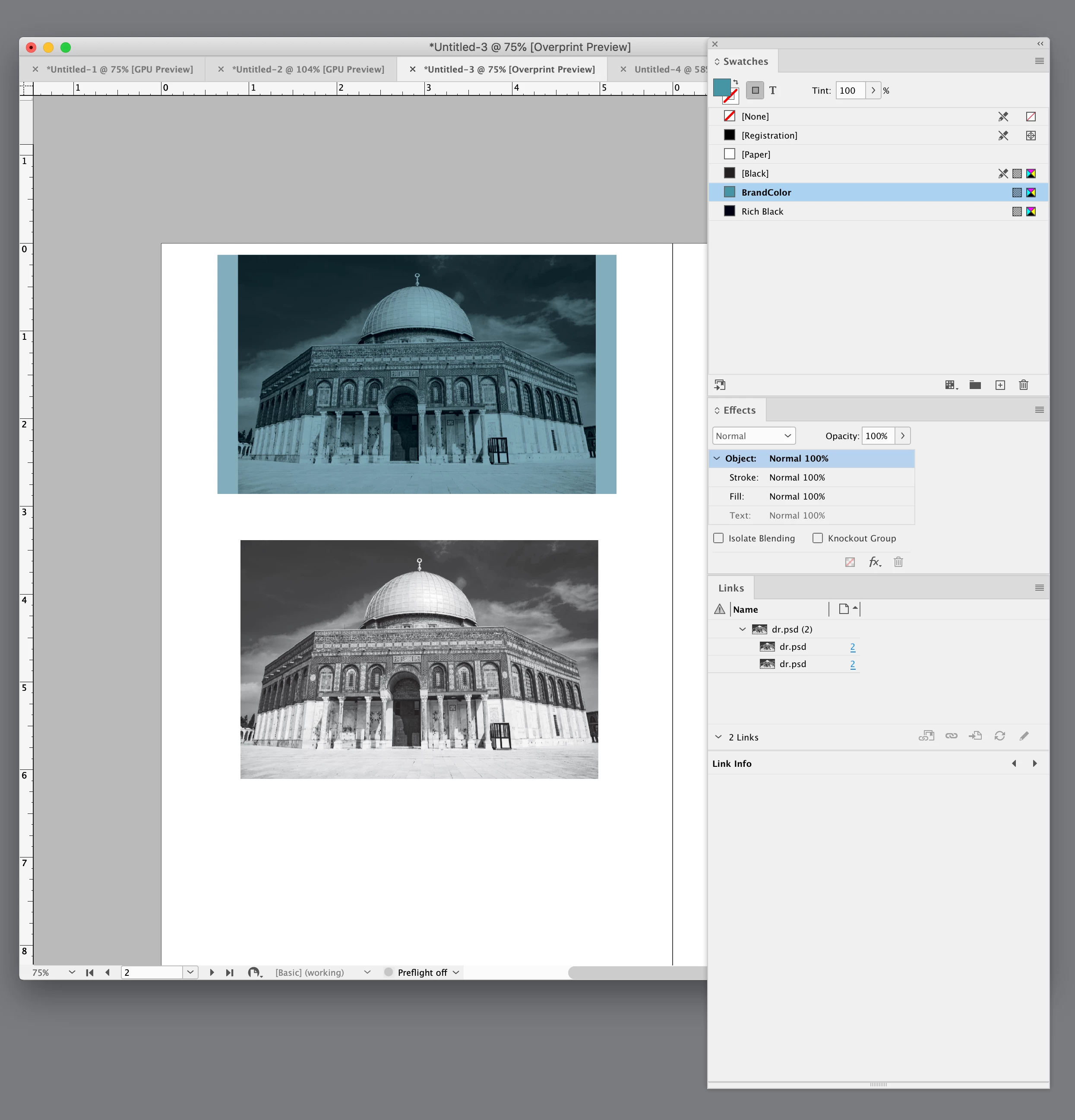
We have many books that are being developed for use both online (as PDF files) and in print. Some of these books have photos/illustrations in them. Up to this point we've just been using RGB .jpg files with an "overlay" (actually the rectangle is "filled" with our brand color, and then the photo blend mode is set to "Luminosity" to create the appearance of an overlay that matches the color scheme of the book). This works (and looks) great for the digital files. But we're now creating print files for economical printing (in black), and the photos obviously need some special treatment to print only in black. I know how to convert images to grayscale, but the problem is that now they look very washed out/muddy (especially with the "overlay" applied). I think they'll print just fine, but they don't look nearly so nice for our digital PDF files. 😞 
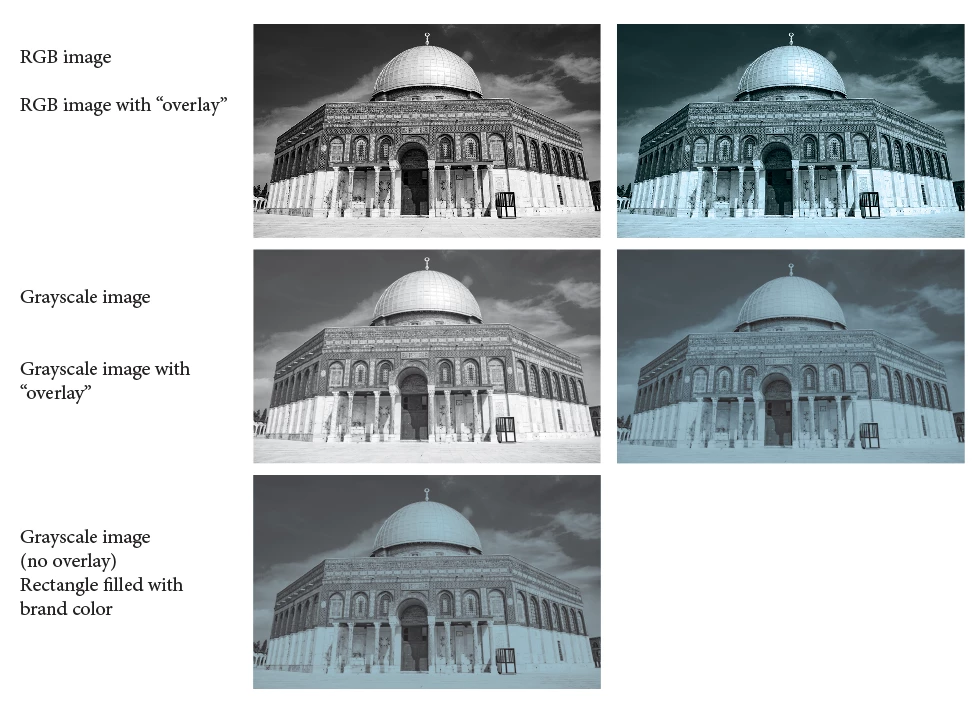
 

Part of the problem with last image is that when the rectangle "container" is filled with our brand color, the grayscale image inherits some of that coloring even before the "overlay" is applied. Is there a way to prevent this? 


So I'm wondering how do the pros go about creating photos that look optimal for both print and digital? Ideally we want to use just one copy of the photos for everything. But maybe I need a script to swap out the RGB files for greyscale ones just for exporting a print PDF? What is the best solution? We don't have access to Photoshop, unfortunately. (I do the grayscale conversion in Affinity Photo).


This topic has been closed for replies.
Correct answer rob day

Thanks for looking into this for me! I'm not quite sure I follow all that you did, but I gather that the link between Photoshop's color profiles and Indesign's is important? Without access to PS, what is my best option? Our brand color is CMYK 73|28|30|1 if that helps. 


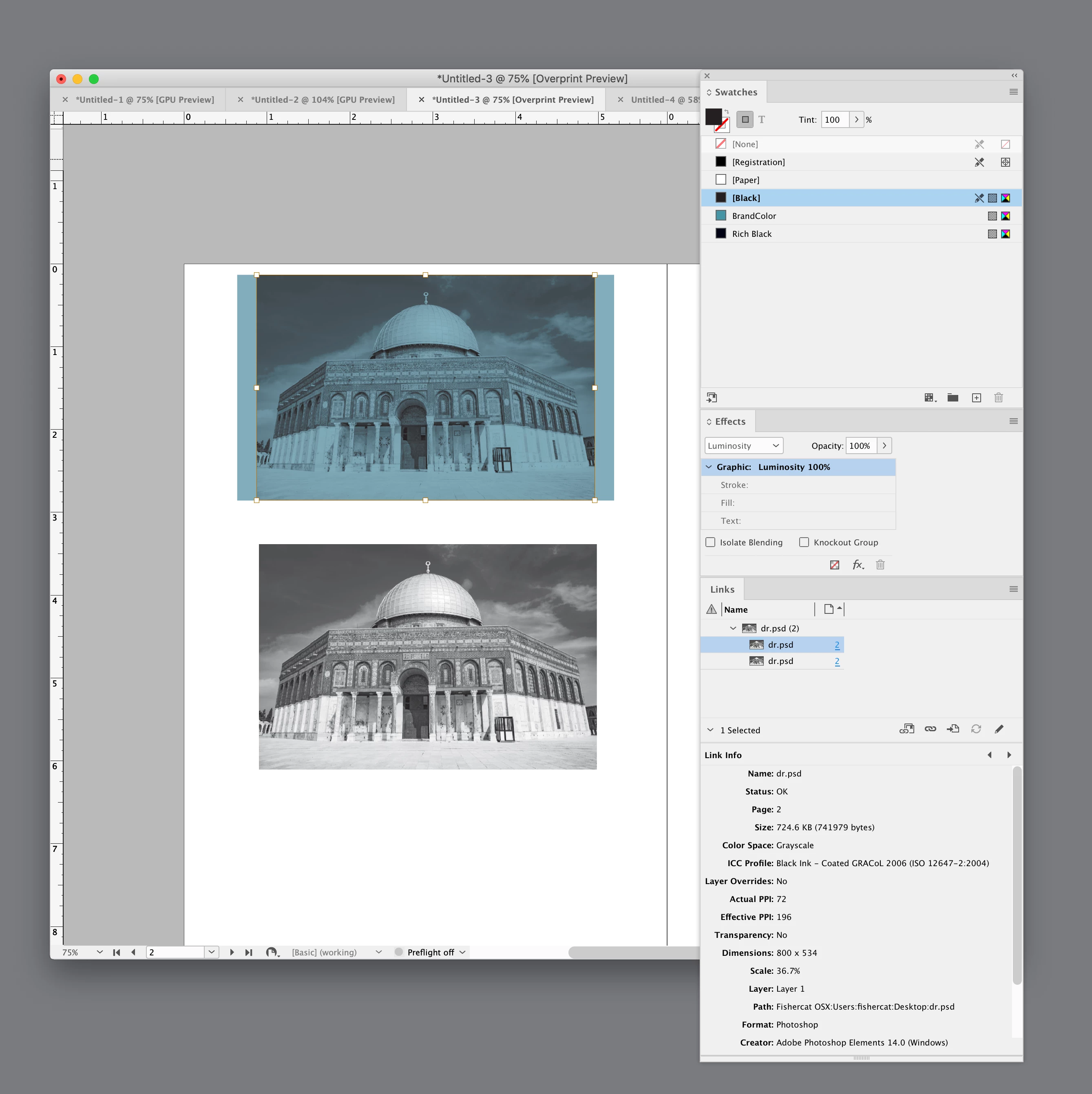
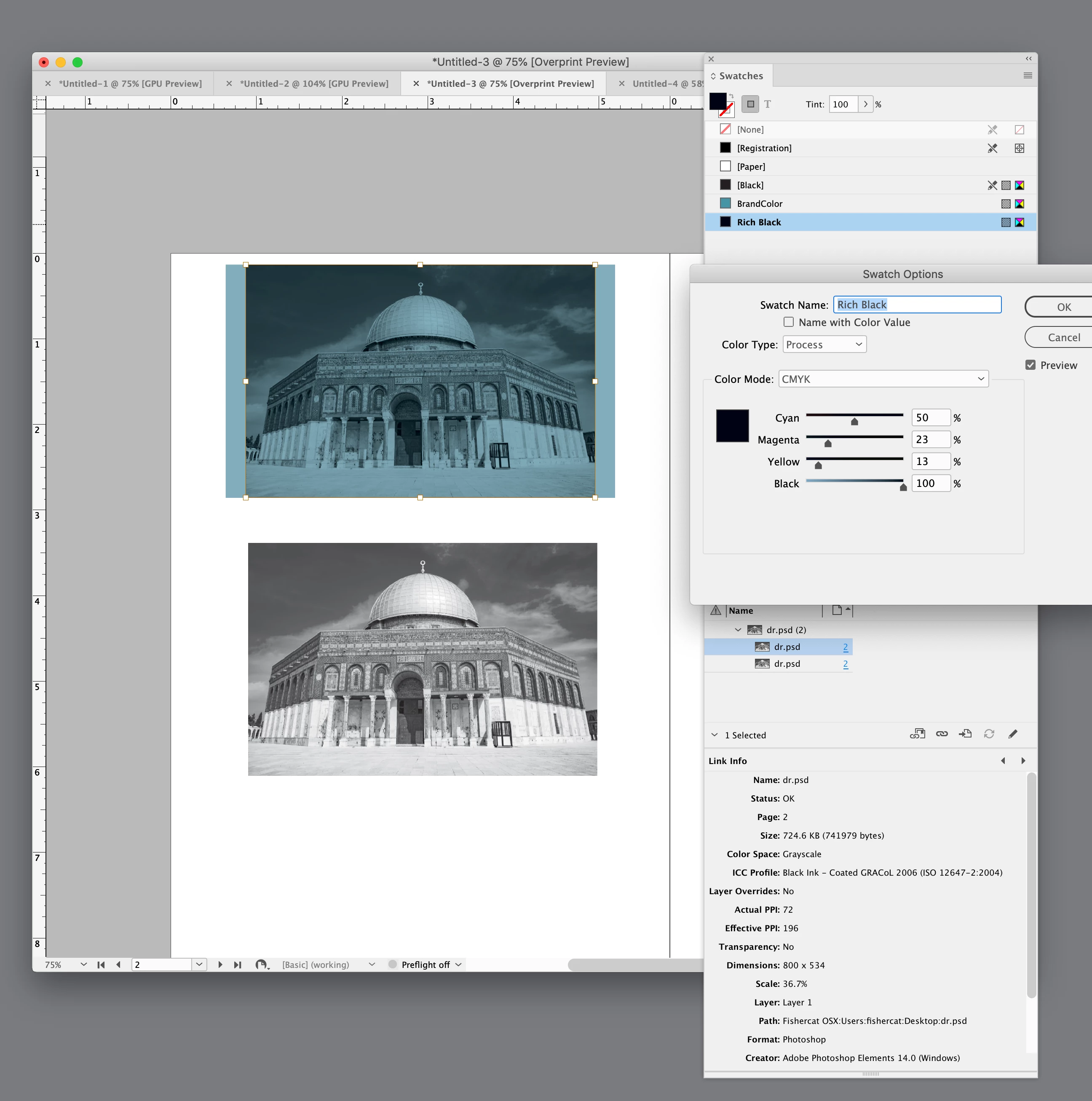
Here’s the Affinity grayscale placed as is with the image direct selected and set to the [Black] swatch. InDesign ignores gray profiles and previews the grayscale with the document’s black ink CMYK profile. The profile only affects the expected print preview, the Affinity gray values output unchanged.


Here I set the image color to a rich CMYK mix—CMY added to Black:


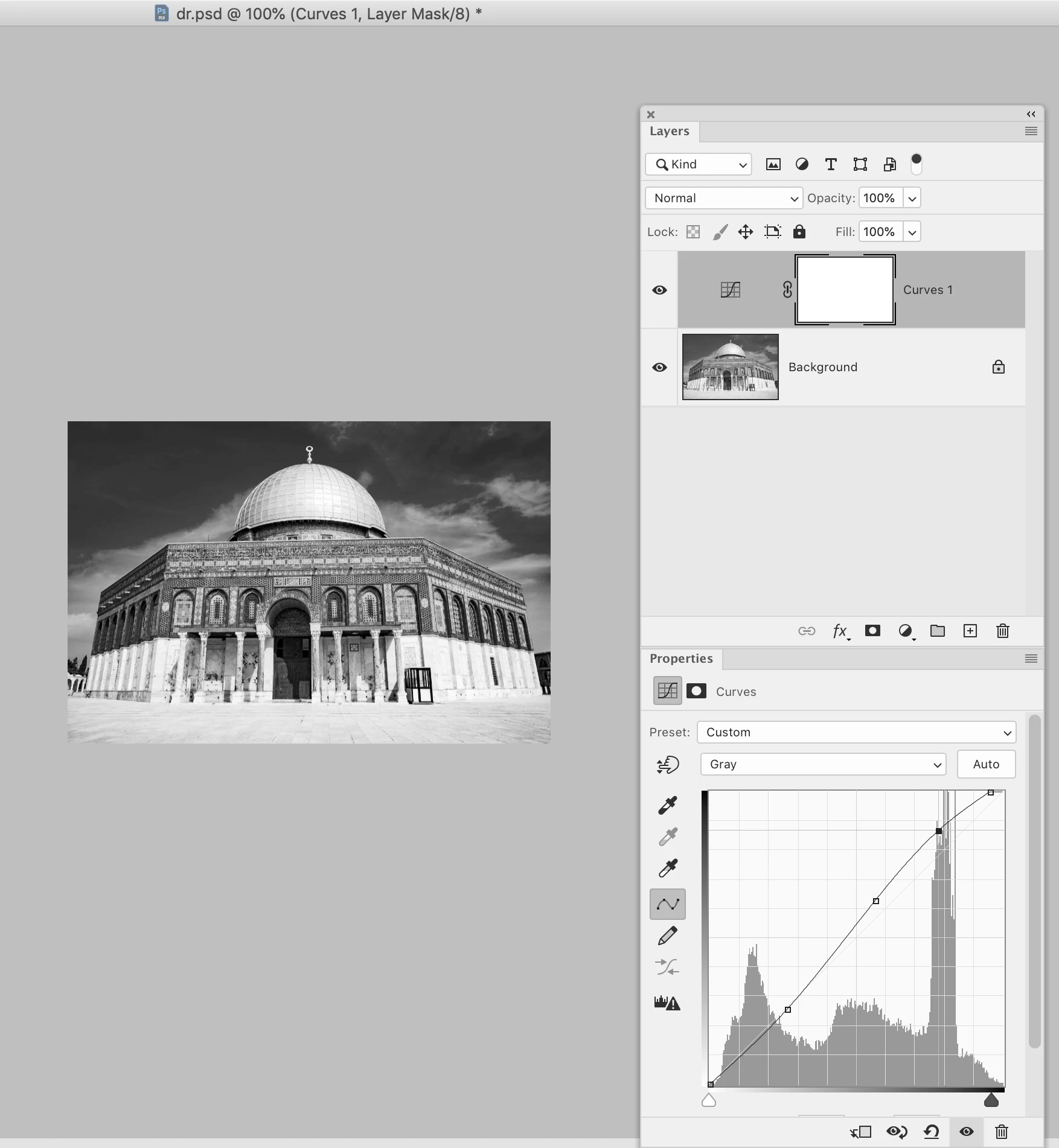
Increased the contrast of the Affinity image in Photoshop:


6 replies

Scott Falkner
Community Expert
Community Expert
April 30, 2022

I suggest first applying a Black & White adjustment in Photoshop. This will work for both the tinted version of the photo and hte grayscale version.

One problem from converting colour images to grayscale is that colours with high contrasts, like red and green, sometimes convert to simlar shades of gray. You end up losing detail and contrast. The Black & White adjustment will let you adjust how different colours convert to grayscale, allowing you to enhance contrast that would otherwise be lost.

In the same adjustment panel you can apply a tint, which works like the colour overlay you aplied in InDesign.

You can create as action to add the adjustment and set the colours or load a saved preset. Run it as a batch and you can convert severl photos at once. You can even apply multiple versions of the effect (one for the grayscale only photo, one for the tinted version). When you place the images in InDesign you can change the object layer options, switching which version of the adjustment is applied. You also get the benefit of keeping the original colour image in the file.

When you are ready to make the print version you will need to convert the images to grayscale, otherwise they will be RGB images. You can use a batch action for this, too. I suggest saving the grayscale versions in a separate folder and with different names (perhaps appending _GS).

rob day
Community Expert
Community Expert
April 30, 2022

Hi Scott, @23121922udmu  doesn’t have Photoshop.

James Gifford—NitroPress
Legend
April 29, 2022

All in all... as much as you might find the color-overlay effect easy to apply and pleasing for at least one use, it might be causing more actual output issues/problems than it's worth. Maybe backing up to a more conventional image placement and color management would solve a lot of issues for both destinations...


rob day
Community Expert
Community Expert
April 29, 2022

Hi @23121922udmu , can you share an example of the Affinity grayscale? Which version of InDesign are you using?


When Overprint Preview is turned on, InDesign previews placed grayscale values as they are expected to print on the CMYK black plate, so the InDesign document’s assigned CMYK profile has some affect on the preview of the gray values, without changing the actual output values. Some of the contrast loss could be happening with the way Affinity handles the conversion.


Also, what is your document’s Transparency Blend Space set to? The blend space will have a significant affect on the appearance of an Overlay blend.

Inspiring
April 29, 2022

I'm using InDesign 2022 (17.2)

The doc's Transparency Blend Space is set to "Document CMYK". 

Here's a sample of an Affinity converted photo. I convert it using "Document > Convert Format/ICC Profile > 'Gray/8' and Black point compensation. That automatically assigns a "Greyscale D50" profile, I believe.

Mike Witherell
Community Expert
Community Expert
April 29, 2022

What if the overlay color was a spot color and when you go to export to PDF and hit the Print dialog box, and then go to Output and then click on Ink Manager, you could simply turn off the spot color ink. It would then ignore that color. Possibly this would give your grayscale images no color overlay, and maybe they will look acceptable to you? (You might try it, anyway.)

Mike Witherell
James Gifford—NitroPress
Legend
April 29, 2022

Since none of the usual suspects has jumped in, I'll add that the first solution I would look at is optimizing the images for print, then carefully adjusting the PDF export options as to resolution and color conversion. That might let you get optimal results for both purposes without getting too tricky with the document structure.


Inspiring
April 29, 2022

Thank you. I agree that a print-first approach is probably best. Resolution is not an issue, just the color/contrast is what I'm concerned about. Someone can correct me if I'm wrong, but I'm not sure that export settings will help me any there. If it wasn't for the "bleedthrough" issue with grayscale images inheriting the fill color of the rectangle, I think I could probably get something to work. But as it is, I'm kinda stymied. 

James Gifford—NitroPress
Legend
April 29, 2022

You can do quite a bit with the export settings, in concert with the graphics settings. I'd bet that various combinations of the blend mode and then two different PDF exports (one optimized for print, the other for screen) would get you there.


And if not, conditional text to swap the graphics will work perfectly, just not easily. 🙂


James Gifford—NitroPress
Legend
April 29, 2022

If you can't completely resolve the image/graphic issue for both purposes — and I think you can, but there's better advice on that than mine — you can use conditional text to swap two sets of images. I do that for dual-format print/EPUB editions.