
Participant
June 18, 2018
Answered

Bleed exporting as white on PDF

  • June 18, 2018
  • 8 replies
  • 11447 views

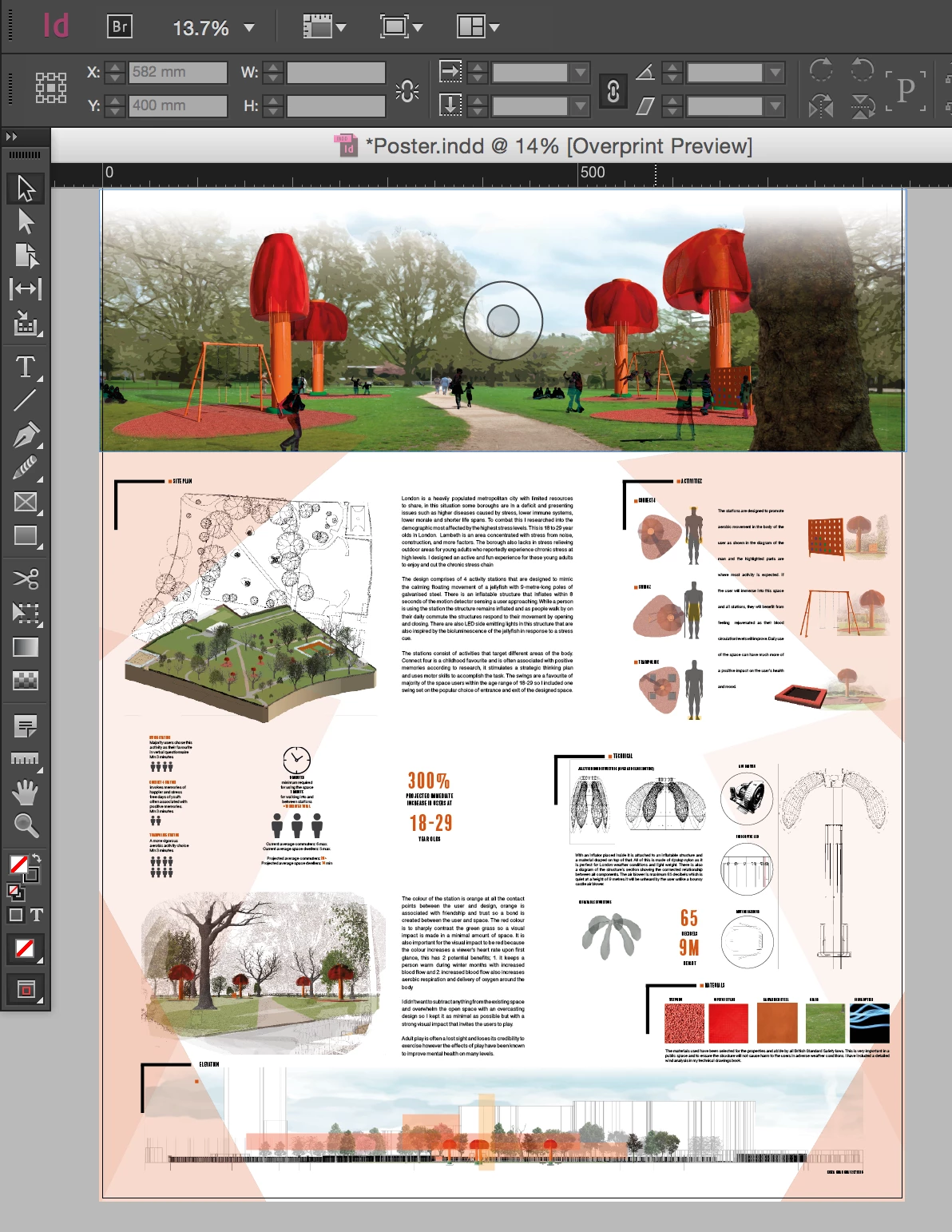
I'm making an A0 poster with a 3mm bleed. It's in the document setup, it's all linked, all settings are established but the problem is in exporting the bleed.

My bleed is showing as a white 3mm border and isn't showing as the extended graphic images. Ive tried everything on every discussion board, I am a frequent user of indesign and im at a loss this has never happened before with exporting bleeds.

The document itself (screenshot) shows the correct format in bleed preview but when exporting pdf it always turns up with white edges

how do i fix this???
This topic has been closed for replies.
Correct answer rob day

Sorry, it has no bleed because of step #8 I tried to solve the issue. Basically, finished size should be 5.125x4.125 with 0.125" bleed. I removed the bleed and increased document size to 5.375x4.375. Doesn't matter, if you export the file as-is regardless of bleed settings there would be a white border.


I also made a copy of your placed PDF and reset the cropbox to 0 in AcrobatPro, and placed that with Media as the option and it worked, so I'm not sure what's going on with the package you provided.

Here's the fixed package

Dropbox - WC 717TF Folder - bleed issues 2.zip

8 replies

ThisIsJacobOnAdobe
Inspiring
October 22, 2018

Basically,the finish size should be 5.125x4.125 with 0.125" bleed. I removed the "bleed" and increased the document size to 5.375x4.375. Doesn't matter, if you export the file as-is regardless of bleed settings there would be a white border. But, you can crop it out in post production

Community Expert
October 21, 2018

A0 poster shouldn't need bleed anyway. Large format rarely requires bleed.

Participating Frequently
October 21, 2018

I encountered exactly this issue today with an inDesign Document that has an imported PDF covering the background. When I fill the background with a solid it exported that into the bleed, but the PDF background was still cropped to document size.

It should be noted in my case the imported PDF also has the same bleed area as the document. In import options, it's set to crop to "Media" and it previews correctly in the document.

Things that did not fix it:

1. Marks & Bleeds settings

2. Document Bleed & Slug settings

3. Saving as an IDML

4. Re-importing the PDF background, changing it's scale / position

5. Duplicating the PDF background, copping it to cover only the bleed area

6. Resaving the linked PDF background file (Acrobat DC)

7. Changing the import options on the PDF to "Crop to Media"

8. Removing the bleed altogether and increasing the document size to just fill the bleed area.

At this point I knew the problem was in the linked PDF file, so I opened it in Acrobat again and found there was a crop applied to each page that matched the bleed I was missing. So setting the crop to 0 on all sides and resaving the PDF fixed the issue for me.

So summary, error may be caused by a crop setting in a linked file that is inextricably overriding what your inDesign import settings are, despite how any document preview may appear to be.

Community Expert
October 21, 2018

I've done as you suggested in your post and cannot replicate the issue.

Participating Frequently
October 22, 2018

I also made a copy of your placed PDF and reset the cropbox to 0 in AcrobatPro, and placed that with Media as the option and it worked, so I'm not sure what's going on with the package you provided.

Here's the fixed package

Dropbox - WC 717TF Folder - bleed issues 2.zip


Thanks Rob Day, that's the solution I reached also for this file. I have no idea what caused it but I would guess a non-Adobe editing program messed up something to do with how the Media box is calculated in the linked PDF. I encountered this at least once before, like 7 years ago, but it's rare and thankfully easy to fix with Acrobat once you realize inDesign is not causing it.

Note: Setting the crop to "Bleed" and fitting content to frame in Indesign will just enlarge the background PDF until the errant bleed area is out of the frame and not visible; 104% in my case instead of desired 97%. Not a solve IMO unless the bleed is completely unrecoverable and we have to just rebuild the file anyway.

Another clue: Export to Acrobat 4 (PDF 1.3) and the bleed comes out correct! Any higher compatibility setting = fail.

BobLevine
Community Expert
Community Expert
June 18, 2018

I just love these "urgent" posts that the OP never returns to.

Randy Hagan
Community Expert
Community Expert
June 18, 2018

As you're unfortunately discovering, InDesign lets you set up a bleed area when you create a document but it doesn't automatically let you output it. To get out what you design into your InDesign document, you need to specify the output result.

Going on the assumption that you're setting up the PDF output through PDF presets (a valid workflow, but not the only one) I'd suggest you set up your PDF output similar to the example below:

By default, settings in the Marks and Bleeds section will be turned off. While you can make things easy on yourself by simply selecting the All Printers Marks check box, The essential information you'd need to specify your bleed and see it's done right are the first three check boxes beneath that. Crop Marks, which show the trim area for the pages inside the bleeds; Bleed Marks, which show the edge of the bleed area outside the trim; and, because you're using process color outside the trim Registration Marks, which will allow your printers to ensure you get proper alignment for conventional process color printing. Ask your printer about registration marks though, since they may not be compatible with some digital output workflows.

Below that is the Bleed and Slug section. Here is where you can specify how much space you allow for bleed information. I personally prefer to specify the bleed area rather than rely on the document bleed settings. That way I know what I'm going to get at the end of the process.

If you prefer to "print" your PDFs, you get similar settings with your print options after you name the PDF you want to "print" from InDesign.

Either way, I think if you follow this roadmap, you'll get the end results you're looking for.

Hope this helps,

Randy

Bill Silbert
Community Expert
Community Expert
June 18, 2018

In the Marks and Bleeds section of your Export Adobe PDF dialog does your bleed setting look like the screen shot below?

Also is your bleed set up in the Document Setup dialog as in the below screen shot?

Legend
June 18, 2018

What does your document look like in Normal Mode, and how much bleed do you have set on it?

BobLevine
Community Expert
Community Expert
June 18, 2018

Are you adding bleed and crop marks? If not, make sure you display art trim and bleed boxes in Acrobat. Show us a screenshot there.