


Participant
September 11, 2018
Answered

Can't create clipping mask with Illustrator object placed in InDesign

  • September 11, 2018
  • 3 replies
  • 1337 views

Hi,

I’m currently designing a flyer for an event of a friend. I have a problem with creating a clipping mask in InDesign with an Illustrator object.

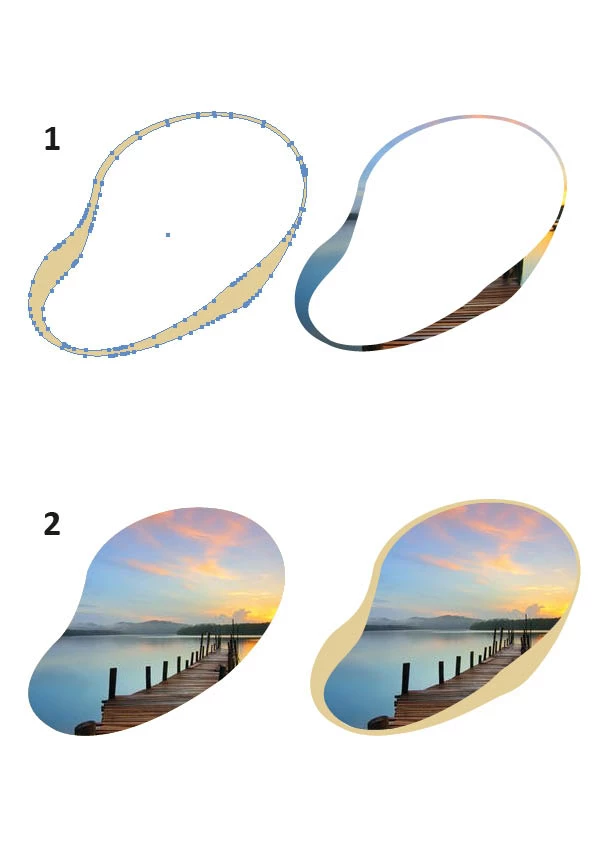
The Illustrator object has a white fill and a yellow border, as you can see in the attached JPEG at the bottom of this post. I used the width tool in Illustrator to make the border slightly wider in some areas.

I wanted to place a picture inside the object, so I placed the Illustrator object in InDesign to create a clipping mask with pathfinder. But InDesign sees the border of the object as filling, and that resulted in example 1.

I tried to paste the picture inside the object without border, after that I placed the object with border over it (example 2).

This kind of solves my problem, but it’s not the best solution when I have to further transform the object and border a bit while working on the layout of the flyer in InDesign.

My question is, is there a more efficient way to do this?

Maybe Photoshop is a better program to achieve this?

I’ve also searched on Youtube and other forums for tutorials, but couldn’t find a good solution for my problem.

Greets,

a hopeless student
    This topic has been closed for replies.
    Correct answer winterm

    In InDesign, you can't have a true outline stroke of an irregular width. That said, behavior you encountered is normal. One way or another, in ID you will end with at least two objects here. Just group them.

    Both Photoshop and Illustrator have more advanced tools to work with the objects of this kind. Choose the one is more familiar to you.

    3 replies

    Alexandre Becquet
    Community Expert
    Community Expert
    September 12, 2018

    Hello, do it in illustrator or Photoshop, place it in the CC library and Drag & drop it in the Indesign artboard. I think it's one of many solutions.

    winterm
    Legend
    September 12, 2018

    One may think it doesn't matter, but… there is no artboards in InDesign.

    ~ ~

    Be careful of reading health books, you might die of a misprint.

    -- Mark Twain

    Alexandre Becquet
    Community Expert
    Community Expert
    September 12, 2018

    Yes, wrong translation from me !! sorry It's Layout

    Bill Silbert
    Community Expert
    Community Expert
    September 12, 2018

    I'm not sure from all of your examples what you want the end product to actually be. That being said, applying a clipping path to an image is probably better done within Illustrator. You can then place it (I don't recommend copying and placing) as an imported graphic into InDesign. If you later want to make any changes to the graphic you can go back to the original in Illustrator and make the changes there and then update it in InDesign through the Links Panel.

    winterm
    wintermCorrect answer
    Legend
    September 11, 2018

    In InDesign, you can't have a true outline stroke of an irregular width. That said, behavior you encountered is normal. One way or another, in ID you will end with at least two objects here. Just group them.

    Both Photoshop and Illustrator have more advanced tools to work with the objects of this kind. Choose the one is more familiar to you.