Known Participant
October 29, 2019
Question

Can you Free Transform a Table without Scaling the Text in Cells?

  • October 29, 2019
  • 2 replies
  • 613 views

I'm working on trying to utilize tables in a template. We will end up altering the size of these tables to fit design needs. Could be a tall skinny table or a short fat table etc.


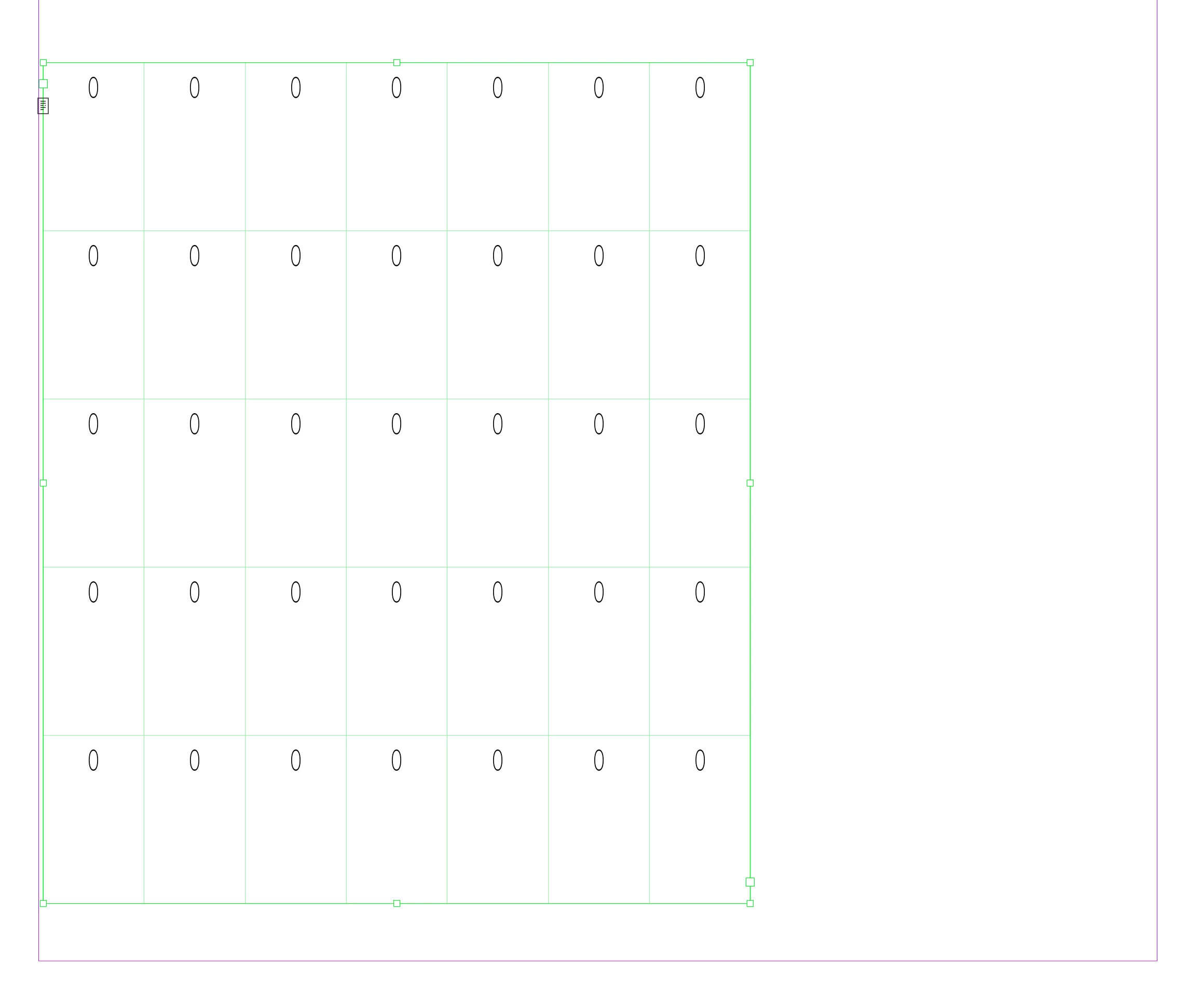
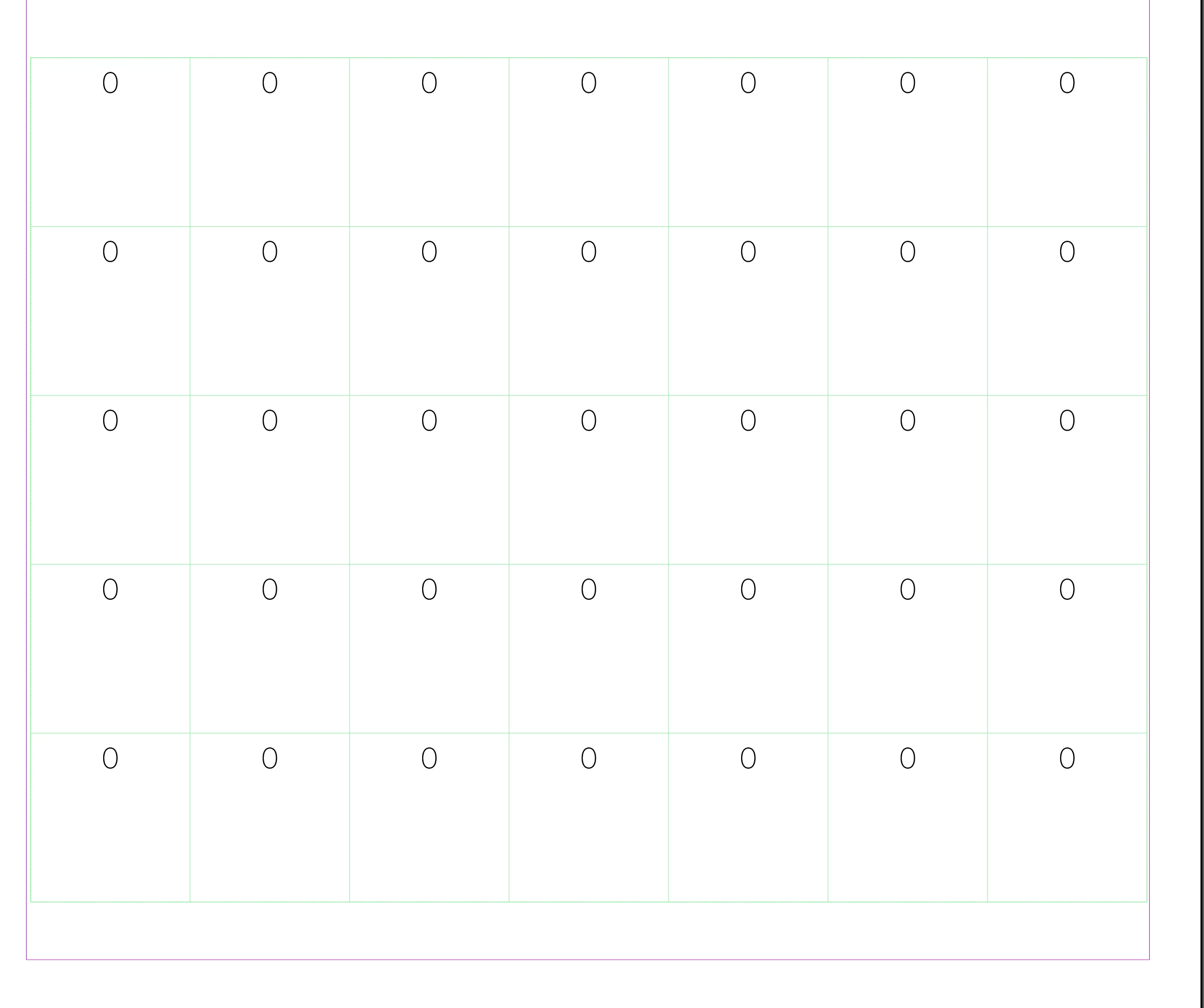
The issue I'm having is utilizing the free transform tool to get the table size I want. This ends up scaling the copy in the cells as well. Is there a check box or a preference some where that will let the copy scale proportionally even though the table itself is being scaled unporportionally?


Two screenshots added to help illustrate.
 

This topic has been closed for replies.

2 replies

Community Expert
October 29, 2019

Hi trobinson,

how about the value(s) for minimum height of cells?


FWIW: With holding the Shift key and dragging the bottom edge of the table you will change the minimum height of every cell significantly.


Regards,
Uwe Laubender

( ACP )

John Mensinger
Community Expert
Community Expert
October 29, 2019

No. Free Transform is simply not the correct way to resize a table. Instead, try this:


To make the table wider or narrower:

1. Click in any cell with the Type tool to set a live insertion point

2. Hover your pointer over the right-most table border until it becomes a 2-headed arrow


3. Press/hold Shift, and click/hold/drag left or right


To make the table taller or shorter:

1. Click in any cell with the Type tool to set a live insertion point

2. Hover your pointer over the bottom table border until it becomes a 2-headed arrow


Press/hold Shift, and click/hold/drag up or down


This also works on the corner to control both directions at once. Holding Shift makes your drag affect all cells equally.

trobinsonAuthor
Known Participant
October 29, 2019

Ok. That's helpfull. Here's another issue that pops up . I have two tables stacked on top of each other. Is there a way to get both sets of info in the same table and still be able to adjust where the info sits? For example the larger zero can be left justified to the top and the small zero be justified to the right top on the same line as the large zero as well?


John Mensinger
Community Expert
Community Expert
October 29, 2019

If it's really just the 2 characters as you presented, you could enter them in direct succession; 'Vv' then set the paragraph to Justify all lines. This will put them at top-left and top-right, expanding and contracting as the table width is changed.