


- Home
- InDesign
- Discussions
- Re: cannot insert/edit indesign variable
- Re: cannot insert/edit indesign variable

Copy link to clipboard
Copied
I have edited a document created by someone who has left the company in indesign and I cannot change the output date variable and replace it with a print number (text). I have followed all the tutorials, however inserting a new variable is not an option. I have edited the existing variables - deleted all but the two I want to use and the output date is still appearing. HELP


 1 Correct answer


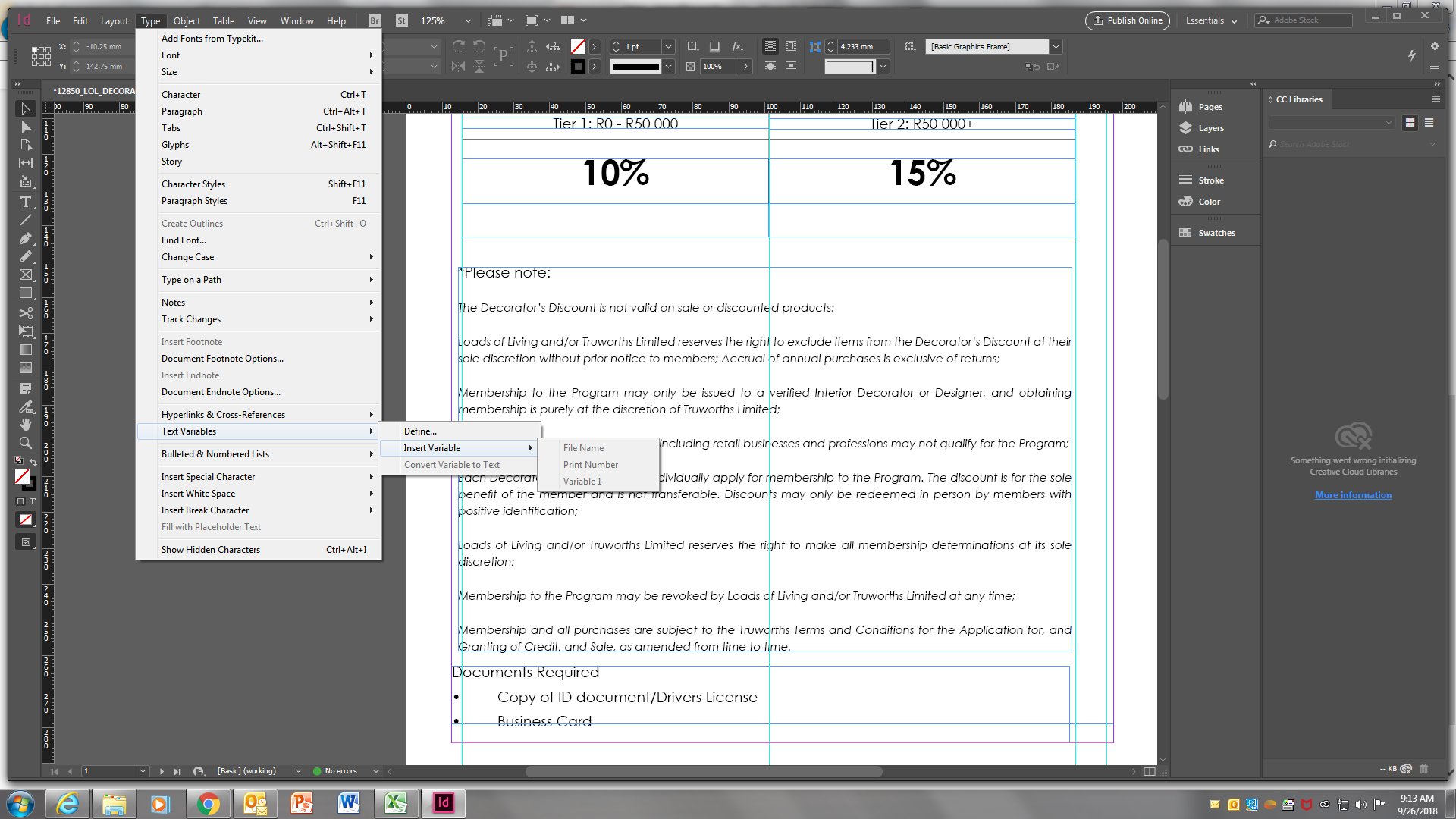
You cannot insert a variable because, as your second screenshot shows, you are not in a text frame.
Variables are inserted as text, just like special characters such as Page Numbers and footnotes.

 7
Replies
7
7
Replies
7


Copy link to clipboard
Copied
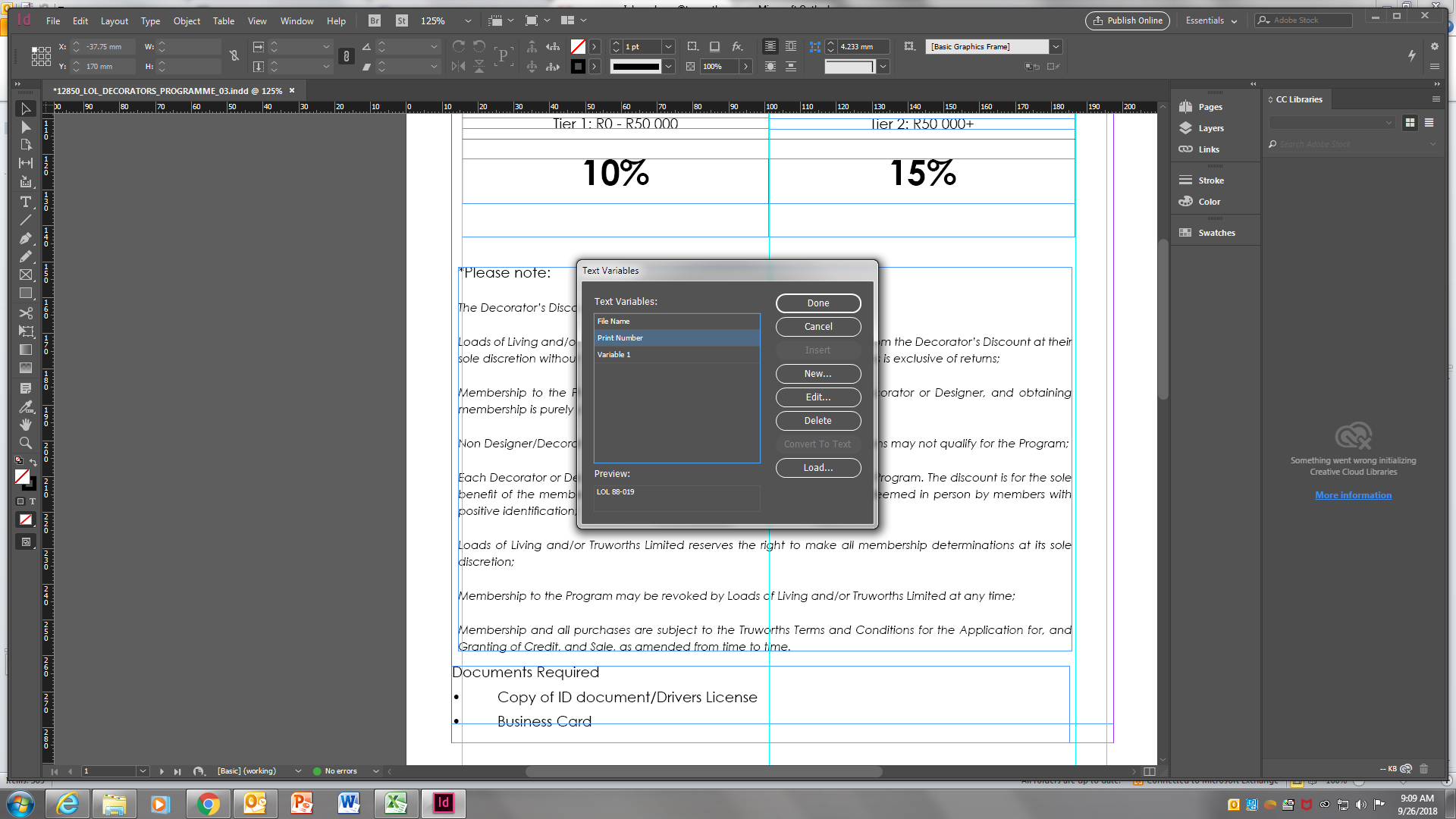
OK, so text variables are a two-step process. First define the variable, then insert the variable where you want it to appear. If you've edited the variable, then you should see that change in the document. Is the variable on a Master Page? Have you updated it or changed it there? Is it possible that they have the variable on a separate layer? A screen shot or two might help. One of the Define Variables window and one of where the variable is appearing in the document. Turn off preview mode please.
Copy link to clipboard
Copied
Hi Chad, I have added the variable but cannot insert - I am not sure if they have locked layers, which I can't seem to find.
I hope this makes sense
Copy link to clipboard
Copied
You cannot insert a variable because, as your second screenshot shows, you are not in a text frame.
Variables are inserted as text, just like special characters such as Page Numbers and footnotes.
Copy link to clipboard
Copied
Jongware is right, you need to select your Type tool and click within a text frame where you want the variable inserted. Now judging from your screen shot, you're also on page 1. You typically want to insert the text variable on a master page to cause it to appear on all pages that the master is based on.
Copy link to clipboard
Copied
Thanks Chad
Copy link to clipboard
Copied
Thank you Jongware .

Copy link to clipboard
Copied
Not sure I'm understanding the question. If you are trying to convert a variable to regular text, you can select the variable with the Type tool, and under the Type menu choose Text Variables > Convert Variable to Text.


Get ready! An upgraded Adobe Community experience is coming in January.
Learn more
 AdChoices