
Participating Frequently
March 7, 2024
Answered

Cannot share document with Adobe Fonts between Mac and PC

  • March 7, 2024
  • 3 replies
  • 574 views

Hello, pretty desperate here.

I receive the InDesign package from the typesetter that uses MacOS and no fonts included because they are Adobe Fonts. No problem, I have the SAME fonts (Roboto/Merriweater) also from the Adobe Fonts, that's why we both pay subscriptions, right?

Well, guess what?

Font are not recognized! Their Roboto becomes "Roboto(OTF)" on my version.

So, I open the file, change the styles to use the same fonts, but the content is no longer aligned. Paragraphs are completely messed, my content is more compressed somehow and I have more lines. This means that instead of fixing the small things, I need to ask them ALL the time. This is not acceptable. There is no use for me to have the Adobe Fonts if they are not consistent across platforms!
This topic has been closed for replies.
Correct answer rob day

I receive the InDesign package from the typesetter that uses MacOS and no fonts included because they are Adobe Fonts.


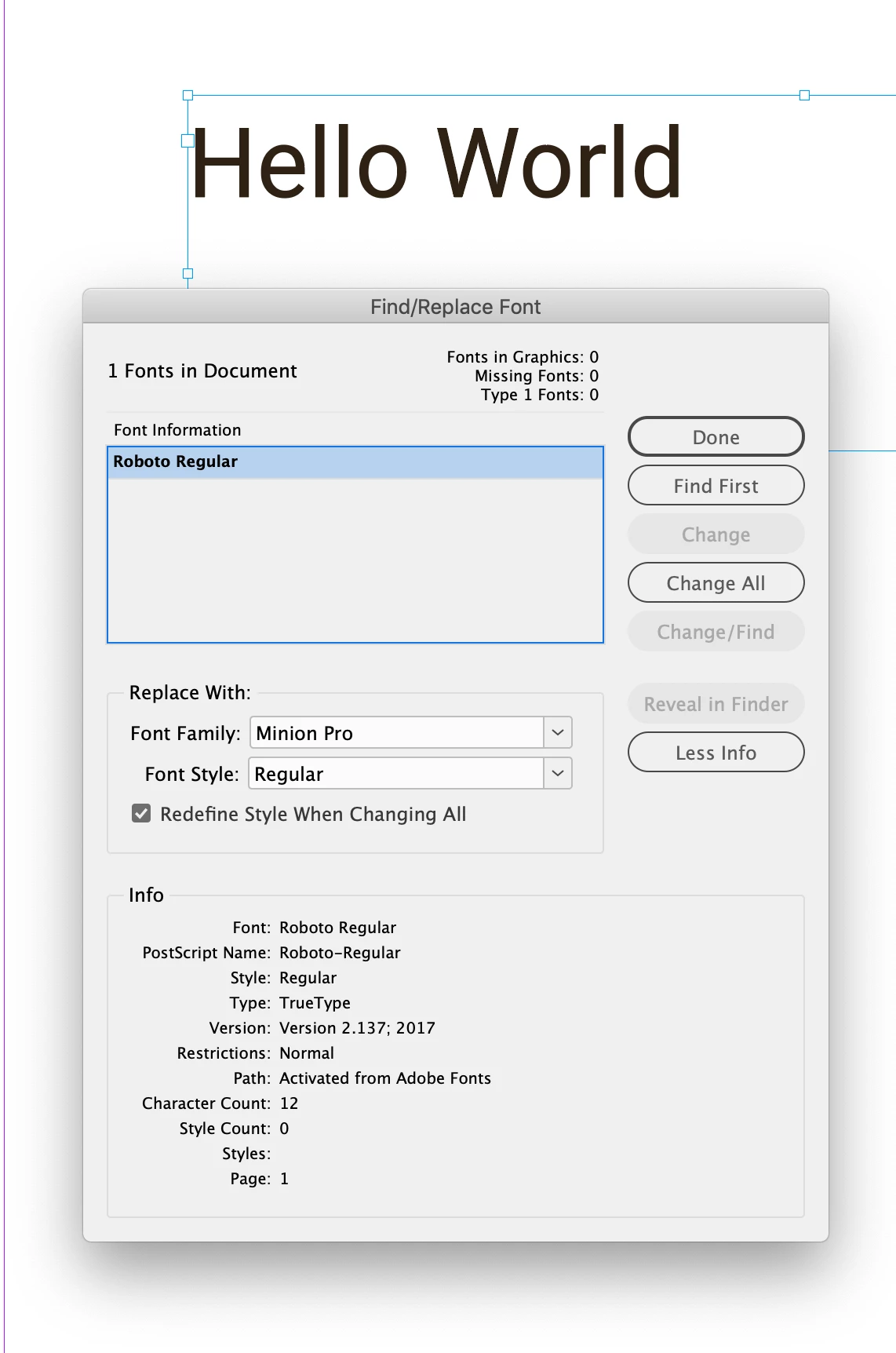
If your typesetter is activating Roboto from Adobe Type then, in order to avoid version conflicts you will need to do the same. If you check Type>Find/Replace Font and click More Info, you can get the path of the document fonts. If the font is activated from Adobe Fonts the Path will be listed as Activated from Adobe Fonts:


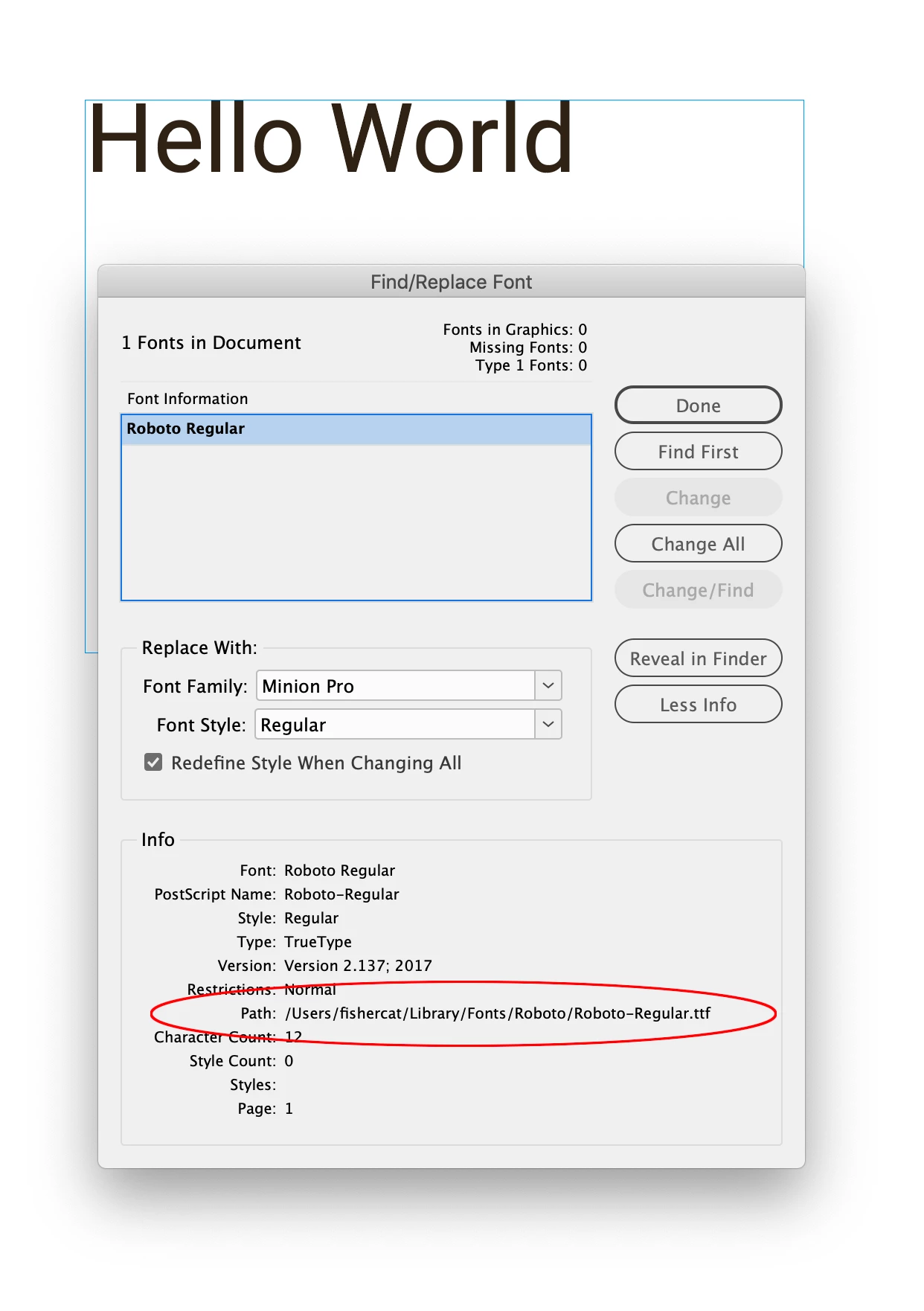
If you have your own version of Roboto installed in one of your local font folders the Path will be to a local folder something like this:


You will need to disable your local version (disable it with your font manager, or move it out of its font folder) and then if it doesn’t auto activate, login and activate the Adobe Type version here:


https://fonts.adobe.com/fonts/roboto


3 replies

rob day
Community Expert
rob dayCommunity ExpertCorrect answer
Community Expert
March 7, 2024

I receive the InDesign package from the typesetter that uses MacOS and no fonts included because they are Adobe Fonts.


If your typesetter is activating Roboto from Adobe Type then, in order to avoid version conflicts you will need to do the same. If you check Type>Find/Replace Font and click More Info, you can get the path of the document fonts. If the font is activated from Adobe Fonts the Path will be listed as Activated from Adobe Fonts:


If you have your own version of Roboto installed in one of your local font folders the Path will be to a local folder something like this:


You will need to disable your local version (disable it with your font manager, or move it out of its font folder) and then if it doesn’t auto activate, login and activate the Adobe Type version here:


https://fonts.adobe.com/fonts/roboto


Participating Frequently
March 8, 2024

Thanks for your suggestion, I will try to check if I missed anything, but we both installed both fonts from Adobe Fonts specifically for the project.  I will report upon further investigation.


Best regards

Elisa

rob day
Community Expert
Community Expert
March 8, 2024

but we both installed


Just to clarify, you cannot download and install fonts from Adobe Fonts into one of your local font folders—they have to be activated from your Adobe Fonts account by clicking an Add font button on the Adobe Type web page.


Activated fonts do get copied into an invisible directory in your system so they can be accessed when you are off line, but the invisible font files cannot be shared and might conflict with the same font from a different vendor downloaded and installed in one of your System’s font folders.


Not all Adobe Fonts are exclusive to Adobe, a font like Roboto is also available as freeware from Google and could have been downloaded from Google and installed in your system font folder creating a conflict. You have to choose whether you want to use the cloud version or the installed version.

BobLevine
Community Expert
Community Expert
March 7, 2024
Do you have another version of Roboto installed?
Rishabh_Tiwari
Community Manager
Community Manager
March 7, 2024

Hi,


Sorry to hear about the trouble. Please try the suggestions shared in these similar discussions:

https://adobe.ly/3Pdp0Ds

https://adobe.ly/3P6INnN

Let us know if this helps or if you need further assistance.


Thanks

Rishabh