apearls
Participant
October 26, 2017
Answered

CC 2018 Vertical Justification Issue

  • October 26, 2017
  • 6 replies
  • 9274 views

Help! I've updated to InDesign 2018 and now when I paste items from previously created documents the vertical justification automatically changes from 'bottom' to 'top' - anyone know how to fix this?

Thanks!

This topic has been closed for replies.
Correct answer amaarora

Hi,

Can you check the Basic Text frame style settings in no document state of InDesign. To do this, open InDesign(ensure you do not have any document opened). From Windows->styles open Object styles. Double click [Basic text frame] to edit it and set "Align" to bottom.
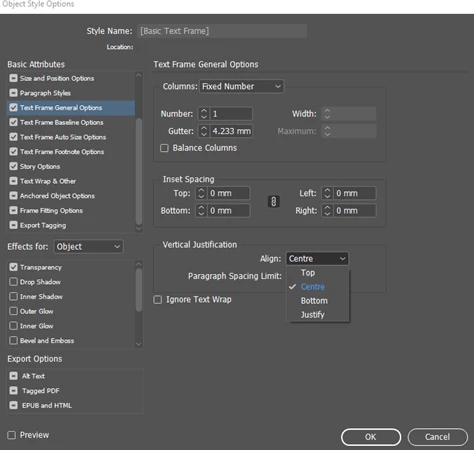
This would change the application preference of the text frame to align text bottom.

You problem is likely occurring since the new document in which you are pasting text frames into have the [Basic text frame] style setting with vertical justification set to top:this preference is set by default. Since you want the text frame to align text to bottom you need to change this. Change this preference either at document level or at application level(like i described above)

-Aman

6 replies

Inspiring
May 9, 2019

So I have read through numerous threads now and have been having this issue since CC2017. I have just spent the whole of yesterday recreating artwork in CC2019 from an idml file in order to hopefully correct this issue. Yesterday my file was working fine and I could edit text boxes with no problem - Baseline Options were working perfectly. I've opened up the same document today and now the text boxes are defaulting again!!! I have no idea what is going on. Please can someone advise. I have spent hundreds of pounds of studio time correcting and re-correcting my projects yet still facing this problem and am now on a deadline for a very important client. This is a total shambles. In all my years of working in the industry I have never, ever had these type of issues with QuarkXpress. This is a basic error that I have encountered for over a year and it is causing all kinds of disruption to my business.

Participant
March 7, 2018

I am having a similar problem but the issues appear to be padding inside the text box. I keep the bounds of text box tight to the text as I use it for alignment purposes. So when I copy a text box or an entire page - it is lost and I have to realign everything. Grumble. I can't seem to find a padding setting. The boxes are all "top aligned" originally so the fixes above don't work. I created these in the last two years in CC .. HELP!

BEFORE                                                                                                   

PASTE:

WHERE THE TEXT ENDS UP IF YOU EXPAND TEXT BOX:

Community Expert
March 7, 2018

Hi,

check what is defined with First Baseline in the Text Frame Preferences Baseline Options (second tab).

Maybe there is a difference.

Regards,
Uwe

amaarora
Inspiring
December 14, 2017

Hi,
We are able to reproduce this issue with CC 2018 release. The steps for the same are:
1. Create a file(or open a created one) with a previous version(indd) of InDesign having text frames with vertical justification set to bottom (say)
2. Open the file in CC 2018
3. Copy a text frame having justification set to “not top”
3. Paste this text frame in a new document in CC 2018

The text justification changes to top now. This behaviour is different when a previous version file is opened with CC 2017.

We would like to know if the issue for you all also happens under the same workflow.

With the same steps, the bug is not reproducible when the earlier version file is saved as idml and then opened in CC 2018.

If the issue is reproducible under some other steps then please let us know.

-Aman

Known Participant
December 29, 2017

Hi,

i stumbled recently also on this problem.

Here are the tests i made after that.

# CONTEXT 1

- CC 2017

- 4 existing documents

- 1 new document

## TEST 1 (OK)

1. Create new text frame with vertical alignment set to center, 3 columns and inset spacing of 3 mm in an existing document

2. Copy this text frame in the 3 other existing documents

## TEST 2 (OK)

1. Create new text frame creation with vertical alignment set to center, 3 columns and inset spacing of 3 mm in an existing document

2. Copy this text frame in the new document

## Test 3 (OK)

1. Create new text frame creation with vertical alignment set to center, 3 columns and inset spacing of 3 mm in the new document

2. Copy this text frame in the 3 other existing documents

# CONTEXT 2

- CC 2018

- 4 same existing CC 2017 documents as in context 1, saved as CC 2018 documents

- 1 new document

## Test 1 (OK+FAIL)

1. Create new text frame with vertical alignment set to center, 3 columns and inset spacing of 3 mm in an existing document

2. Copy this text frame in the 3 other existing documents

## Test 2 (OK+FAIL)

1. Create new text frame creation with vertical alignment set to center, 3 columns and inset spacing of 3 mm in an existing document

2. Copy this text frame in the new document

## Test 3 (OK+FAIL)

1. Create new text frame creation with vertical alignment set to center, 3 columns and inset spacing of 3 mm in the new document

2. Copy this text frame in the 3 other existing documents

## FAIL: one of 4 existing documents converted to CC 2018 failed all the tests

- Test 1 & 2: when pasted in the 3 other existing documents or the new document, the text frame created in that document is back to standard settings (vertical alignement to top, 1 column, inset spacing of 0 mm)

- Test 3: Same problem when the text frame created in the new document is pasted in that problematic document.

## WORKAROUNDS:

I found 2 workarounds that seems to work, to apply to the text frame before pasting it.

1. Cut the link to its current object style.

2. Create a specific object style from the text frame, and apply it to the text frame.

In those 2 cases, the specific settings of the text frame are respected after the pasting.

Of course, it's just workarounds for something that worked with the previous InDesign transitions as far as i remember.

I have at your disposal the test documents and any settings/preferences files if your need it.

Vincent

Participating Frequently
December 13, 2017

I'm having the same problem. My template is several pages and some text boxes are aligned bottom because that is optimal for the layout, while others are aligned top.

Since upgrading to InDesign CC 13.0, when I paste into a new document, all boxes change to be aligned top. I went from page to page, hand-picking the boxes and fixing them. And then translated main document into several variations for different publications, which shifted all the boxes for each variation, and they had to be undone. I missed a few and thank goodness we caught it in proofing. :O Not fun.

rob day
Community Expert
Community Expert
December 13, 2017

Since upgrading to InDesign CC 13.0, when I paste into a new document, all boxes change to be aligned top.

You might want to check the Object Style of the copied frame. Object Styles work like Paragraph and Character Styles, if you paste an object between documents and there is a style naming conflict (i.e. [Basic Text Frame]), the pasted object will be updated to the the destination document's style definition.

If you don't want to use Object Styles consider breaking the template text frame's style link via the Object Style panel before pasting between docs.

Participating Frequently
December 13, 2017

Yes! That fixes it it! Thank you!

I don't use the Object Style panel (it's such an old document, there hasn't been a need). But it worked to open the Object Style panel, break the link to the style, and then paste.

Oh that joyful feeling of finding a workaround....

Participant
November 3, 2017

I don't think this problem is actually answered. This is a nice bandaid fix, but doesn't address the issue with the update.

Text frames are losing more than just alignment. Several object style overrides are also getting lost, including inset, when pasting into an older file (like an IngramSpark template).

amaarora
Inspiring
December 7, 2017

HI,

Can you please let us know that if you face the same issue when:

1. You save the previous document as .idml and then open the .idml in the newer version

2. If the issue is reproducible even with CC 2018 documents...

-Aman

Participating Frequently
December 13, 2017

Hi, in case it's helpful, I'm troubleshooting too.

My original template was created years ago, probably in CS 5, and I've been updating Indesign with every upgrade and saving it again. I start a new edition of my publication from that original template every 2 weeks, and I just finished the next edition. So I've been building this latest edition in CC 13.0 for the past 2 weeks. This morning, with the main publication finalized, I needed to adapt it to create a few variations for different markets. I have a separate template that contains all the variations; I merely paste updated sections. (Template with the variations was created from scratch a couple years ago in CC). I copied from my final document and pasted into the template. Unfortunately, all boxes with alignment on the bottom changed.

Per your request, Aman, I just now took the original/finalized document and saved as .idml. It opened as "Untitled-1". Then I opened a new/blank document in CC 13.0 and pasted from Untitled-1 into that. Alignment pasted correct. Then I opened my normal template with all the market-specific variations that I (that was created a few years ago) and pasted from Untitled-1 into that. Alignment was wrong.

So looks like the problem is affiliated with pasting in to documents that previously existed and that saving to .idml first doesn't reset it.

I'm happy to help, if you have followup questions.

amaarora
amaaroraCorrect answer
Inspiring
October 26, 2017

Hi,

Can you check the Basic Text frame style settings in no document state of InDesign. To do this, open InDesign(ensure you do not have any document opened). From Windows->styles open Object styles. Double click [Basic text frame] to edit it and set "Align" to bottom.

This would change the application preference of the text frame to align text bottom.

You problem is likely occurring since the new document in which you are pasting text frames into have the [Basic text frame] style setting with vertical justification set to top:this preference is set by default. Since you want the text frame to align text to bottom you need to change this. Change this preference either at document level or at application level(like i described above)

-Aman

apearls
apearlsAuthor
Participant
October 26, 2017

Thanks Aman,

Going to this setting fixed my issue, instead of selecting 'bottom' since I don't want all my text frames to be aligned to the bottom I just deselected the attribute.

Cheers!