Participant
October 21, 2022
Question

Change from RGB to CMYK alternating row fill color in a table

  • October 21, 2022
  • 3 replies
  • 448 views

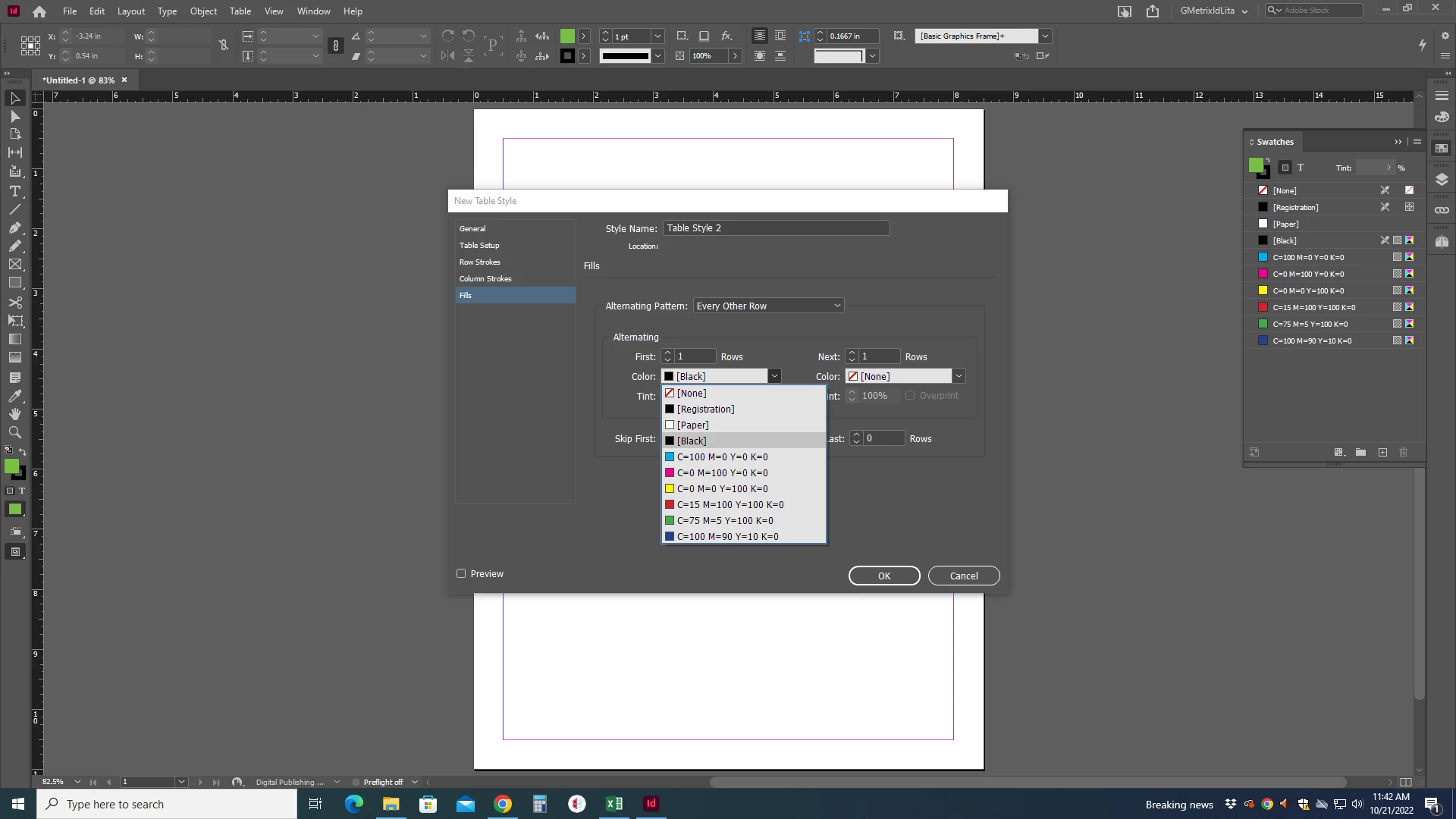
How can I change from RGB to CMYK colors for alternating row fill colors in a table?  Using Window/Color does not work.  
 

This topic has been closed for replies.

3 replies

Frans v.d. Geest
Community Expert
Community Expert
October 21, 2022

Find the RGB color in the Swatches panel, double click, and change to CMYK; Everywhere that color changes to CMYK and so also in the Table fills.

PaulaWCSAuthor
Participant
October 21, 2022

The screenshot is misleading.  My mistake.  It already shows CMYK.  I have a student whose fill colors are in RGB and needs to change to CMYK.  That's what I want to know how to do.  

Steve Werner
Community Expert
Community Expert
October 21, 2022

Here's a table with alternating fill colors which are RGB:


Select the entire table and choose Table > Table Options > Alternating Fills. Change the definition of the alternating colors to be CMYK colors:


Result: CMYK Colors


Steve Werner
Community Expert
Community Expert
October 21, 2022

Or am I misunderstanding the issue?

Robert at ID-Tasker
Legend
October 21, 2022

Not sure i understand your problem? Have you defined RGB swatches and they are unavailable on this list?


You can define swatches as CMYK, RGB, LAB, PANTONE - and it doesn't mater if you mix them in the table as an alternate fills.


If you want to change swatch from RGB  to CMYK - just edit it - or you can leave it as it is and select appropriate export / print profile when creating PDF. 

PaulaWCSAuthor
Participant
October 21, 2022

The screenshot is misleading.  My mistake.  It already shows CMYK.  I have a student whose fill colors are in RGB and needs to change to CMYK.  That's what I want to know how to do.   I've tried defining swatches, but it's not affecting the table fills.  I'm using version 2020.  Public school issued program, I'm not sure if that information makes a difference.  

rob day
Community Expert
Community Expert
October 21, 2022

Hi @PaulaWCS , To illustrate @Frans v.d. Geest ’s post, select the colors in the Swatches panel used in the table and double-click or choose Swatch Options from the panel flyout menu—that will allow you to change the Color Mode of the selected Swatches. The icon in the last column of the Swtaches panel indicates the Color Mode
