Inspiring
March 20, 2023
Answered

Clipping Mask from Illustrator?

  • March 20, 2023
  • 2 replies
  • 2158 views

I'm pretty sure I'm overlooking something obvious, but..

How do we make a clipping path from a placed Illustrator (.ai) object?
Been reading/experimenting for a half hour. In Illustrator it's incredibly easy, but I can't get anything to work in InDesign.

Essentially, in ID, I have a placed Illustrator object and a placed image file, and would like the Illustrator object to contain and clip the image.

thanks
This topic has been closed for replies.
Correct answer rob day

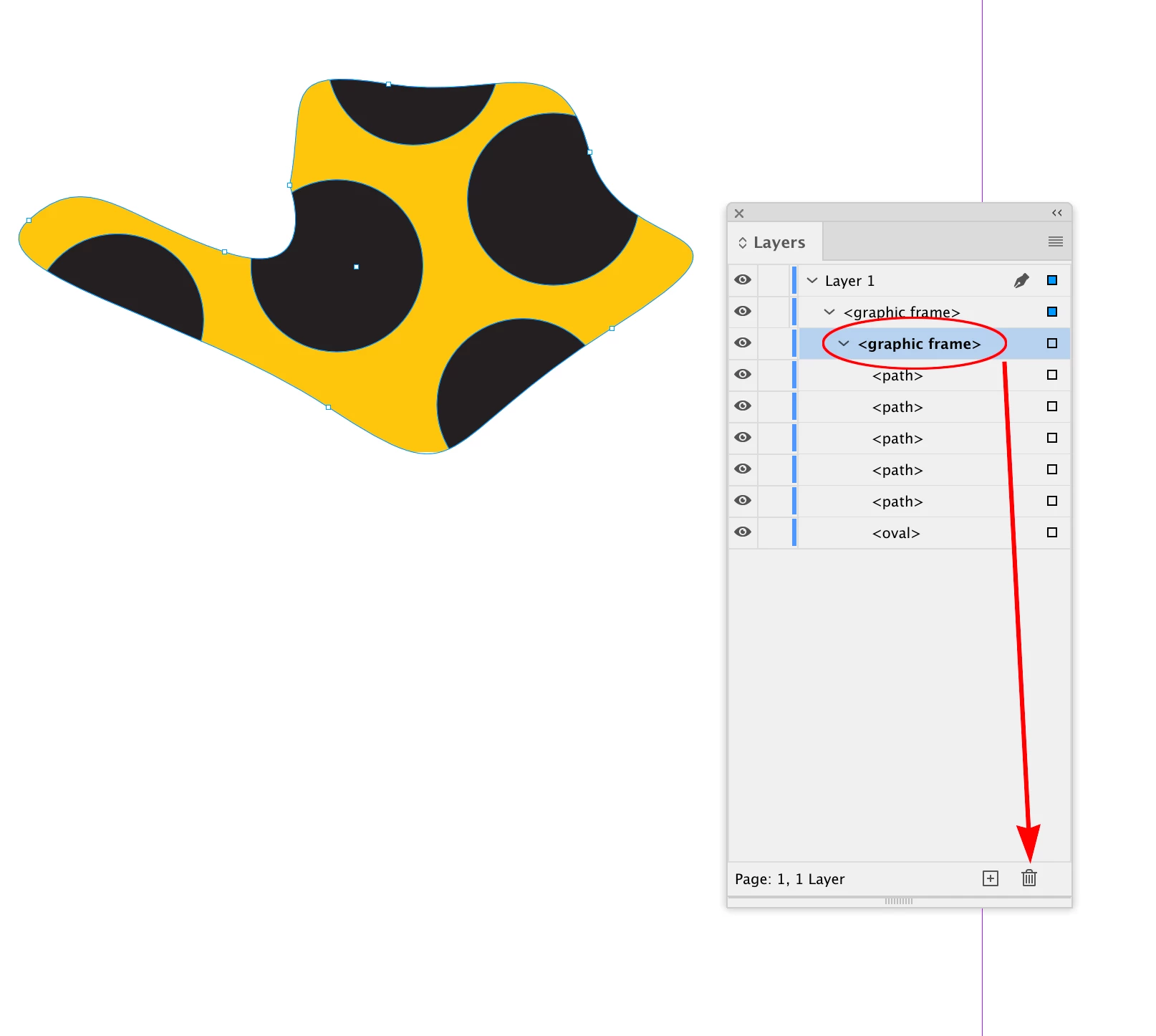
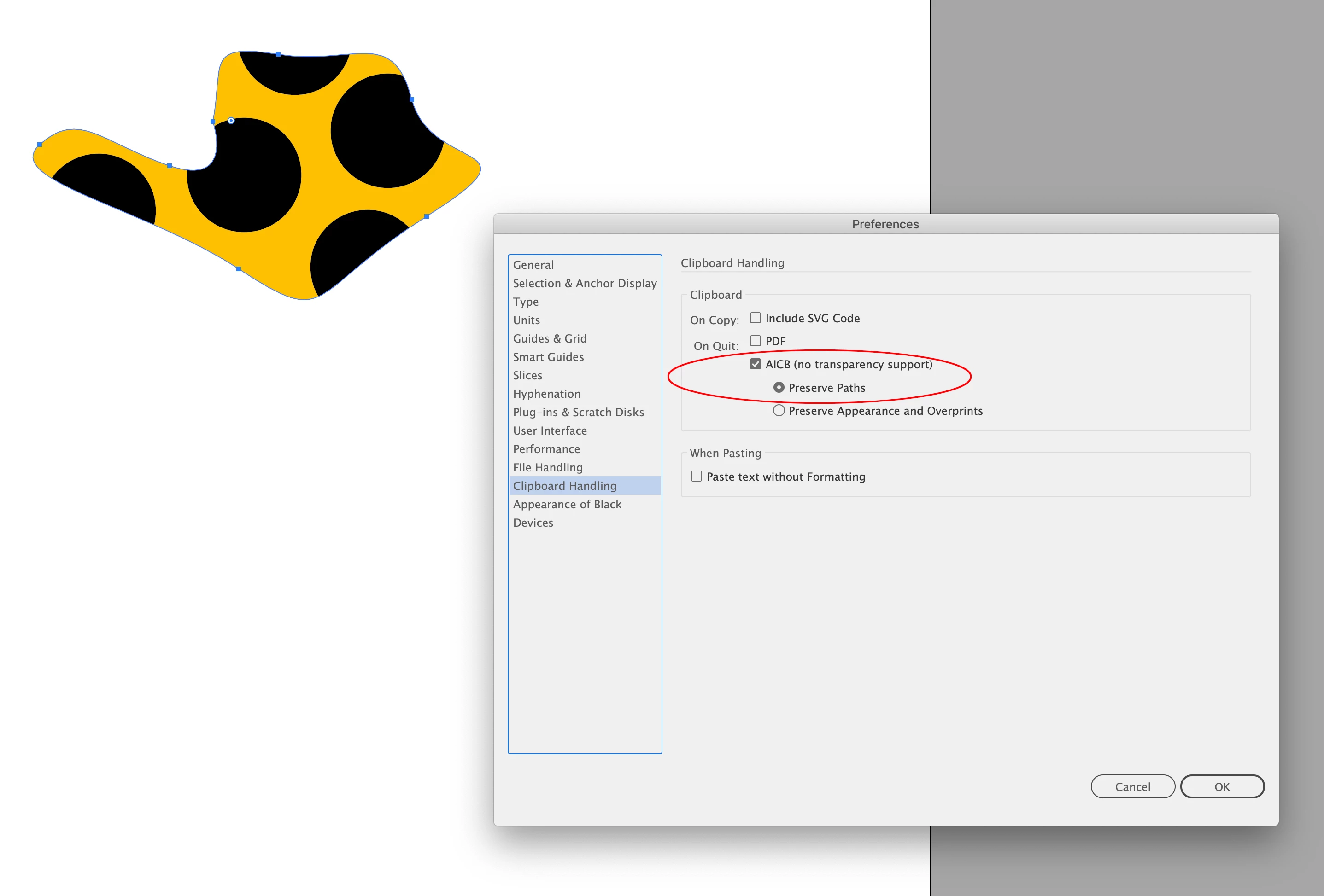
Hi @turner111 , You can bring the AI object into InDesign as editable vectors via copy and paste—make sure your AI Clipboard Prefs are set to Preserve paths before you copy


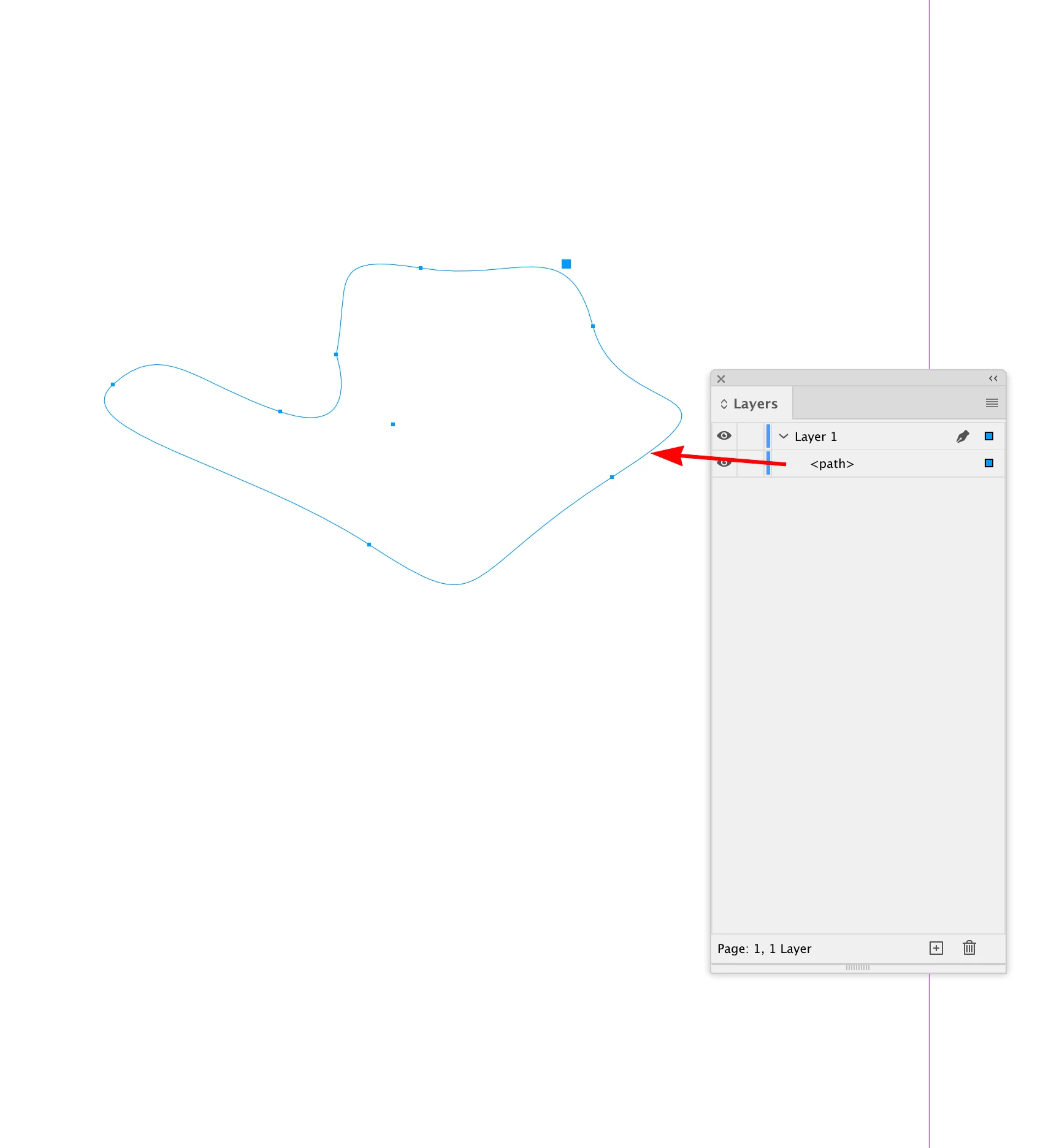
Paste into ID and trash the interior graphic frame containing the clipped objects:


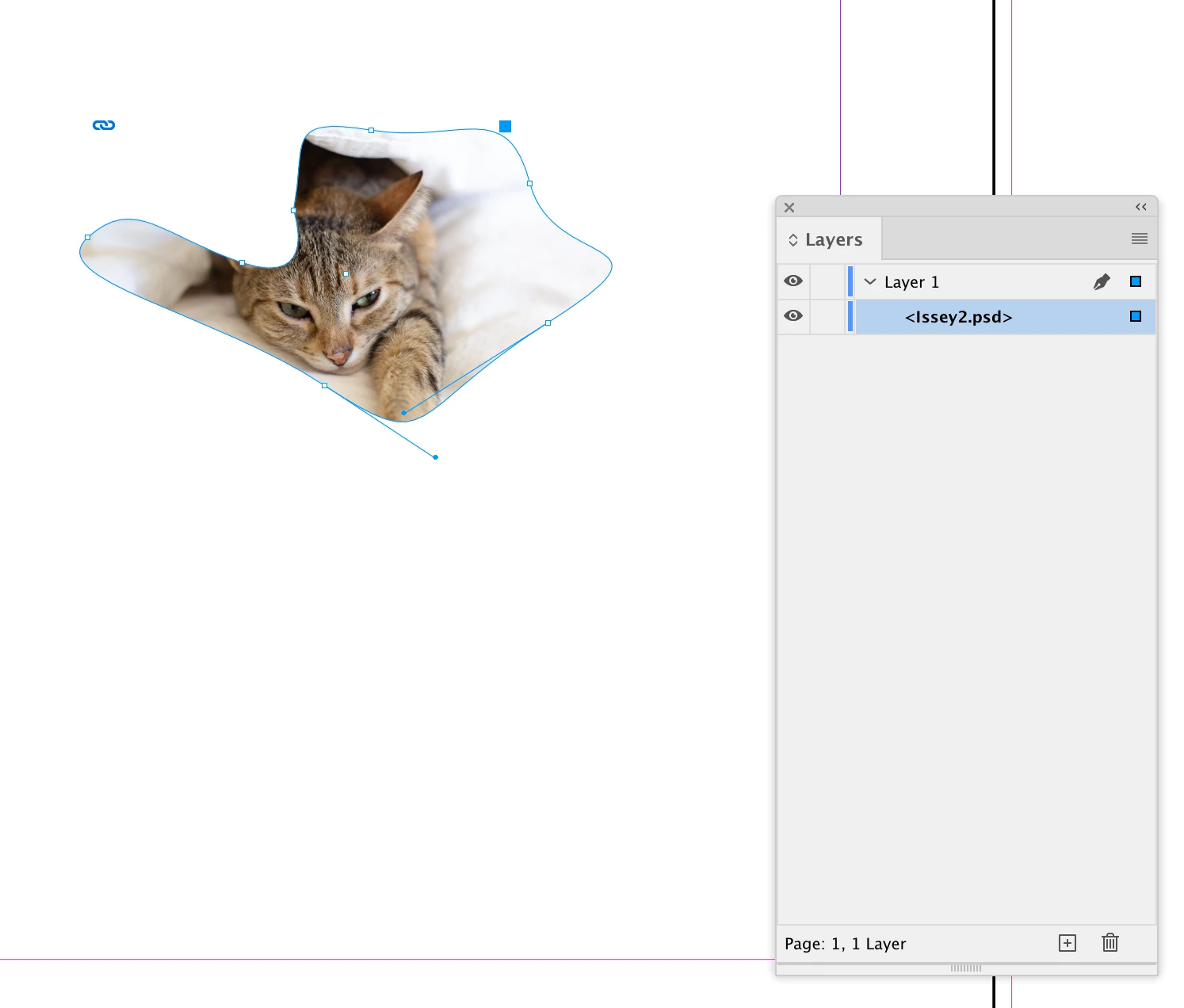
That leaves the clipping path, which you can paste an object into:


2 replies

Community Expert
March 20, 2023

An alternate method to clipping would be to copy (image) and paste into (shape).

Keep in mind that complex pasted shapes may not behave as they would in Illustrator.

turner111Author
Inspiring
March 20, 2023

Thanks Jeffrey - do you mean a default (ID-based) shape, or something else? I wasn't able to figure out how to create a "shape" from the placed Illustrator object, just into a pasted Illustrator object, per Rob's post above.

Community Expert
March 20, 2023

I am referring to any shape, created in ID or Illustrator.

Barb Binder
Community Expert
Community Expert
March 20, 2023

Hi @turner111:


You can add the .ai artwork and image as separate layers in Photoshop. Drag the image above the .ai artwork, right click > Create Clipping Mask. Add the resulting image (clipped by the .ai file) to InDesign. 


~Barb

~Barb at Rocky Mountain Training
turner111Author
Inspiring
March 20, 2023

Hi Barb - Yes, I'm aware of how to make them in other apps.

What I'm asking if there's a way to do it in InDesign, so that I can make edits in-document.
(Like Paste Into...)

rob day
Community Expert
rob dayCommunity ExpertCorrect answer
Community Expert
March 20, 2023

Hi @turner111 , You can bring the AI object into InDesign as editable vectors via copy and paste—make sure your AI Clipboard Prefs are set to Preserve paths before you copy


Paste into ID and trash the interior graphic frame containing the clipped objects:


That leaves the clipping path, which you can paste an object into: