
Clipping mask via placed illustrator file?
Hi,
I'm having an issue working out how to create a clipping mask with placed (not copy and pasted) illustrator artwork.
I have an icon set that I manage in illustrator. I create an artboard per icon and then place individual icons into InDesign via the 'place... > show import options' to select the artboard specific to the icon I want. I have a single layer enabled on the placed artboard which is a simple shape layer, black fill, no outlines, simplified as much as possible (all strokes outlined beforehand in illustrator and 'unionized').
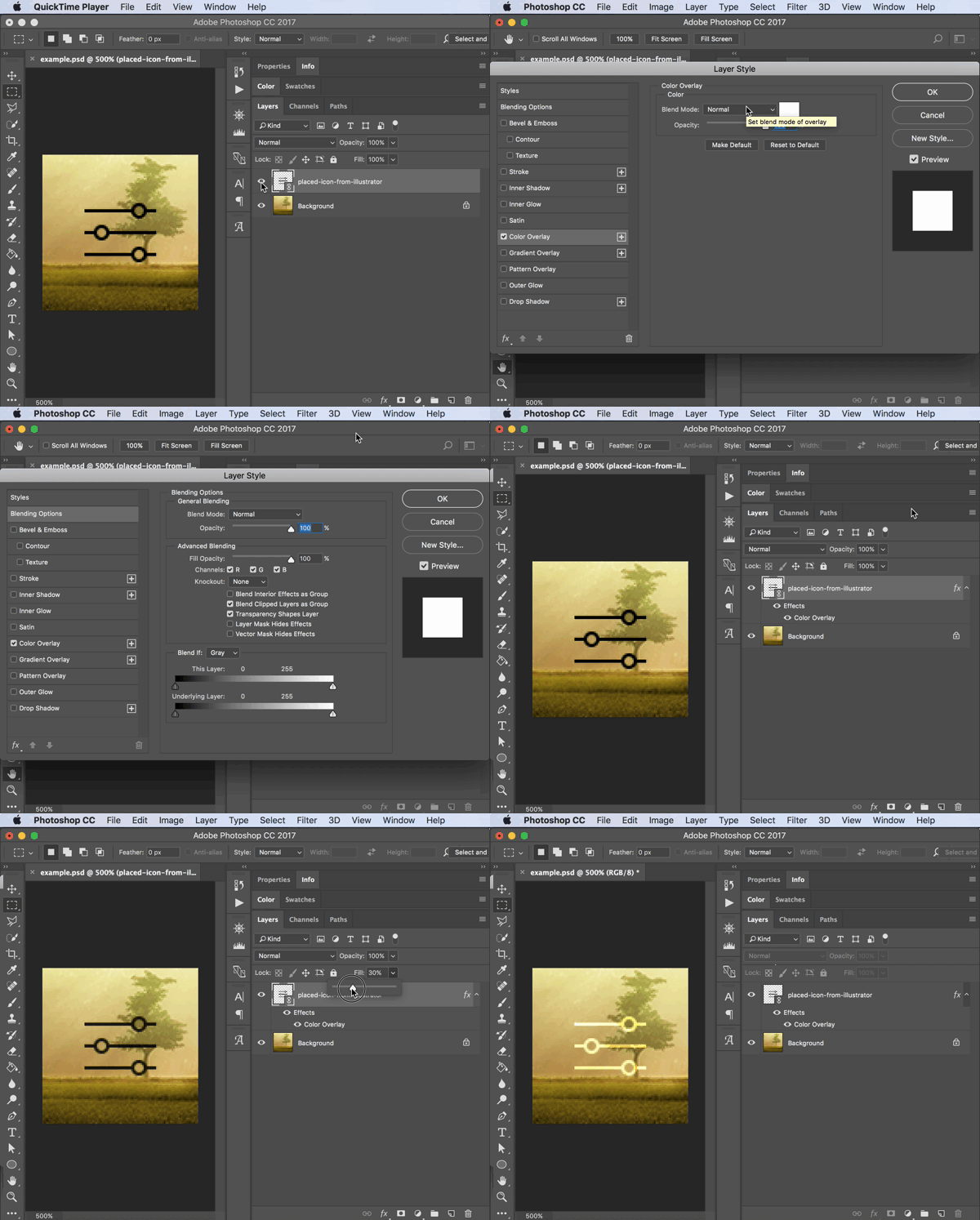
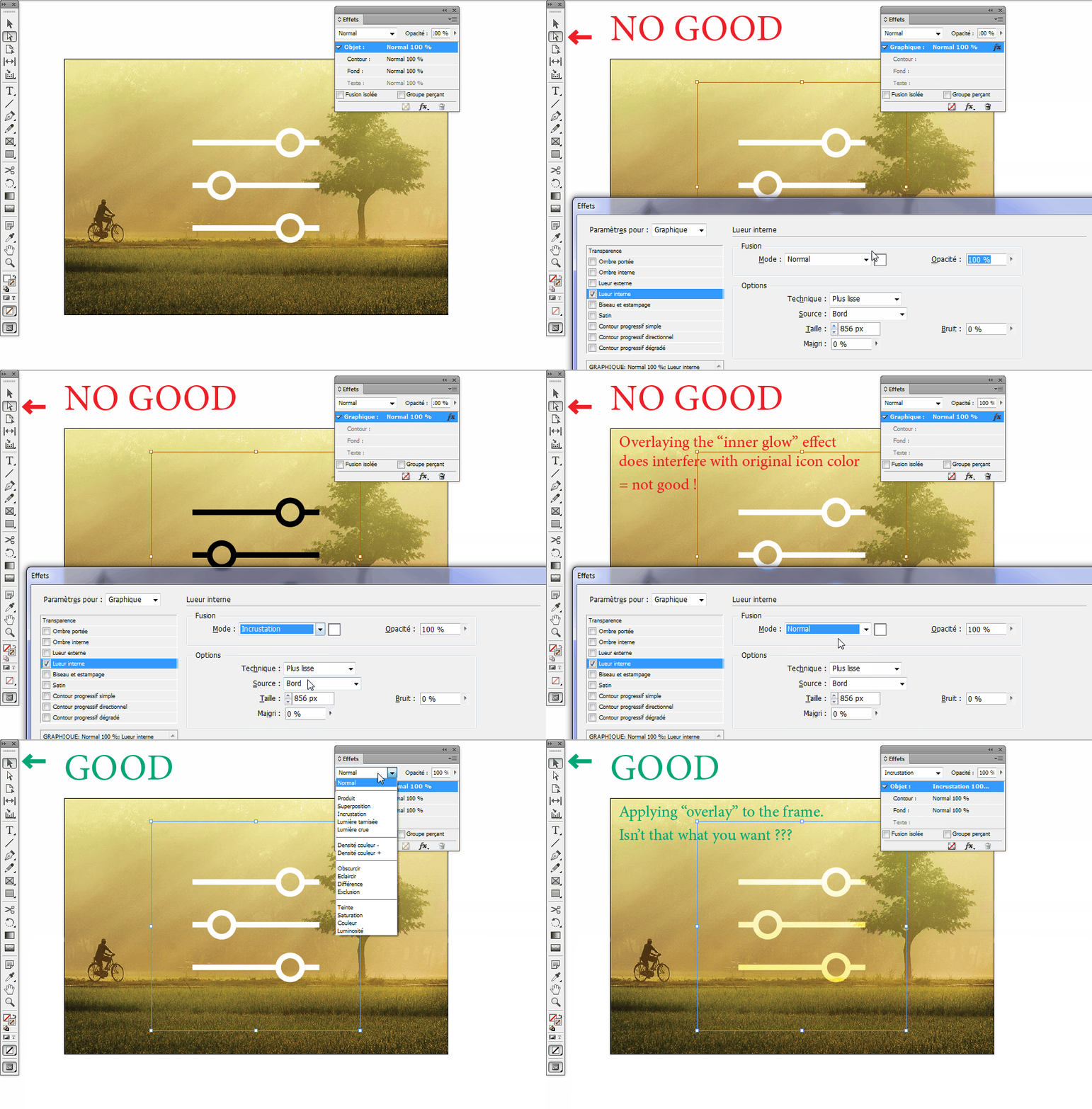
The trouble I am having is applying colour plus blending modes to the icon. My current solution is to enable an inner-glow big enough that it acts in a similar way to a 'colour overlay' layer in Photoshop, but it feels a bit of a hack. Plus, it doesn't allow me to zero the opacity of the artwork if I want to screen blend the colour overlay for example.
Is there a way to do this? I know I can create an inverse of the desire effect by:
- Grouping the icon with a filled rectangle set to the desired colour/blend mode and placing it behind the icon
- Setting the icon opacity to 0%
- Setting the containing group to 'knockout group'
I would rather not simply copy and paste the artwork from illustrator as the icons are being modified frequently so it's a much smoother workflow to simply update links.
I've tried to set the layer in Illustrator to a clipping mask but couldn't seem to get this working. I feel I must be missing something simple but googling is bringing up nothing specific.

 AdChoices