
Exit
  • Global community
    • Language:
      • Deutsch
      • English
      • Español
      • Français
      • Português
  • 日本語コミュニティ
  • 한국 커뮤니티
0

Clipping Masks

New Here ,
Jan 25, 2025 Jan 25, 2025

Hello, 


I'm fairly new to indesign and am taking a class for it in college. however my teacher is wanting us to bring in two images and layer them on top of each other and apply effects to the top image in order to give the other image texture. The teacher is wanting us to apply a clipping mask so the top image (regardless of size) will only be applied to the bottom image. I tried to ask for guidance and his response was that if I could figure it out I would get extra credit. I have scoured google and the only way that I can find on how to do this would be to insert the first image (sizing it appropriatly) then make a shape the exact size of the first image and inset the second image into that. Is there any other way that I am missing?? Screenshot 2025-01-25 at 11.58.03 AM.png
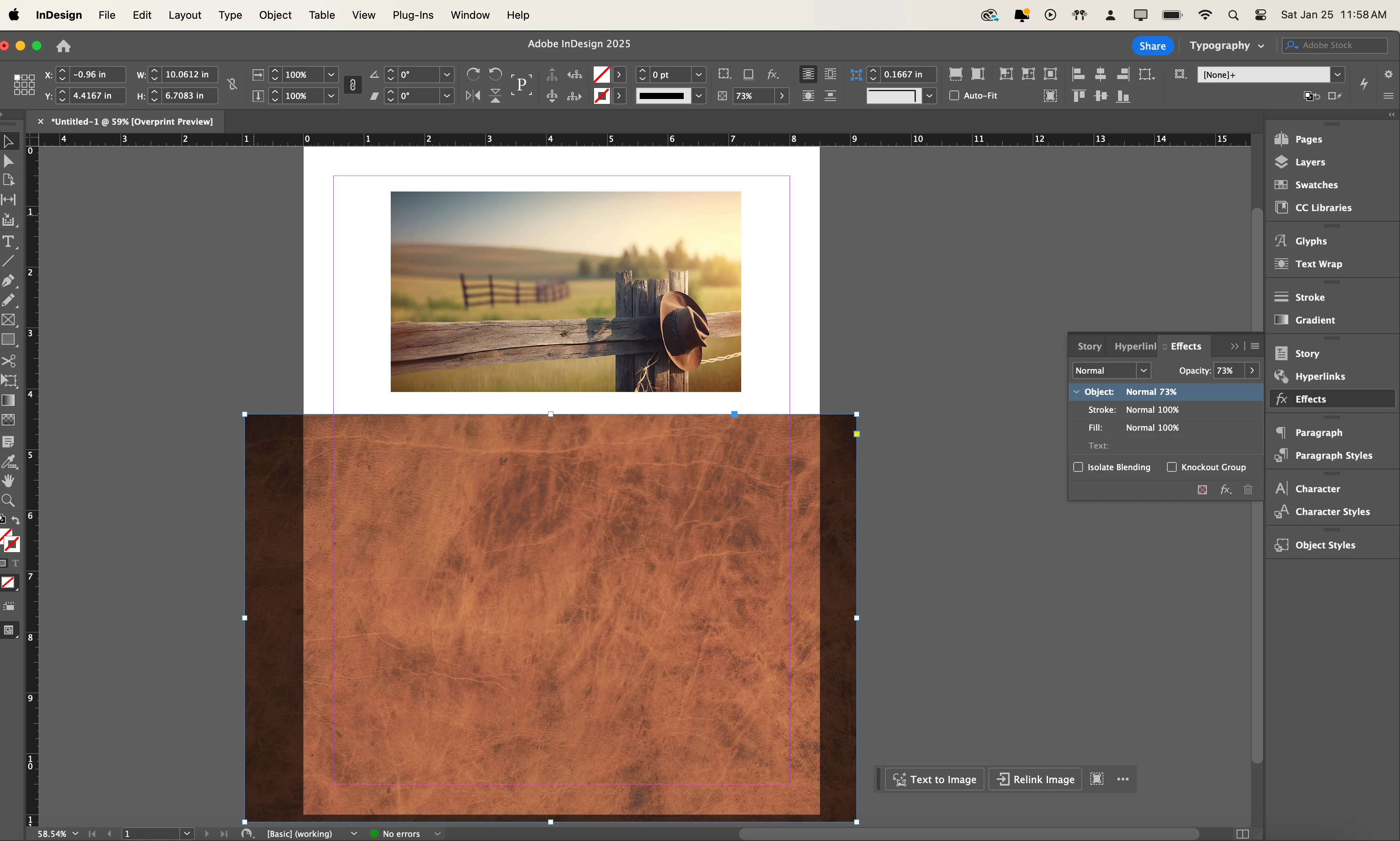
I know that I could size the texture image to the same size as the first image, but I think the point is that if you have an image where you can't size it appropriatly you could just clip it down to the right size. I just want to make sure that I'm doing it correctly and that there isn't any other ways that I don't know about. Or if there are other ways, how to properly do them.

TOPICS
How to
459
Translate
Report
Community guidelines
Be kind and respectful, give credit to the original source of content, and search for duplicates before posting. Learn more
community guidelines
LEGEND ,
Jan 25, 2025 Jan 25, 2025

I think the easiest way would be to GROUP both objects?


Translate
Report
Community guidelines
Be kind and respectful, give credit to the original source of content, and search for duplicates before posting. Learn more
community guidelines
Community Expert ,
Jan 25, 2025 Jan 25, 2025

Does your teacher also teach Illustrator and/or Photoshop? I'm thinking they are confusing the feature set between them.


David Creamer: Community Expert (ACI and ACE 1995-2023)
Translate
Report
Community guidelines
Be kind and respectful, give credit to the original source of content, and search for duplicates before posting. Learn more
community guidelines
LEGEND ,
Jan 25, 2025 Jan 25, 2025

Or teacher WAS talking about doing this in Illustrator? 


Translate
Report
Community guidelines
Be kind and respectful, give credit to the original source of content, and search for duplicates before posting. Learn more
community guidelines
Community Expert ,
Jan 26, 2025 Jan 26, 2025

Yes--for possible import into InDesign afterwards.


David Creamer: Community Expert (ACI and ACE 1995-2023)
Translate
Report
Community guidelines
Be kind and respectful, give credit to the original source of content, and search for duplicates before posting. Learn more
community guidelines
Community Expert ,
Jan 26, 2025 Jan 26, 2025

Sounds more like Photoshop to me 🙃

Translate
Report
Community guidelines
Be kind and respectful, give credit to the original source of content, and search for duplicates before posting. Learn more
community guidelines
Community Expert ,
Jan 26, 2025 Jan 26, 2025

Me too.


InDesign supports Photoshop's clipping masks but they are used for text wrap and transparency. Your teacher is detailing a Photoshop workflow:


2025-01-26_10-45-24 (1).gif


This is how to get a similar result in InDesign, but no clipping masks:


2025-01-26_10-47-10 (1).gif


~Barb

Translate
Report
Community guidelines
Be kind and respectful, give credit to the original source of content, and search for duplicates before posting. Learn more
community guidelines
Community Expert ,
Jan 26, 2025 Jan 26, 2025
LATEST

Don't sell Illustrator short! 😁

There are a couple of ways to do this--this is just a quick example:

2025-01-26_11-06-48.gif

David Creamer: Community Expert (ACI and ACE 1995-2023)
Translate
Report
Community guidelines
Be kind and respectful, give credit to the original source of content, and search for duplicates before posting. Learn more
community guidelines