ori manor
Inspiring
October 22, 2020
Answered

Color inconsistency when copying from Illustrator to InDesign

  • October 22, 2020
  • 7 replies
  • 13140 views

Hi

When trying to copy an object using simple Ctrl + C and Ctrl + V from Illustrator to Indesign, I get different colors. I mean, they are very similar but only less saturated.

I saw in another thread here people talking about the color profiles, but I checked and double checked and the color profiles in both apps are the same, and all other settings.

And, I don't want to use the import option, cuz it's more of a hussle.

This is really annoying.


BTW: when copying back from Indesign to Illustrator (or even PS) the original colors are back again.
Correct answer rob day

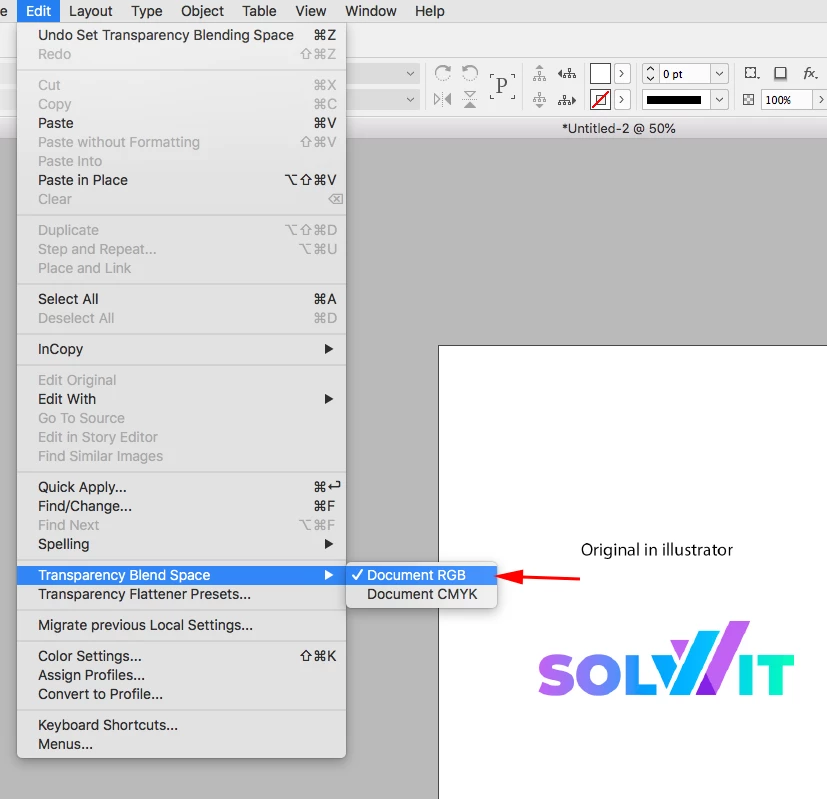
The RGB colors placed when the Transparency Blend Space is RGB:


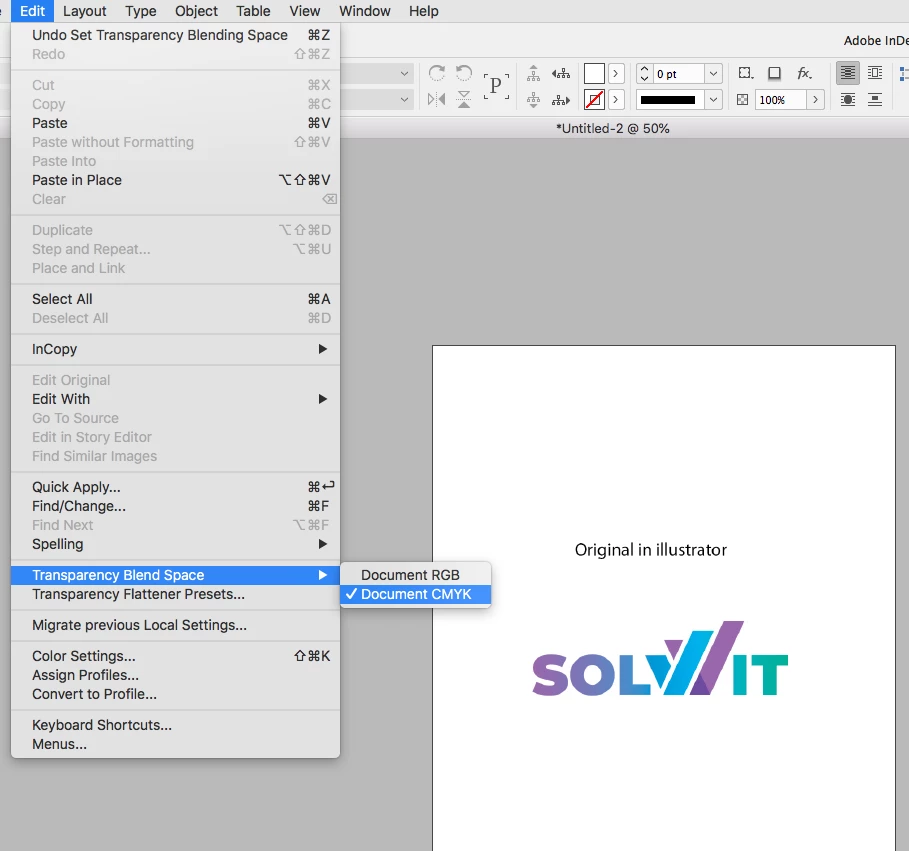
With the blend space set to CMYK:


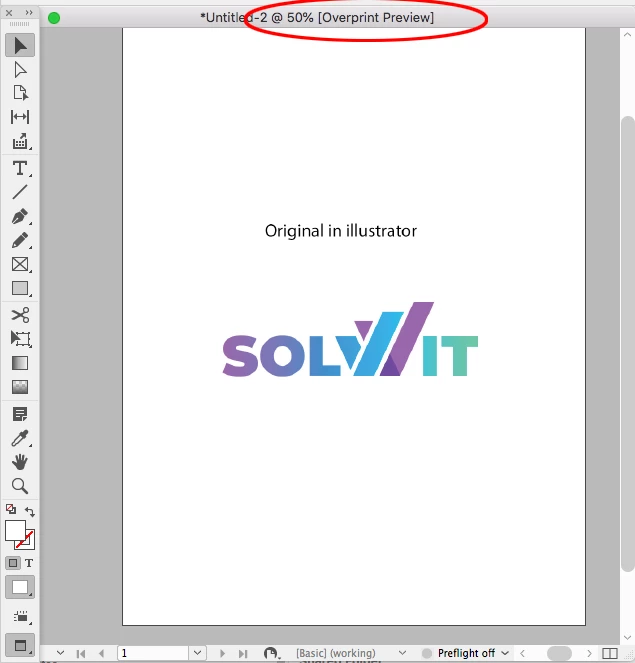
The blend space set to RGB, but with Overprint Preview turned on:  


7 replies

Vivacious_realist5D91
Participant
May 7, 2022

Open the file in Illustrator, export the swatches as an ASE file, load in InDesign from swatches panel menu (load swatches). In your AI Swatch Pallet, you have the option to Save Swatch library as ASE. The ASE file can then be imported into the InDesign Swatch Pallet (Load Swatches).

andrewt96546108
Participant
May 12, 2023

Upon saving I had 'Include CMYK PostScript in RGB Files' checked in the EPS options. Turned this off and now my colours look how they should in InDesign.

rob day
Community Expert
Community Expert
October 27, 2020

I just remembered theis has come up before Illustrator RGB Gradient swatches will not copy and paste with vectors, but if the AI doc is CMYK a gradient swatch will transfer.

Jens Trost
Inspiring
October 27, 2020

It is possible to convert the gradient into a gradient grid (or mesh?) (Object -> Convert -> Gradient grid, if I translated correctly), that dissects the gradient into separate objects and then they are still editable in InDesign and have the correct color.

You can probably clean that up a bit, but that solution would be somewhat messed up and not sure I wouldn't recommend it...

rob day
Community Expert
rob dayCommunity ExpertCorrect answer
Community Expert
October 22, 2020

The RGB colors placed when the Transparency Blend Space is RGB:


With the blend space set to CMYK:


The blend space set to RGB, but with Overprint Preview turned on:  


ori manor
ori manorAuthor
Inspiring
October 27, 2020

Thank you

This indeed explains why I see RGB object dull in Indesign, but still, when I copy and paste fro AI, the object still looks like CMYK

rob day
Community Expert
Community Expert
October 27, 2020

Is the illustrator gradient made with process or spot colors (ie Pantone)?

Randy Hagan
Community Expert
Community Expert
October 22, 2020

You may want to try inserting the Illustrator graphic into your document by using the File>Place... menu command and see if that makes a difference.


Actually, you may want to always do that. It's the preferred way to put Illustrator files into InDesign, and precludes a number of issues like the one you are currently experiencing.


You may also choose to lighten up on your Illustrator and InDesign interfaces. I find the default dark settings for their desktop exaggerates brightness, and scaling back to the lightest interfaces helps a lot with interpreting color between applications.


Hope this helps,


Randy

Community Expert
October 22, 2020

On screen doesn't mean diddly squat.

How does it output? 


And how are your profiles applied. If you are just changing the profile that won't work - you need to assign the profile. 


ori manor
ori manorAuthor
Inspiring
October 27, 2020

As you can see below, on both apps, the assigned profile is the same. But the result on screen is different


Bill Silbert
Community Expert
Community Expert
October 22, 2020

Try going into Illustrator preferences and if "AICB (no transparency support)" is checked, uncheck it.

ori manor
ori manorAuthor
Inspiring
October 27, 2020

Thanks, I tried, but it didn't help

rob day
Community Expert
Community Expert
October 22, 2020

Looks like your AI file‘s document color mode is RGB and there might be transparency in the object. If you want the InDesign preview to be RGB set your Transparency Blend Space to RGB and turn off Overprint Preview.


Also, the application’s Color Settings do not necessarily color manage existing documents. Check Edit>Assign Profiles in both AI and ID and make sure the assigned profiles match. And if you are working on a print document, the color will eventually get converted to the destination CMYK space, so you will need to turn on Overprint preview to see the output color.