
Participant
September 28, 2016
Answered

Column tool in top bar is missing

  • September 28, 2016
  • 5 replies
  • 17941 views

Hello! My top tool bar in Indesign has changed and I am missing the box where I can add a column within a text box. I am guessing I have somehow turned this off accidentally, but have been through all of my menus multiple times and even searched online, with no luck. I am hoping someone here knows the answer to this. Thanks!

    This topic has been closed for replies.
    Correct answer Barb Binder

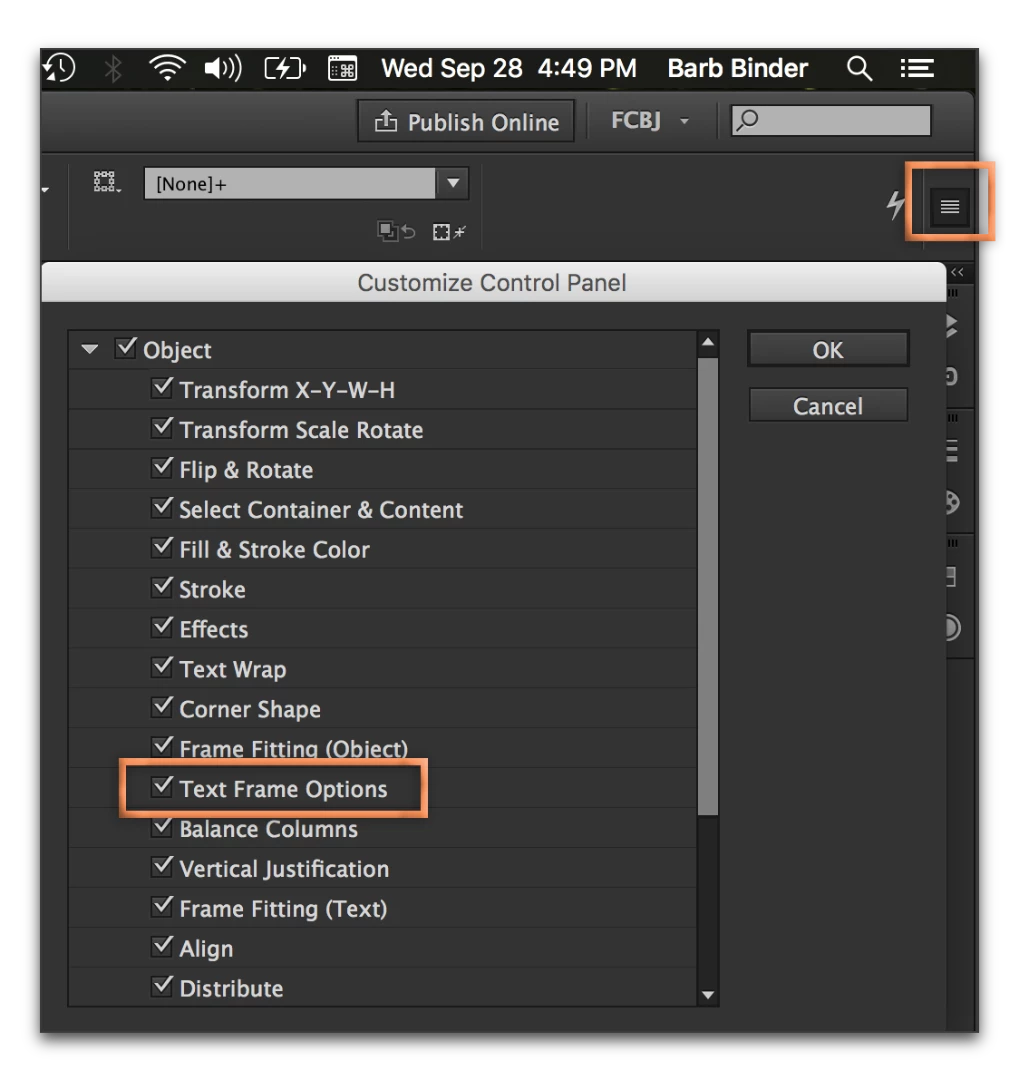
    If that doesn't restore the button, it may be that the latest upgrade (which made all of the buttons bigger) has caused the columns button to no longer fit and to fall of the right side of your display. Do you see the buttons after the column button on your screen?

    If not, you can click the panel menu on the far right side of the Control panel > Customize and uncheck buttons that you don't use very often to make room. Keep Text Frame Options selected, of course!

    5 replies

    Participating Frequently
    October 30, 2023

    Hello, I am also experiencing this problem. I've tried the actions discussed in this thread but to no avail. My gutter icon is also missing. Can anyone help?

    Barb Binder
    Community Expert
    Community Expert
    October 30, 2023

    Hi @Anne2631150435wa and @William27521841d6ks:


    Columns and gutter buttons will only appear when a text frame is selected with the Selection tool, so start there. 


    If you have a text frame selected with the Selection tool, you may not have enough space to display it. You can selectively hide commands in front of those two buttons if you don't want to invest in a wider display or lower your resolution. See video recorded this morning on InDesign 2024/19. If you have done all of this, please share a screen shot so that we can see what you are working with. Be sure to include the selected frame and the toolbox. 


    ~Barb


    ~Barb at Rocky Mountain Training
    Steve Werner
    Community Expert
    Community Expert
    October 30, 2023

    @Barb Binder is correct. There are many settings which can be turned on or off based on what you really need to see in the Control panel. It's worth tweaking them to get the way you really need. I believe the ones you choose can be saved in your current InDesign workspace (or you could create an alternate workspace if needed).

    Participant
    March 23, 2023

    Hey! I have the same issue here and none of the above solved it...


    Participant
    August 21, 2023

    I've also followed everything above and still no coloums tool 

    Participant
    November 10, 2020

    Easy answer that took me hours to realize. Go to Window at the top horizontal bar.

    Click it and look at the list at the left. Click Tools, if tools is not checked. Checking it brings back the tool bar. Yay. 

    Barb Binder
    Community Expert
    Barb BinderCommunity ExpertCorrect answer
    Community Expert
    September 28, 2016

    If that doesn't restore the button, it may be that the latest upgrade (which made all of the buttons bigger) has caused the columns button to no longer fit and to fall of the right side of your display. Do you see the buttons after the column button on your screen?

    If not, you can click the panel menu on the far right side of the Control panel > Customize and uncheck buttons that you don't use very often to make room. Keep Text Frame Options selected, of course!

    ~Barb at Rocky Mountain Training
    Participant
    September 29, 2016

    thank you both for you replys! I had tried resetting and that didn't work. I had even looked around in that little menu, but I didn't realize I had too many checked. Unchecking some, made it reappear! I wasted so much time looking for this before coming here for help! I appreciate it!

    Barb Binder
    Community Expert
    Community Expert
    September 29, 2016

    Now you know where to go when you get stuck! Glad that worked for you.

    ~Barb at Rocky Mountain Training
    Steve Werner
    Community Expert
    Community Expert
    September 28, 2016

    Try resetting your current workspace: Window > Workspace > Reset [name of your current workspace]