
Known Participant
June 27, 2021
Question

Content doesn´t adjust to the new page size in File>Document Set up

  • June 27, 2021
  • 2 replies
  • 416 views

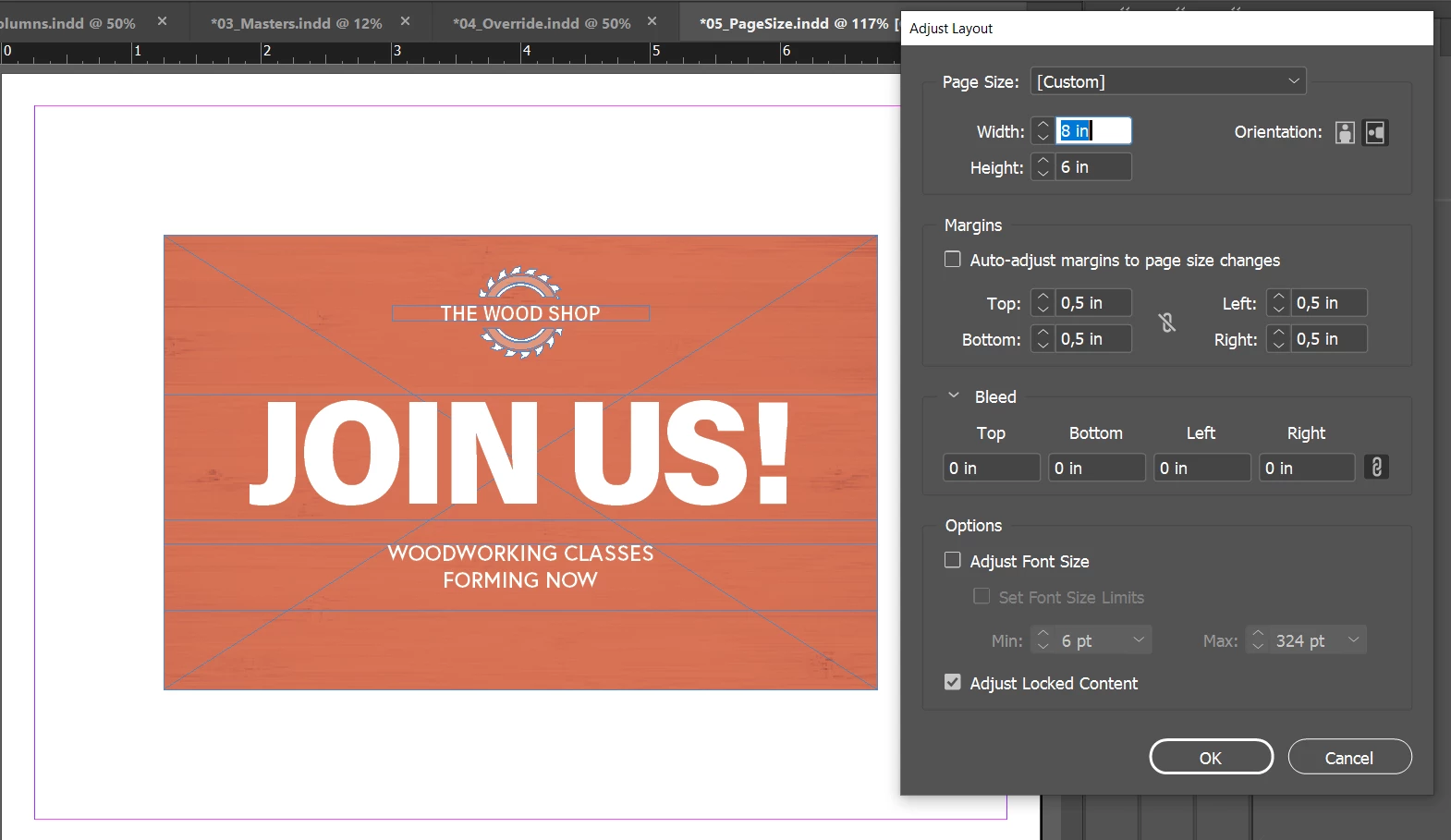
As you can see below, when I click the OK button after setting the width to 8 inches and height to 6 inches (which are equal to the page size) the content in brown and the text frames don´t adjust to the new page size. I´m following step by step the videos in indesign tutorials and I can´t see where the problem comes from. 

Could anyone help to solve this problem?

Thank you so much for your help

Ignacio


This topic has been closed for replies.

2 replies

Participant
December 15, 2024

1. Enable the Layout Adjustment

To ensure the layout resizes when you change the page size, you need to enable Adjust Layout:

  1. Enable Adjust Layout:

    • Go to File > Document Setup.
    • In the Document Setup dialog box, look for the Adjust Layout option and check it.
    • Click OK to apply the new page size.
  2. What Adjust Layout Does:

    • It automatically resizes content (text frames, images, etc.) proportionally to fit the new page dimensions.

2. Manually Scale Content

If Adjust Layout is not enabled, you can manually scale your content to fit the new page size:

  1. Select All Content:

    • Use the Selection Tool (V) and press Ctrl+A (Windows) or Cmd+A (Mac) to select everything on the page.
  2. Group the Content:

    • Once selected, group the content using Ctrl+G (Windows) or Cmd+G (Mac). Grouping ensures everything scales together.
  3. Scale the Content:

    • Switch to the Free Transform Tool (E).
    • Drag one of the corner handles while holding Shift to scale proportionally.
    • Adjust the content to fit the resized page.

3. Check Your Margins and Guides

If the content doesn’t align properly:

  1. Go to Layout > Margins and Columns.
  2. Adjust the margins to match the new page dimensions.
  3. Reposition the content within the updated margins.

4. Reset Preferences (If Needed)

If the issue persists and you’re following the tutorial correctly, it might be a problem with your InDesign preferences:

  1. Close InDesign.
  2. Reopen it while holding Shift + Ctrl + Alt (Windows) or Shift + Cmd + Option (Mac).
  3. Reset your preferences when prompted.

5. Ensure Frames Are Not Locked

If individual text or image frames don’t adjust:

  • Select the frames and check if they are locked:
    • Right-click the frame and select Unlock (if applicable).
  • Once unlocked, try scaling or repositioning them.

Additional Notes

  • If you’re working with master pages, ensure that any changes made to the document also apply to those master pages. Adjust master elements as needed.
  • Adjust Layout works best with proportional content. If certain elements (like images) have fixed dimensions, they might require manual resizing.
Srishti Bali
Legend
June 27, 2021

Hi there,


Thanks for reaching out. Does it work if you select Auto-adjust margins to page size changes and Adjust Font Size as well?


Regards,

Srishti

Known Participant
June 28, 2021

Hi 

I closed and open indesign and now it works BUT the boxes Adjust font size and Set font size limits (I don´t understando what this means) DO NOT work. They don´t do anything when I select them. The video I´m following tells me to select the Adjust font size option and turn off the Set font size limits option and the first option of these two works (The second one as I said I don´t know what it does).You have mentioned the option Auto-adjust margins to page size changes but I can´t see it in my Adjust layout dialog box.


Could you help me solve these issues? 

Thank you so much for your help

Ignacio


Known Participant
June 28, 2021

Sorry!!! Yes, I found Auto-adjust margins to page size changes in the dialog box but it doesn´t change anything if I select this option.

If I select both Auto adjust margins to page size changes  and Adjust font size nothing changes in my document.