
scotta18824119
Participant
April 8, 2017
Answered

Content hidden outside the page or spreads.

  • April 8, 2017
  • 3 replies
  • 17746 views

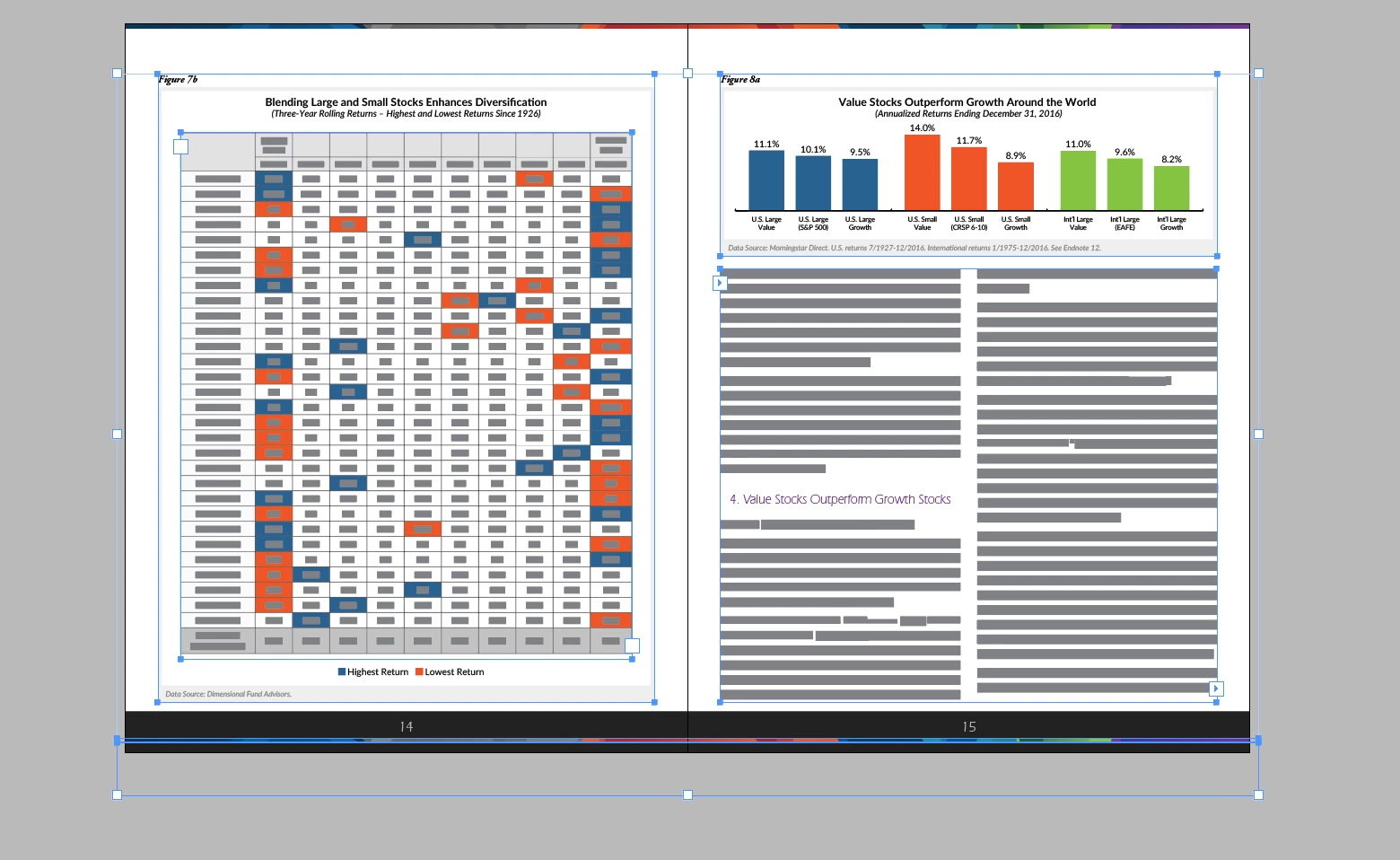
I took on some projects started by another designer. All his indesign files have a light gray background in the work space, and have content outside the page that I cannot view, access, or edit. Basically it is behaving like a clipping mask would in illustrator, however the content is not accessible. I need to access these elements to get it ready for print and pull design elements far enough for the bleed. I have never encountered this. I am running current version of InDesign. I was able to release whatever is causing this by mistake on another file. I am at a loss. Please help. Projects are somewhat urgent. View attached image for example of what I am seeing.

Correct answer rohit_ID

You need to change the screen mode. Go to View -> Screen mode -> Normal. This will show the content in the bleed area as well which is what you want from what I understand.

3 replies

jane-e
Community Expert
Community Expert
April 8, 2017

In addition to  @rohit_ID's, answer, look in the Layers panel and spin open the disclosure triangle to see every object in the spread. Click the selection button on the far right to select it. There are also icons to lock or hide the objects, so if some of these are objects are locked or hidden, you will be able to unlock and make them visible.

Desmond Du
Participant
April 8, 2017

Alternatively, you can use the shortcut w to switch back to normal screen mode.

rohit_ID
Adobe Employee
rohit_IDCorrect answer
Adobe Employee
April 8, 2017

You need to change the screen mode. Go to View -> Screen mode -> Normal. This will show the content in the bleed area as well which is what you want from what I understand.

marshab963
Participant
March 19, 2024

Thank you!!  Also helpful when your cat steps on your keyboard, and you don't know what she pressed...  😄