
Inspiring
May 6, 2024
Question

Controlling spacing after in-line placed InDesign document

  • May 6, 2024
  • 4 replies
  • 2032 views

In a series of documents that I'm working on, there are short boilerplate paragraphs, which are separate InDesign files that are linked and embedded as anchored objects in the text. Everything seems to work as expected, except that there are large spaces (gaps) in the spacing between whenever one of these boilerplates is followed by regular text. These gaps are indicated in the image below by the magenta (pink) arrows on either side. 
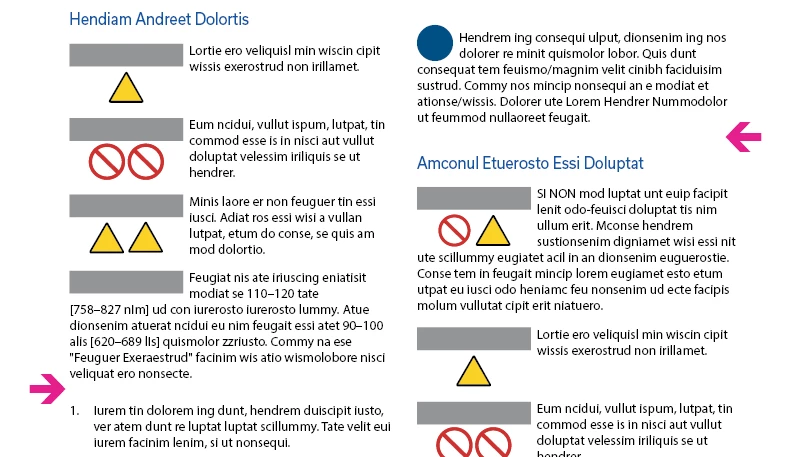


I've been trying to determine what is affecting/controlling these gaps, because I want to make them smaller. I have eliminated the following:

  • The spacing is not due to text wrap (text wrap is set to zero).  (The spacing between boilerplates is controlled by the text wrap, usually 0.125 inches. But I've set the final boilerplate text wrap to zero to reduce the space, but that is not working to reduce the space as desired.)
  • It is not due to the paragraph "Space before" or "Space after" settings, both of which are zero.
  • It is not due to the paragraph "Align to grid" option, which is set to none.


I can make the text gap more or less, but it only changes in whole line increments (basically, whatever the text leading is). In other words, the text will bump up or down by altering the text wrap, but only by whole lines. There is no fine-tuned control, such as to make it exactly 0.0625 inches or whatever. That is why I originally suspected that "Align to grid" was turned on, but it's not. 


I have a lot of experience with InDesign, but I cannot figure this one out. I would appreciate any tips!

(I"m sorry the text is all lorem ipsum, but I had to alter it for NDA/copyright/privacy reasons.)

4 replies

Participant
May 20, 2025

I wish I'd seen this come through! I'd love to have taken a stab at it. My suspicion is that there's a value set for "Space between paragraphs using the same style" that's lower than the space after a paragraph, since it's extra 'gappy' before a bullet or heading. 

Inspiring
May 7, 2024

After further testing, I've found this is (so far) the best way to get consistent spacing after an anchored object: 

  1. Copy the height of the anchored object. (Click on it with the arrow pointer and copy the value from the H field.)
  2. Click with the text tool inside the paragraph that follows, and in the "Space before" field paste the value from step 1, and type"+0.0625" after it, which will instruct InDesign to add 0.0625 inches to the value that was copied. This should set a small space that seems to be consistent.
Inspiring
May 30, 2024

We are still getting some variations in the spacing using that method. But since no better solution has turned up, that's our standard approach at this time.

rob day
Community Expert
Community Expert
May 30, 2024

Hi @Michael at Astec , Not sure if this helps, but it might be easier to control spacing if you use an Above Line rather than a Custom anchor.


With Above Line, the space above the anchored object is the Leading amount measured from the last line’s ascender to the top of the anchored object—the anchored object is treated as text so the top of the frame is its acsent line. If I include a return with 14pt leading after the anchor, the distance from the bottom of the anchor to the ascent of the next line is the 14pt leading amount.


So here all of the text, including the above line anchors have the Leading set to 14pt


I can set the Space Below of the paragraph’s above the anchor to the distance from the baseline to the acsender line of the font—about 9 points for this particular font


Now the spacing is optically even.


Robert at ID-Tasker
Legend
May 6, 2024

@Michael at Astec


Can you share a sample of your INDD file?


Inspiring
May 7, 2024

Yes, I've attached it below. This does not contain the links, etc. But it should be enough to see the issue.

Robert at ID-Tasker
Legend
May 7, 2024
quote

Yes, I've attached it below. This does not contain the links, etc. But it should be enough to see the issue.


By @Michael at Astec


Looks like a "normal" behaviour - I have the same on a new document...


Text below the anchored objects jumps like it's aligned to some hidden baseline...


Object on the right shifted down 0.25mm:


Text jumps one line below.


James Gifford—NitroPress
Legend
May 6, 2024

Might just be terminology, but are any of your paragraphs set to use Baseline Grid? That's different from the document grid and would cause exactly that "full line snap" you're reporting. It may also be a custom setting in the overall text frame you're using; hit Ctrl-B and check the settings for it. Both "use custom Baseline Grid" and the vertical alignment — set to Justified — might be in play.

Inspiring
May 6, 2024

Thanks, I hadn't thought about text frame options. But that doesn't seem to be it. The frame "Use Custom Baseline Grid" chechbox is disabled. 

As far as the paragraph themselves, I don't know of any setting that controls their baseline grid alignment other than Indents and Spacing > Align to Grid. Is there some other place where that is controlled?

It does not appear that the text is snapping to the baseline grid. Here it is with the grid turned on:


If it was on, I would expect the baseline of the first line of the first paragraph with bullet numbers to line up with with  blue baseline grid lines, and it doesn't.

James Gifford—NitroPress
Legend
May 6, 2024

No, that's where it's controlled, and no, it doesn't look as if it's active.


Have you looked at the object settings/style for that inset box? In the Text Wrap pane, are any top and bottom space values entered? (I'd just the "Jump Object" setting for these, myself.)