Inspiring
September 20, 2021
Answered

Convert Mag advert profile from FOGRA39 (working) to ISOcoated_v2_eci.icc via PDF

  • September 20, 2021
  • 5 replies
  • 4736 views

Hi everyone,


we have a few press adverts using various colour profiles. Our main image has been converted into FOG39L from RGB to start with and Adobe is using the FOG39L workspace (synced).


The publication requires 'ISOcoated_v2_300_eci.icc'. I was hoping I can place this profile into the library and in indesign allow the PDF to convert to the new profile above (using 'Convert to Destination (Preserve Numbers). For some reason when I pick this profile and make a PDF the Total ink is still above 300 (while checking Output Preview in Acrobat). Should I use 'Convert to Destination' instead? Knowing this will adjust the file?


Everywhere I look online, it recommends using 'Convert to Destination (Preserve Numbers)'? 


Sort of followed this:
https://www.onlineprinters.co.uk/magazine/installing-icc-profiles-indesign-photoshop/


Can someone help please???


thanks


Lister
Correct answer rob day

Thanks so much for your help. Can I ask one more question please? We often retouch RGB images and also continue to edit in CMYK to tweak colours further. What's the best method here for future colour profile destination conversions? We may not always have the option to use the RGB?


If you wanted the edited CMYK color to output unchanged to both PDFs, your only option would be to save the CMYK images with no profile, and try to prevent them from being color managed. That might not be a problem when the output is to very similar coated profiles like FOGRA and ISO, but the color appearance differences would be more noticable if the profiles were less similar, something like a coated vs. uncoated profile.  Also, you can’t really control the final output CMYK values—you have no way of knowing if the the magazines are letting the PDF’s CMYK values output unchanged. There could easily be additional Device link or CMYK-to-CMYK conversions happening at output.


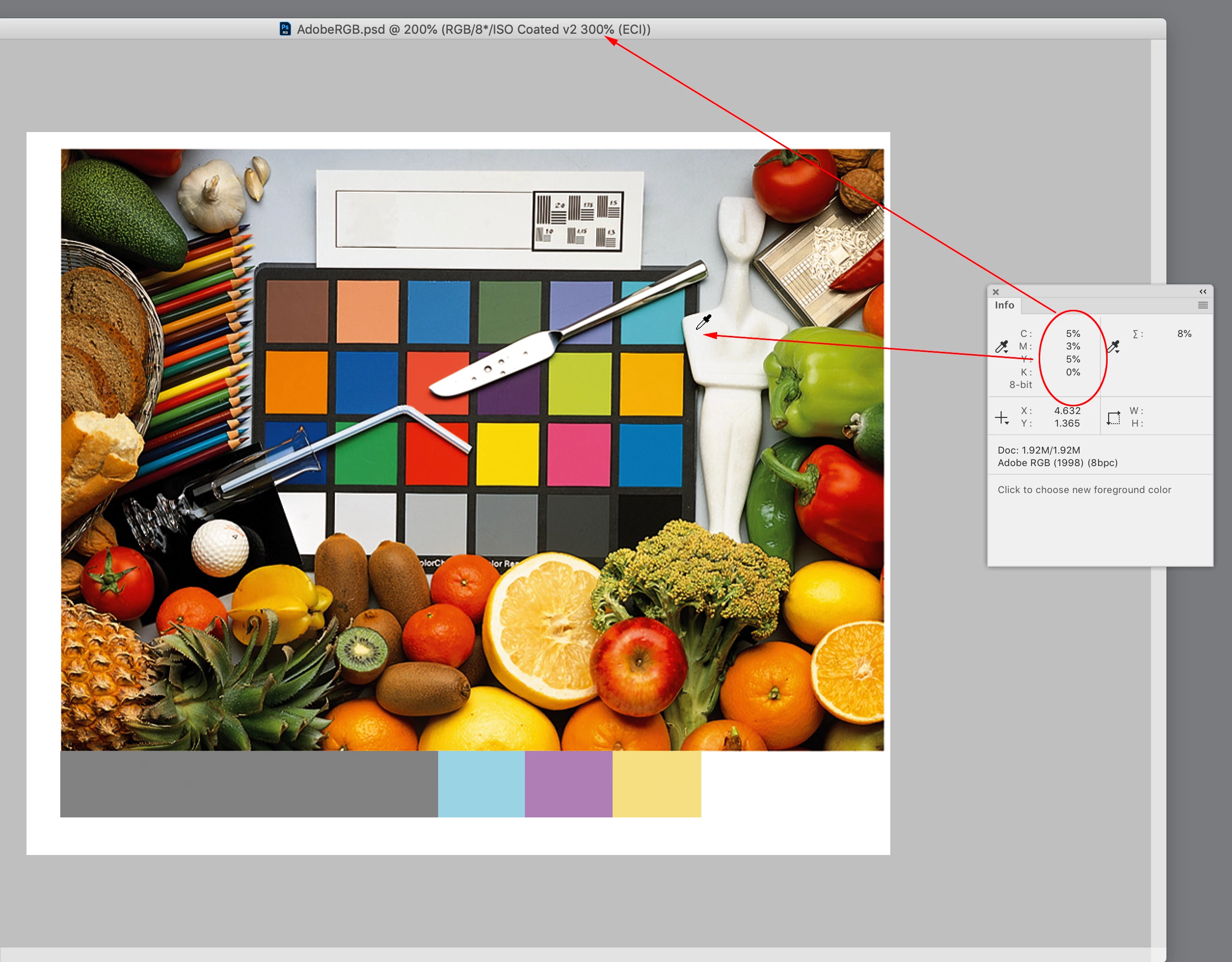
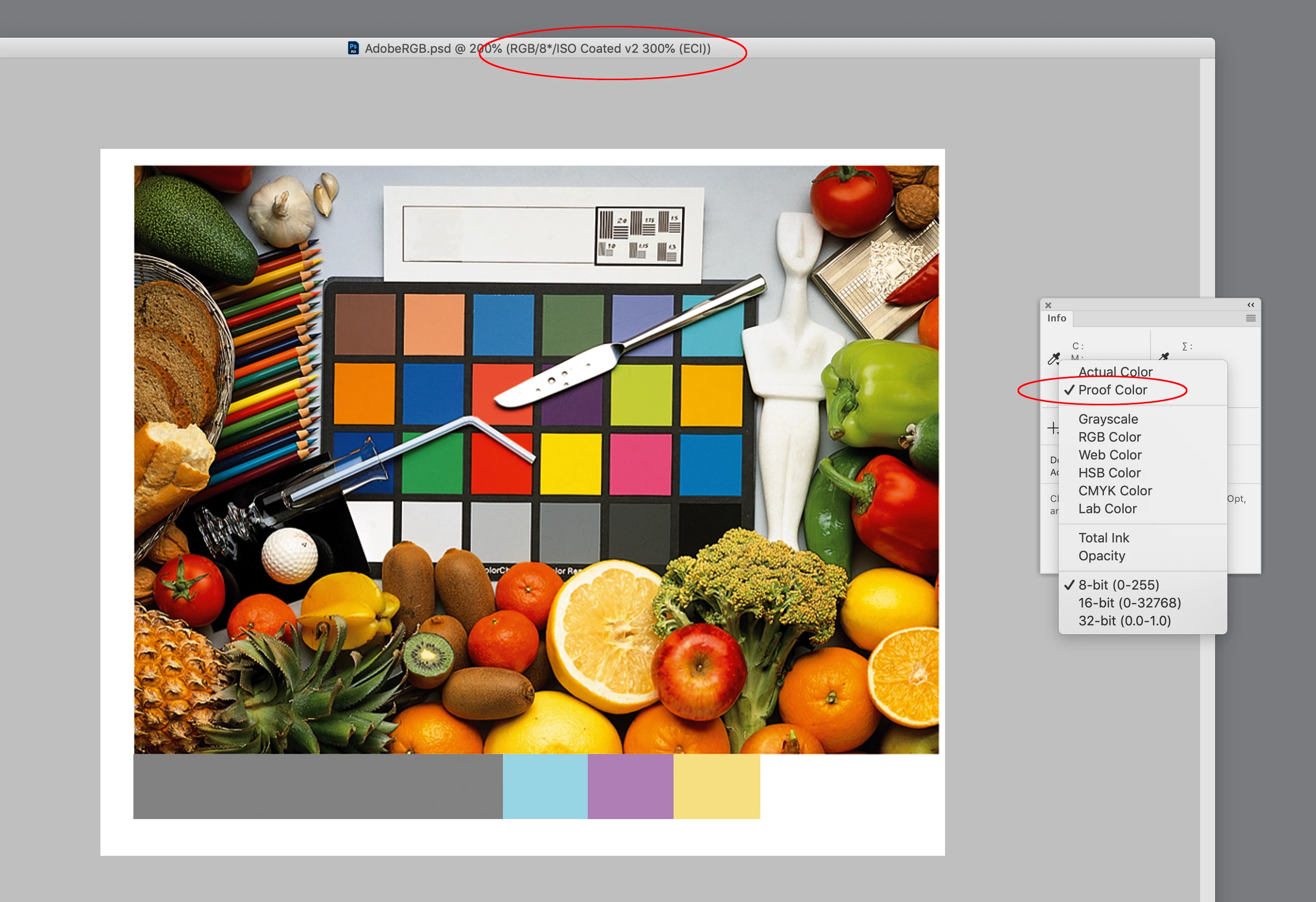
The better approach might be to edit in RGB mode with Photoshop’s Proof Setup set to CMYK, Proof Colors turned on, and the set your Info dropper to Proof Color. In this case I’m editing the proof destination output numbers without actually making the conversion.


5 replies

lister110Author
Inspiring
September 20, 2021

Thanks for all the answers so far. Sorry, this seems a dark art..


As we have a few people in the studio we use the 'Europe General Purpose' as a standard colour space to start off with. We do convert into FOG39 for CMYK as its a starting point.


Going foward, if we convert the image (one image for this job) from RGB to CMYK using the 'ISOcoated_v2_300_eci.icc' this then looks fine (total ink has been checked and is around 300) and then relink the image in indesign while choosing 'Assign Profiles' to ''ISOcoated_v2_300' . Then this profile will picked up in PDF setting on output?


1. RGB to CMYK coversion with printer profile (ISO)

2. Assign Profile

3. Link new image (tagged)

4. Export to pdf using assigned profile (ISO)


cheers for all the help so far

rob day
Community Expert
Community Expert
September 20, 2021

Here’s an example, my page has a placed RGB image with Adobe RGB embedded. On Export it will be converted into the chosen CMYK Destination space. I’ve also include some RGB colors where it is important to maintain the color appearance, and a few CMYK colors where I want to maintain the output values and don’t care as much about a change in appearance, for example 40|0|0|100 rich black or 50% black:


The export to Fogra PDF/X-4 with FOGRA set as the Destination and preserving the CMYK swatch numbers:


Then an Export to ISO Coated:


In the PDFs the RGB swatches converted to the chosen destination CMYK spaces, maintaining their appearance, but with different output CMYK values.


The black point in the Fogra PDF has a total ink coverage of 328%:


The black point in the ISO Coated PDF has a total ink of 298%, which happens on the conversion to ISO Coated:


The RGB swatches are converted to the correct (but different) CMYK values in both cases, but the CMYK swatch output values are protected:


rob day
Community Expert
rob dayCommunity ExpertCorrect answer
Community Expert
September 21, 2021

Thanks so much for your help. Can I ask one more question please? We often retouch RGB images and also continue to edit in CMYK to tweak colours further. What's the best method here for future colour profile destination conversions? We may not always have the option to use the RGB?


If you wanted the edited CMYK color to output unchanged to both PDFs, your only option would be to save the CMYK images with no profile, and try to prevent them from being color managed. That might not be a problem when the output is to very similar coated profiles like FOGRA and ISO, but the color appearance differences would be more noticable if the profiles were less similar, something like a coated vs. uncoated profile.  Also, you can’t really control the final output CMYK values—you have no way of knowing if the the magazines are letting the PDF’s CMYK values output unchanged. There could easily be additional Device link or CMYK-to-CMYK conversions happening at output.


The better approach might be to edit in RGB mode with Photoshop’s Proof Setup set to CMYK, Proof Colors turned on, and the set your Info dropper to Proof Color. In this case I’m editing the proof destination output numbers without actually making the conversion.


rob day
Community Expert
Community Expert
September 20, 2021

If a work flow requires output to different print destinations, you should be placing profiled RGB images and not making CMYK conversions in Photoshop.


Placed profiled RGB will allow you to make CMYK conversions to the required destination on export—you could also leave the profiled RGB color unchanged in the PDF and let the conversion happen when the magazine is output. Total ink limits are enforced on a color conversion, so placed RGB will convert to the chosen destination CMYK profile’s built in total ink limit.


Also, the PDF Export dialog’s Convert to Destination (Preserve Numbers) only preserves Document CMYK color—native InDesign Colors and CMYK images with no profile assigned. RGB objects and CMYK images with an embedded profile would not have their numbers preserved.


The Color Settings’ Preserve Numbers (Ignore Linked Profiles) CMYK Policy will ignore a placed image’s embedded profile and it will be placed as Document CMYK (the document’s assigned profile is used instead of the embedded profile).

Gusgsm
Inspiring
September 20, 2021

Hi,


(Aside from what Rob Day said and going a bit beyond)


1. Whenever possible, work with pictures in RGB (always tagged with an ICC profile, please).

2. When repurposing an InDesign job from one type of CMYK printing to another (with RGB images and natibe elements in CMYK and / or spot colour), always make this two operations in this order: Assign and Convert to final CMYK. (that is from profile CMYK 1 to CMYK 2). Never ever Convert withoust assign first. Why: Because all native elements will change their ink composition and that would include all black texts.

3. If afterwards you see some native elements with an unsatisfiying colour, change the colour swatch they have (because you are using color swatches for everyting, right?).


If you do that and you use PDF/X-4 with "Convert to output (preserve numbres)" and the CMYK ICC profile is the real final one (ISO Coated, blah, blah...) and you did your assign/convert before, everything should pass properly to the PDF which would have an appropriated ink limit.


But, if you have any pixel of vector element placed in the InDesign file ant it is already defined in CMYK, the situation is different for those elements (not for the rest). Best option is open them in the needed software (Illustrator or Photoshop) and change them to the needed CMYK and ink limit and then update the link in the InDesign file.


And, always, open the resulting PDF in Acrobat and chechk that the ink limits are all right).

Legend
September 20, 2021

If you change a profile with "preserve numbers" you are guaranteeing a visible colour change. This is not often what people want or need. 

Randy Hagan
Community Expert
Community Expert
September 20, 2021

The first question would be: Where did the ICC profile come from? Quickly followed with: Who made it?


ICC profiles are effectively a black box. You install them and use them; they're not the kind of thing where mere mortals can poke under the hood and make minor changes without risking severe consequence.


If your print provider gave it to you, for output on their systems, the place to start would be to ask them about the issue, and whether it would be relevant to them. As far as "Convert to destination" modifications, you can test it yourself by creating separate, differently named PDF files with and without conversion. And if you're sverely concerned, run proofs of both of them to see if you can find any differences.


In technical terms, you are actually altering the job. By definition, that is cause for some concern. But as a practical matter, you're doing it at the deep end of what you can — and cannot — reproduce in print. So it's not cause for much concern.


If you asked me, I'd go for it and not look back.


Randy

lister110Author
Inspiring
September 20, 2021

Ahh, just noticed, our indesign document has a shiner black which the 'Convert to Destination' option has re-coloured the shiner to a new black altogether (we was using c30 k100)