


- Home
- InDesign
- Discussions
- Re: Copy and paste transparency from Photoshop to ...
- Re: Copy and paste transparency from Photoshop to ...

Copy link to clipboard
Copied
Hi all, I've recently started to learn InDesign and I was surprised to realize that when I'm simultaneously editing images in PS and pasting them to ID, it doesn't paste transparency, it always adds a white background in the box frame of the object. the problem can be solved if I go onto clipping path and select Detect edges or if once I cut out the object on PS I save it as a .tiff file.
This only happens on a Windows computer, because I've used InDesign on a Mac and when I cut the background out of an image in Photoshop, and paste it onto InDesign, the transparency is automatically detected, without me having to create a clipping path.
Is there a way to make it automatic for InDesign to detect transparency when copying and pasting objects from Photoshop?
thanks.


 1 Correct answer


InDesign creates Links to the original image when you correctly place them.
You can:
- Choose File > Place
- Drag from Bridge
- Drag from Mac Finder / Windows File Explorer
- Drag or Option (Alt) drag from a Creative Cloud library
- Drag from an InDesign library
You can't:
- Copy and paste from another program
If you have brought in your images correctly, you will see them in the Links panel. What do you see in the Links panel?

 20
Replies
20
20
Replies
20


Copy link to clipboard
Copied
Hi,
The best way is to use PSD, TIFF or PNG formats (to preserve transparency) from PS and import (Ctrl/Cmd + D) in InDesign.
Copy/paste isn't the best approach to apply image in InDesign.
Regards
Copy link to clipboard
Copied
That's what I want to avoid really. When I'm working with multiple images, it's quite time consuming having to save the images one by one, look for their location on the hard drive and place them every time I want to add a cut-out image. I have managed to use the clipping path->detect edges function to overcome, but I'm worried this might make the document too heavy to work with if I apply that to every image.
However all this doesn't happen on InDesign for Mac 😕

Copy link to clipboard
Copied
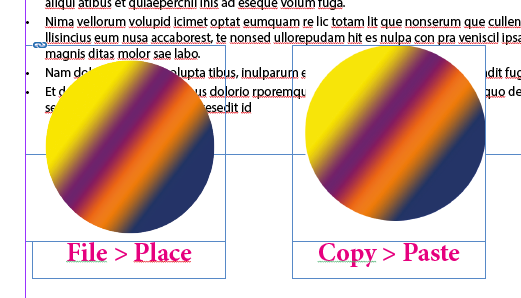
Do not use the Windows clipboard ( copy > paste).
Use File > Place.
Fenja
Copy link to clipboard
Copied
InDesign creates Links to the original image when you correctly place them.
You can:
- Choose File > Place
- Drag from Bridge
- Drag from Mac Finder / Windows File Explorer
- Drag or Option (Alt) drag from a Creative Cloud library
- Drag from an InDesign library
You can't:
- Copy and paste from another program
If you have brought in your images correctly, you will see them in the Links panel. What do you see in the Links panel?
Copy link to clipboard
Copied
is creating a clipping path good practice to get rid of background?

Copy link to clipboard
Copied
It was in 1997. Now? I’d just use a PSD, TIF or PNG with transparent background.
Copy link to clipboard
Copied
Bob, what do you do if the image does not have a transparent background?
Deleting what you don't want is destructive editing. Drawing a named path or saving a selection are non-destructive and are supported by InDesign.
Copy link to clipboard
Copied
In Photoshop, make a copy of it, put it on a new layer and turn the layer off.
I hate clipping paths. Don’t remember the last time I ever used one and the idea of drawing one in InDesign where you’re working on a proxy (even at hi res) is not something I ever want to think about.
As always, YMMV.
Copy link to clipboard
Copied
how come copy and paste transparency works with InDesign on a Mac? is that just a Windows fault? i really think saving an image every time I cut it out from its background is really time consuming adding that I don't really need the image file after its been placed on InDesign.

Copy link to clipboard
Copied
how come copy and paste transparency works with InDesign on a Mac?
Check your InDesign Clipboard Preferences and check Prefer PDF When Pasting (on OSX the clipboard contents are always PDF). Pasting as PDF retains all of the objects original properties. There's not a quality problem with pasting (at least on OSX), but pasted objects are embedded and make it difficult to edit the original as well as bloating the file size.

Copy link to clipboard
Copied
Since you mentioned that you are just getting started with InDesign can you elaborate on what it is that you will most likely want to use it for... print or web or both?
Generally speaking one would Place not Paste when building documents using InDesign.
Copy link to clipboard
Copied
I literally use it only for uni at the moment, for laying out printable portfolios.

Copy link to clipboard
Copied
adriano.lcf wrote
I literally use it only for uni at the moment, for laying out printable portfolios.
Even so, you would be better off to start adapting best-practice workflows now.
One major potential downfall of having your only version of the images embedded in your InDesign file: if your InDesign file becomes corrupt, you have lost not just the layout, but all of the work you've done.
Copy link to clipboard
Copied
gotcha thanks a lot
Copy link to clipboard
Copied
Copy link to clipboard
Copied
adriano.lcf wrote
Hi all, I've recently started to learn InDesign and I was surprised to realize that when I'm simultaneously editing images in PS and pasting them to ID,


Copy link to clipboard
Copied
Hi
You can use CC Libraries for this purpose. You can simply add any graphic asset from Photoshop to a library and when you come to InDesign you can Place the graphic added from Photoshop to your document and it maintains a link to the originally added asset in the library. So, if you ever wish to update the asset, you could simply double click the asset and it will open in Photoshop for you to edit, and once you save it will be automatically updated in InDesign. This will maintain your transparency and you need not remember where on hard drive you saved your asset! Also, the libraries are on cloud, so, you will have access to these libraries on every system you login.
For more info about CC Libraries, go to Manage assets with Creative Cloud Libraries.
Regards
Anasuiya Gupta

Copy link to clipboard
Copied
I would like to rephrase the question. Note: This is a Mac/PC issue; not a best practices/experience of designer issue.
The question is why does a copy/paste with transparency work on Mac and not PC. It there an extra step for Windows? Will this ever be possible in Windows? I think one person actually attempted to answer the question. Adriano might have a very good reason for not following best practices. I copy/paste a lot in InDesign for quick roughs, when I need to produce something with someone standing over my shoulder for a concept. I don't want editable links, and I don't want massive numbers of assets in a links folder. I don't have the option of spending the time it takes to create files I can link to. If the images are needed for the final product, I will do this later so images are best quality, editable, and produce small document sizes. That said, can someone answer the original question? And, btw, the "clipboard Handling PDF when pasting" does not work for me (thank you Rob).
Copy link to clipboard
Copied
That said, can someone answer the original question? And, btw, the "clipboard Handling PDF when pasting" does not work for me (thank you Rob).
I've always suspected that the Prefer PDF When Pasting pref doesn't work on Windows given how adamant posters are about the evils of pasting. On OSX a pasted object exports with all of the qualities of a linked version—color mode, color profile, transparency, resolution. Unfortunately I think this is an OS and not an ID problem.
Copy link to clipboard
Copied
Yes, thank you. I am suffering through forced Windows 10 environment. It is killing my workflow. I will go the long route to get transparency, then. Thank you for your answer.


Find more inspiration, events, and resources on the new Adobe Community
Explore Now
 AdChoices