Participant
September 25, 2019
Answered

Create a list that is 1.1, 1.2, 1.3 then 2.1, 2.2, 2.3

  • September 25, 2019
  • 4 replies
  • 42384 views

Hi all - I have a document with numbering like this

Heading

1.1

1.2

1.3 etc

Heading

2.1

2.2

2.3 etc

Heading

3.1

3.2

3.3


 The only way I have found around it is to create separate paragraph styles for each of the first numbers (so Number 1 - for 1.1, Number 2 - for 2.1, Number 3 - for 3.1 etc) 

I have tried creating one numbered list style but the restart list occurs on the first number - not the second 

so it goes back to 1 and not 2. 

Any ideas or detailed resources I could read would be gratefully accepted. 

Thanks
    Correct answer Colin Flashman

    This can be done by creating two paragraph styles and character style to hide the first number in one of the paragraph styles:

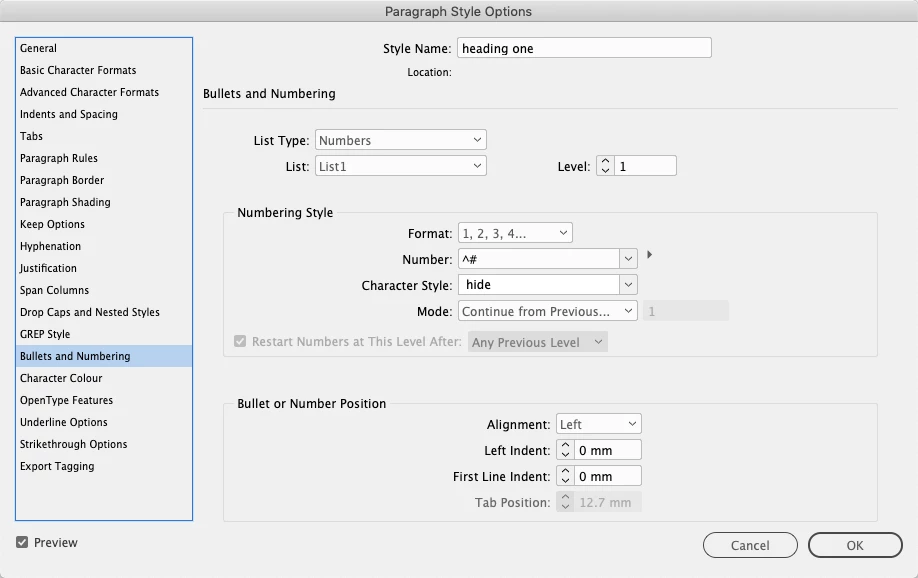
    Create the heading style with the following settings:

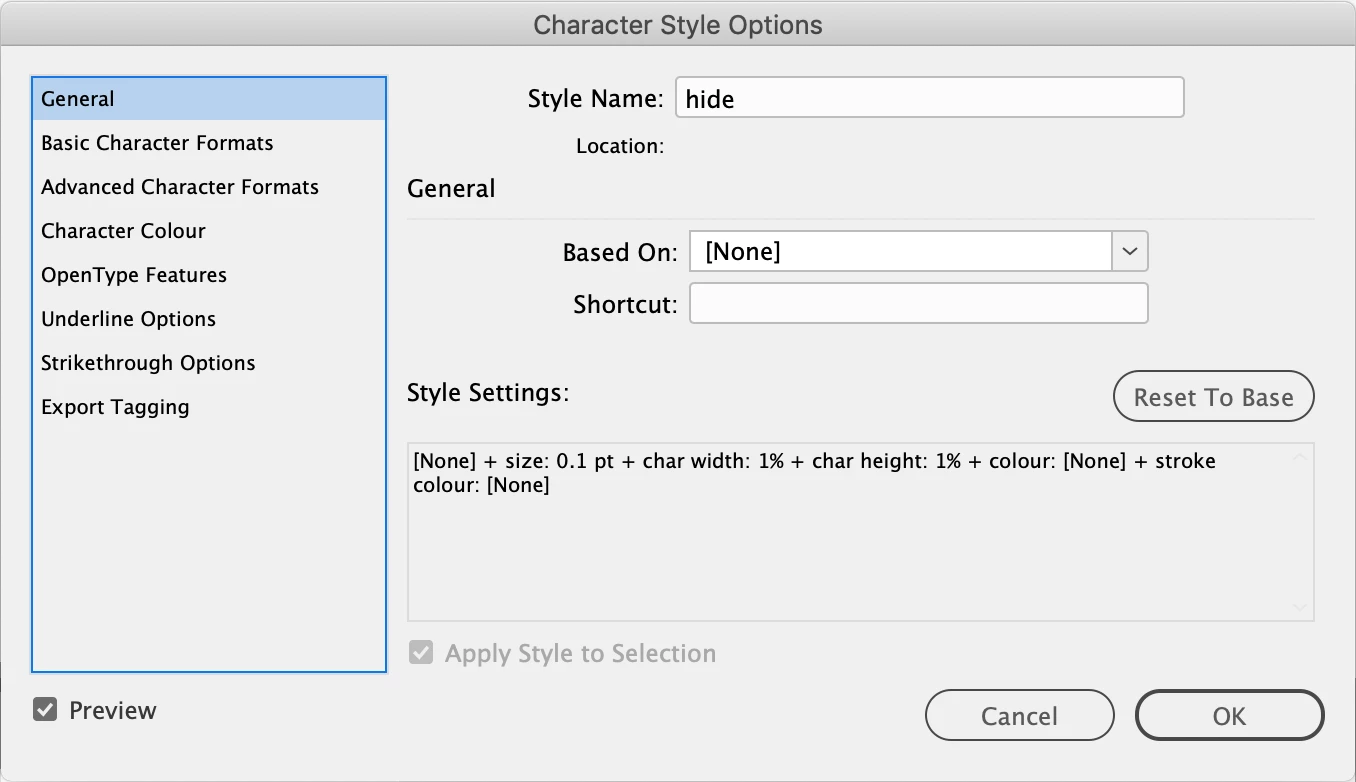
    Note the character style used for the number. It has the following settings:

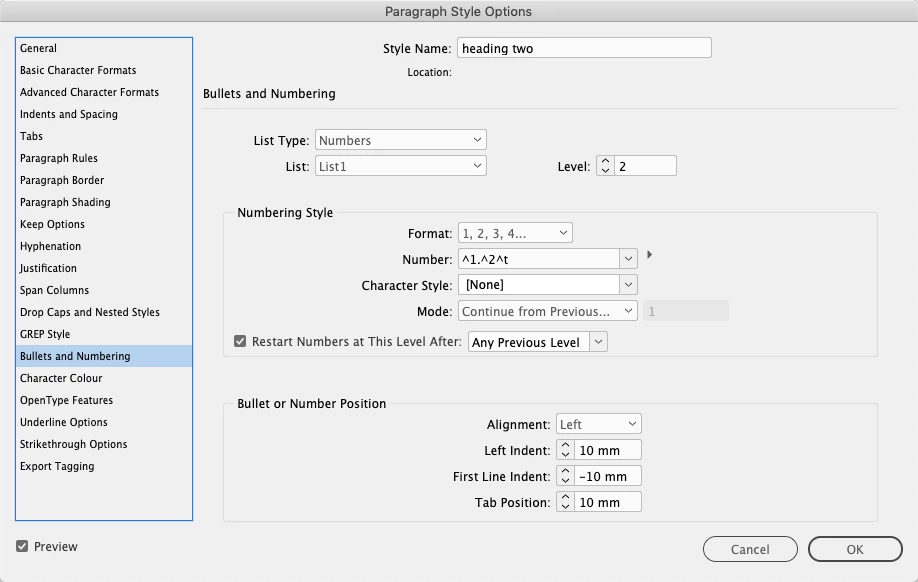
    The second paragraph style should have the following settings:

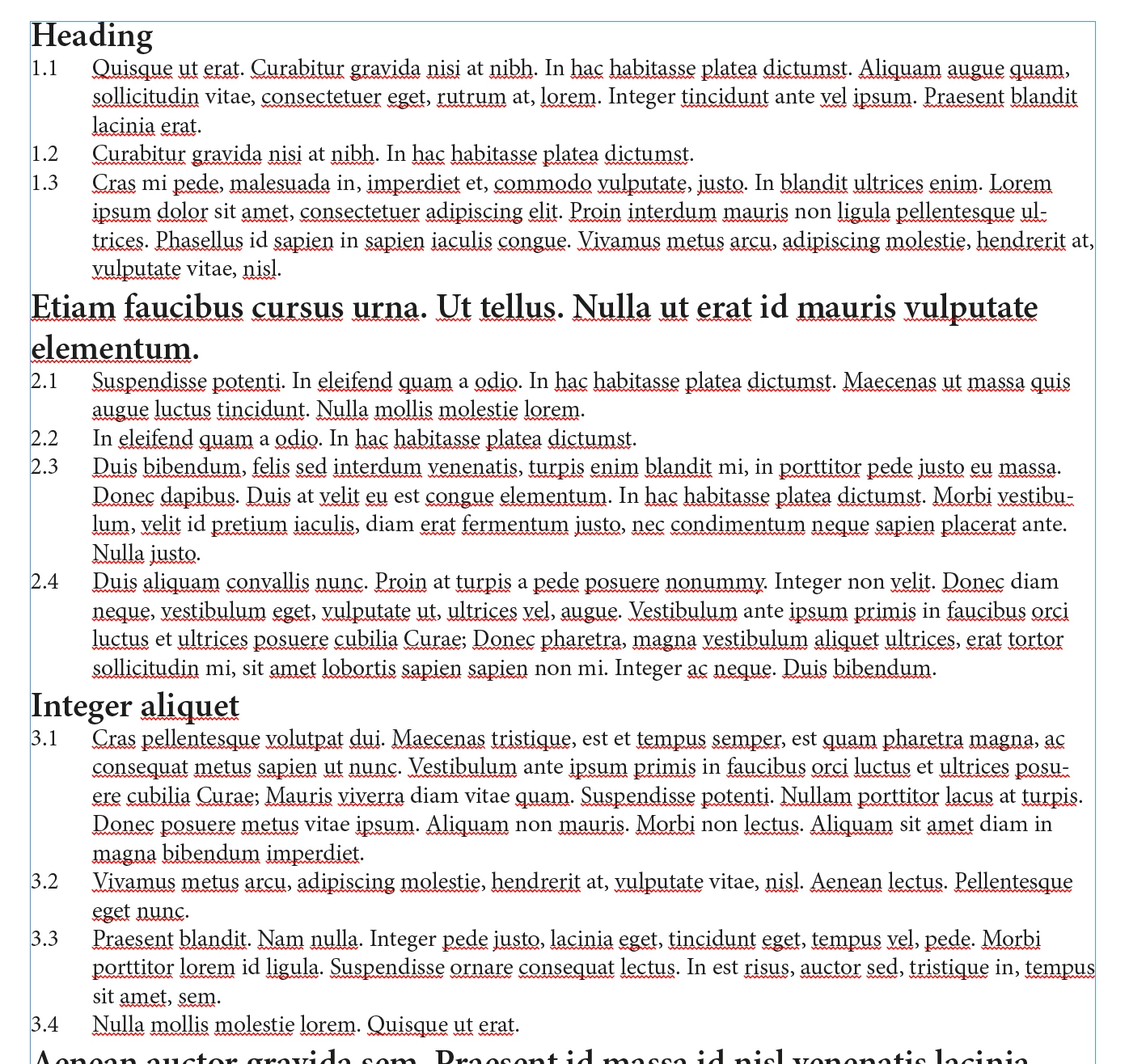
    Using these settings it is possible to achieve the following result:

    4 replies

    Participant
    July 26, 2023

    I found this tutorial that was much easier to follow than the pinned answer!


    How to make multi-level numbering in InDesign - Tutorial

    https://www.youtube.com/watch?v=nqNMQPwHsGs

    Barb Binder
    Community Expert
    Community Expert
    June 30, 2022

    I'm going to add one more resource. 

    https://www.rockymountaintraining.com/adobe-indesign-numbering-headings/


    I wrote this up for my students and it covers both numbering heads in a single InDesign file as well as in a multi-file InDesign book.


    ~Barb

    ~Barb at Rocky Mountain Training
    Bevi Chagnon - PubCom.com
    Legend
    September 25, 2019

    Adobe's online help is pretty good on this topic. See:


    It's worth the time to run through these basics so that you have a better understanding of the nuances of lists in InDesign.

    |    Bevi Chagnon   |  Designer, Trainer, & Technologist for Accessible Documents ||    PubCom |    Classes & Books for Accessible InDesign, PDFs & MS Office |
    Colin Flashman
    Community Expert
    Colin FlashmanCommunity ExpertCorrect answer
    Community Expert
    September 25, 2019

    This can be done by creating two paragraph styles and character style to hide the first number in one of the paragraph styles:

    Create the heading style with the following settings:

    Note the character style used for the number. It has the following settings:

    The second paragraph style should have the following settings:

    Using these settings it is possible to achieve the following result:

    If the answer wasn't in my post, perhaps it might be on my blog at colecandoo!
    justjo
    Participant
    December 26, 2019

    I've been struggling with this so this post really solves my problem... partially!  I can't get to further levels.  If I continue from the previous number the list just keeps growing, if I start at 2, or any other number, the digit is what changes and not the main number.  Help!!

    maxwithdax
    Community Expert
    Community Expert
    December 26, 2019

    While not required, and from a purely semantic point of view, your headings should really contain the 1.0 Heading, 2.0 Heading. This helps maintain organizational structure of your document. Glad you got your issue resolved. This is one of those areas (multi-level lists) where other basic wordprocessing programs seem to have a less complicated workflow than InDesign. Maybe someday it will be easier in InDesign. 


    - Dax