bernardc8812564
Participating Frequently
March 27, 2017
Answered

Create tables with spaces between cells (ie cellspacing)

  • March 27, 2017
  • 9 replies
  • 29112 views

Hi.

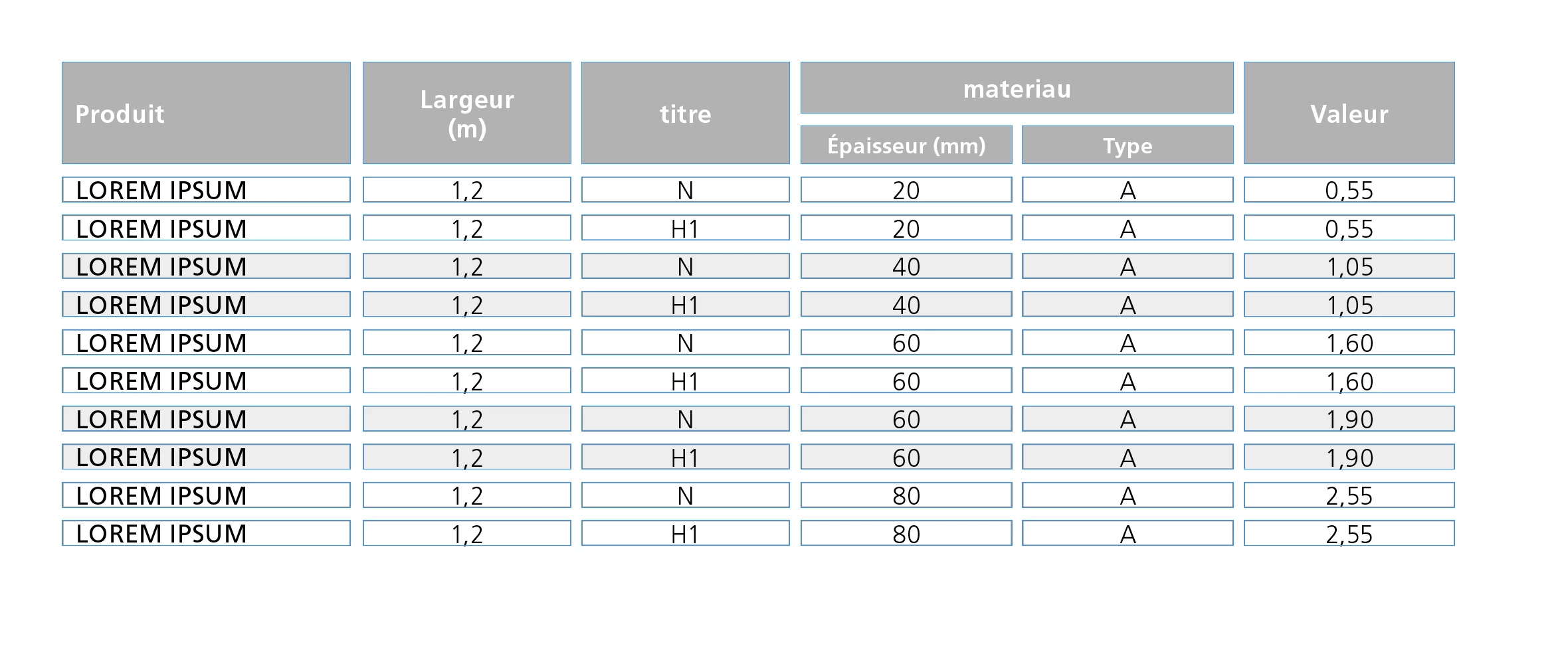
One image is better than 100 words, so here is one.

Untill now, this kind of table is done by grouping Text-blocks.
Do you know if ther is a way to get the same result using tables only using regular options or any plugin ?

Thanks in advance.

This topic has been closed for replies.
Correct answer Laubender

Hi Aman,

at first glance the task seems to be an easy one. But it isn't.

What you are showing is not exactly what the OP—bernard—likes to accomplish.


In his sample there is no stroke around the table.

The gray header cells are showing no black strokes.
Just the fills.

It could be done using empty columns and empty rows.

But I assume this trick is not allowed.

Maybe something can be done by text formatting using a combination of paragraph shading, graphic lines above and below?
But that wouldn't be very flexible. And if the cells showing white as fill should be transparent behind a background it would be perhaps impossible to do…

Regards,
Uwe

9 replies

MW Design
Inspiring
March 8, 2020

Maybe something can be done by text formatting using a combination of paragraph shading, graphic lines above and below?


Maybe. Probably.

I don't have a current subscription to ID so cannot try (CS6 doesn't have shading). The below was done in QXP using shading and tabbed text. Now that the styles are set up, a table could be copied to a decent text editor and manipulated using Regex, then brought in as a tagged text snippet. 

(oops, forgot to edit the text styles to make 'em white...)


karacte
Participating Frequently
March 7, 2020

I think I found an easy workaround for this. The answer is creating paragraph styles. After you create your table, make sure, within the table, you don't have any cell fills or strokes. Create paragraph styles with borders or shading and tweak the offset space, indents, etc. and natural space is left within the cells. It eliminates the need for extra columns or rows and other fiddly things.


These examples just show some of the ways you can add styles. Hope this helps!

Community Expert
March 28, 2017

Hi Bernhard,

we can acchieve it, if:


1. White strokes are allowed.

2. The strokes of the cells are done with:
A. Paragraph shading of the text

B. A line above with a proper position and width

I am also use a nearly undiscoverable feature of cell strokes that is only available in one menu where you can set the strokes of the cells to stroke style "None".

Using stroke style "None" for the cell's stroke is shown here with my German InDesign. This option can only be found in the "Cell Options" menu. Nowhere else! The stroke width with my sample is 7pt.

For the fill of the header rows I used another cell decoration feature. Not the usual fill, but "Diagonal Lines" with a large value for the point size that also comes with "Cell Options":

Perhaps we can also use "Diagonal Lines" with the body cells plus Line Above for text formatting.

But we also can use a combination of paragraph shading and Line Above for formatting the text of the body cells so that a "line around a fill" can be seen. Unfortunately paragraph shading was not developed further for a fill plus a line around a paragraph.

Paragraph shading settings for text formatting:

Line Above setting for text formatting case 1:

Line Above setting for text formatting case 2:

To Obi-wan:
No, I did not forget about this sample you are showing :-)

Regards,
Uwe

Eternal Warrior
Inspiring
March 28, 2017

This is really useful knowledge Uwe!

I never knew (or perhaps never looked) at the fact there was a stroke style "none" - In my head i was looking at how to change the stroke colour to none.

So now I have advanced my knowledge!

This is the best thing about trying to help people - when it also helps you... Haha!

Eternal Warrior
Inspiring
March 28, 2017

FWIW: You can also choose the stroke option none in table styles... Meaning that solution 1 will work regardless of background....

Eternal Warrior
Inspiring
March 28, 2017

There are many ways to achieve cell spacing.

You certainly don't need to go to such complicated lengths as:

bernardc8812564  wrote

this kind of table is done by grouping Text-blocks.

The quickest way would be amaarora​ suggestion.

It sounds like you should learn more about table and cell styles as well as this can make things more "automatic".

Community Expert
March 28, 2017

https://forums.adobe.com/people/Eternal+Warrior  wrote

There are many ways to achieve cell spacing.

You certainly don't need to go to such complicated lengths as:

bernardc8812564   wrote

this kind of table is done by grouping Text-blocks.

Hi Eternal Warrior,

I'm sure there were good reasons.

Do you have a suggestion how to do it with table cells?
I'm curious…

Regards,
Uwe

Eternal Warrior
Inspiring
March 29, 2017

https://forums.adobe.com/people/Eternal+Warrior  wrote

However - the trouble comes when you need a completely alpha transparent background except for the cell fill.

SOLUTION #2 - ...NOT AUTOMATIC (WITHOUT ADOBE'S HELP OR A SCRIPT) BUT STILL PRETTY QUICK IN COMPARISON:

Again there is a slightly quicker way of doing this than the original - but it involves doubling the amount of rows and or columns that the table has and then applying an alternating cell style to every other row and column to make them effectively the correct width

In this case 6 columns displayed here becomes 12 and 11 rows become 22.

Then we need to make every other row and column the desired width and height of the "stroke"...

Personally - Adobe should have made us able to do this as part of style controls - but you would need a script to do this currently as even manually we cannot currently Ctrl or cmd click on multiple rows or columns you can only shift click...

With this done you can create the same effect with a lot less time and effort and have transparency in the "strokes".

Hi EW,

if we propose a new feature for InDesign's tables, it could be the following:


Allow a cell to be locked.

In effect that would mean, if you:

1. Copy/paste text to a table

2. Update contents by using Excel files
3. Copy/paste cells to a table


two optional rules will apply:

A. Locked cells would not be filled with incoming data.

The data will simply not appear. All other cells will be filled.

In two optional directions: Columnwise or row wise insertion.

This could be branched out to a second optional rule that could be set in the preferences:
B. The next available not locked cell will be filled with any data that is applied to the table.

In two optional directions: Columnwise or row wise insertion.

Option B would make a perfect solution for the OP here.

( I hope, Aman is still following this thread :-) )


Regards,
Uwe


Hi Uwe,

This makes good sense to me!

I would still add the caveat that we should be able to Ctrl (or cmd) click on multiple rows or columns rather than only shift click...especially as this feature is available in many other programs.

Best,

EW

amaarora
Inspiring
March 28, 2017

Hi,

An easy workaround to achieve something similar in InDesign would be to apply cell Stroke to the table cells with appropriate weight.

First create a table of desired number of cells and columns

Select all the cells and open the strokes panel from window menu.

Apply the stroke as shown in the below screenshot. To increase the spacing between cells, you can increase the stroke weight. however, this will also increase the weight of the black section.

Preview, if the cell spacing is as per need. You can then fill cells with the needed colors and type your data. Also note that this leaves an extra border around your table.

Regards,

Aman

LaubenderCommunity ExpertCorrect answer
Community Expert
March 28, 2017

Hi Aman,

at first glance the task seems to be an easy one. But it isn't.

What you are showing is not exactly what the OP—bernard—likes to accomplish.


In his sample there is no stroke around the table.

The gray header cells are showing no black strokes.
Just the fills.

It could be done using empty columns and empty rows.

But I assume this trick is not allowed.

Maybe something can be done by text formatting using a combination of paragraph shading, graphic lines above and below?
But that wouldn't be very flexible. And if the cells showing white as fill should be transparent behind a background it would be perhaps impossible to do…

Regards,
Uwe

amaarora
Inspiring
March 28, 2017

Hi Uwe,

i totally agree with you.

I only intended to give a workaround to achieve a close result.

The stroke can be used to achieve just the cell spacing and later the color can be changed to paper, by selecting the entire table and then choosing stroke color from the control strip.

Agreed, that this method too would need lot of tweaking and adjustments to make it look identical to the desired design.

-Aman

Participating Frequently
March 27, 2017

Hi,

Every cell in an Indesign table has cell insets, which automatically default to 4pt (1.411mm) so you shouldn't need to worry about it.

Make sure that you use table and cell styles to keep consistency as it looks as if your tables are fairly complex.

Regards,

Malcolm

Pariah Burke
Community Expert
Community Expert
March 27, 2017

The original poster tagged the question "InDesign", folks. I'm moving the post to the InDesign Forum.

Nancy OShea
Community Expert
Community Expert
March 27, 2017

In HTML tables, we use CSS padding on the table cell selector.

td {

     padding: 20px;  /**adjust values to suit**/

}

Nancy O'Shea— Product User & Community Expert
John T Smith
Community Expert
Community Expert
March 27, 2017

The Lounge Forum is not for technical help, please provide the name of the program you are using so your message may be moved to the correct program forum... A program would be Photoshop or Dreamweaver or Muse or Premiere Pro or ???

bernardc8812564
Participating Frequently
March 28, 2017

@John T Smith:  Sorry, I thought I posted in the right place

@