leighs10273013
Participant
July 10, 2017
Answered

Creating Cover page

  • July 10, 2017
  • 2 replies
  • 2234 views

Before I start, I am new to InDesign.. Please excuse me if it is a super basic question.

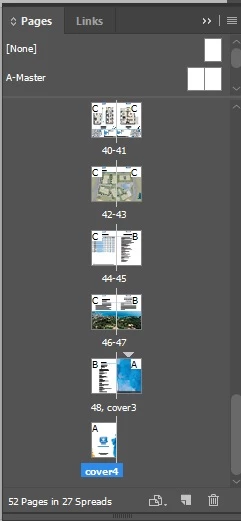
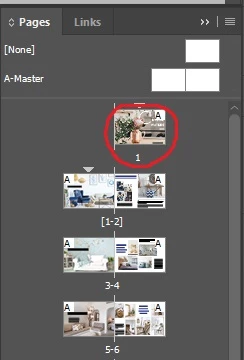
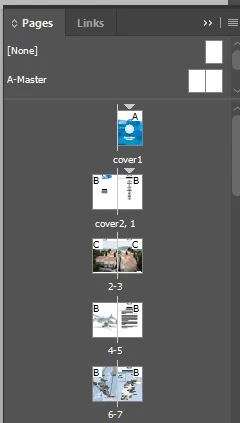
Please see the attached screenshots. I managed to start a page number where I wanted(Page 2), now I want to change the first page to a cover page. Can someone teach me how to change the fist page to cover page, or direct me to a right tutorial? I want to change the first '1' to 'cover page 1', and create 'cover page 2'. Then 'cover 3' and 'cover 4' at the end of the page.

I have tried to search for a right tutorial, but I found irrelevant tutorials such as 'how to design cool cover page'...

-My presentation-
-Right example-
This topic has been closed for replies.
Correct answer Randy Hagan

Sure.

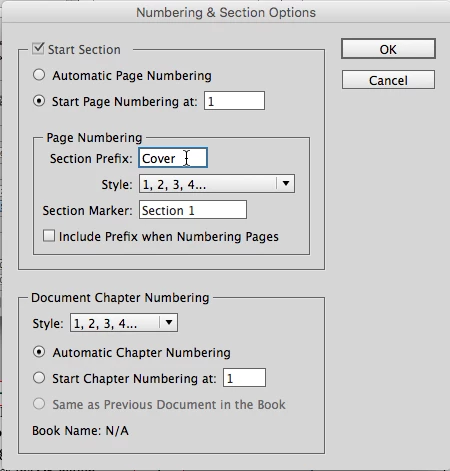
Double-click on the cover page, then select the Layout>Numbering and Section Options... menu command. In the Section Prefix: edit box, type Cover and add a space, then click OK.

If you haven't done it already, go back to your old third page, double-click on it, and return to the Numbering and Section Options dialog box as you did above. Select the Start Section check box and hit the radio button for Start Page Numbering at: and enter 1 in the accompanying edit box. If Cover is still in the Section Prefix: edit box, remove it and click OK.

For covers 3 and 4, double-click on cover 3 and then return to the Numbering and Section Options dialog box. Select the Start Section check box, select the Start Page Numbering at: radio button and enter 3. Then put Cover and a space in the Section Prefix: edit box and click OK to create Cover 3 and 4.

2 replies

Randy Hagan
Community Expert
Randy HaganCommunity ExpertCorrect answer
Community Expert
July 10, 2017

Sure.

Double-click on the cover page, then select the Layout>Numbering and Section Options... menu command. In the Section Prefix: edit box, type Cover and add a space, then click OK.

If you haven't done it already, go back to your old third page, double-click on it, and return to the Numbering and Section Options dialog box as you did above. Select the Start Section check box and hit the radio button for Start Page Numbering at: and enter 1 in the accompanying edit box. If Cover is still in the Section Prefix: edit box, remove it and click OK.

For covers 3 and 4, double-click on cover 3 and then return to the Numbering and Section Options dialog box. Select the Start Section check box, select the Start Page Numbering at: radio button and enter 3. Then put Cover and a space in the Section Prefix: edit box and click OK to create Cover 3 and 4.

leighs10273013
Participant
July 19, 2017

Thank you!

This is exactly what I was looking for, I appreciate it!

Derek Cross
Community Expert
Community Expert
July 10, 2017

First  question. Is this to be a "self cover" publication i.e. it's printed at the same time as the rest of the book and is part of it. Or does it have a separate cover, probably printed on heavier stock, separately, then bound or stapled onto the insides?

leighs10273013
Participant
July 19, 2017

Hi, it is going to be printed with the rest of pages.

Sorry for the late reply, I got my answers already, but I still appreciate your help!