

kyriosity
Inspiring
January 17, 2024
Answered

Creating custom shortcut

  • January 17, 2024
  • 3 replies
  • 1667 views

I used to have a custom shortcut — CTRL+W — to insert footnotes. A recent update obliterated my customizations (thanks, Adobe! 😒), and I can't figure out how to recreate it. CTRL+W is currently assigned to "Switch between Normal View and Preview Mode," which I don't need. Can somebody walk me through how to correct this? Or point me to a tutorial? Thanks!
This topic has been closed for replies.
Correct answer Barb Binder

Hi @kyriosity:


W has always been the shortcut to move between screen modes. The newish shortcut is Sh+W for Presentation mode.


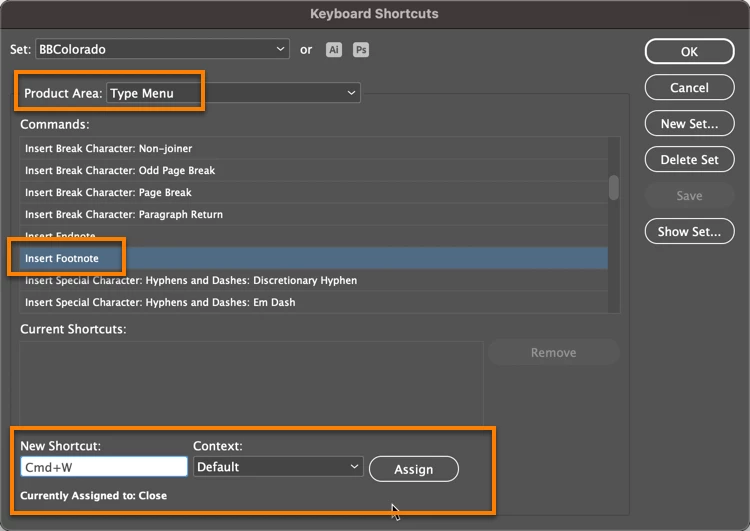
Ctrl+W is the Windows-standard shortcut for File > Close. You can change it to Insert Footnote, and InDesign will warn you, but you can still do it. (I'm on a Mac so I'm using the Control equivalent of Command.) Just click Assign to remove it from Close and add it to Insert Footnote.


3 replies

Derek Cross
Adobe Expert
January 17, 2024

To add to Barb's useful replies, I use the conventional W to toggle between Preview and Normal view but I press Escape before doing it to ensure I have nothing selected and to stop inserting an unwanted W into the text! 

Barb Binder
Adobe Expert
January 17, 2024

One more thing, @kyriosity, even if you removed your earlier version of InDesign, your old presets are probably still on your drive. You can copy them to the new folder and InDesign will recognize them. Someone asked how to find the shortcuts and I addressed that in the comments under the post.

https://www.rockymountaintraining.com/adobe-indesign-how-to-copy-your-presets-after-an-update/


~Barb

kyriosity
kyriosityAuthor
Inspiring
January 19, 2024

I tried this and, alas, no luck.

Barb Binder
Barb BinderCorrect answer
Adobe Expert
January 17, 2024

Hi @kyriosity:


W has always been the shortcut to move between screen modes. The newish shortcut is Sh+W for Presentation mode.


Ctrl+W is the Windows-standard shortcut for File > Close. You can change it to Insert Footnote, and InDesign will warn you, but you can still do it. (I'm on a Mac so I'm using the Control equivalent of Command.) Just click Assign to remove it from Close and add it to Insert Footnote.


kyriosity
kyriosityAuthor
Inspiring
January 19, 2024

Ha...you can tell I never used the defaul Ctrl+W or Shift+W, because I looked it up and managed to get it wrong.

This worked! I just needed the extra step of creating a new shortcut set based on the Default. Thank you so much...this was a lifesaver. Now to tackle this document with 73 pages of notes that need to be manually placed. *wince*


kyriosity
kyriosityAuthor
Inspiring
January 21, 2024

Aaaaand it obliterated the shortcut again. Sometimes I hate how dependent I am on this crappy program...