In the latest version of InDesign (CC 2020) you will not see a cloud icon. Typekit is also no longer called Typekit but rather Adobe Fonts. In order to access Adobe Fonts via the Cloud go into InDesign's character Panel, click on the "V" next to the font that is currently showing and the font list will appear. Now click on "Find More". After you do that the font list will change to the Adobe Fonts which are ready for downloading by clicking on the cloud icon at the right of the font name. After downloading close the Character Panel. When you next open it any Adobe Fonts that have been downloaded will appear in the font list with a check-marked cloud icon next to it. You will be able to now use them freely in any layouts or design you wish professionally or otherwise. You won't, however be able to collect those fonts for output to send to a printer or other vendor. They will have to have their own Creative Cloud subscription which will enable them to also download the fonts and use them for producing your work.
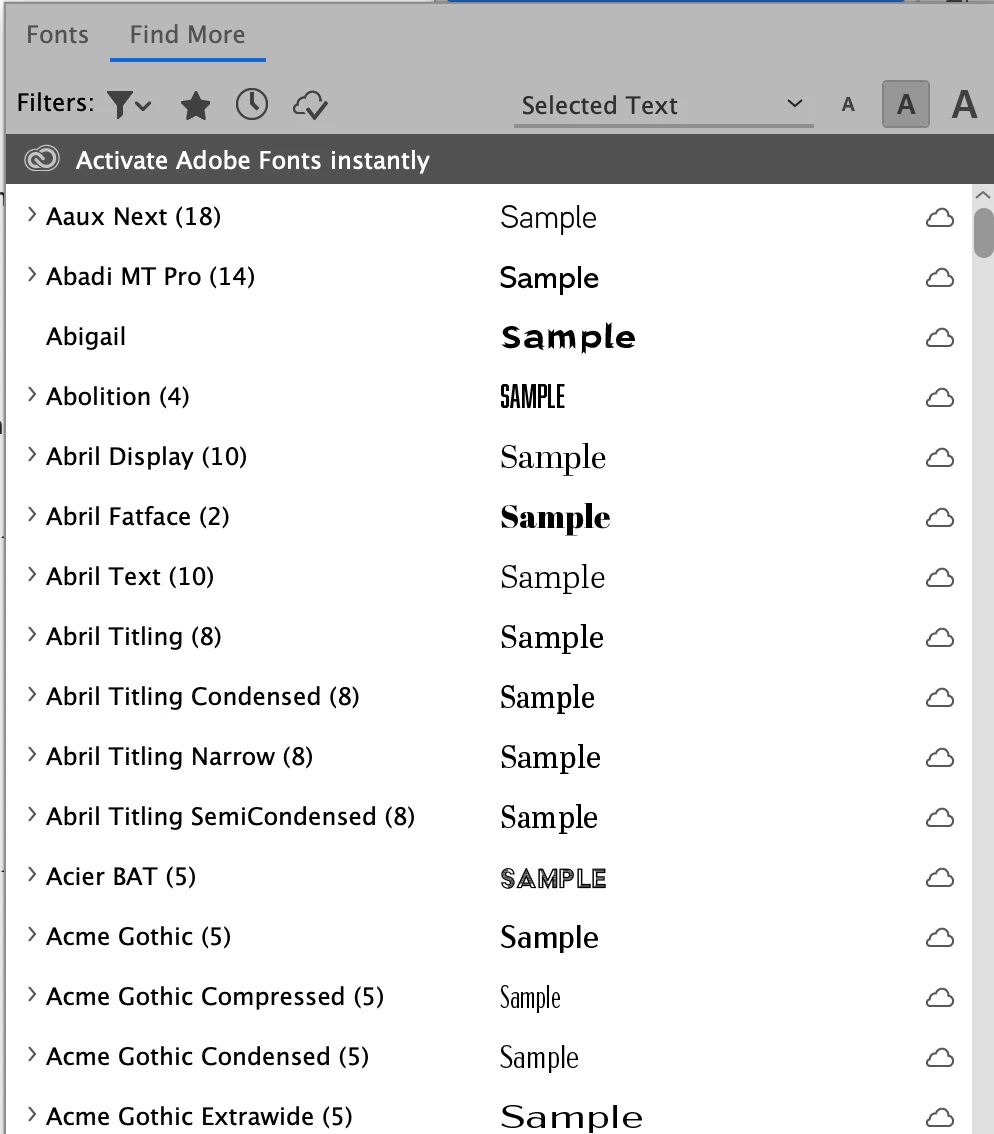
You will be able to manage your downloaded fonts in the Manage Fonts section of the Creative Cloud Desktop App.

 AdChoices