
John Major Printing
Inspiring
October 29, 2024
Answered

Data Merge Fields Not Displaying in InDesign 2025 (v. 20.0) on macOS Sonoma

  • October 29, 2024
  • 5 replies
  • 5759 views

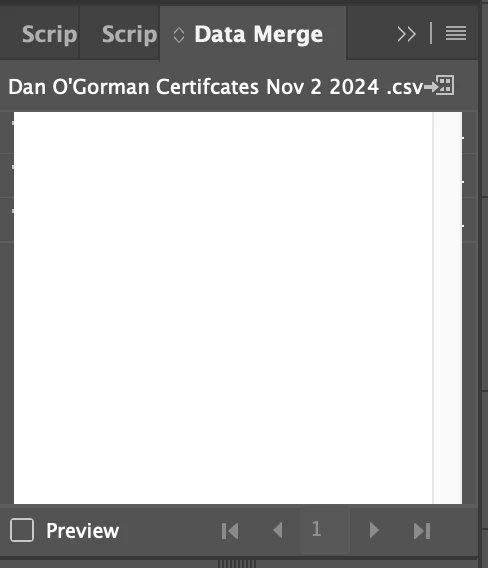
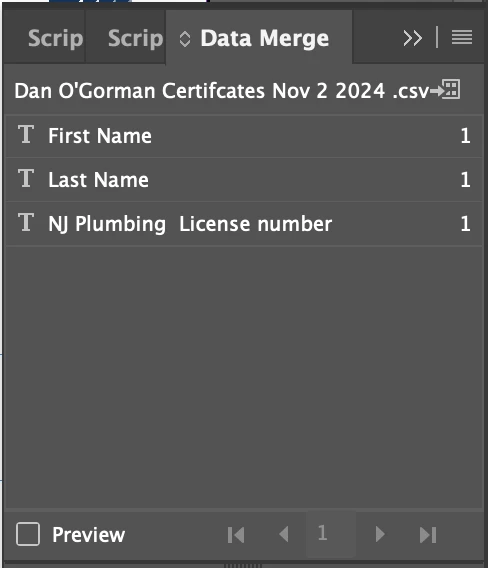
When I open Data merge window in the New InDesgn 202 (v. 20.0) I cannot see the Fields listed in the window after I select a new .csv file. I am attaching a picture of the new version vs. the previous version of InDesign for the same file. Is this an issue with everyone? I am running Mac OS Sonoma 14.7 om an M1 Mac Mini.


<Title renamed by MOD>

Correct answer Sun Press

I've had this same issue and it was driving me nuts!! But I did find a way that worked for me, and I hope it will for you as well. What I have to do is click Remove Data Source in the dropdown menu and THEN import my .csv file. That seems to do the trick! For my part, that window only shows up if I am using a previous document that already has a linked file. 

Best of luck! 

5 replies

derekl87856128
Participant
July 23, 2025

I was having the same issue this morning. My .csv file had several colons in the first row. They weren't necessary since this row is just the names of the columns (no colons were intended to print anywhere in the date merge.) So, I removed the colons and re-saved the .csv file. Then after selecting it in Indesign's Data Merge, the field name populated as usual and everything worked gloriously!

Known Participant
August 22, 2025

I had very limited success with Update Data Source, as others have noted here. (We're using Windows 11, with InDesign 20.3.1) However, I've been using Update Content in Data Fields (from the Data Merge panel menu) with excellent results. One rule of thumb: do NOT open the CSV file in Excel, or you may lose some special characters. We replace the CSV file (same name) when we have new data, and use NotePad++ if we need to edit the CSV. Some of my colleagues will begin testing next week. If you choose a new data source (in a different file location), you may have to delete and insert the fields again, but that's easy enough. I'd recommend putting the CSV file in the same folder as the figures (if you have figures).
I hope others may find this information useful--if this proves to be successful, it's going to save a lot of time and relieve worries about not getting updated info in place.

Community Expert
August 24, 2025

Hi @EsJayKayToo ,

alternatively, you could use a tab delimited text file instead of a CSV file.

Well, is there a reason for you not updating InDesign 2025 to version 20.5. ?


Regards,
Uwe Laubender
( Adobe Community Expert )

Gurr
Participating Frequently
November 1, 2024

How to remove this info that is covering Data Merge menu???

Closing and oppening doesn't help.
Only in Essential Workspace you can pull Data Merge out of the floating window,
but next time I open it it's back again?!

Frustratintg!!


Thanks


<Title renamed by MOD>

Abhishek Rao
Community Manager
Community Manager
November 1, 2024

Hi @Gurr,


Thank you for reaching out! To better assist you, could you please provide the following information?

  1. What version of InDesign are you using?
  2. What are the details of your operating system?
  3. Does this issue occur with a specific InDesign document, or does it happen with all documents?
  4. Just to confirm, are you referring to the default Data Merge screen that opens when you click on Data Merge under the Window menu > Utilities (when the source file is not imported)?
  5. If possible, could you share a screen recording demonstrating the issue? This will help us understand the problem better.

Looking forward to your response!


Best, 

Abhishek Rao

Gurr
Participating Frequently
November 1, 2024

Hi Abhishek,

I'm using InDesign 20.0, just updated... on Mac OS Ventura 13.7

It happens with any InDesign document an yes I was reffering to

Data Merge under the Window menu > Utilities (when the source file is IMPORTED and the info is COVERING IT)

You can see a source file name on my screen shot...

Sorry I'm not allowed to record my screen because of the DATA I'm working with.


Thanks

Community Expert
November 1, 2024

Hi @John Major Printing ,

just tested a sample source file for data merge with my German InDesign 2025 version 20.0.0.95 on macOS 12.7.1 with a MacBook Pro from 2021 (M1 processor). No issue found. Used a *.txt and a *.csv file as source:


To test with my InDesign document and the data source files, download them from my Dropbox account:

DataMergeTest_INDD_2025_on_macOS.zip

https://www.dropbox.com/scl/fi/uknxjbw34cp1vd461n2b3/DataMergeTest_INDD_2025_on_macOS.zip?rlkey=272ge2981ddzy7ql7azvt27y8&dl=1


Regards,
Uwe Laubender
( Adobe Community Expert )

Robert at ID-Tasker
Legend
October 29, 2024

@John Major Printing


If you want to keep working - you should downgrade to 2024 - and make sure to TURN OFF Auto Update.


Participant
January 9, 2025

I was having the exact same issue with 2025. And I want to add that after reading through @Abhishek Rao recommendations, I tried saving my .csv UTF-8 encoding and I received this error:

Interestingly, however, when I went back to the .csv without the encoding, the merge fields showed up. I didn't do anything prior other than remove the .csv file (before encoding) and closed the document (not the application) and then tried to upload the .csv with the encoding, which resulted in the aforementioned error, so there is no way for me to know why it worked this time but not before.  


If it happens again, I will follow up on this thread. 

Abhishek Rao
Community Manager
Community Manager
October 29, 2024

Hi @John Major Printing,


Thanks for reaching out! I understand that you're having trouble seeing the fields in the Data Merge window after selecting a new .csv file in InDesign 2025 (v. 20.0). 

To help troubleshoot this issue, could you please provide a bit more information?

1. Is the issue specific to a particular file or happening with multiple InDesign files? 
3. Could you confirm if there are any special characters or formatting in the .csv file that might be causing the issue?


As a potential solution, try the following steps:

1. Ensure that your .csv file is properly formatted. The first row should contain headers that will correspond to the fields in InDesign.

2. You can try resetting preferences. You can do this by holding down `Cmd + Option + Shift` (Mac) while starting InDesign. Reference: https://adobe.ly/3NJIY7B

3. Please try clearing the cache. You can do this by deleting the InDesign Cache files located in `~/Library/Caches/Adobe InDesign/`.

4. Close the Data Merge window and reimport the .csv file to see if the fields appear.


Let me know if these steps help or if you need further assistance!


Best,  
Abhishek Rao

John Major Printing
Inspiring
October 29, 2024

Thanks but none of that helped. Same .csv file and same InDesign file works in 2024 but does not work in 2025.

Abhishek Rao
Community Manager
Community Manager
October 30, 2024

Hi @John Major Printing,


I'm sorry to hear that the previous suggestions didn’t resolve the issue with the Data Merge window in InDesign 2025. Since the same .csv file works in 2024, it suggests a compatibility problem with the new version.

Here are additional steps you can try to resolve this:

1. Create a simple .csv file with just a couple of rows and columns. This will help determine if the problem lies within the .csv structure or the InDesign version itself.

2. Launch InDesign in Safe Mode to see if a plugin or third-party extension is causing the issue. To do this: https://adobe.ly/48uIsnm

3. Open your .csv file in a text editor and ensure it is saved with UTF-8 encoding. Sometimes special characters can cause issues in newer versions of software.

4. If the issue persists, try creating a new InDesign file and set up the Data Merge again using the same .csv file. To ensure that if there are any corrupted elements in the original file.

Let me know if any of these suggestions help!


Best,

Abhishek Rao