faculty-yvr
Participant
May 6, 2025
Answered

Display current page and next page number on left page only, to work with master pages & page break

  • May 6, 2025
  • 7 replies
  • 1884 views

Hi everyone, I'm stuck on a pagination issue and can't find a solution online. Hoping to get some help or insights here!

I want to show the current page number and next page number on the left page only on a spread. I've been able to do this using the phantom threaded text frame method, but when prepping the book to send to print, the printers require that I split spreads that have images spanning across left and right page to single pages in order to extend the bleed on both pages. By doing this page break or splitting the spread, it breaks the pagination and the threaded text frame no longer works.

Appreciate anyone's insight here!
Correct answer Robert at ID-Tasker

@faculty-yvr 


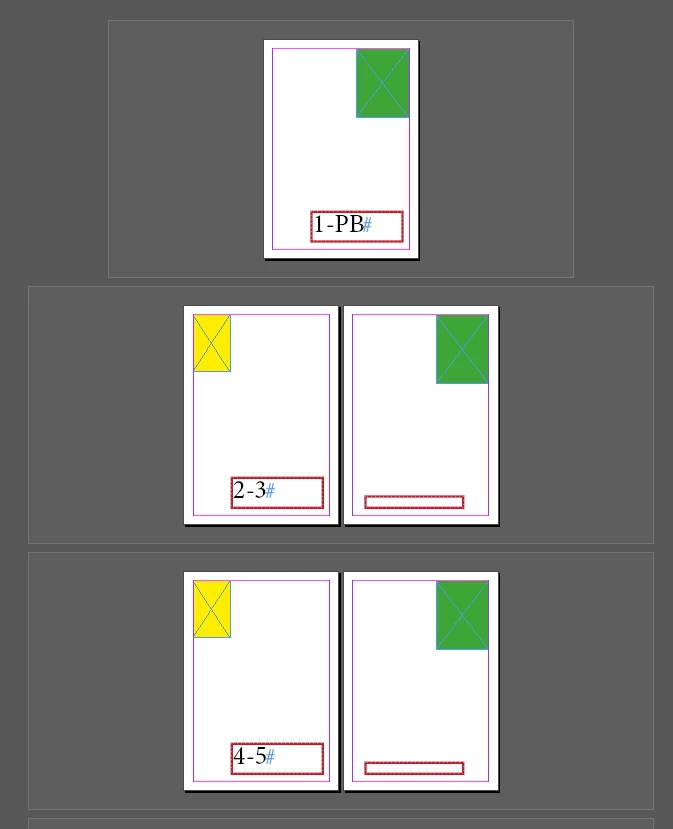
You can use SEPARATE SPREADS script: 


https://gilbertconsulting.com/scripts


Red TextFrames - are on the Master Spreads.

Yellow & Gren Rectangles - on each page.


Script is hardcoded for 1/4" - but it shouldn't be a big deal - enough extra space for most of the situations.


3mm bleeds:


7 replies

faculty-yvr
Participant
May 13, 2025

Really appreciate everyone's responses! Truly didn't expect to hear back for awhile but I'm really blown away. I'm just going through everything in detail. Thanks again! I'll report back soon.

faculty-yvr
Participant
May 15, 2025

Hi everyone, thought i'd provide an update. Thanks again for all your help. The separate spread script that @Robert at ID-Tasker suggested worked for me.

I adjusted the margins within the .jsx file to match my document margins.

I also ended up setting up two separate single master pages, one for the left side, and one for the right side, since the script was doing some weird things to the master pages when set up as facing pages.


I'm certain this isn't the most ideal way to go about it, but what worked for me was extending the text frame of the "next page number" all the way out to the right. (see below)


Now comes the fun part of revising each spread of a 500+ page book, but I'm glad theres a way to make this work for future projects with the same scenario.

Thank you all again!

Robert at ID-Tasker
Legend
May 15, 2025
quote

[...] 

Now comes the fun part of revising each spread of a 500+ page book [...] 


By @faculty-yvr


Piece of cake 😉 you can share your file with me privately - with detailed info what you want to achieve. 


Dave Creamer of IDEAS
Community Expert
Community Expert
May 7, 2025

Just a note about inner bleeds--you ONLY have to split the spreads IF an image is on one page and stops at the spine. You do NOT have to split spreads if an image spans across both left and right pages. The bleed for spanned image pages will automatically pick up bleed from the other pages. (That is, the left page's bleed will be from the right page, and vice versa.)


I think this is a bug, but to solve your problem on split spreads...

Split the spread apart.

Unlock the text frames from the parent pages (Cntl-shift-click or Cmd-shift-click on frames).

Link them again.


David Creamer: Community Expert (ACI and ACE 1995-2023)
Robert at ID-Tasker
Robert at ID-TaskerCorrect answer
Legend
May 7, 2025

@faculty-yvr 


You can use SEPARATE SPREADS script: 


https://gilbertconsulting.com/scripts


Red TextFrames - are on the Master Spreads.

Yellow & Gren Rectangles - on each page.


Script is hardcoded for 1/4" - but it shouldn't be a big deal - enough extra space for most of the situations.


3mm bleeds:


Robert at ID-Tasker
Legend
May 7, 2025

@faculty-yvr 


Or you can change those two values:


to whatever you want - here is the effect of setting it to "30":


Still 3mm bleed.


This script operates in POINTS:


Community Expert
May 7, 2025

Hi @faculty-yvr ,

well, I can see the issue.

Setup of parent page pagination where the first A represents the special character for Current Page name and the second A represents the special character for Next Page name:

In effect all goes well when both pages share the same spread:


But when you have the second page in a different spread it shows like that:


A solution could be to work without parent pages for the pagination like that:


BTW: What is also NOT working is to move the second document page down in the same spread using the Page tool and the Transform panel:


Before using the Transform panel when the second page is selected with the Page tool:


After moving the page to free space on the inner bleed using the Transform panel:


But, if you do this on the parent page AND on the document page all is well again.

Parent pages:


Document pages:


Note: to be able to successfully move the page on the spread far enough in the vertical direction you have to allow for a large number of minimum distance between spreads in InDesign's preferences. And your fixed point in the widget of the Transform panel should be at the top. Also check the option to move page contents in the Control panel when you switched to the Page tool.


Regards,
Uwe Laubender
( Adobe Community Expert )

Robert at ID-Tasker
Legend
May 7, 2025

@Laubender


Why not shift them horizontally - so it will look better?


Community Expert
May 7, 2025

For images spanning across both pages in a spread you just need to include Inside Bleed. 


Then export your document as a PDF with bleed setup correctly and as single pages. 


Then they'll have the appropriate bleed for both pages. 


Are you sure this is what they want you to do? Seems crazy to me.


Dave Creamer of IDEAS
Community Expert
Community Expert
May 6, 2025

Did you group the current-pg and next-pg text frames? It looks like the next-pg frame is on the pasteboard (PB), which should only happen if the frames were grouped (or anchored). 

Can you upload a sample file without page content?


David Creamer: Community Expert (ACI and ACE 1995-2023)
Robert at ID-Tasker
Legend
May 6, 2025

When printer needs separate pages - they need you to export PDF as single pages. 


What kind of book and finishing?