
Known Participant
March 28, 2025
Question

Document invisible/greyed out

  • March 28, 2025
  • 3 replies
  • 729 views

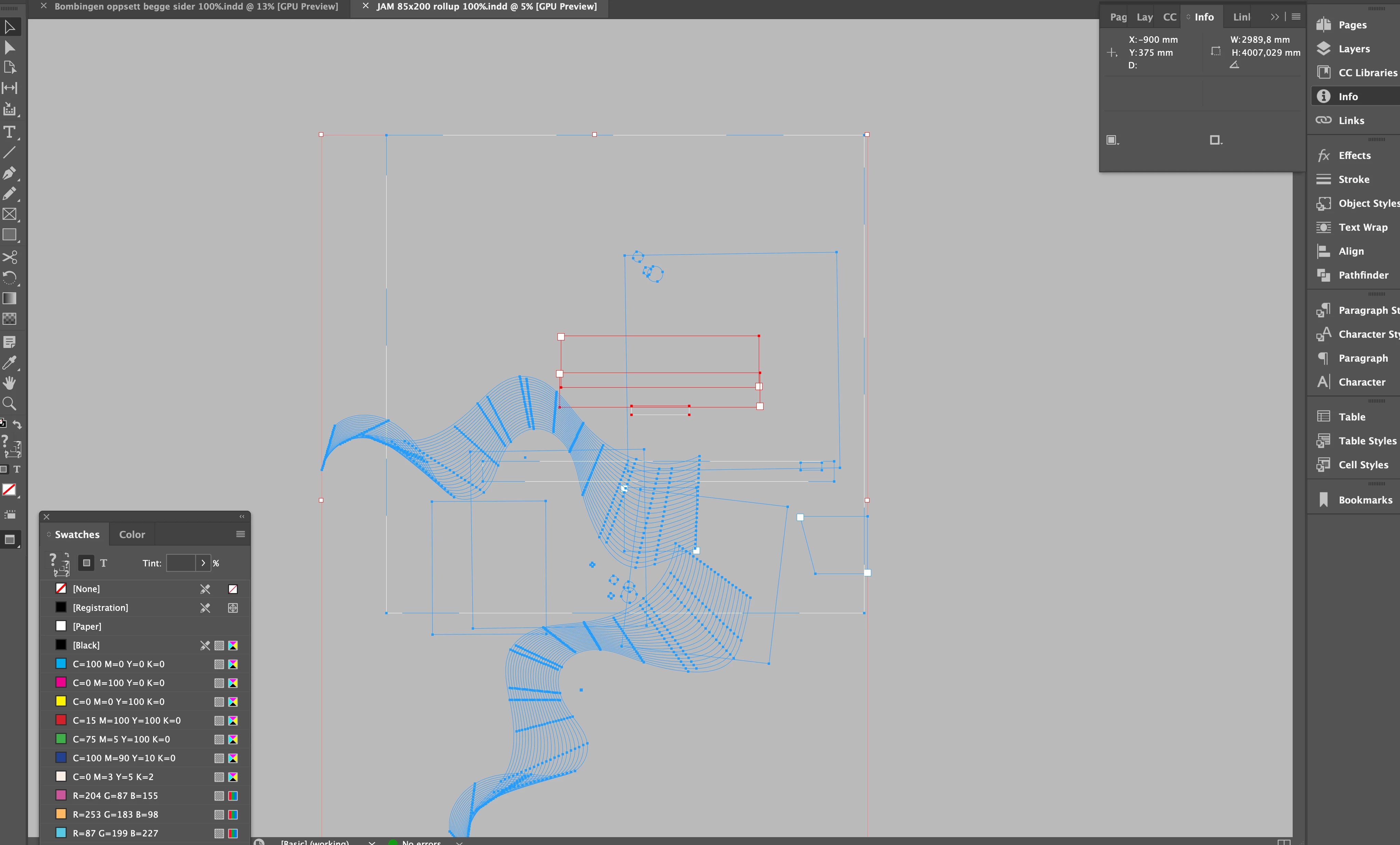
For a couple of years now, even with updated versions and OS, InDesign has had a bug that makes my document invisible. That is, all elements can be selected (see screenshot), and you can make it visible again by enabling “Overprint Preview.” But very frustrating to close and then open the files again to make it visible.

Does anyone have a solution to this? 
3 replies

Frans v.d. Geest
Community Expert
Community Expert
March 28, 2025

On a Mac? Go to InDesign Preferences and turn off GPU rendering.

Reddhare_Author
Known Participant
March 28, 2025

Thanks, I'll give it a try 🙂

Robert at ID-Tasker
Legend
March 28, 2025

@Reddhare_


You're on a Mac - toggle GPU Performance or something like that - in Preferences.


And as you've "GPU preview" added to the titles of your filenames - turn off this option. 


Reddhare_Author
Known Participant
March 28, 2025

Thanks, I will try this!

Community Expert
March 28, 2025

Hello


It looks like you have some very complex vector graphics happening in your file, which InDesign doesn't like.

Are you copying and pasting complex objects from Illustrator or another source and pasting them into InDesign?


This workflow is generally not a good idea as it adds unnecessary complexity to InDesign file, which is not a vector editing application - although it's great for basic vectors. 

More complex vectors like what I think I see here are better saved as a file from Illustrator or wherever they are being created and saved as .ai (with PDF compatibility) - or as a PDFX4a - 

Then. you generally use File>Place to import the graphic to INDesign - which generates a proxy image for display purpose only. 


This makes things run smoother by not having InDesign process complex shapes, which it's not really great at. 

When print/export your file, the proxy image is then replaced by the file.

You can see your links in the Window>Links panel, and can make edits by using the Edit With command from the Links Panel or ALT Double Click on the image to open in the native editing app. 


Reddhare_Author
Known Participant
March 28, 2025

I see your point, but this happens with every document regardless of the complexity of the elements used — even with just a simple square, the same thing happens.

Community Expert
March 28, 2025

Strange - not really sure why that would happen for you.

Can you share your InDesign version (number) and also your system specs including OS and version number?

Usually, even with upgrades to new versions some old files still tinker around in the background folders .


As this is happening with all files 

-----

If you're on a Mac 

Try turning off the GPU Performance in the InDesign settings.

(can you also confirm if it's 2nd monitor or main monitor only?)

-----


-----

Try resetting your preferences:
InDesign 19.3 and newer go to Preferences > General > and click on "Reset Preferences on Quit" and then quit and restart.


Or
Windows: Start InDesign, and then press Shift+Ctrl+Alt. Click Yes when asked if you want to delete preference files.
macOS: While pressing Shift+Option+Command+Control, start InDesign. Click Yes when asked if you want to delete preference files.
A dialog will appear asking to delete the InDesign Preferences, select 'Yes' on this dialog.

More in-depth cleanse of preferences
https://helpx.adobe.com/in/indesign/kb/indesign-preferences-support-file-locations.html


------

As a last resort

----

Reinstalling rarely fixes everything - you can do a complete reinstall using the
Creative Cloud Cleaner Tool https://helpx.adobe.com/creative-cloud/kb/cc-cleaner-tool-installation-problems.html