ricka33429605
Participant
November 7, 2017
Answered

Drop down menu not selecting

  • November 7, 2017
  • 5 replies
  • 11688 views

Hey all,

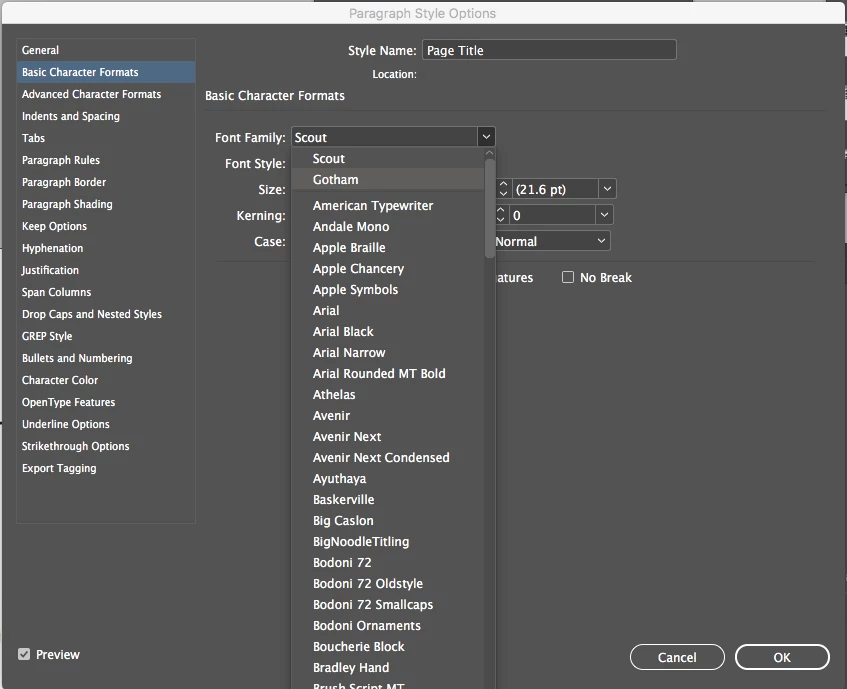
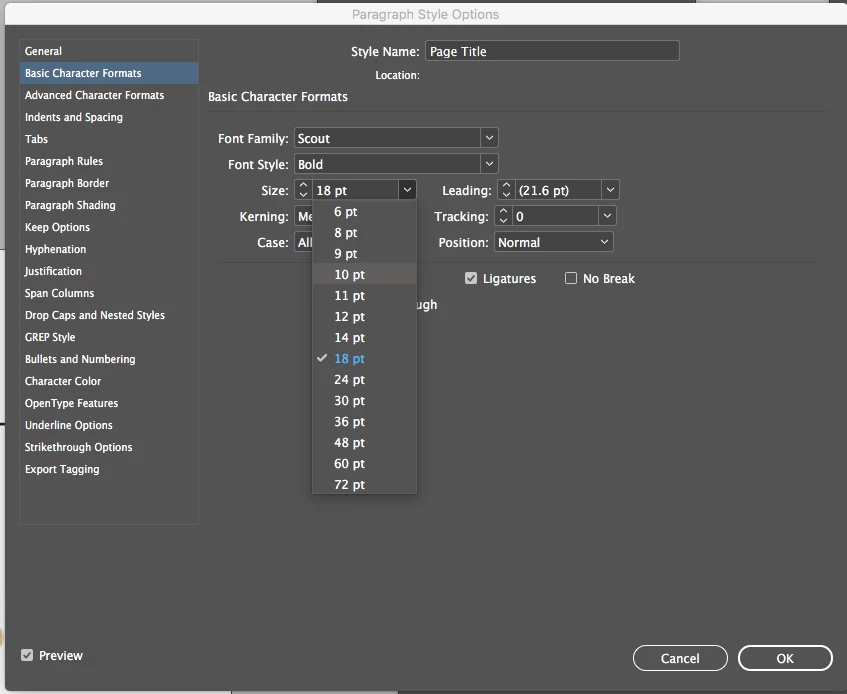
I've been having some recent trouble with selections made from some dropdown menus in InDesign. Hover selection are not 'holding' when I make them with the input returning to the previous selection. I'm having to scroll to a given selection.

Trying to select Gotham, but when the menu collapses it will remain Scout

Trying to select 10pt but the selection will remain 18pt.

This will also happen in some of the selections in the control palette.

Also sometimes choosing from the Character palette will not change a text selection and will only work if I make a change from the Control palette

This topic has been closed for replies.
Correct answer Bill Silbert

Then try resetting your preferences.

To do so:

For Macintosh Users: With InDesign closed Launch a Finder Window in column view and click on your home folder. With the Option Key pressed choose Library from the Finder Go Menu. Within the Library folder find the folder called Preferences and within it find the following two files and delete them: “Adobe InDesign” and “com.adobe.InDesign.plist”. When InDesign is next launched it will create new preference files and the program will be restored to its defaults.

For Windows Users: You can try the quick way of resetting on a PC which is to hold down Ctrl + Alt + Shift when launching InDesign and respond affirmatively when asked if you want to reset. There have been some recent reports that the window asking if you want to reset is not popping up but that the prefs are being reset anyway. If this works then great but if it doesn’t you may have to manually delete them.

To do so:

On Windows 7 and above the preference files are hidden. To find them go to the Control Panel and open Folder Options and then click the View tab. Then select “Show hidden files and folders” or “Show hidden files, folders or drive options” in Advanced Settings (you may be able to skip the previous steps with Windows 10). Then delete (or rename) the folder at the end of this path: C:\Users\<USER>\AppData\Roaming\Adobe\InDesign\<Version #>\<Language> for any versions that you have. Make sure that InDesign is closed when you do this. When you relaunch the program it will create  new preference files and the program will be at its default settings. You should do this for any versions that are there. After deleting launch CC 2018, if the launch is successful, create and save a test file and then quit the program to “confirm” the preferences. It also may be a good idea to reboot your computer after this is done.

Once you relaunch the program you can begin customizing it to your liking.

After you’ve reset up the program (make sure that no document window is open), it is a really good idea to create copies of your personalized “mint” preference files (make sure that you quit the program before copying them—that finalizes your customization) and use them in the future to replace any corrupt versions you may need to delete.

5 replies

kdnon
Known Participant
May 3, 2018

I am now finding that I have this issue pretty consistently in InDesign, Illustrator, and Photoshop, as well as Acrobat. The odds of a preference file corruption on all of these apps at the same time seems pretty low and resetting prefs doesn't seem to help. I never had this issue until I upgraded to CS2018. Seems a software suite issue to me.

Participant
December 20, 2022

This is still happening to me in a newer version of inDesign, 4 years later. How has this still not been fixed?

February 20, 2018

Dear Adobe,

you really have to get your head around this problem and fix it!

Almost every second day I have to go and clear the preference files to solve the dropdown-issue.

But surely that can't be the answer for a product that costs me CHF 58.30 per month!!!!

Participant
February 22, 2018

I have discovered a workaround that often (but not always) solves the problem. This will save you some strife whe under time pressure and this bug (which Adobe basically deny is their issue) occurs. When you click on the drop-down menu, do NOT release the mouse (keep the finger down). Then roll over to your choice and only then let go. I find this works about half the time or even more.

All the best.

jademacfarlane
Participant
March 2, 2018

Thank you! This worked for me and is a quick fix to at least get my work done.

Participant
January 12, 2018

Same here. Prefs deleted but problem described is back sooner or later. Best workaround is restart.

liseann
Participating Frequently
December 13, 2017

Our design team is suffering with our drop down menus not working properly too.
Say in find change you want to change your selection, to story, you can select story but it does not stick, it jumps back to whatever the original selection was.

It comes and goes, restart usually fixes it temporarily. Tried killing Indd prefs cache, working locally. removed 3rd party....

I agree with misteroncel "Seems to be a broader error"

Using the Arrow keys to scroll through the selections works for most menus but not all — not my grep searches. UGH!!!!

Bill Silbert
Community Expert
Community Expert
November 7, 2017

When you say you are making a "Hover" selection are you saying that you're expecting a selection to hold just by hovering over it? You do still have to click on the selection to make it hold. Please clarify if that is what you mean and, if it is, please verify that you are also clicking on the selection which is then not holding.

ricka33429605
Participant
November 7, 2017

Yes, I am clicking.

Bill Silbert
Community Expert
Bill SilbertCommunity ExpertCorrect answer
Community Expert
November 7, 2017

Then try resetting your preferences.

To do so:

For Macintosh Users: With InDesign closed Launch a Finder Window in column view and click on your home folder. With the Option Key pressed choose Library from the Finder Go Menu. Within the Library folder find the folder called Preferences and within it find the following two files and delete them: “Adobe InDesign” and “com.adobe.InDesign.plist”. When InDesign is next launched it will create new preference files and the program will be restored to its defaults.

For Windows Users: You can try the quick way of resetting on a PC which is to hold down Ctrl + Alt + Shift when launching InDesign and respond affirmatively when asked if you want to reset. There have been some recent reports that the window asking if you want to reset is not popping up but that the prefs are being reset anyway. If this works then great but if it doesn’t you may have to manually delete them.

To do so:

On Windows 7 and above the preference files are hidden. To find them go to the Control Panel and open Folder Options and then click the View tab. Then select “Show hidden files and folders” or “Show hidden files, folders or drive options” in Advanced Settings (you may be able to skip the previous steps with Windows 10). Then delete (or rename) the folder at the end of this path: C:\Users\<USER>\AppData\Roaming\Adobe\InDesign\<Version #>\<Language> for any versions that you have. Make sure that InDesign is closed when you do this. When you relaunch the program it will create  new preference files and the program will be at its default settings. You should do this for any versions that are there. After deleting launch CC 2018, if the launch is successful, create and save a test file and then quit the program to “confirm” the preferences. It also may be a good idea to reboot your computer after this is done.

Once you relaunch the program you can begin customizing it to your liking.

After you’ve reset up the program (make sure that no document window is open), it is a really good idea to create copies of your personalized “mint” preference files (make sure that you quit the program before copying them—that finalizes your customization) and use them in the future to replace any corrupt versions you may need to delete.