
dzgnr89
Inspiring
April 13, 2017
Answered

Editing the default [REGISTRATION] and [BLACK] blacks to rich blacks.

  • April 13, 2017
  • 6 replies
  • 18747 views

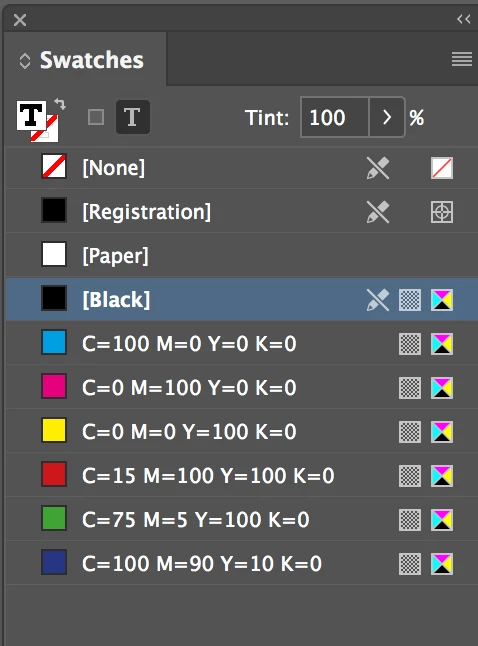
I just realized that one of the reasons for my black text not getting printed black was that in InDesign, I chose the [Black] and [Registration] to choose the black colour. Now I am using a swatch that has

C=75

M=68

Y=67

K=90

Hence, I will always get a rich black colour. I am calling the swatch "Awesome black"

Trouble is, that I cannot edit the  [Black]  and [Registration] to be the values that I want. How can I make all the text and fills which are already present in the document as "Awesome black"?

I opened the find/change box and went to the objects tab but could not figure out the rest of the method. I am using cc2015
    This topic has been closed for replies.
    Correct answer Derek Cross

    https://forums.adobe.com/people/Derek+Cross  wrote

    Exporting to PDF/X-4 converts your InDesign document to CMYK in a format that's suitable for commercial litho and digital press printing (unless your printer has supplied a different spec).

    Re black, my recommendation is to keep all text in black (see screenshot below below) on no account use Registration black.

    Now my questions increase further.

    When I select Pdfx-4:2008. I get a warning with a yellow attention triangle  in my summary telling me that acrobat compatibility was reset to acrobat 7 (pdf1.6) to ensure compliance with the pdf/x (2010) standards. Should I be bothered about this?

    All these years in the output settings, I was choosing colour conversion as “document cmyk” thinking that the printers use cmyk and I will be good to go.

    I used to convert some of my images in Photoshop to CMYK if I was editing them. Otherwise I hoped that Indesign would convert my RGB images to CMYK while exporting the pdf as document cmyk.

    When is a document converted via colour conversion to working cmyk or document cmyk? Why is there any need for doing it if Pdfx-4:2008 is the solution to the printing process?


    Have a look at this tutorial, it will explain all (you can get a 10-day free trial): InDesign: Color Management

    6 replies

    Derek Cross
    Community Expert
    Community Expert
    April 14, 2017

    Also bear in mind, readability issues with something text-heavy like a novel, your "Awesome black" would become a pain in the awesome.

    Derek Cross
    Community Expert
    Community Expert
    April 13, 2017

    I'd also check with your printer about their ink limit – too much and you'll have set-off issues.

    rob day
    Community Expert
    Community Expert
    April 13, 2017

    I just realized that one of the reasons for my black text not getting printed black was that in InDesign, I chose the [Black] and [Registration] to choose the black colour.

    If you are printing to a composite color printer use the Appearance of Black>Printing/Exporting preference to handle the way black only outputs.

    If your document will be printed on an offset press, you don't want to assign a rich black swatch to text because 4-color blacks cause registration problems, and even if the press stays on register small, rich black text will appear bolder. For press work you would only use a rich black for extra large text and large black fills

    simonb61272824
    Inspiring
    October 22, 2021

    Amen to that - I was reading down this thread with growing horror! Although it has (rightly, I think) made me question my PDF settings, which are basically "Press Quality" with crops and bleed manually added and saved as a custom preset. It has always produced great results for me. I arrived here though, because a job I output just now, had all the black as rich black. When I checked the "Appearance of black..." preferences, sure enough "printing and exporting" was set to "output all blacks as rich black". So my question: did this default get changed on the last InDesign update? Because I sure as hell didn't set it to that.

    rob day
    Community Expert
    Community Expert
    October 22, 2021

    The Appearance of Black Printing/Exporting preference would only have an affect when the destination is an RGB driven printer, or the Export Output Destination is set to an RGB space.


    The default Destination for the [Press Quality] preset is Document CMYK, so the reason for the 4-color text would be something else. Setting the Destination to a CMYK destination that conflicts with the document’s CMYK profile would do it, or the conversion could have been forced by the printer at output. Did you check the PDF black values in AcrobatPro? 

    vinny38
    Legend
    April 13, 2017

    Hi

    You can't change [registration] or [black] values.

    To change text color, simply change color value in paragraph styles.

    If you have many or if (oh noooo) you didn't use para styles, you can easily use Find/Change feature to catch [black] text, then change to "Awesome black". (Redefining paragraph style every time you catch a black text is strongly advised).

    Same thing with objects:

    Select "Object" tab in the Find/Change window, search for [black] and change.

    You'll have to do it twice: Fill and stroke.

    Be aware than your printer might curse you if you apply your Rich black to thin elements, such as small text. Also, your rich black won't overprint...

    So, depending on how is your document designed, I would reconsider using rich black for text...

    happie_97
    Community Expert
    Community Expert
    April 13, 2017

    Adjun2,

    I agree with Vinny38 and all of the advice you received on this post so far,

    If you do not have styles already set up, you can just edit the [Basic Paragraph] style and change its color to the swatch you want. Then all of your text will change to that chosen color.

    Keep in mind of all of the cautions you got about not changing the default [Black].

    Derek Cross
    Community Expert
    Community Expert
    April 13, 2017

    For text it's probably wiser to stick to just black.

    happie_97
    Community Expert
    Community Expert
    April 13, 2017

    Hello Arjun2,

    Here is an article explaining how to accomplish this...

    How to change default black to rich black in InDesign - and why you should

    Create your rich black swatch.

    Open the 'Find/change' dialogue box (Ctrl+F or Edit>Find/change...). Click on the 'Object' tab. Then click on the little magnifying glass icon thingy, which has the helpful tool tip 'Specify attributes to find'.

    When you click on the magnifying glass you get the 'Change object format options' dialogue.

    In the 'Find object format' bit, select default black. In the 'Change object format' bit select your rich black swatch of C75, M68, Y67, K90.

    Click 'OK' and all instances of default black will be the rich black you have chosen.

    dzgnr89
    dzgnr89Author
    Inspiring
    April 14, 2017

    Thanks to everyone for replying. Okay, I changed the colour in paragraph styles for the text for which I had originally set paragraph styles. I have some text for which I did not set paragraph styles.

    happie_97  wrote

    Hello Arjun2,

    Here is an article explaining how to accomplish this...

    How to change default black to rich black in InDesign - and why you should

    Create your rich black swatch.

    Open the 'Find/change' dialogue box (Ctrl+F or Edit>Find/change...). Click on the 'Object' tab. Then click on the little magnifying glass icon thingy, which has the helpful tool tip 'Specify attributes to find'.

    When you click on the magnifying glass you get the 'Change object format options' dialogue.

    In the 'Find object format' bit, select default black. In the 'Change object format' bit select your rich black swatch of C75, M68, Y67, K90.

    Click 'OK' and all instances of default black will be the rich black you have chosen.

    I already went through this post. It does not explain about text which does not have any paragraph styles applied. It only speaks about objects.

    I tried to look for selecting all the type of text objects but could not get any such option. See the screenshot.

    https://forums.adobe.com/people/rob+day  wrote

    I just realized that one of the reasons for my black text not getting printed black was that in InDesign, I chose the [Black] and [Registration] to choose the black colour.

    If you are printing to a composite color printer use the Appearance of Black>Printing/Exporting preference to handle the way black only outputs.

    If your document will be printed on an offset press, you don't want to assign a rich black swatch to text because 4-color blacks cause registration problems, and even if the press stays on register small, rich black text will appear bolder. For press work you would only use a rich black for extra large text and large black fills

    Where is the appearance of black option located?

    rob day
    Community Expert
    Community Expert
    April 14, 2017
    Where is the appearance of black option located?

    Under Preferences.

    A document's CMYK profile normally displays [Black] as something less than absolute black because that is what happens on press ( offset inks are transparent). If you are designing for screens or a composite RGB (i.e. Inkjet) printer you can override the profile's behavior.