heds28
Participant
December 16, 2020
Answered

Export a Seperation Preview?

  • December 16, 2020
  • 6 replies
  • 1454 views

I'm wanting to export just a flat jpg, png, pdf don't really care, of a seperation preview but I'm struggling to find a way, or if it is even possible. 


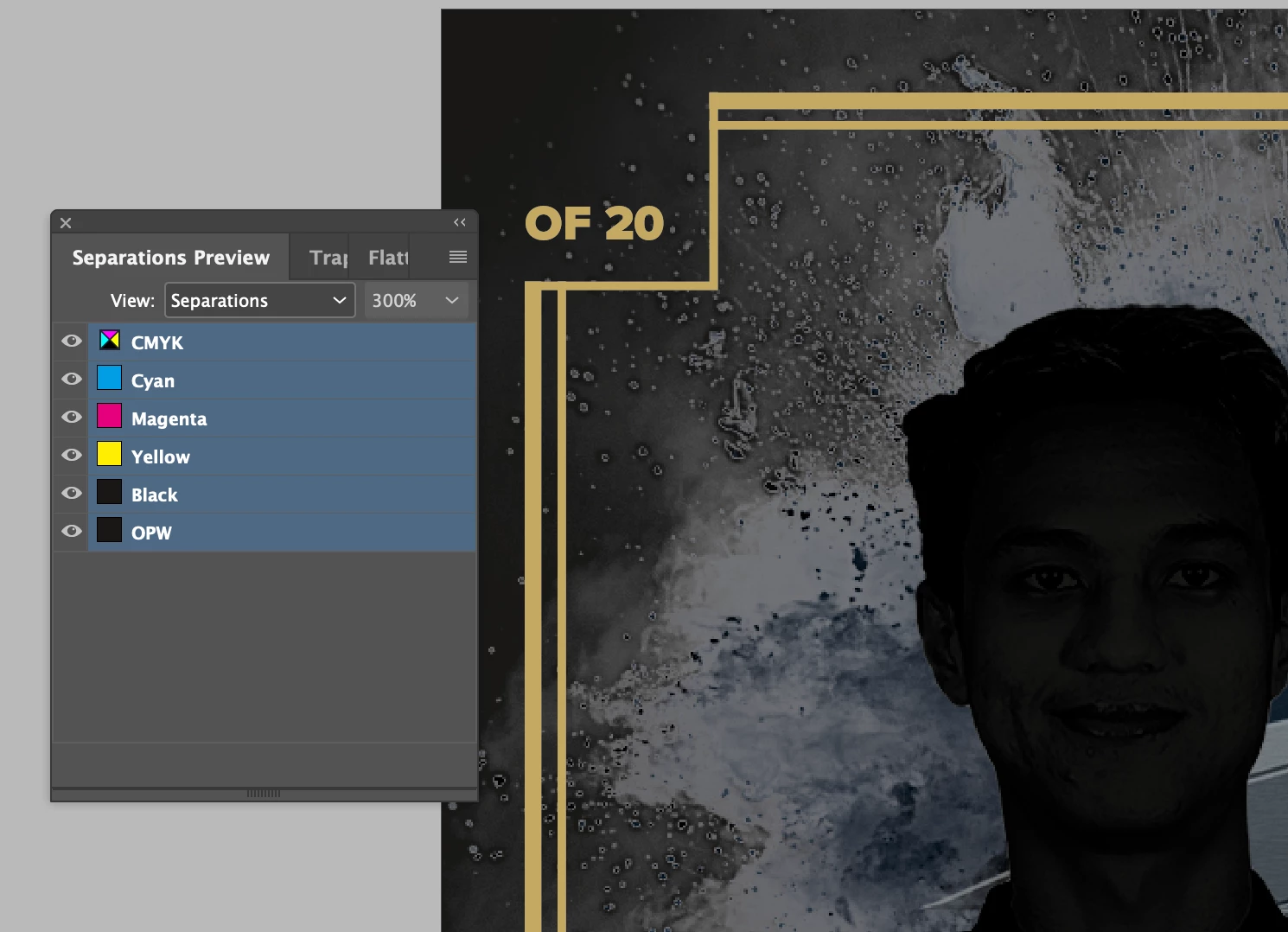
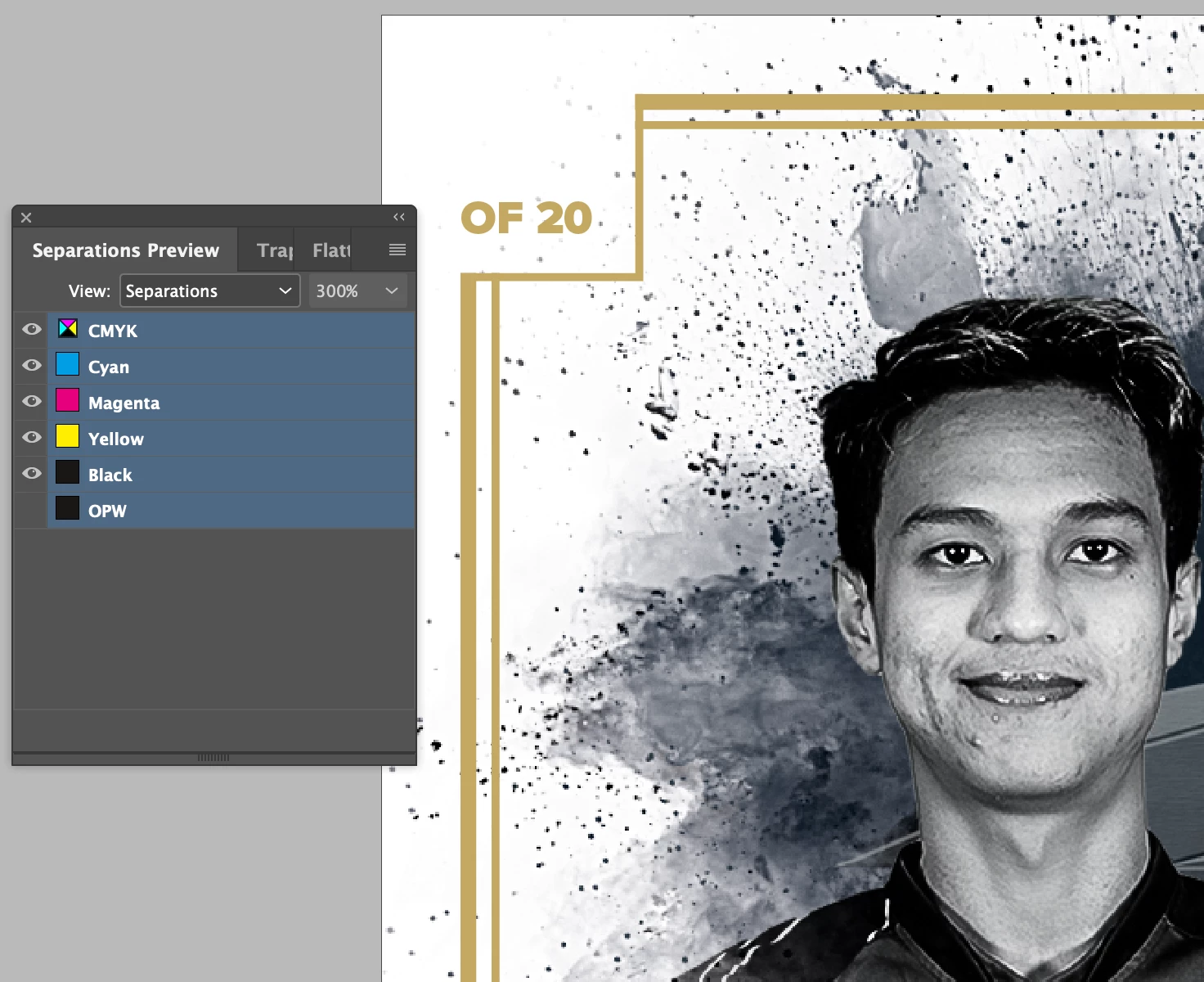
So explantion for reason, I'm printing onto holographic paper. There are areas of the design which the holographic effect will be full, but there are also areas of the design which need to be a matte white. This is done usign a spot ink labelled OPW (Opacity White). This spot ink gets printed first and effectively turns the holographic paper into normal matte paper. 


The problem is, this matte effect is applied over a lot of the design, and so when visible, the design doesn't look like it should. This doesn't matter when sending to the printer, but this does matter when I want other team members or clients to check over the design. To make sure the image looks correct, the text is correct etc. Clients especially aren't the most tech savvy so trying to explain using seperations preview in adobe reader is a no go, and also quite frankly too slow a process for checking over things. 


I just need a flat version of the design, which doesn't show the spot ink. Just like when you flick it off in the seperations preview.


Note I have hundreds of these designs, with a lot of the OPW having to be applied within the main images PSD. So I'd much rather not have to make seperate versions of every image / indesign doc in order to create it.


Only option I see right now, is using seperations preview and taking a screenshot…which is a pretty lame solution.
 

This topic has been closed for replies.
Correct answer Laubender

Hi heds28,

you could create another spot ink that controls the visibility of your spot ink OPW.

Ink OPW will be redirected to the new spot ink using InDesign's Ink Manager.

If you define the new spot ink with CMYK all values set to 0 % the spot will not be visible in an exported PDF.

That is working because all areas that are filled with your spot OPW are overprinting.


You could even move one step further with the exported PDF and convert all colors to sRGB and simulate overprint so that even a browser's PDF viewer will show no viewing problems with overprinting elements.


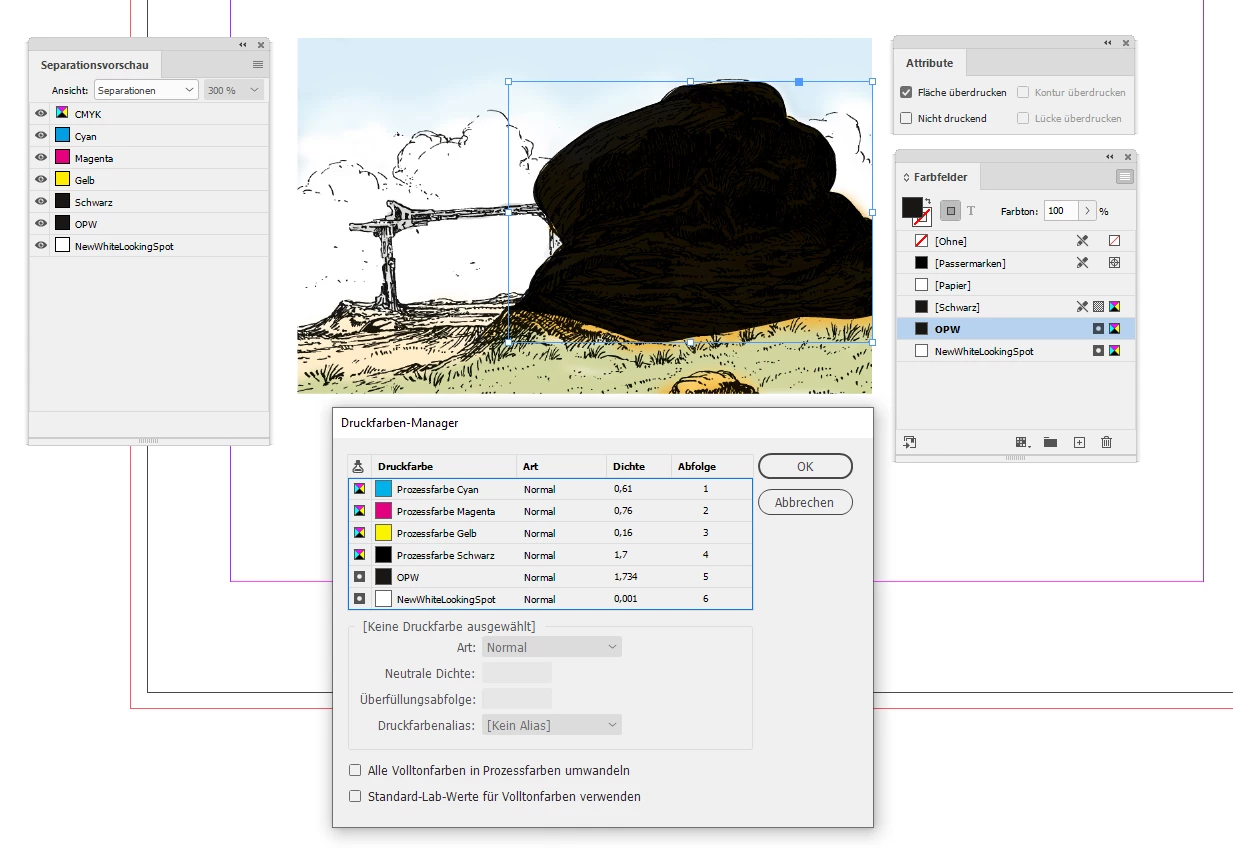
From my German InDesign where the two spot inks are visible and also the Ink Manager:

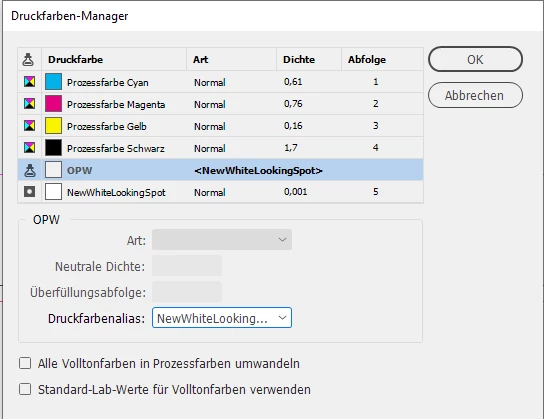
Now we redirect spot OPW to this new spot ink:


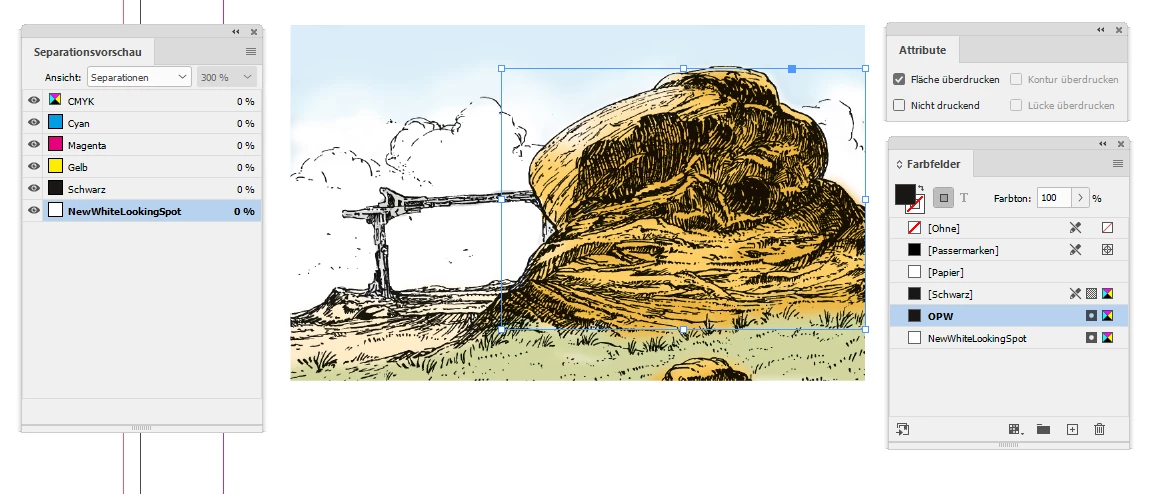
Unfortunately the Ink Manager has no Preview checkbox so we must hit the OK button to see the result with Overprint Preview and Separation Preview:


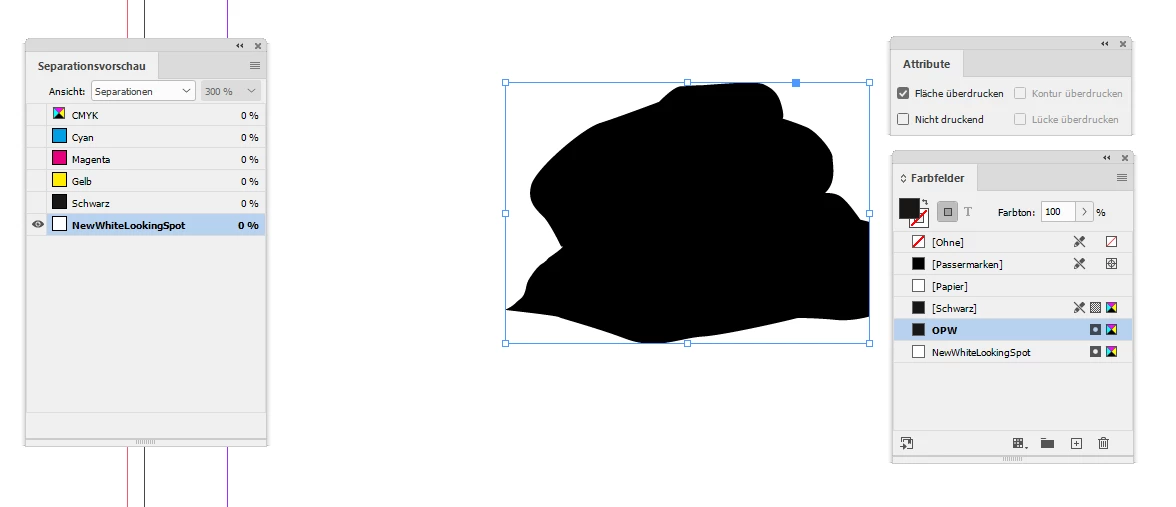
Disable all inks but the new spot ink to see that the spot ink is still filling an area on the page:


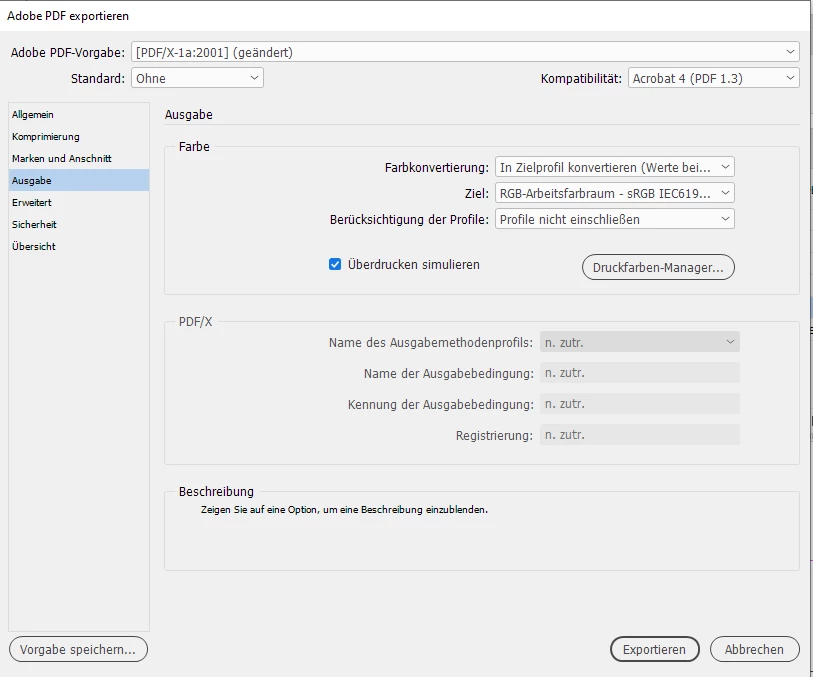
Export to PDF (Print) with PDF version 1.3, converting all colors to sRGB and simulate overprinting:


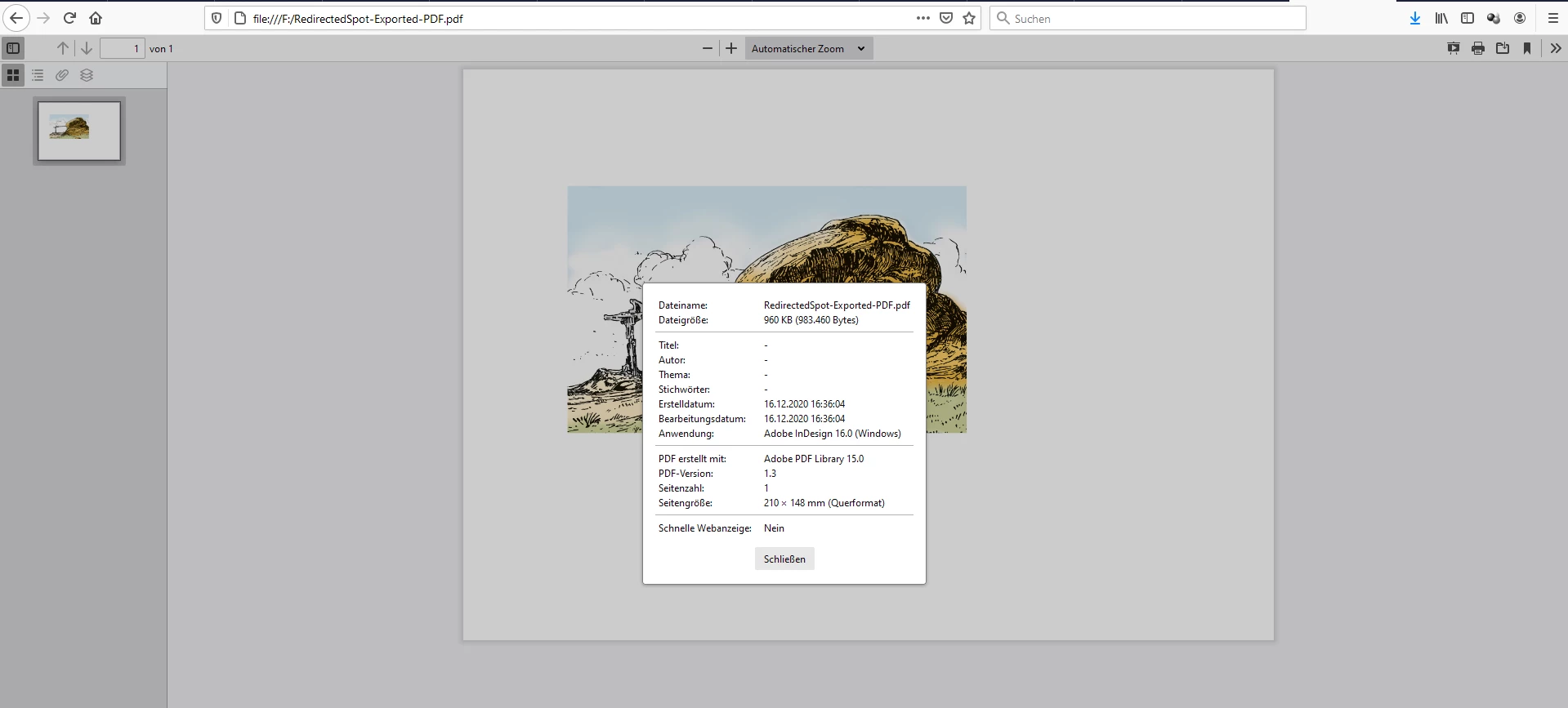
Exported PDF opened in Firefox browser's PDF viewer showing the PDF File Info:


If you like to export to PDF for the printing company undo redirecting spot OPW and remove the helper spot color.


Regards,
Uwe Laubender

( ACP )


6 replies

Luke Jennings3
Community Expert
Community Expert
December 17, 2020

You could try using an Acrobat Preflight fixup to effectively remove the spot white separation on your proof PDFs. Duplicate your PDF, in Acrobat, go to Tools> Print Production> Preflight Fixups, find the fixup Map spot color with a specified name and color values and duplicate it from the fly-out menu (you can't edit an existing preflight, so you need to create a duplicate), change the Source color name, set the destination to 0, 0, 0, 0, save, click Fix to run the preflight. This assumes your spot white is overprinting the other elements (as it appears in your previews). You can add the new preflight to an Acrobat Action using the Action Wizard, so you can easily apply it to other files or folders of files.

Bevi Chagnon - PubCom.com
Legend
December 16, 2020

If you just want a PDF of each separation plate, then File / Print, choose Adobe PDF as the virtual printer, and select Separations in the Output section.


|    Bevi Chagnon   |  Designer, Trainer, & Technologist for Accessible Documents ||    PubCom |    Classes & Books for Accessible InDesign, PDFs & MS Office |
PrepressPro1
Legend
December 17, 2020

This function was removed from Acrobat. You can no longer print separations to PDF. I have tried and get this message.

I have had to resort to using layers for softproofs of opaque white and other opaque treatments and educate clients as to what they are looking at. Even Acrobat Reader allows you to see and turn on and off layers

Bevi Chagnon - PubCom.com
Legend
December 17, 2020

I'm confused: you posted your question in the InDesign forum, but you're trying to do this in Acrobat.

These tasks need to be done from the source file, not from the PDF that's been exported.

You could also repost your question in the Acrobat forum.


|    Bevi Chagnon   |  Designer, Trainer, & Technologist for Accessible Documents ||    PubCom |    Classes & Books for Accessible InDesign, PDFs & MS Office |
LaubenderCommunity ExpertCorrect answer
Community Expert
December 16, 2020

Hi heds28,

you could create another spot ink that controls the visibility of your spot ink OPW.

Ink OPW will be redirected to the new spot ink using InDesign's Ink Manager.

If you define the new spot ink with CMYK all values set to 0 % the spot will not be visible in an exported PDF.

That is working because all areas that are filled with your spot OPW are overprinting.


You could even move one step further with the exported PDF and convert all colors to sRGB and simulate overprint so that even a browser's PDF viewer will show no viewing problems with overprinting elements.


From my German InDesign where the two spot inks are visible and also the Ink Manager:

Now we redirect spot OPW to this new spot ink:


Unfortunately the Ink Manager has no Preview checkbox so we must hit the OK button to see the result with Overprint Preview and Separation Preview:


Disable all inks but the new spot ink to see that the spot ink is still filling an area on the page:


Export to PDF (Print) with PDF version 1.3, converting all colors to sRGB and simulate overprinting:


Exported PDF opened in Firefox browser's PDF viewer showing the PDF File Info:


If you like to export to PDF for the printing company undo redirecting spot OPW and remove the helper spot color.


Regards,
Uwe Laubender

( ACP )


heds28
heds28Author
Participant
January 12, 2021

This worked perfectly. 


Sorry for delayed response, but only just came to another job which requires this. 


Thanks for the help 🙂

Legend
December 16, 2020

The method I use for this when using white ink on foil labels is to temporarily re-define the value of the white ink to a low percentace of cyan (5 or 10%), and set all of the white ink to Multiply. 
This allows team members to see where the white ink will be placed, while still allowing them to properly proof the rest of the file.

rob day
Community Expert
Community Expert
December 16, 2020

Only option I see right now, is using seperations preview and taking a screenshot…which is a pretty lame solution.
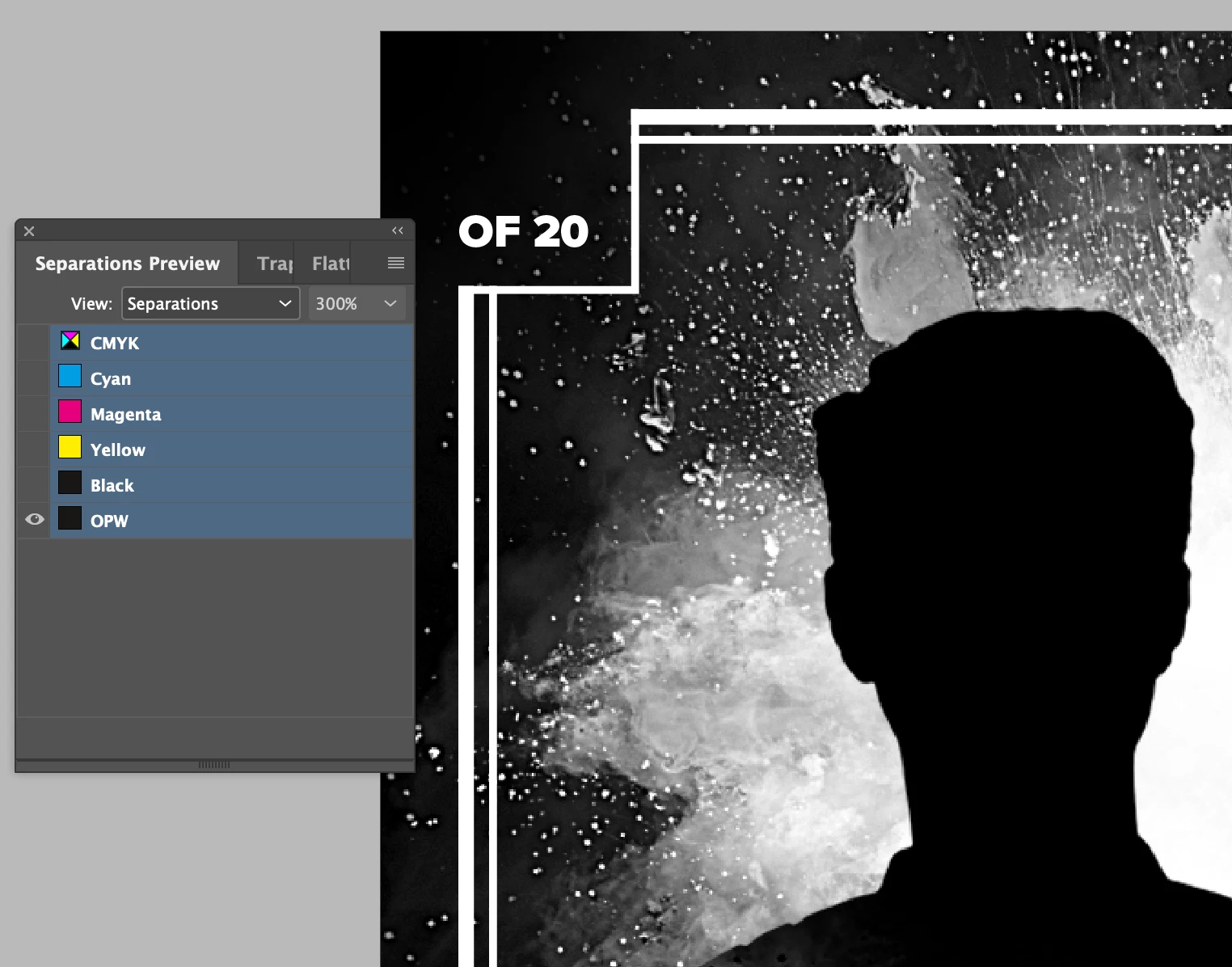
 

In this case I don’t think taking a screen capture is lame at all. The client is only going to use the capture for proofing text and object positions—they are not actually preflighting the files right?


I assume for final production you will be exporting a PDF and not distilling postscript? Unless the document is CMYK only and doesn‘t include transparency, there is some possibility that the distilled separation and the exported separation might not match. Seems like the best option would be to export a PDF using the final production PDF preset, and make the captures from AcrobatPro’s Output Preview

BobLevine
Community Expert
Community Expert
December 16, 2020
You can print to postscript using separations but there is no way to export separations. The postscript files can be distilled using Acrobat.