Dalysuzin
Inspiring
January 26, 2025
Answered

Export pages all out of order...

  • January 26, 2025
  • 6 replies
  • 3227 views

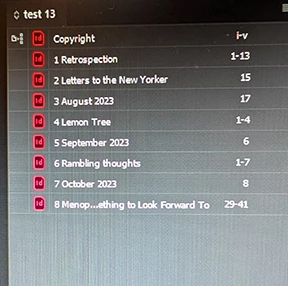
Went to export, and all the page numbers are out of order. The first few tests all was good was perfect. I have no idea what I did. In setup, its seems all correct. 
Correct answer Eugene Tyson

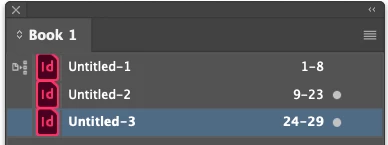
This is a similar situation in my mockup below 

 The page numbers are 1-8 24-38 and 9-14

 

To fix 

Double Click the page numbers in the panel - i.e., 24-38 in the Book Panel


It will open the Document Numbering Options

- and then choose Automatic Page Numbering 

 

Do the same thing for all documents out of order

Then your page numbers will be consecutive


6 replies

Peter Spier
Community Expert
Community Expert
January 27, 2025

Looking at the screen capture of the Book Panel it looks, as @Barb Binder has suggested, that there is a problem with the page ordering, specifically in chapters 4, 6 and 8.

You should check two places, first in the individual chapters on thge first pae of the chapter file that under Numbering and Section Options you are set Automatic Page Numbering (also accessible by selecting an individual chapter file in the Book panel and selecting Document Numbering Options from the panel Menu), and next in the Book panel under Book Page Numbering Options that you are set to Continue from Previous Document.

Once those are correct you can use the Book panel menu to Update Numbering > Update Page and Section Numbering.

Dalysuzin
DalysuzinAuthor
Inspiring
January 27, 2025
Thanks will try

--
Best
Sz
Dalysuzin
DalysuzinAuthor
Inspiring
January 27, 2025

To everyone here, I want to thank everyone for their input. I know it's hard to give recommendations without physically being with a beginner. I am very much a beginner, my first time on InDesign. I've copied and saved all the comments, for future possible use.

For now, I have stored my anxiety pills away. I have thrown out the empty bottles of wine, that have kept me going.  It was recommended to do an Adobe to print PDF, which I have. 

Eugene TysonCommunity ExpertCorrect answer
Community Expert
January 27, 2025

This is a similar situation in my mockup below 

 The page numbers are 1-8 24-38 and 9-14


To fix 

Double Click the page numbers in the panel - i.e., 24-38 in the Book Panel


It will open the Document Numbering Options

- and then choose Automatic Page Numbering 


Do the same thing for all documents out of order

Then your page numbers will be consecutive


Dalysuzin
DalysuzinAuthor
Inspiring
January 27, 2025
Thanks will give this a try too

--
Best
Sz
Willi Adelberger
Community Expert
Community Expert
January 27, 2025

Why is the page numbering from chapter 4 onward not successive. Click on the page part in those lines and correct the page numbering settings of those files!  

why do you print for PDF? Export a PDF for print instead. 

Do you create your PDF from the single file from the file menu or from the book panel menu for all files?

Dalysuzin
DalysuzinAuthor
Inspiring
January 27, 2025

I have no idea why page numbering is not in succession. Are you suggesting that I change each of the pages in the export window? Whether I print for PDF or PDF for print, the number sequence is off.  

Willi Adelberger
Community Expert
Community Expert
January 27, 2025

Click twice in each file line in the panel on  the page number part and then the page numbering settings will open. You have probably manually settings to start with. Set it to automatically continous numbering.

Dont't use ever tprint to create a PDF, use export to PDF from the book panel menue here, when no file or all files are selected.

Robert at ID-Tasker
Legend
January 26, 2025

@Dalysuzin


Just create a new Book - maybe current one got corrupted somehow? 


Than, you can try re-saving all your INDD files with new names. Then you can re-name them - but keep a backup copy if the original files. 


If that still won't help - try IDMLing on each INDD file - export as IDML, open, save with a new name - do not overwrite your original files. Again, you can re-name them - but make sure to create a backup copy of your original files. 


Dalysuzin
DalysuzinAuthor
Inspiring
January 27, 2025

Are you suggesting opening each chapter, saving it with a new name, put in a new folder separate from the original?   I'm not sure what IDMLing is

Robert at ID-Tasker
Legend
January 27, 2025
quote

Are you suggesting opening each chapter, saving it with a new name, put in a new folder separate from the original?   I'm not sure what IDMLing is


By @Dalysuzin


Yes. Or creating a backup of your original files - so you can overwrite your original files. 


When you do just Save - InDesign is preserving Undo History - which become unavailable when you close your document. 


After some time it can accumulate to the point of file corruption. 


IDMLing is a "housekeeping" - it purges all unnecessary information - Undo History, previews, etc. and reorganises file completely. 


IDMLing is the last hope when file get corrupted - but you can avoid it if you'll do Save As with a new name at the end of the day - if you've done a lot of changes - or every few days if you haven't edited your file too much. 


Barb Binder
Community Expert
Community Expert
January 26, 2025

It doesn't look like the pages are correct in your book window before you create the PDF.


It looks like you are exporting 1 through 13, then 15, then 17, then 1 through 4, then 6, then 1 through 7, then 8, then 29 through 41. Or is that what you actually want?


I'd start at the book window and re-sequence the page numbers. And if you're going to use a double-sided view, you want to let InDesign add the blank pages at the end of the chapters at end on odd pages, so let it add page 14 and 16 and 18 etc.


~Barb

~Barb at Rocky Mountain Training
Dalysuzin
DalysuzinAuthor
Inspiring
January 27, 2025

I'm sorry, not sure what you mean start at the book window. Go to the original chapters and redo the page numbers by deleting and redoing in order.

Dave Creamer of IDEAS
Community Expert
Community Expert
January 27, 2025

Are the pages in the order you show in your book?

Compare your book with one of mine. Note the sequential order of the page numbers.

David Creamer: Community Expert (ACI and ACE 1995-2023)
leo.r
Community Expert
Community Expert
January 26, 2025

Can you specify: what format did you export to and what is the exact problem with the resulting file? Also, what are your versions of InDesign and the operating system?

Dalysuzin
DalysuzinAuthor
Inspiring
January 26, 2025

I am a beginner. Indesign 2024. Printing to PDF.  Before this, I tested twice,  all the pages were in perfect order, 122 pages. I can't figure out how to get the pages to be correct, it wasn't a problem before. I must of done something, just don't know what.

leo.r
Community Expert
Community Expert
January 26, 2025

Can you show some examples of pages being out of order in your PDF? Such as screenshots that illustrate the issue. 


Also, what PDF export settings are you using? You're exporting the entire book, right?


And still, what's your operating system version?
