Inspiring
June 18, 2024
Answered

Exporting black is white??

  • June 18, 2024
  • 2 replies
  • 516 views

I have created a desgin, where the text color is black. When I export, PDF or JPEG, it is coloring to white... 

Restarted, an d closed the program. Always the same result.. 

No, advanced object styles appied, color black swatch is solid CMYK colors. No transfer modes.. viewed via adobe acrobat and mac preview. Advice appreacated, thanks! 

 

This topic has been closed for replies.
Correct answer James Gifford—NitroPress

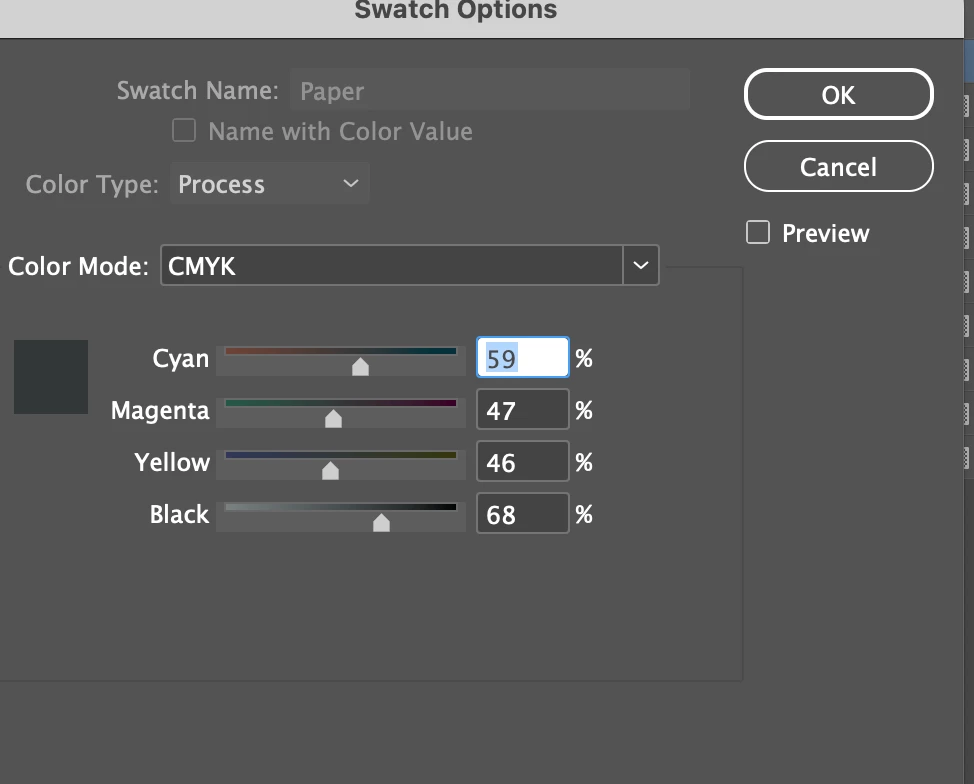
This. To clarify, PAPER is a sort of nonexistent color, displayed white by default and in 99.9% of layouts, and changed to another color only if you are, for example, composing something for print on lime-green paper and need to see how colors and transparency will work on it. It is omitted in all exports including printing  —just "disappears" from the layout, leaving — usually — a white area that's assumed to be the actual paper color.


Basically.... never touch it. 🙂

2 replies

rob day
Community Expert
Community Expert
June 18, 2024

Hi @teenc86508545 , Also some more detail—you have to turn on Overprint Preview to get a soft proof of printing transparent offset inks on a colored sheet [Paper]. And AcrobatPro has the same view in its Print>Output Preview, but it is turned off by default, which is the view you were getting:


InDesign


In AcrobatPro the default paper color is white:


Inspiring
June 18, 2024

Do not use PAPER color for your text. Your paper si still white, so your text is white... Color definition for PAPER color is only for display purposes in InDesign.

James Gifford—NitroPress
Legend
June 18, 2024

This. To clarify, PAPER is a sort of nonexistent color, displayed white by default and in 99.9% of layouts, and changed to another color only if you are, for example, composing something for print on lime-green paper and need to see how colors and transparency will work on it. It is omitted in all exports including printing  —just "disappears" from the layout, leaving — usually — a white area that's assumed to be the actual paper color.


Basically.... never touch it. 🙂