
aa44147539
Participant
April 6, 2018
Resuelto

Exporting darker/contrasted PDFs for a beamer presentation.

  • April 6, 2018
  • 4 respuestas
  • 1069 visualizaciones

Hello,

I've adjusted all my PDFs so they look good when plotted (lighter, usually the plotter makes everything darker when printed in HQ and over thick paper).

Now I'm preparing a beamer presentation with the same documents but they all look way to light and with to less contrast when beamed.

Is there a way in Indesign to make the PDFs darker/+contrasted so I don't have to modify all my drawings and reexport them?

Thanks for your time and help.


AA
Este tema ha sido cerrado para respuestas.
Mejor respuesta de Laubender

Hi AA,

I see a way to darken all elements in your InDesign layout.
More contrasted? No.

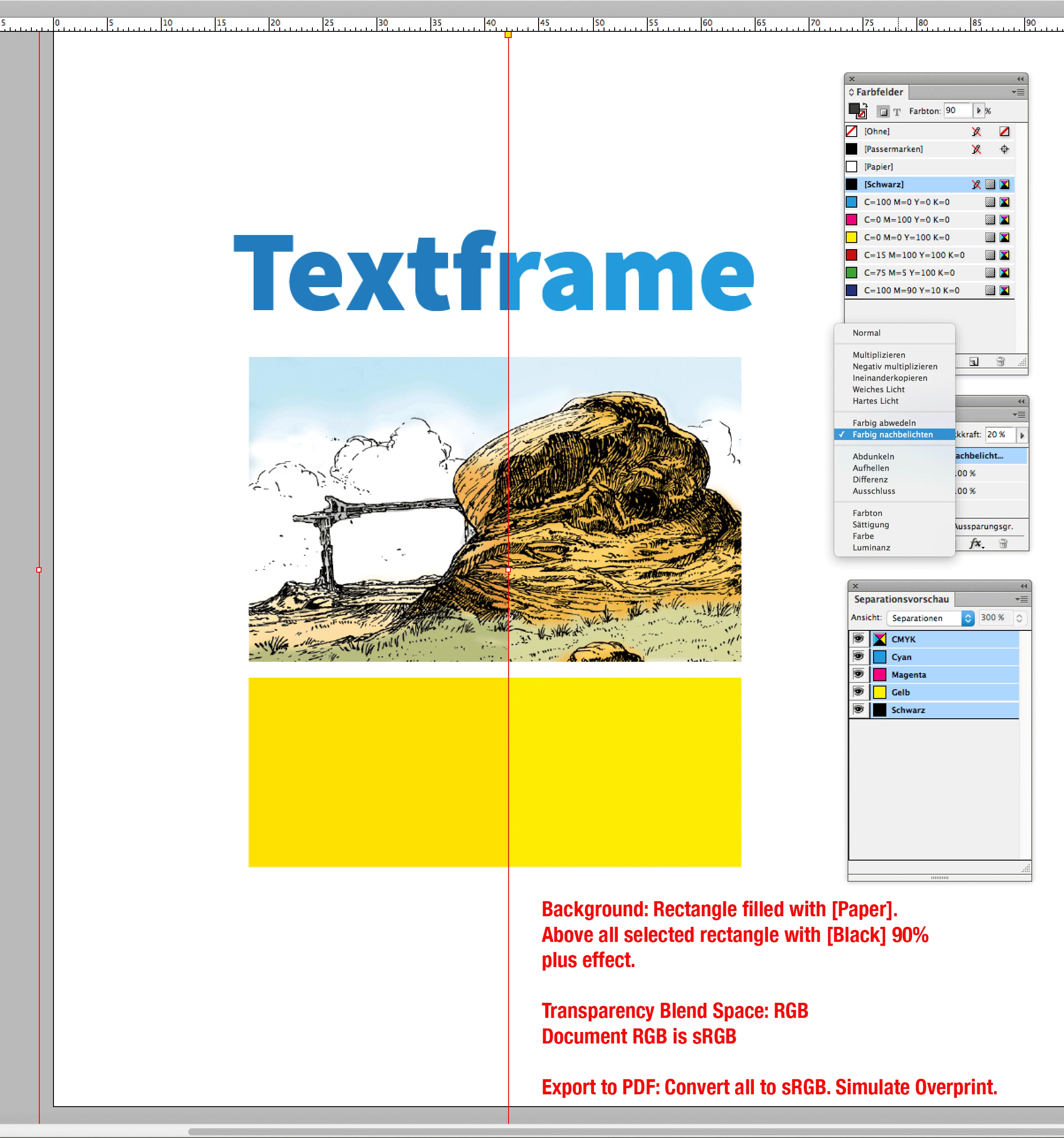
Basically you need a rectangle in the background of all page elements filled with [Paper] and a rectangle above all elements filled with 90% [Black]. The rectangle stacked above all elements has an effect applied with 20%, "Farbig nachbelichten" in my German InDesign. You can play a little with this value to change the darken effect. You also could change the fill of the rectangle to e.g. 85% [Black]:

Transparency Blend Space is set to RGB.

PDF export would require to convert all colors to sRGB and option Simulate Overprint is turned on.

Regards,
Uwe

4 respuestas

rob day
Community Expert
Community Expert
April 6, 2018

Also, what's the color mode of the placed images, colors and PDF export? If the PDF color is CMYK/Grayscale you may be complicating the color management for both the printer and the Beamer display. An all profiled sRGB document might be easier to color manage.

Luke Jennings
Inspiring
April 6, 2018

If you have Acrobat Pro, there is a Preflight fixup that may help, but best practice is to adjust your plotter for color managed output, instead of adjusting your file.

In Acrobat Pro, go to Tools> Print Production> Preflight> Fixups (blue wrench icon)> Convert colors, you will first need to go to the fly-out menu and duplicate the fixup "Tone value adjustment in midtones -10%" (you cannot edit the standard preflight, but you can edit a copy of it). In the new preflight, you will have more options to adjust the curve settings.

rob day
Community Expert
Community Expert
April 6, 2018

lighter, usually the plotter makes everything darker when printed in HQ and over thick paper

Usually what you are describing is handled by color management.

Typically you would work with RGB color and images color corrected to the ideal appearance, and export to PDF/x-4. Then the output and conversion to the printer or plotter space is handled by the printer's profile. It's the reason Adobe apps are color managed, so you don't have to prepare multiple documents. The reason your printer is printing too dark maybe a wrong destination profile.

If Beamer isn't color managed the best you can do is set your RGB profile assignment to sRGB in both ID and Photoshop.

LaubenderCommunity ExpertRespuesta
Community Expert
April 6, 2018

Hi AA,

I see a way to darken all elements in your InDesign layout.
More contrasted? No.

Basically you need a rectangle in the background of all page elements filled with [Paper] and a rectangle above all elements filled with 90% [Black]. The rectangle stacked above all elements has an effect applied with 20%, "Farbig nachbelichten" in my German InDesign. You can play a little with this value to change the darken effect. You also could change the fill of the rectangle to e.g. 85% [Black]:

Transparency Blend Space is set to RGB.

PDF export would require to convert all colors to sRGB and option Simulate Overprint is turned on.

Regards,
Uwe

Community Expert
April 6, 2018

Another idea:

Open your PDF in PhotoShop and change contrast and darkness with an adjustment layer.
Save your results to PDF for presentation.

Regards,
Uwe