Participant
August 6, 2021
Answered

Exporting in 72 dpi in Indesign & Photshop

  • August 6, 2021
  • 2 replies
  • 3738 views

How do i export to 72 dpi without making all my images and fonts blurry for Linked In? Its happening in both indesign and photoshop and im not sure how to solve the issue,,, in either?

This topic has been closed for replies.
Correct answer Brad @ Roaring Mouse

I originally did it in photoshop with 300 ppi and 1200 x 628 pixels....and it had the same result.... it was blurry while trying to export...so i moved to indesign to see if i could solve the problem but had the same issue.


You don't have enough pixels to have a clearer image. What you want to do is impossible.

Your options at 1200 x 628 is to export with or without antialiasing, that's about it.

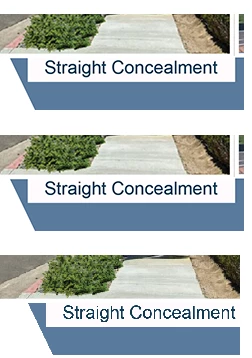
What CAN help you is to export at a higher resolution to start, say export at 300ppi PNG... open this in Photoshop then rescale (Change Image Size) down to your final 1200 x 628 dimensions. The type will still be anitaliased at that size and "blurry", but you may like the results better depending on which interpolation method you select for Resample. In my example, this is what your image could look like at 1200 x 628 using 3 different interpolation methods (the top one is "Bicubic (smooth gradients)"; the middle one is "Bicubic sharper (reduction)"; and the last one is "nearest neighbour" which gives the highest contrast on type, but it ain't pretty. You WANT antialiasing to trick the eye to see smoother type.
 

2 replies

rob day
Community Expert
Community Expert
August 6, 2021

Can you show a screen capture of the page you are exporting? Maybe you are setting the text too small to resolved in a 1200 x 628 pixel image? Also are you viewing the image at 100% in Photoshop?

BobLevine
Community Expert
Community Expert
August 6, 2021
How about you back up and tell us what you're trying to do here.
Participant
August 6, 2021

I am trying to export a graphic with two images & text from Indesign 

https://documentcloud.adobe.com/link/track?uri=urn:aaid:scds:US:7203d074-6c09-4c54-b1f2-031ee89c5d0c 

and export as either a JPG or PNG without it the text, graphics, photos becoming blurry... 


Brad @ Roaring Mouse
Community Expert
Brad @ Roaring MouseCommunity ExpertCorrect answer
Community Expert
August 7, 2021

I originally did it in photoshop with 300 ppi and 1200 x 628 pixels....and it had the same result.... it was blurry while trying to export...so i moved to indesign to see if i could solve the problem but had the same issue.


You don't have enough pixels to have a clearer image. What you want to do is impossible.

Your options at 1200 x 628 is to export with or without antialiasing, that's about it.

What CAN help you is to export at a higher resolution to start, say export at 300ppi PNG... open this in Photoshop then rescale (Change Image Size) down to your final 1200 x 628 dimensions. The type will still be anitaliased at that size and "blurry", but you may like the results better depending on which interpolation method you select for Resample. In my example, this is what your image could look like at 1200 x 628 using 3 different interpolation methods (the top one is "Bicubic (smooth gradients)"; the middle one is "Bicubic sharper (reduction)"; and the last one is "nearest neighbour" which gives the highest contrast on type, but it ain't pretty. You WANT antialiasing to trick the eye to see smoother type.