Participant
July 17, 2024
Answered

Extract Colour Codes Quickly

  • July 17, 2024
  • 2 replies
  • 5030 views

Is there a way to extract HEX, RGB and CMYK colour codes quickly instead of copying and pasting each individually? Is there a way to select the colour and for Adobe to provide the codes at once? I have a large number of colours I need to do this for in a brand guidelines document I have created for a client.


Thank you in advance 🙂

This topic has been closed for replies.
Correct answer Nick Passmore

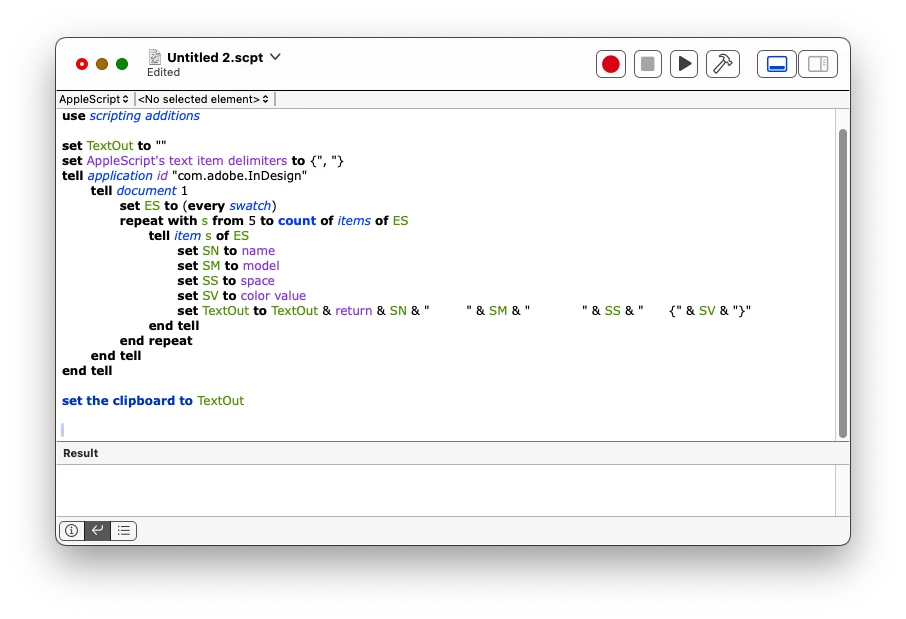
To use the script you will need to copy the text above into a new blank file by launching the Script Editor app. Don't let the dumb quote marks get smartened because that will cause the script to fail to compile — should be fine if you just copy from your browser to Script Editor. Compile the script  by clicking on the hammer icon and it should look like this. 


Open your InDesign file and then click the black triangle to run the script. 


You should then have the list of colors on your clipboard.


If it does what you want, save the script file and put it in "Macintosh HD:Applications:Adobe InDesign XXXX:Scripts:Scripts Panel" so that you can run it from inside InDesign. 


You could add this line to the end of the script to confirm that the list has been created.


display dialog TextOut buttons {"OK"} default button "OK" giving up after 10


This script is very simple (crude) and has no error trapping for, for instance, there being no InDesign file open, but it won't do any harm.


InDesign's scriptability is amazingly powerful by the way!


Hope that helps.

2 replies

rob day
Community Expert
Community Expert
July 17, 2024

Hi @Sophie Hooper , Also, for branding color you have to consider the affect of color profiles on RGB and CMYK color—the appearance of any RGB or CMYK value will change depending on the profile assignment. Using a device independant color space like Lab (Pantone Solid ink colors) as the source color for the brand is the best approach—this post might help:


https://community.adobe.com/t5/indesign-discussions/branding-color-guide/td-p/10818696


Participant
July 17, 2024

Thank you for this 🙂

Ingo_Moeller
Participant
October 26, 2024

for me it didn't work. The script said "the space is write protected"

any idea how to fix this?

thank you ver much in advance!

Participating Frequently
July 17, 2024

If you are using a Mac this AppleScript will put a tab-delimited list, derived from the active InDesign document, onto your clipboard. It ignores the first four built-in InDesign swatches.


If you are on a PC I'm sure someone could do the same in JavaScript.


use AppleScript version "2.4" -- Yosemite (10.10) or later
use scripting additions

set TextOut to ""
set AppleScript's text item delimiters to {", "}
tell application id "com.adobe.InDesign"
	tell document 1
		set ES to (every swatch)
		repeat with s from 5 to count of items of ES
			tell item s of ES
				set SN to name
				set SM to model
				set SS to space
				set SV to color value
				set TextOut to TextOut & return & SN & "		" & SM & "		" & SS & "	{" & SV & "}"
			end tell
		end repeat
	end tell
end tell

set the clipboard to TextOut


Participant
July 17, 2024

Thank you for this! I'm new to working with scripts in Adobe - sorry for the silly question, but how do I add and use this in InDesign? I'm on a Mac. 

Nick PassmoreCorrect answer
Participating Frequently
July 18, 2024

To use the script you will need to copy the text above into a new blank file by launching the Script Editor app. Don't let the dumb quote marks get smartened because that will cause the script to fail to compile — should be fine if you just copy from your browser to Script Editor. Compile the script  by clicking on the hammer icon and it should look like this. 


Open your InDesign file and then click the black triangle to run the script. 


You should then have the list of colors on your clipboard.


If it does what you want, save the script file and put it in "Macintosh HD:Applications:Adobe InDesign XXXX:Scripts:Scripts Panel" so that you can run it from inside InDesign. 


You could add this line to the end of the script to confirm that the list has been created.


display dialog TextOut buttons {"OK"} default button "OK" giving up after 10


This script is very simple (crude) and has no error trapping for, for instance, there being no InDesign file open, but it won't do any harm.


InDesign's scriptability is amazingly powerful by the way!


Hope that helps.