melissag39955869
Participant
June 14, 2023
Answered

Files not opening to "full screen"

  • June 14, 2023
  • 3 replies
  • 279 views

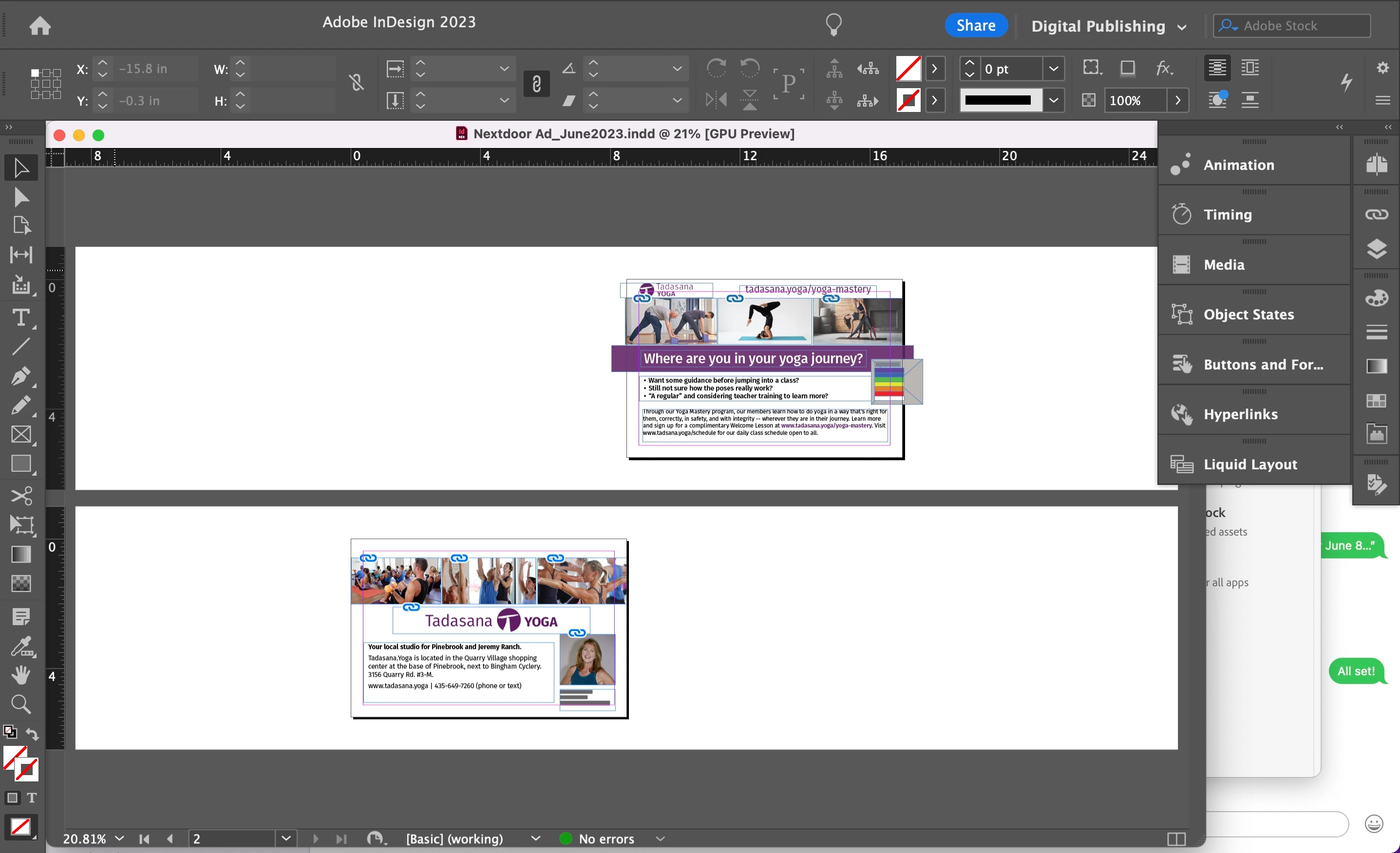
Not even sure how best to describe this - please see image. Can't get the files to open completely so the bar across top disappears.

This topic has been closed for replies.
Correct answer Barb Binder

Hi @melissag39955869:


You have the Application Frame disabled. Use Window > Application Frame to restore it. That should also re-dock your floating window. If it doesn't then choose Window > Arrange > Consolidate all Windows.


~Barb

3 replies

Barb Binder
Community Expert
Barb BinderCommunity ExpertCorrect answer
Community Expert
June 14, 2023

Hi @melissag39955869:


You have the Application Frame disabled. Use Window > Application Frame to restore it. That should also re-dock your floating window. If it doesn't then choose Window > Arrange > Consolidate all Windows.


~Barb

~Barb at Rocky Mountain Training
melissag39955869
Participant
June 15, 2023

Thank you, Barb. Appreciate the other replies - this was the one that worked!

Steve Werner
Community Expert
Community Expert
June 14, 2023

It appears you're using the Digital Publishing workspace. By default, that workspace will arrange the panels so they're open fully. Go to theWorkspace menu and choose Reset Digital Publishing and it will return to that configuration.

ryanw86974605
Participant
June 14, 2023

Drag the popout window header and hold it over bottom of the Control panel at the top til you see a blue line. After you let go it should snap into the rest of the interface.