casinclaire
Inspiring
July 10, 2021
Answered

Fill/stroke/text color options all grayed out in swatches panel

  • July 10, 2021
  • 2 replies
  • 5250 views

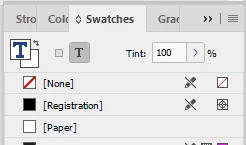
As shown by the attached image, my color options for both object and text are grayed out in the swatches panel. I've Googled for info, plus read a pertinent post or two here in the forum, and everything suggests deleteing the cache and/or preferences (I have yet to read that anyone has solved the problem by doing so). I've deleted the cache, with no change. I'm reluctant to delete the preferences if there is any other option. Does anyone have any other solutions to try? I'm using CC 2021 on a Windows 10 machine with tons of RAM, etc. Thanks for any input. This is driving me nuts!
 

This topic has been closed for replies.
Correct answer casinclaire

I did mention earlier that it is all documents. But thanks for the response. It probably IS going to come down to resetting my preferences or, possibly, reinstalling. The Swatches panel is semi-dismembered, really. The fill/stroke icon is not even there, and nothing else will respond, there in the top part.


No idea what caused the problem in the first place, but some part of InD must have been corrupted. I skipped resetting preferences and went right to uninstall/reinstall because I could keep the preferences and ditch them later as a last resort if the reinstall didn't fix the problem.


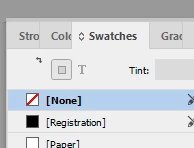
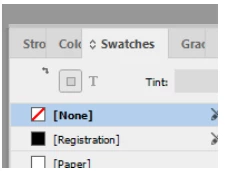
It seems to have fixed it. My icons are back and appear to be acting normally. Compare the two screenshots below. The "before" and the "after."


I appreciate all the comments and everyone jumping to my aid. Reinstalling is such a simple fix, I'm almost embarrassed to have posted about this in the first place. But I truly had never run into this before and, as mentioned previously, at first I thought it was something Adobe had changed for some unfathomable reason. Anyway, all fixed, and if this happens to anyone else, don't waste your time trying to figure it out. Just reinstall. (And you can keep your preferences that way!)


2 replies

Steve Werner
Community Expert
Community Expert
July 10, 2021

Here's a description of how the Swatches panel in InDesign works (not the way you're expecting it to work):


https://creativepro.com/why-is-the-new-swatch-button-grayed-out-in-indesign/


casinclaire
Inspiring
July 10, 2021

Steve, thanks. I appreciate the link. But the "new swatch" button isn't my problem.  If you scroll up to my initial message, you'll see a screenshot showing that the icons for fill and stroke, and also text, at the top of the Swatches panel, are completely inert in my Swatches panel.  And it doesn't seem to matter what I have selected, in any document, in any workspace.  They just do not become available under any circumstance. The main icon where you switch between fill and stroke doesn't even show up.

Peter Spier
Community Expert
Community Expert
July 11, 2021

No idea what caused the problem in the first place, but some part of InD must have been corrupted. I skipped resetting preferences and went right to uninstall/reinstall because I could keep the preferences and ditch them later as a last resort if the reinstall didn't fix the problem.


It seems to have fixed it. My icons are back and appear to be acting normally. Compare the two screenshots below. The "before" and the "after."


I appreciate all the comments and everyone jumping to my aid. Reinstalling is such a simple fix, I'm almost embarrassed to have posted about this in the first place. But I truly had never run into this before and, as mentioned previously, at first I thought it was something Adobe had changed for some unfathomable reason. Anyway, all fixed, and if this happens to anyone else, don't waste your time trying to figure it out. Just reinstall. (And you can keep your preferences that way!)


Glad it's fixed.


Replacing prefs is even easier than a reinstall. Do yourself a favor and make a backup copy of the prefs files that you can just copy back into place if you ever need to do it.

J E L
Community Expert
Community Expert
July 10, 2021

@casinclaire It's hard to tell from your screenshot. What text or object are you trying to apply the color to? Once the item is selected and you try to apply a stroke or fill color the swatches panel is grayed out? Is this only happening in one document or all documents? Any more info will help us help you to troubleshoot the issue.

casinclaire
Inspiring
July 10, 2021

This is basically the perpetual state of the Swatches panel at this time. I can select text or object, and the icon focus changes (e.g., in the screenshot below, I have selected a line of magenta text, and the focus has switched to the T) but outside of that, the icons remain unresponsive.  No color shows in the icon and I cannot apply or change a color  -- neither fill nor stroke -- via the icons. Also, note that the main color chip is missing, so I also can't switch BETWEEN fill and stroke. Everything remains gray. 


I am able to select text or object and then create a new color swatch and apply color in that way. I can also select something and choose another color from the swatches, but I cannot control whether it applies to fill or stroke. The icons at top of the Swatches panel remain gray no matter what. I have to go through a lot of gyrations, for instance, to apply a stroke to text and color it appropriately. I have to use the Color panel to do the switching between stroke and fill.  (See second screenshot.)


If I absolutely MUST reset preferences, I will, but I'd like to make sure there isn't some other option before I open myself up for all that work. I have a lot of specialized preferences and workspaces (I know I can save the workspaces).


Oh, and you asked if it is just one doc or all -- it is all docs, and it's been like this for weeks, no matter what document I work on. I kept thinking I was just selecting something incorrectly and sloughed it off -- a vague thought on the side as I continued to work -- but today, when I really needed to use this feature extensively, it has finally dawned on me that it is not me -- it is InDesign, somehow or some way, not operating correctly.


Peter Spier
Community Expert
Community Expert
July 10, 2021

Is this happening in all your workspaces? Have you tried the reset [workspace] command?


Resetting the prefs does not affect your workspaces, so you won't need to recreate those.