
Participant
May 17, 2020
Answered

Fix inverse corners in InDesign 2019

  • May 17, 2020
  • 3 replies
  • 1183 views
When I create a rectangle with inverse rounded corners it looks like the image included. If I import a document created on an earlier version of Indesign where the inverse rounded corners are symmetrical Indesign 2019 displays them like this. When I export to pdf they still look like this.
Anyone got any ideas how to fix it?
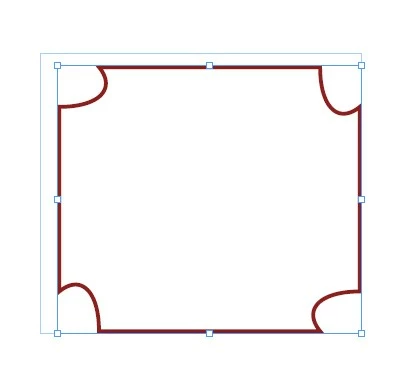
 
{Renamed by MOD}
This topic has been closed for replies.
Correct answer Steve Werner

Try restoring your InDesign preferences:


Adobe InDesign: Rebuilding Preferences and Cache Files ...www.rockymountaintraining.com › Adobe InDesign


If it only happens in one document, save the file as IDML (File > Save As > InDesign CS4 or later [IDML]) to eliminate corruption.

3 replies

Community Expert
May 18, 2020

Hi keefb46,

hm… You should be able to convert this shape back to symmetrical inverse rounded corners.


Object > Convert Shape


Select the object.

[1] Convert the shape to a rectangle.

[2] Convert the rectangle to a rectangle with inverse rounded corners.


Then set the radii of the inverse rounded corners.

If you are lucky you could skip step 1.


Regards,
Uwe Laubender

( ACP )

Community Expert
May 18, 2020

keefb46 said:

"If I import a document created on an earlier version of Indesign where the inverse rounded corners are symmetrical Indesign 2019 displays them like this."


Hi keefb46,

I assume that this object from the earlier version of InDesign was already converted to paths by opening and closing the path of the object. And maybe then it was transformed with the Direct Selection Tool ( the white arrow ) ?


A rectangle with 4 path points where Inverse Corners are applied:


vs. the "same" rectangle with the path opened so that it is in fact now not a rectangle, but a polygon with 8 path points:


Nevertheless, if you draw out a new rectangle in InDesign 2020 this should never happen.

Inverse Rounded Corners are a feature that creates always symmetrical shapes when applied the first time to a rectangle.


Can you show the rectangle selected with the Direct Selection Tool so that we can see its path points?


Regards,
Uwe Laubender

( ACP )

Steve Werner
Community Expert
Steve WernerCommunity ExpertCorrect answer
Community Expert
May 17, 2020

Try restoring your InDesign preferences:


Adobe InDesign: Rebuilding Preferences and Cache Files ...www.rockymountaintraining.com › Adobe InDesign


If it only happens in one document, save the file as IDML (File > Save As > InDesign CS4 or later [IDML]) to eliminate corruption.

keefb46Author
Participant
May 26, 2020

Sorry for the delay in replying bur I have been on a deadline & didn't want to do anything until it had passed.

I tried Steve's suggestion & it did te trick. Many thanks.